— ideapeel Blog




What are the biggest UI/UX design trends in 2026?
The biggest UI/UX design trends in 2026 are AI as an optional copilot, adaptive personalization, purposeful motion, accessibility controlled by the user, fluid typography, raw and structured layouts, and design systems built to scale. The common thread is intent. Interfaces are judged less by how they look and more by whether they build trust and help people finish a task.
That is the short answer. The rest of this guide explains each trend, who it suits, and where it can go wrong, so you can pick the ones worth your budget.
How we picked these trends
Most trend lists read like a mood board. They show pretty screens and stop there. We took a different route. We compared what several leading design publications are saying, then checked which topics people actually search for, and finally asked a simple question of each trend: does it change a business result?
So every trend below includes the user problem it solves and the business effect to expect. If a trend is mostly decoration, we say so.
A quick note on terms. UI is what people see and touch. UX is how the whole experience feels and performs. In 2026 the two are hard to separate, which is why we treat them together.
The trends at a glance
- AI as a copilot, not an autopilot
- Hyper-personalized, adaptive interfaces
- Conversational and multimodal interaction
- Predictive UX with restraint
- Purposeful motion
- Raw, structural aesthetics
- Accessibility with user control
- Fluid typography
- Anti-glass: the pushback on Liquid Glass
- Crafted over prompted
- Smarter dashboards for SaaS
- Dark mode as a system preference
- Mobile-first, thumb-first design
- Privacy and ethics built into the flow
- Design systems that scale with AI
1. AI as a copilot, not an autopilot
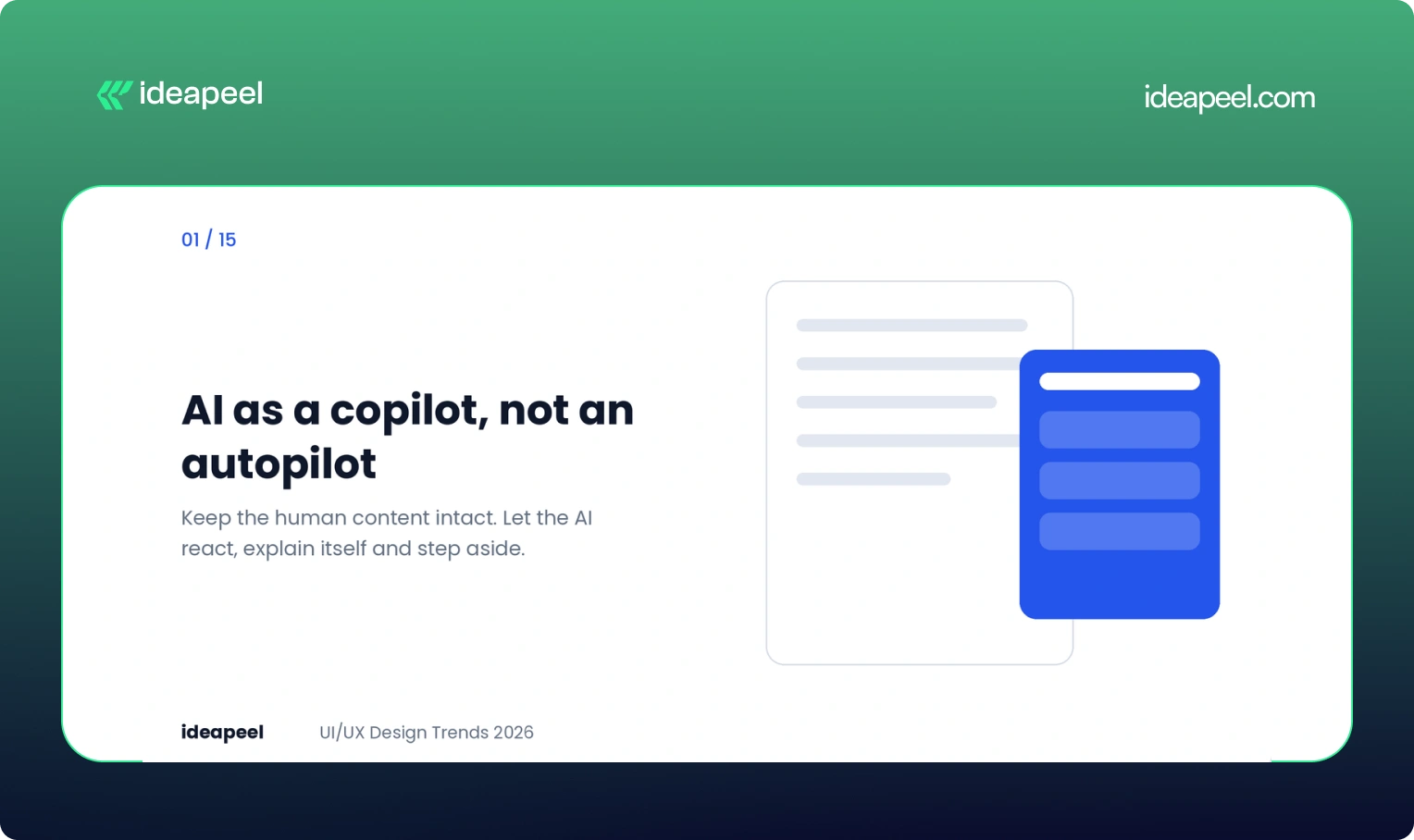
The strongest AI interfaces right now do not take over the page. They sit in a side panel and wait to be asked.
Google's Gemini in Chrome is a good example. Someone reading a cake recipe asks how to make it dairy-free. The original recipe stays untouched. A panel opens beside it with swaps, such as plant-based butter or oat milk, and the person decides what to use. Nothing is overwritten and the panel can be closed.
The lesson for product teams is simple. Keep the human's content intact, let the AI react instead of interrupt, and always give a way out. The scale of the shift is real: in Figma's 2025 AI report, 51% of Figma users working on AI products were building agents, up from 21% the year before.
Business impact: Copilots that respect control earn trust, and trust is what moves a person from trying a feature to depending on it. Explain what the AI did and why, and adoption goes up.
2. Hyper-personalized, adaptive interfaces
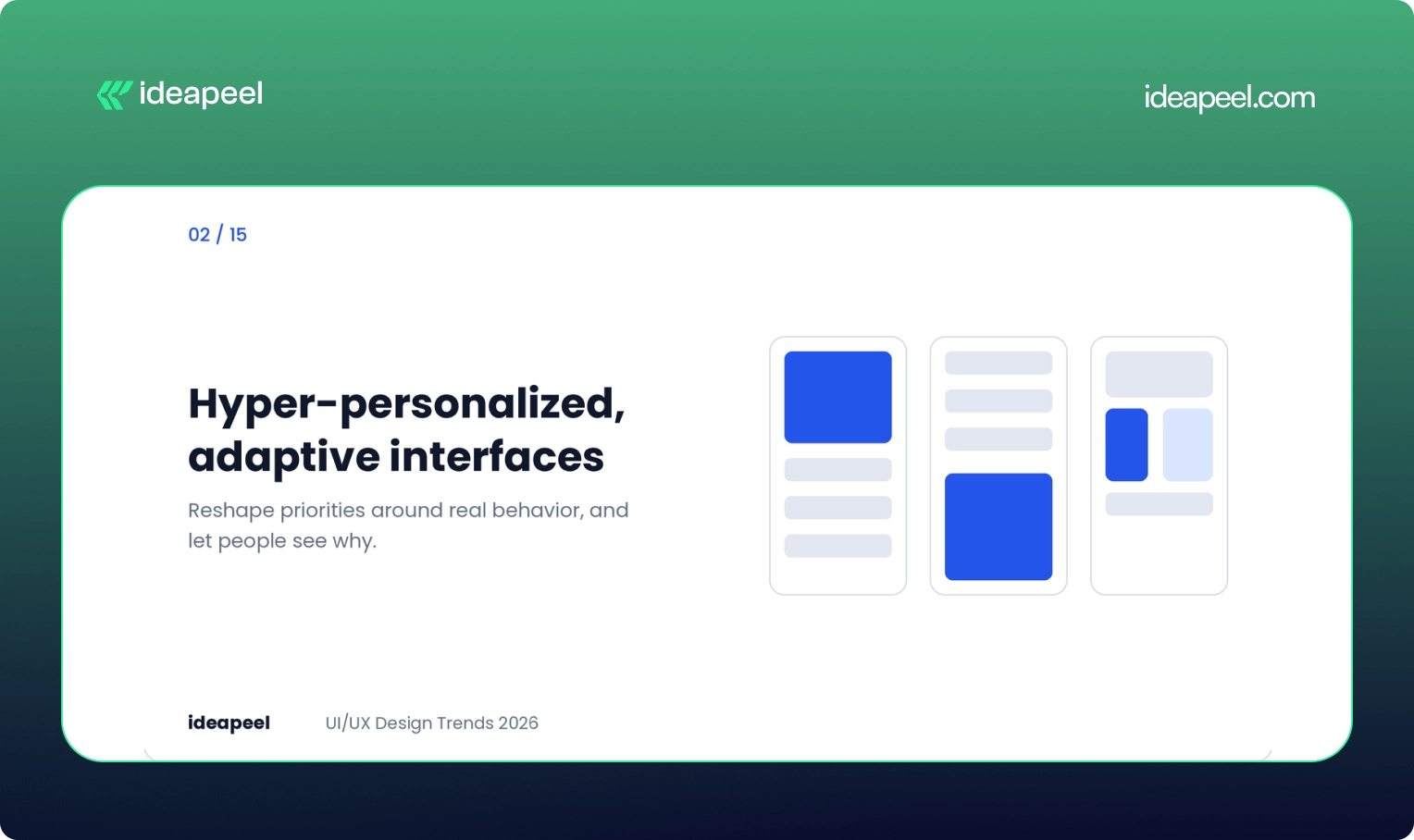
Static layouts built for an average user are losing ground. Interfaces now reshape content and priorities around real behavior, not around personas drawn up in a workshop.
The risk is overreach. A screen that rearranges itself without warning feels broken, not smart. Good personalization is visible, reversible and consistent in structure. Let people see why something was shown and let them turn it off.
Business impact: Relevant experiences raise engagement and retention. This matters most for digital products with several user types, where one fixed layout always fails somebody.
3. Conversational and multimodal interaction
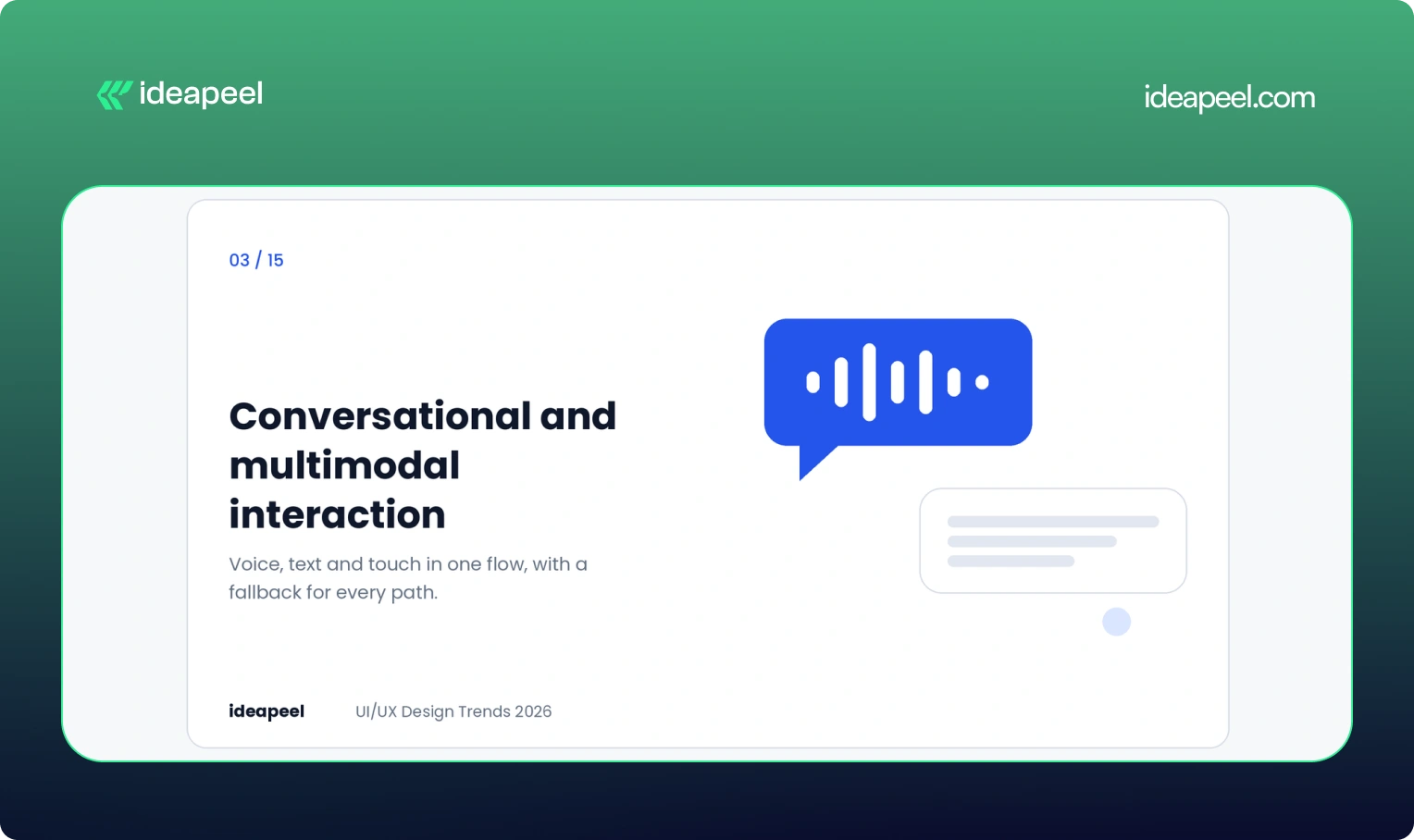
Voice, text, touch and gesture are blending into one flow. A person might speak a request, tap to refine it and type a correction, all in the same task.
Designing for this means designing conversations, not just screens. Think about what happens when the system mishears, when someone interrupts, and when voice is not an option. The fallback path is as important as the happy path.
Business impact: Lower effort in hands-busy or complex tasks, and better access for people who cannot use a standard mouse and keyboard.
4. Predictive UX with restraint
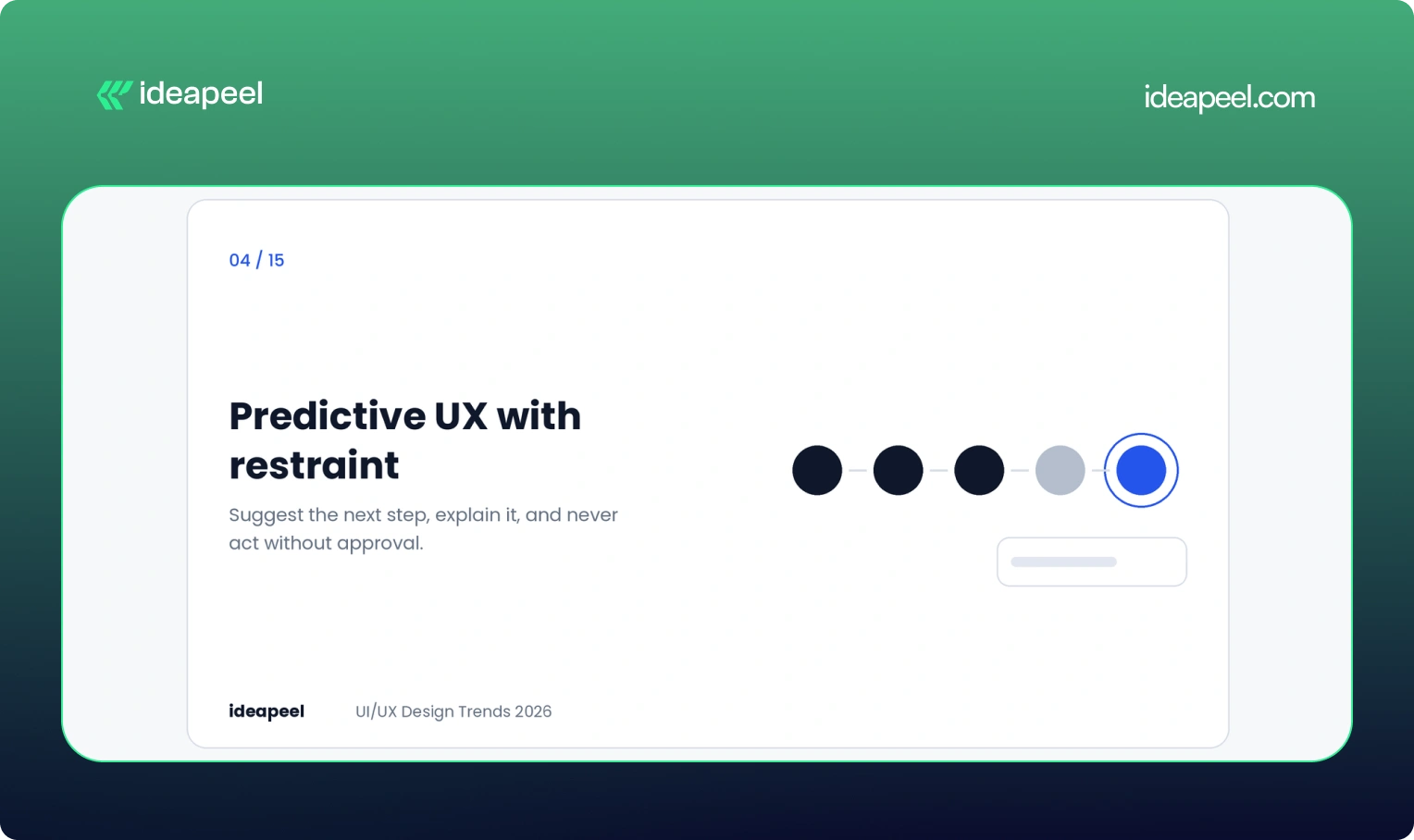
Prediction is easy now. Restraint is the hard part. An interface that surfaces the right shortcut at the right moment feels helpful. One that guesses wrong and cannot be undone feels pushy.
Three rules keep prediction honest. Explain the suggestion in plain words. Make it easy to dismiss. Never take an action the person did not approve.
Business impact: Fewer steps to value, as long as suggestions stay accurate. A bad guess costs more trust than a good guess earns.
5. Purposeful motion
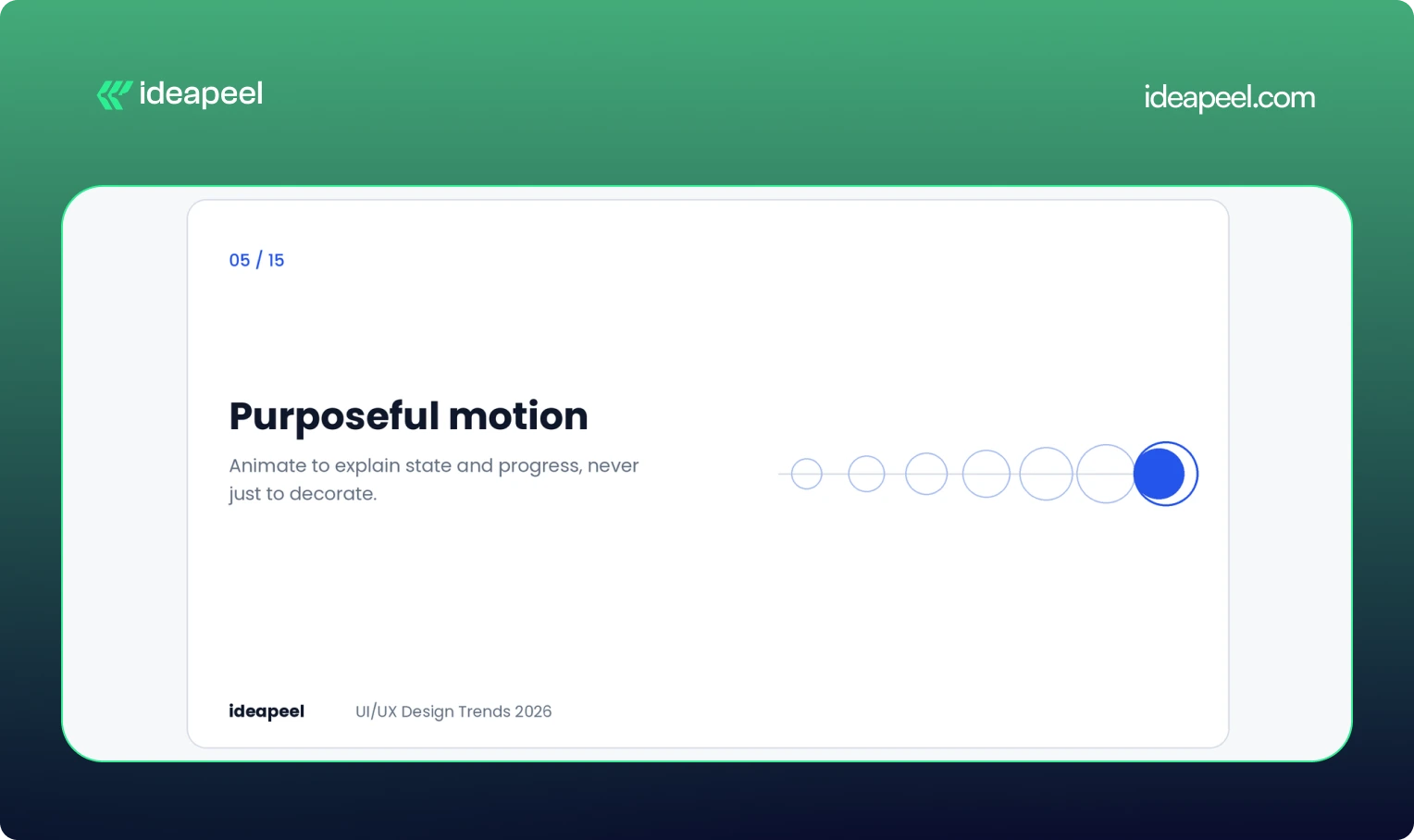
Motion in 2026 has to earn its place. Bouncing buttons and sparkling hover states are fading. Animation that explains state, structure or progress is staying.
Here is a detail many teams miss. Product designer Emil Kowalski has shown that a short, deliberate delay on form submissions can make people more confident their change went through. Two identical submit buttons, one confirming instantly and one pausing briefly with a processing state, produced different levels of belief. The instant one can feel like nothing happened.
This is not a rule for everything. In high-frequency tools, speed still wins. For rare and important actions like payments or password changes, a visible beat of feedback reads as reliability.
Business impact: Fewer double submissions, fewer support tickets and more confidence at checkout and signup.
6. Raw, structural aesthetics
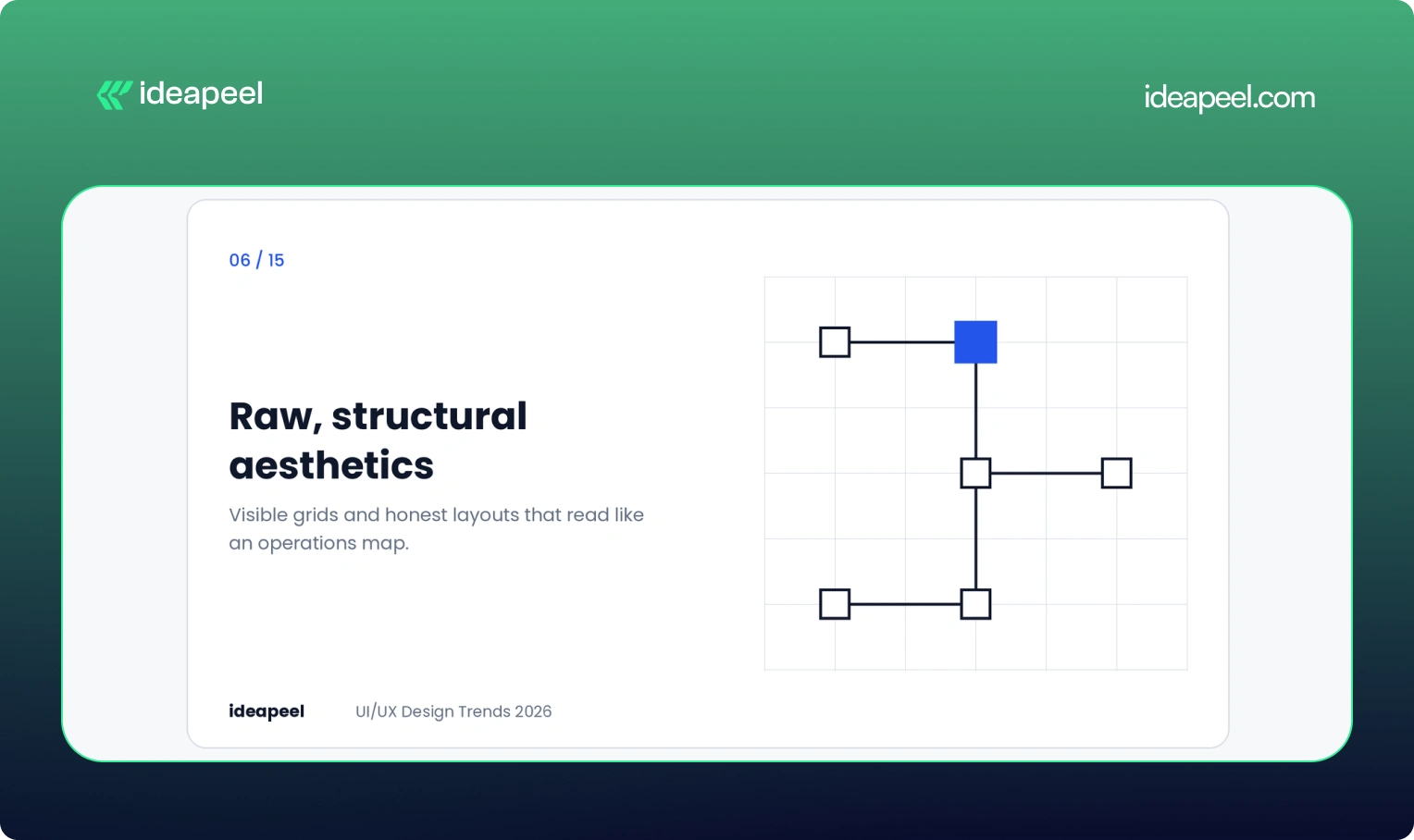
After years of pastel gradients, rounded toggles and friendly illustration, many professional products now look the same. The response is a return to visible grids, monospaced type and wireframe logic.
We saw this work well on a fintech project for Crezco, a product that moves money between banks and accounting tools. The diagram showed a total amount flowing through a central engine and splitting into tax and payroll payments, with square nodes and hard connectors. It read like an operations map, not a marketing page. Finance teams could scan it in seconds.
This is not ugliness on purpose. It is clarity treated as a visual style, and it suits products where the audience values accuracy over charm.
Business impact: Faster comprehension and a more serious, trustworthy tone for B2B and fintech buyers.
7. Accessibility with user control
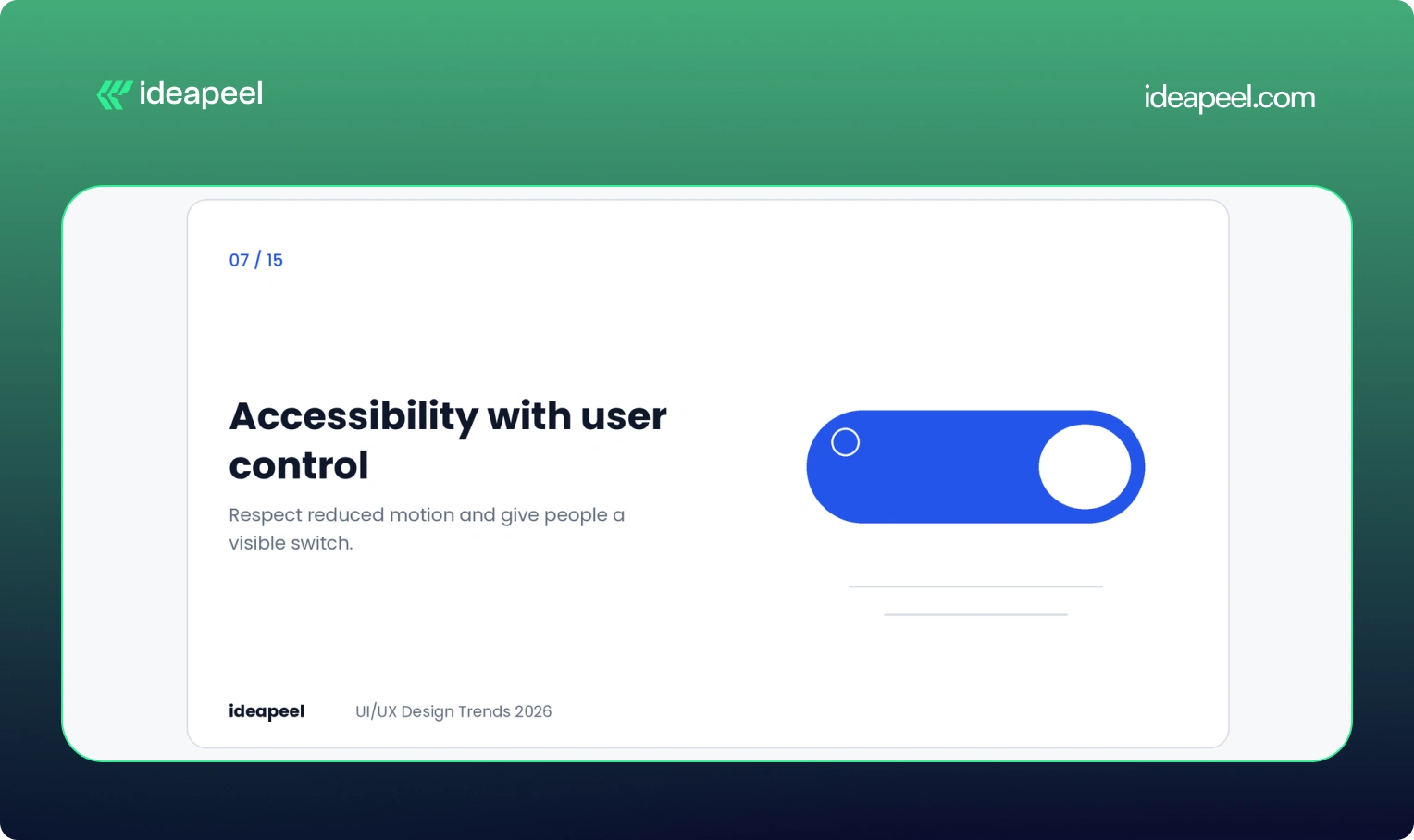
Accessibility has moved from a compliance task to a design default. The sharpest 2026 example is giving users control over motion.
Some people get dizzy or distracted by animation, especially those with vestibular conditions. Respecting the system setting called prefers-reduced-motion is the baseline. Adding a visible toggle on top of it is a strong signal of care. You can read how the setting works in the MDN documentation on prefers-reduced-motion.
Beyond motion, the basics still decide outcomes: readable contrast, full keyboard navigation, clear focus states and plain language. The W3C WCAG guidelines remain the reference point. These choices also help people who are tired, stressed, on a bad connection or using one hand, so they improve the experience for nearly everyone.
Business impact: A wider audience, lower legal risk and better usability scores across the board.
8. Fluid typography
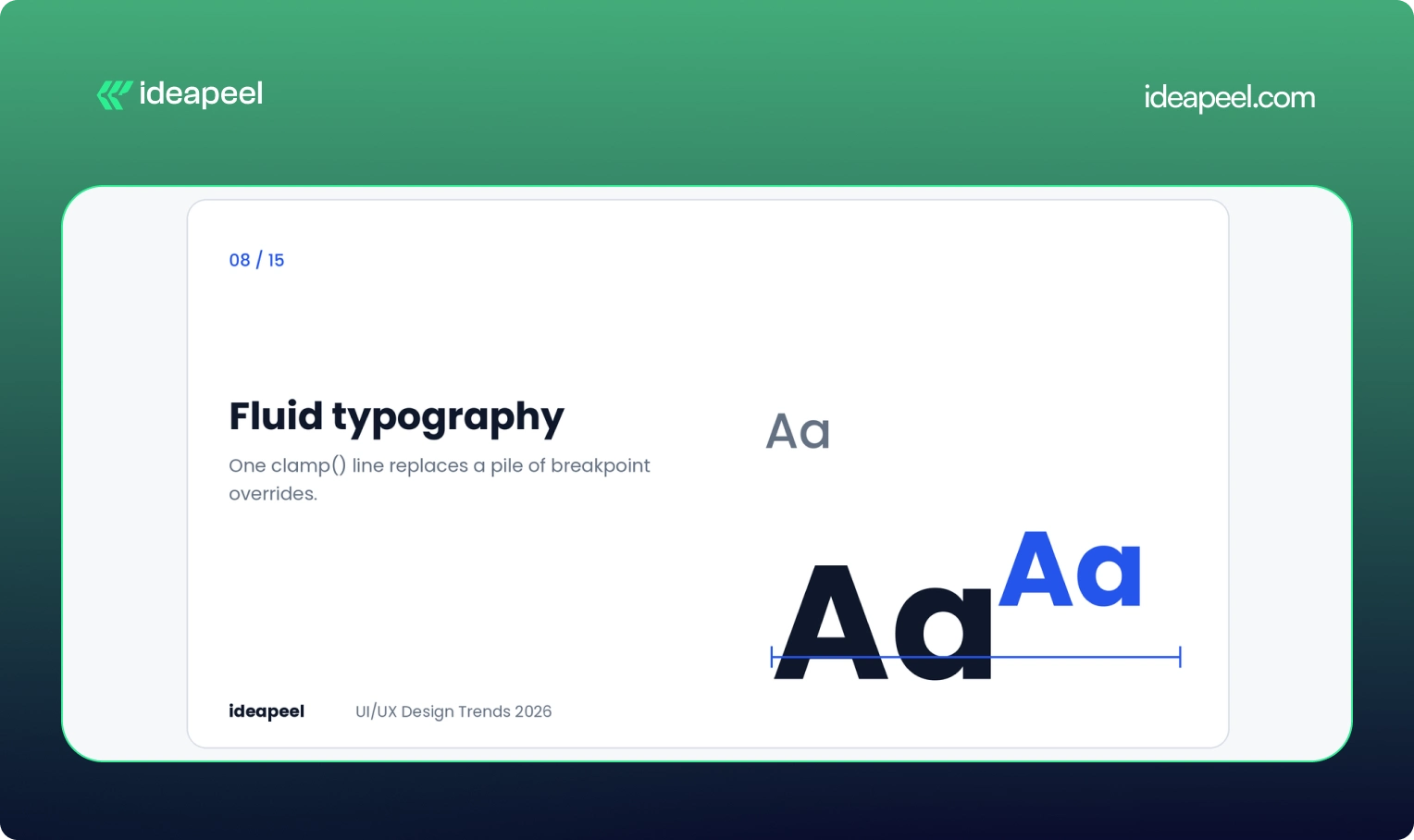
For years, responsive type meant a pile of media queries. One size on desktop, another on mobile, and a forgotten tablet in between. Screens now come in every width, so fixed steps feel clumsy.
The modern answer is the CSS clamp() function. It sets a minimum size, a maximum size and a formula for growing smoothly between them. For example:
font-size: clamp(1rem, 2vw + 0.5rem, 2.25rem);
One line replaces many overrides. Headings can scale aggressively while body text stays steady, and each style gets its own curve. Many teams generate these scales as CSS variables so every component inherits them.
Business impact: Cleaner code, fewer layout bugs across devices and better readability, which supports both usability and search performance.
9. Anti-glass: the pushback on Liquid Glass
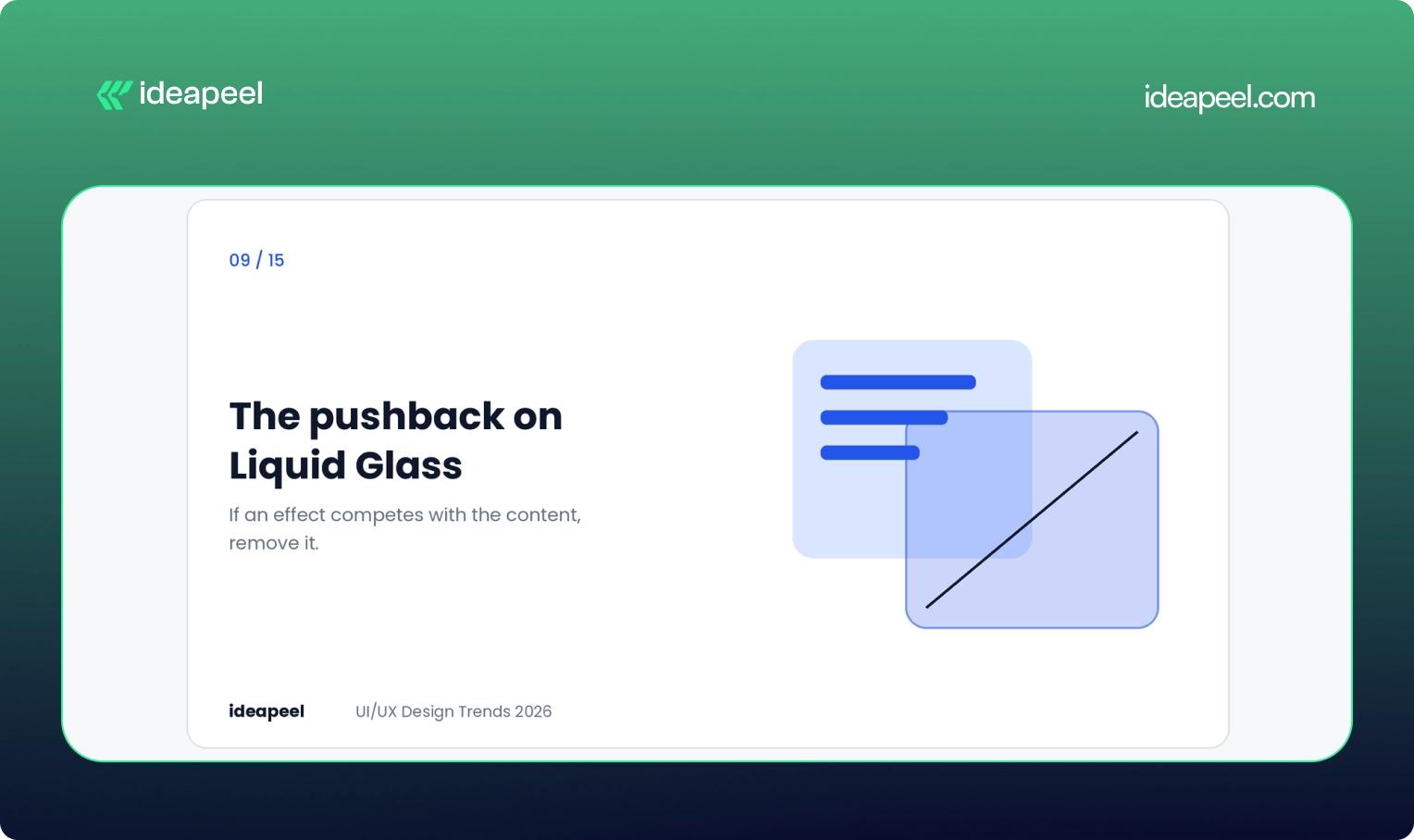
Apple's Liquid Glass look made translucent layers and glossy depth a hot topic, and it is one of the most searched visual terms in this space. But in 2026 the more interesting story is the pushback.
Linear, the product management tool, rebuilt glass effects for its own interface and deliberately left out the refraction that hurts legibility in dense screens. Their rule was simple: if an effect competes with the content, remove it.
The takeaway is not that glass is bad. It is that borrowed styles need testing against your actual use case. A blur that looks lovely in a demo can wreck contrast in a data-heavy dashboard.
Business impact: Avoids the cost of a trendy redesign that quietly hurts readability and conversions.
10. Crafted over prompted
As generative tools improve, people can no longer tell who made what. A quiet counter-trend has appeared. Designers and studios are labeling their process, showing work-in-progress files and stating when something was drawn, coded or animated by hand.
Most teams still use AI for repetitive work like resizing assets or drafting copy. What they are protecting is a recognizable voice. Figma's State of the Designer 2026 report found 72% of designers now use generative AI in their workflow, and 91% of them say it improves the quality of their output. Use of the tools is high. What stands out is the human point of view on top.
Business impact: In a crowded market, a distinct voice is harder to copy than a clean layout.
11. Smarter dashboards for SaaS
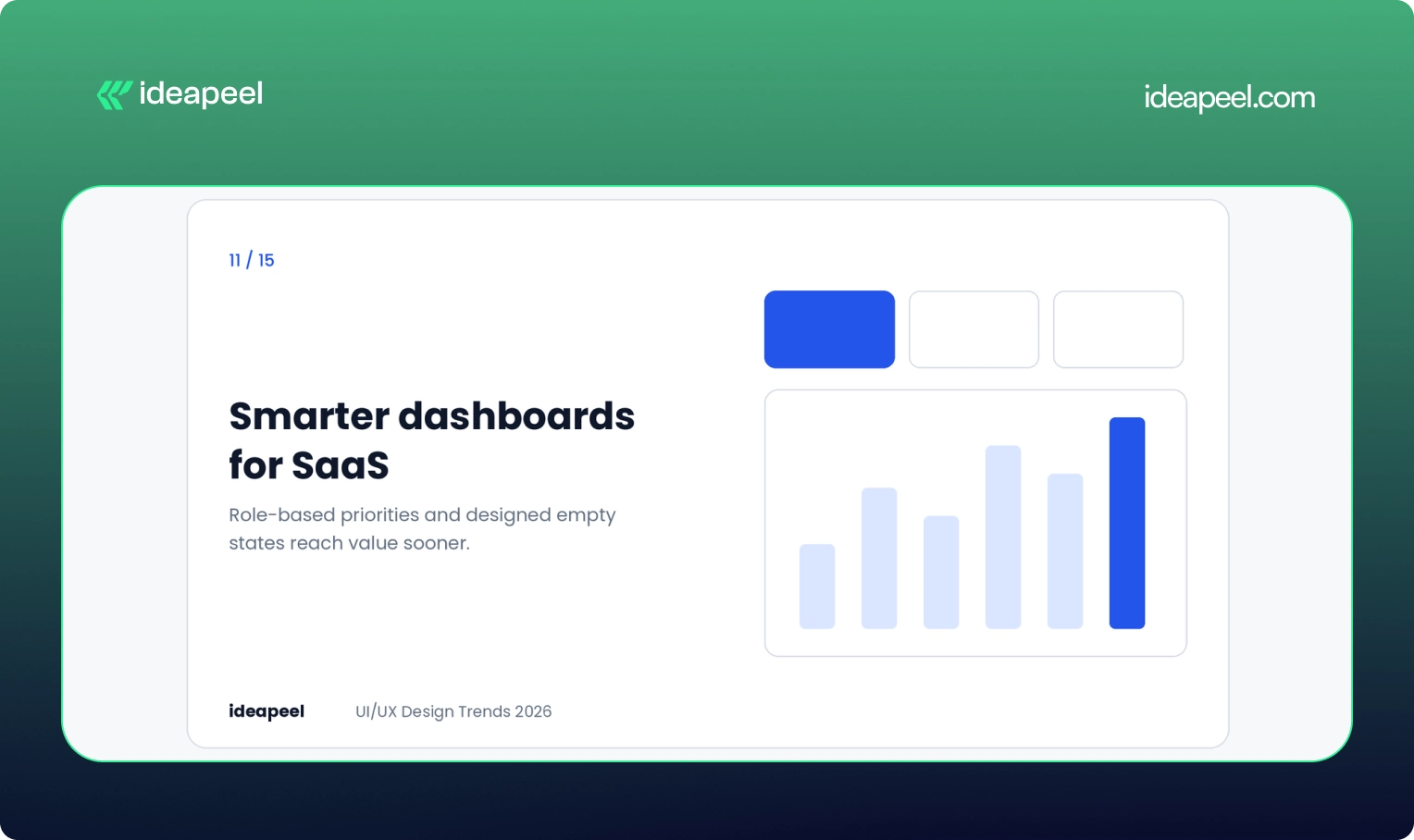
Dashboards are where many SaaS products win or lose. A static screen that shows every user the same data forces people to do the interpreting themselves.
Better dashboards in 2026 do a few things. They put the most relevant numbers first based on role. They let users rearrange and filter. They design the empty state, which is what a new user sees before any data exists, as a guide and not a blank box. And they stay readable on smaller screens.
If you are building a product like this, our SaaS UI/UX design service covers dashboard structure, onboarding and data visualization.
Business impact: Users reach their first useful insight sooner, which improves activation and trial-to-paid conversion.
12. Dark mode as a system preference
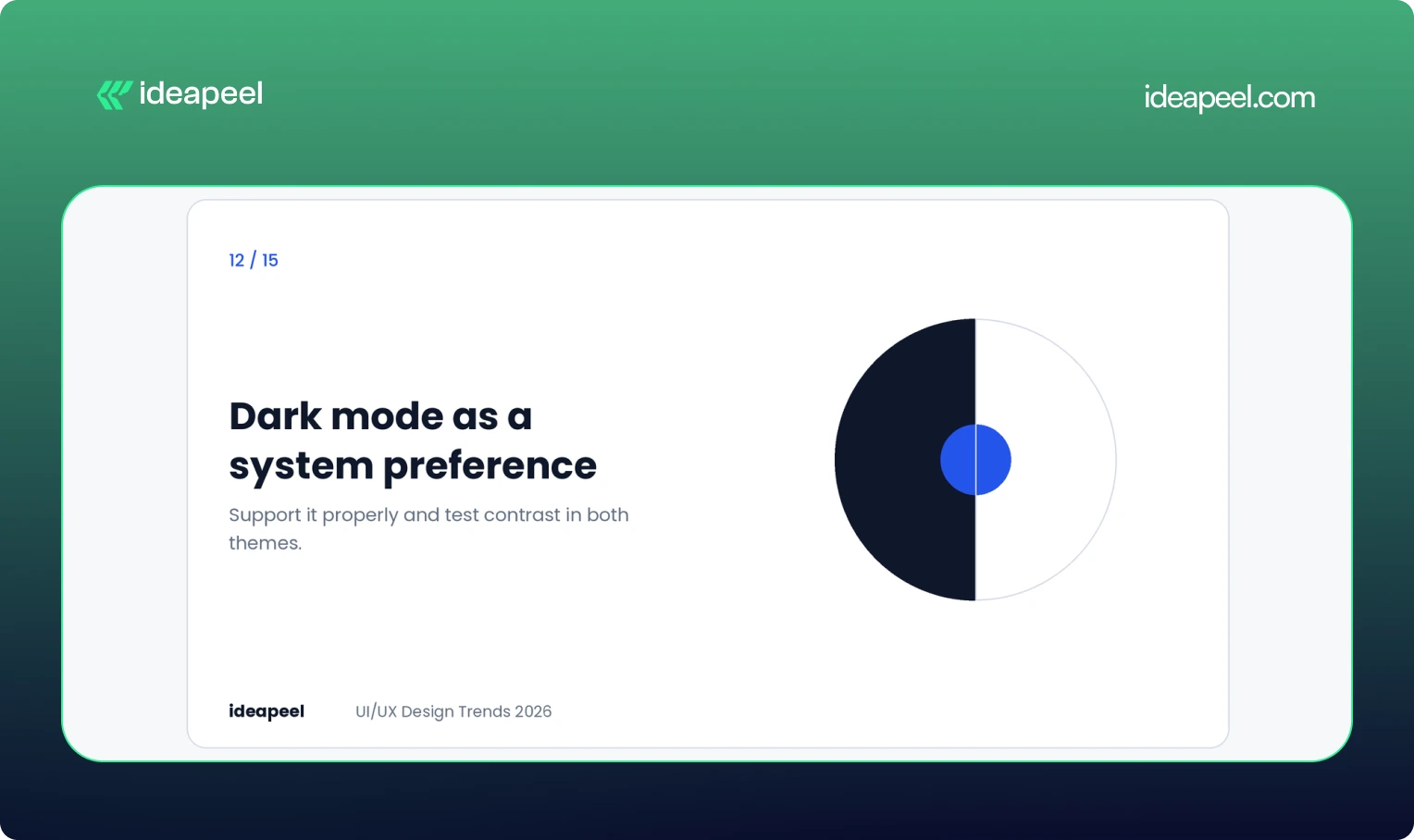
Dark mode is no longer a feature to show off. It is an expectation, and many people set it once at the operating system level and never think about it again.
The strategic move is to support it properly: check contrast in both themes, test charts and status colors, and respect the user's setting by default. It suits dashboards, developer tools and media products especially well, where people spend long sessions reading.
Business impact: Comfort during long sessions and fewer complaints about eye strain.
13. Mobile-first, thumb-first design
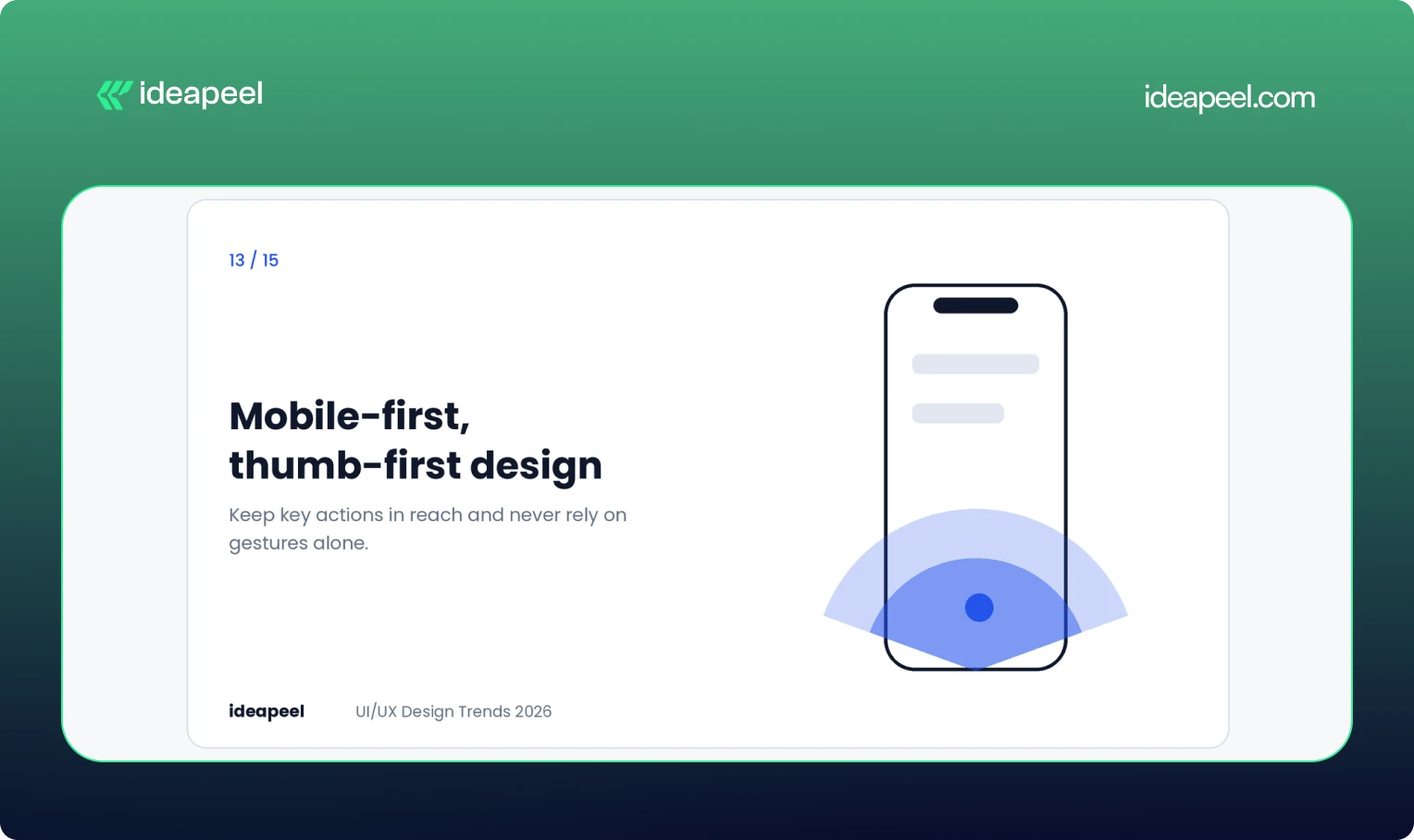
For many products, the phone is the main screen. That changes layout decisions. Key actions belong within thumb reach, navigation needs to stay simple, and gestures should never be the only way to do something.
Taller cards are one visible shift. They give content more room and invite scrolling, which fits how people actually use their phones. The Apple Human Interface Guidelines are a useful reference for touch targets and spacing.
Speed belongs in this conversation too. People judge quality by how quickly a screen responds, and Google's Core Web Vitals give you measurable targets.
Business impact: Better mobile conversion and stronger page experience signals.
14. Privacy and ethics built into the flow
Hidden logic and manipulative patterns are becoming expensive. Regulation is tightening and people are more aware of how their data is used.
The design response is to treat consent as part of the experience. Use plain language, clear defaults and choices that can be reversed. Explain what an AI feature does with someone's data before it does it. Avoid dark patterns, such as confusing cancel flows, even when short-term numbers might look better.
Business impact: Trust is a growth lever. Products that are open about data use tend to keep customers longer and earn more referrals.
15. Design systems that scale with AI
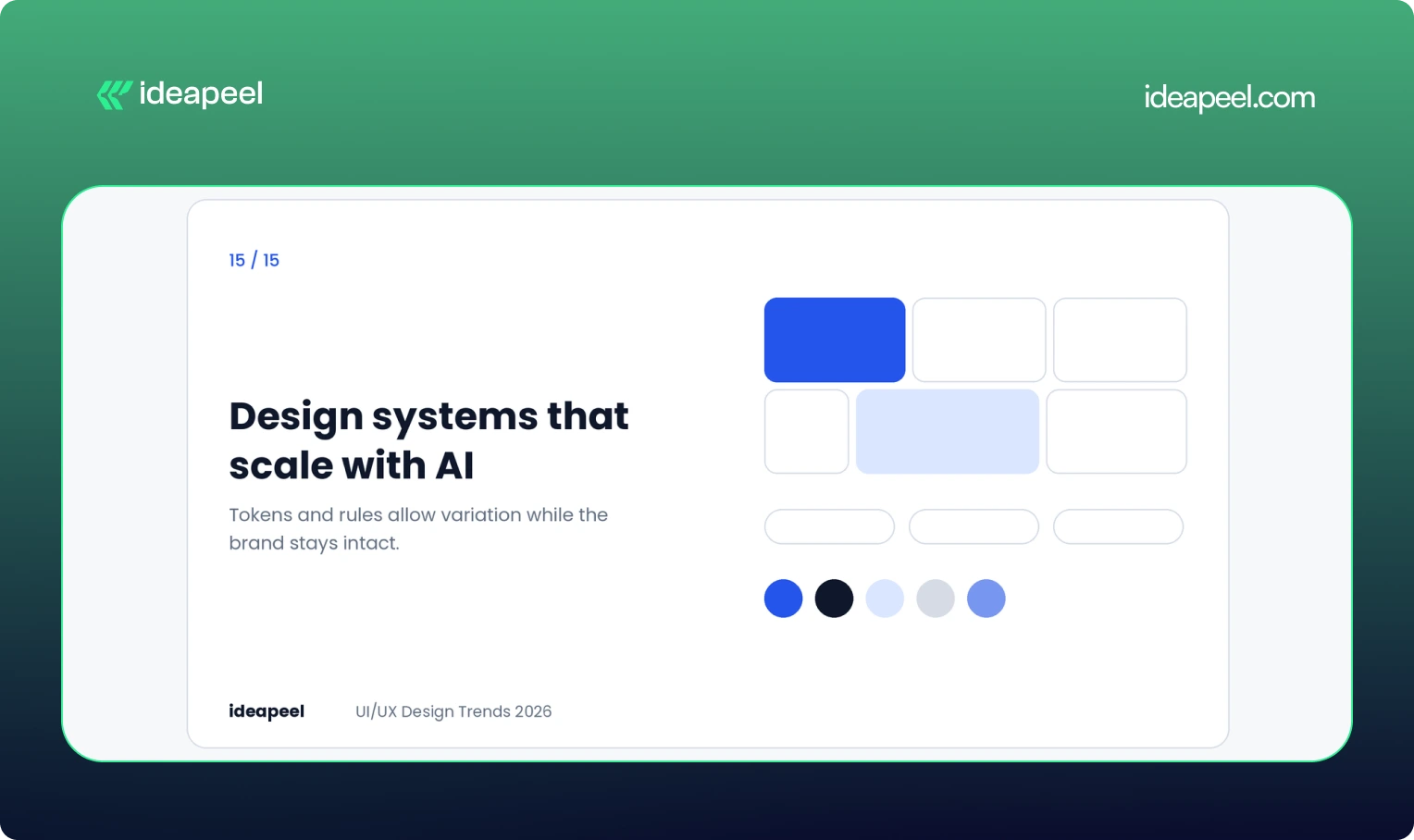
Traditional design systems aimed for consistency. Newer ones aim for controlled variation. Components are built from tokens and rules, so layouts, density and behavior can adapt while the brand and usability stay intact.
This matters because AI tools now generate interface pieces. A system with clear naming, semantic tokens and flexible patterns lets that output stay coherent. A messy system lets it fragment.
Business impact: Faster shipping, less rework and a consistent product as it grows across platforms.
Which trends are fading?
A few patterns are losing relevance:
- Static dashboards that show everyone the same thing
- Feature-heavy screens that show every option at once
- One-size-fits-all experiences
- Decorative animation with no job to do
- Over-minimal navigation that hides important actions behind icons or gestures
If your product still leans on these, they are the cheapest places to start improving.
How to choose the right trends for your product
Not every trend fits every team. A quick filter helps.
Start with your biggest friction. If users drop off at onboarding, look at adaptive onboarding and purposeful feedback before anything visual. If support tickets pile up around one screen, fix that screen first.
Match the trend to your audience. Raw, structural design suits finance and operations buyers. Vibrant, expressive styles suit lifestyle and youth brands. Copying the wrong one will hurt more than it helps.
Test before committing. Prototype the change, check contrast and performance, and watch a few real users try it. A trend that tests badly is not a trend for you.
Measure outcomes, not outputs. Track activation, retention, conversion and support volume. A redesign that looks fresh but moves none of those numbers has not worked.
For a deeper look at the process, see our guide to how we run a UX audit and our breakdown of design system basics.
Final thoughts
The design world in 2026 is moving past the glow-up phase. The best interfaces feel calm, honest and useful. They explain what they are doing, respect people's limits and get out of the way.
If you want help deciding which of these trends belong in your product or website, talk to the ideapeel team. We will look at your actual users and numbers first, and recommend only what moves them.
Website redesign companies rebuild or rework an existing site to fix usability, speed, search visibility, and conversion problems. Most offer UX research, UI design, development, SEO migration, and support after launch. The right partner depends on your platform, industry, budget, and whether you need a full rebuild or targeted fixes.
That is the short version. Below you will find what redesign services actually include, a profile of well-known agencies, realistic costs and timelines, and a simple way to choose.
What does a website redesign company do?
A website redesign company takes a site that is already live and improves it. That usually means reworking the structure, layout, copy, visual design, and code, while protecting the search traffic the site has already earned.
A solid agency does not just change colors and fonts. It starts by finding out why the current site underperforms. Is the navigation confusing? Do visitors leave the pricing page? Is the site slow on mobile? The redesign then targets those problems.
If you are not sure what is broken, a UI/UX audit is a sensible first step. An audit diagnoses the problems and ranks them. A redesign fixes them. Many teams skip the audit and pay for a full redesign when a handful of targeted fixes would have done the job.
Website redesign services: what you are actually buying
Service lists look similar from agency to agency, so it helps to know what each item does for you.
SEO migration deserves extra attention. Google's own guidance on site moves with URL changes is a good benchmark. If an agency cannot explain its redirect and migration process clearly, treat that as a warning sign.
Top website redesign companies to consider
This list is not a ranking. Each agency is good at something different, so the useful question is which one fits your project. Figures such as ratings and minimum budgets come from public listings and change often, so check each agency's current profile on Clutch before you shortlist.
Here is the section with a few light additions, nothing heavy.
Top website redesign companies to consider in 2026
This list is not a ranking. Each agency is good at something different, so the useful question is which one fits your project, your budget, and your stage of growth. A few of these teams work best with early-stage startups, while others are built for large, multi-region rollouts. Read the "best for" line first, then check services against what your project actually needs.
ideapeel
.webp)
Best for: SaaS and B2B companies that want a UX-led redesign, especially on Webflow.
Services: website redesign, UI/UX design, Webflow development, UX audits, SEO-aware migration.
Why consider it: The process starts with diagnosis, then moves to design and build, so the redesign is tied to real usability findings instead of guesswork. This tends to shorten revision cycles later, since decisions are backed by data from the start.
What to expect: ideapeel combines UX research, data-driven design, Webflow development, and SEO considerations in one redesign process. Its portfolio includes SaaS, fintech, compliance, and other B2B projects, making it a practical option for companies that need more than a visual refresh.
When to choose it: Choose ideapeel if you want your redesign to improve usability, conversion potential, and search performance while keeping the entire design-to-development process connected.
[[inner-cta]]
Excited
Best for: SaaS, AI, and fintech companies.
Services: Web design, UX/UI design, UX research, branding, motion design.
Why consider it: It treats the website as part of the product experience and designs for clarity and conversion. Public listings show a minimum project size around $10,000.
Halo Lab
Best for: Startups and growth-stage tech companies that need speed.
Services: Web design, UX/UI, branding, front-end development.
Why consider it: A faster, leaner production model than large agencies, with a public starting budget near $10,000. Useful when you need a working redesign fast rather than a long strategic engagement.
Eleken
Best for: SaaS teams that want ongoing design help instead of a one-off project.
Services: UX/UI design, product design, interface design.
Why consider it: It works in a subscription style, so designers join your team's workflow. Good if your site and product need to look and feel consistent over time, not just at launch.
Brightscout
Best for: Developer tools and technology startups with complex products to explain.
Services: Web design, branding, UX/UI, product design.
Why consider it: Strong on messaging clarity. Listings show a starting budget around $25,000.
Ramotion
Best for: Tech companies that want branding and web design handled together.
Services: Web design, branding, UI/UX, product design.
Why consider it: Polished visual systems and consistent brand work across web and product. Expect a higher entry point, often cited near $50,000.
Huge
Best for: Large enterprises with multi-region sites and complex integrations.
Services: Web design, digital strategy, experience design, engineering.
Why consider it: Built for big stakeholder groups and long programs. Projects tend to be long and expensive, but the process is set up for that scale.
R/GA
Best for: Global brands running large digital platforms and campaigns.
Services: Web design, digital strategy, product design, innovation consulting.
Why consider it: Combines strategy, design, and engineering at enterprise scale.
AKQA
Best for: Large brands launching flagship digital experiences.
Services: Web design, experience design, digital innovation, product design.
Why consider it: Known for ambitious, creative work, and part of the WPP network.
ustwo
Best for: Organizations rethinking a digital service, not just a website.
Services: UX design, product design, web design, service design.
Why consider it: Research-heavy, human-centered process that suits complex user journeys, especially when the redesign touches more than just the marketing site.
Fantasy Interactive (Phantasy)
Best for: Consumer and entertainment brands that want expressive, story-driven sites.
Services: Experience design, web design, creative technology.
Why consider it: Visually bold flagship sites. It is less suited to conversion-focused SaaS marketing sites, so weigh this against your actual growth goals.
A quick pattern: if you are a startup or SaaS company with a budget under $50,000, look at Excited, Halo Lab, Eleken, Brightscout, or Ideapeel. If you are an enterprise with global requirements, Huge, R/GA, and AKQA operate at that scale. Somewhere in between, Ramotion and Brightscout can work well if branding and web design need to move together.
How to choose a website redesign company
Skip the "who is best" question and check these seven things instead.
- Industry experience. A team that has redesigned SaaS sites will understand pricing pages, demo flows, and trial funnels faster than a generalist.
- Proof, not portfolios alone. Ask for case studies with before and after numbers, such as conversion rate, load time, or organic traffic.
- Platform fit. If you want Webflow, check that the agency builds in Webflow daily, not occasionally.
- SEO migration process. Ask how they handle redirects, metadata, and internal links. A vague answer is a bad sign.
- Research before design. The best agencies want to see analytics, heatmaps, and user feedback before they open a design tool.
- Clear scope and pricing. You should know what is included, what costs extra, and how revisions work.
- Support after launch. Sites need fixes and iteration in the first 30 to 90 days. Ask what support looks like.
Another useful tip is to talk to a past client. Agencies that are confident in their work will connect you.
How much do website redesign services cost?
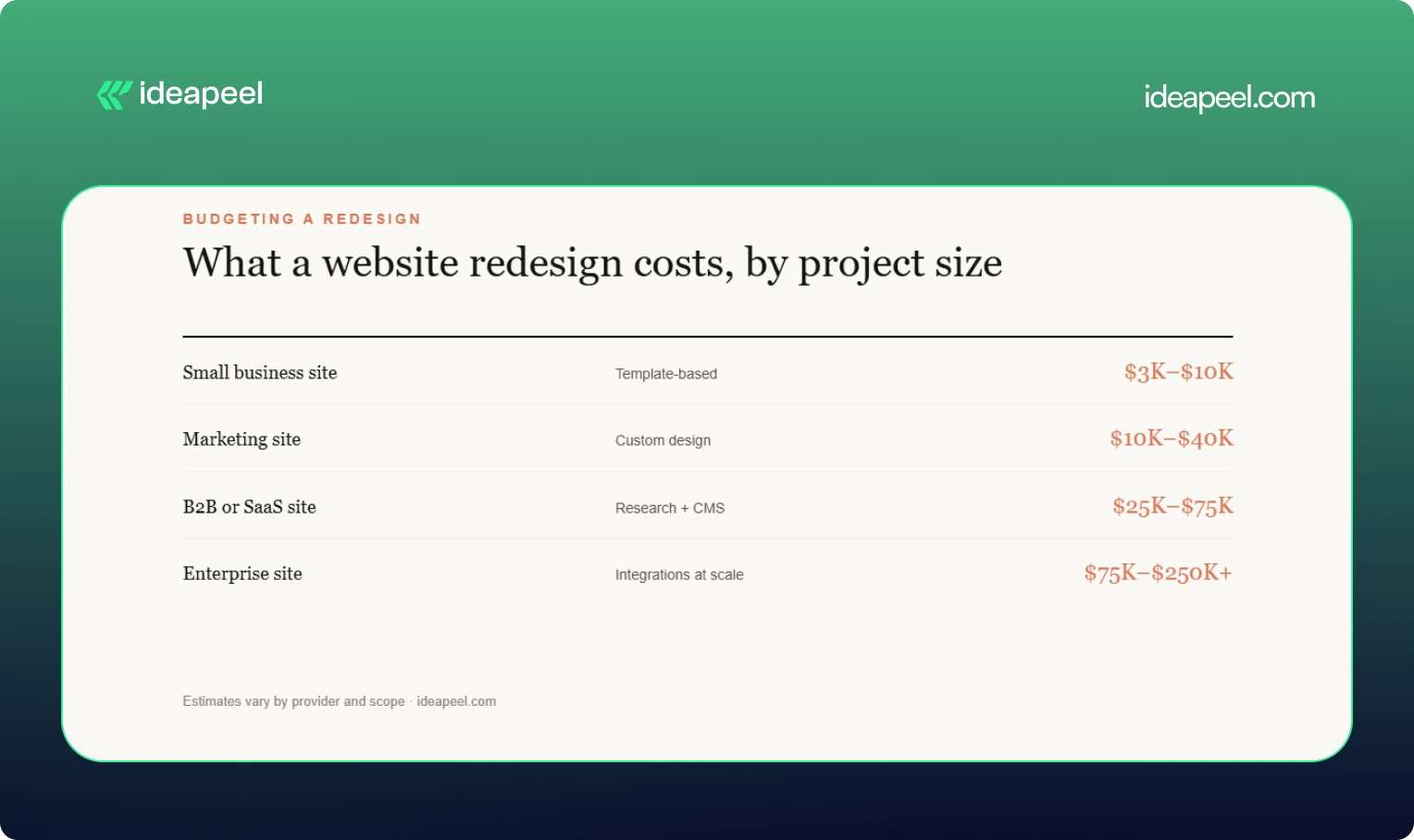
Short answer: most professional redesigns for business sites land between $5,000 and $100,000 or more, depending on scope. Treat the ranges below as estimates, since every provider prices differently.
What moves the price: number of pages, depth of UX research, custom UI design, animation, CMS setup, third-party integrations, copywriting, SEO migration, and ecommerce features.
Agency size matters too. Public listings show hourly rates from about $25 to $50 for lean studios and $150 to $200 or more for large global agencies. See our website redesign cost guide for a fuller breakdown.
How long does a website redesign take?
Most redesigns take between 6 weeks and 6 months. Small sites can launch in 4 to 8 weeks. Marketing and B2B sites usually need 8 to 16 weeks. Enterprise projects with research, migration, and integrations often run 4 to 6 months or longer. Delays mostly come from slow feedback and late content, not design work.
Website redesign vs. new website
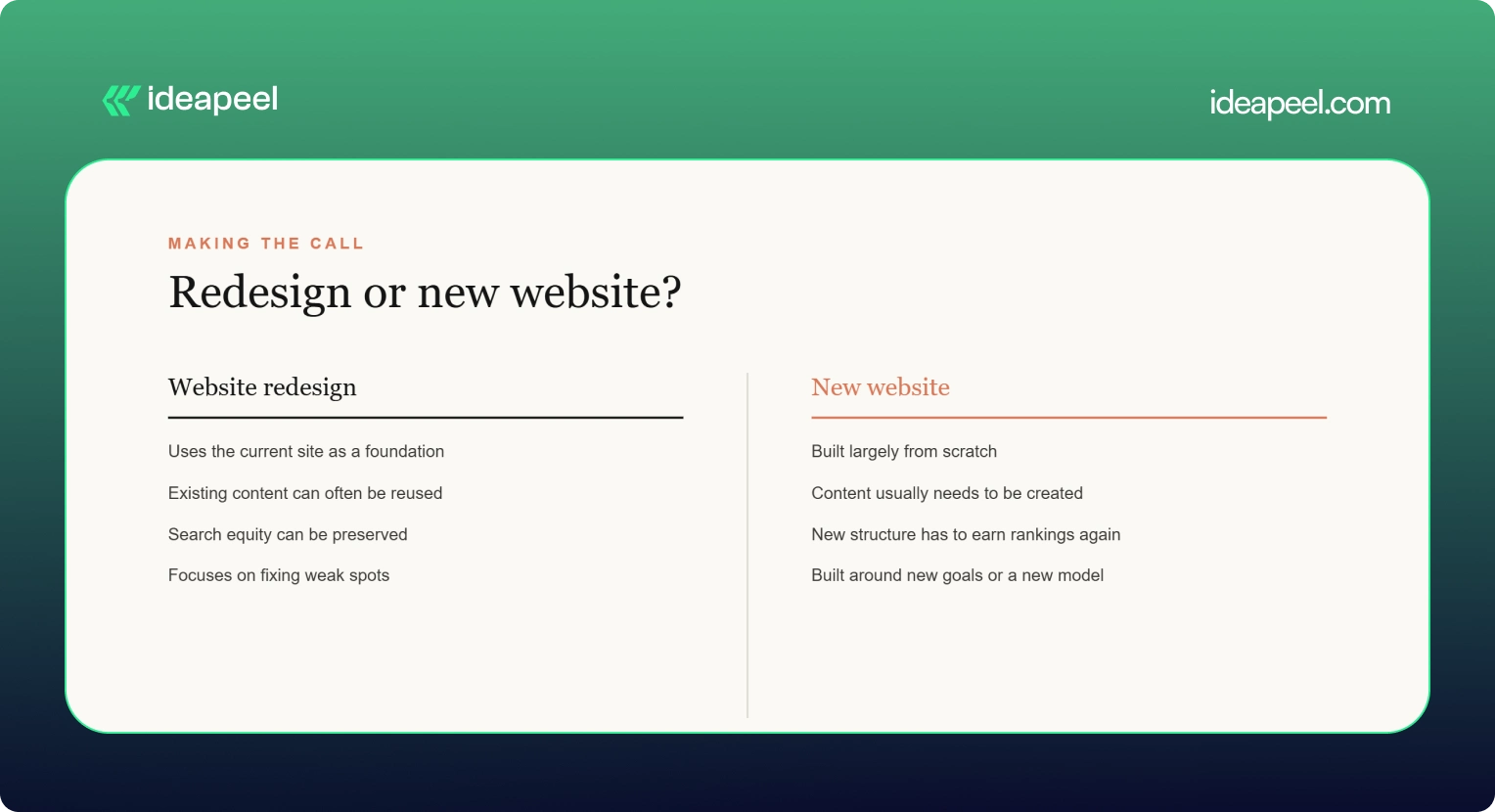
If your brand, product, or audience has changed a lot, a new website may make more sense. If the business is the same but the site underperforms, a redesign is usually cheaper and safer for SEO.
[[question-block]]
Signs it is time to redesign
- Bounce rates are high on key pages
- The site is slow or clumsy on mobile
- Your design looks dated next to competitors
- Leads or sign-ups have flattened
- Your team avoids updating the site because it is painful
- Core Web Vitals fail in PageSpeed Insights (see Google's Core Web Vitals overview)
If several of these apply, start with an audit and decide from there. That is why we suggest running a UX audit before a redesign: it shows whether you need a rebuild or a set of smaller fixes.
Common redesign mistakes to avoid
- Skipping redirects. This is the fastest way to lose organic traffic.
- Designing before researching. Pretty layouts do not fix confusing journeys.
- Ignoring accessibility. Check against WCAG from the start, not after launch.
- Launching without a plan for content. Late copy is the top cause of delays.
- Treating launch as the finish line. Plan for testing and iteration afterward. The Nielsen Norman Group has solid research on why redesigns should be ongoing.
Final thoughts
The best website redesign companies are the ones that match your goals, platform, and budget, not the ones with the biggest names. Diagnose first, shortlist three or four providers, ask hard questions about migration and results, and choose the team that answers clearly.
If you want a partner that starts with diagnosis and builds around real user data, take a look at ideapeel's website redesign services or book a consultation.
[[last-cta]]
If your website or product gets traffic but visitors leave without converting, the problem usually isn't your offer. It's your interface. A UI/UX audit finds exactly where users get stuck, confused, or annoyed, and gives you a clear list of what to fix first.
This guide covers what a UI/UX audit actually includes, how the process works, what it costs based on real market data, and how to pick the right UI/UX audit agency for your website or SaaS product. It's written by the team at ideapeel, a Webflow development agency for B2B, SaaS and enterprise companies that runs UI/UX audits and Webflow builds for growing teams every week.
What Is a UI/UX Audit?
A UI/UX audit is an expert review of your website, product, or app. It checks how the interface looks (UI) and how it actually works for real users (UX), then hands you a prioritized report of what's broken and what to fix first.
A good audit looks at:
- Visual design and layout
- Navigation and information architecture
- User flows and conversion paths
- Mobile experience
- Accessibility
- Page speed and technical friction
- How your site compares to competitors
Any team with live traffic, sign-ups, or users but underwhelming results is a good candidate. That includes SaaS products with high churn, websites with strong traffic but weak conversion, and apps where users drop off mid-flow. A UI/UX audit is usually the fastest, cheapest way to find out why, well before anyone commits to a full redesign.
UI audit vs UX audit. A UI audit looks only at the interface: layout, typography, color, spacing, and consistency. A UX audit looks at the full experience: navigation, flows, usability, and conversion. Most professional audit services combine both, which is why the service is usually called a UI/UX audit rather than just one or the other.
What Does a Professional UI/UX Audit Include?
This is the part that matters most when you're comparing UI/UX audit services, because it tells you exactly what you're paying for.
UI Design Review
A trained eye goes through your visual hierarchy, typography, color use, spacing, and component consistency. This catches the small inconsistencies that quietly make a site feel unpolished or untrustworthy.
UX & Usability Review
This covers navigation, information architecture, friction points, and interaction patterns. Note that a UX audit is not the same thing as usability testing. An audit is an expert review done by a UX professional; usability testing involves watching real users complete tasks on your site. Many full audits include a round of light usability testing as one part of the process, but the two are different services.
User Flow Analysis
The auditor maps your key journeys, sign-up flows, checkout paths, and navigation routes to find exactly where users drop off and why.
Conversion & CTA Review
This looks at CTA visibility, button hierarchy, form design, landing pages, and anything creating friction between a visitor and the action you want them to take.
Mobile UX Review
Since most traffic is mobile, this checks tap targets, responsive layout breakpoints, load speed, and mobile-specific usability issues that desktop testing misses.
Accessibility Review
This checks color contrast, keyboard navigation, screen reader compatibility, and general WCAG alignment. Accessibility issues are also legal and reputational risk, not just a UX nicety.
Analytics & User Behavior Analysis
If you have Hotjar, GA4, or similar tools connected, a good auditor pulls real behavior data, heatmaps, and session recordings to back up their findings with evidence instead of opinion.
Competitive UX Analysis
The auditor benchmarks your product or site against direct competitors, so recommendations are grounded in what's actually working in your market, not generic best practice.
UX Audit Service Process: From Research to Action Plan
Here's what actually happens when you hire someone for a UI/UX audit, step by step:
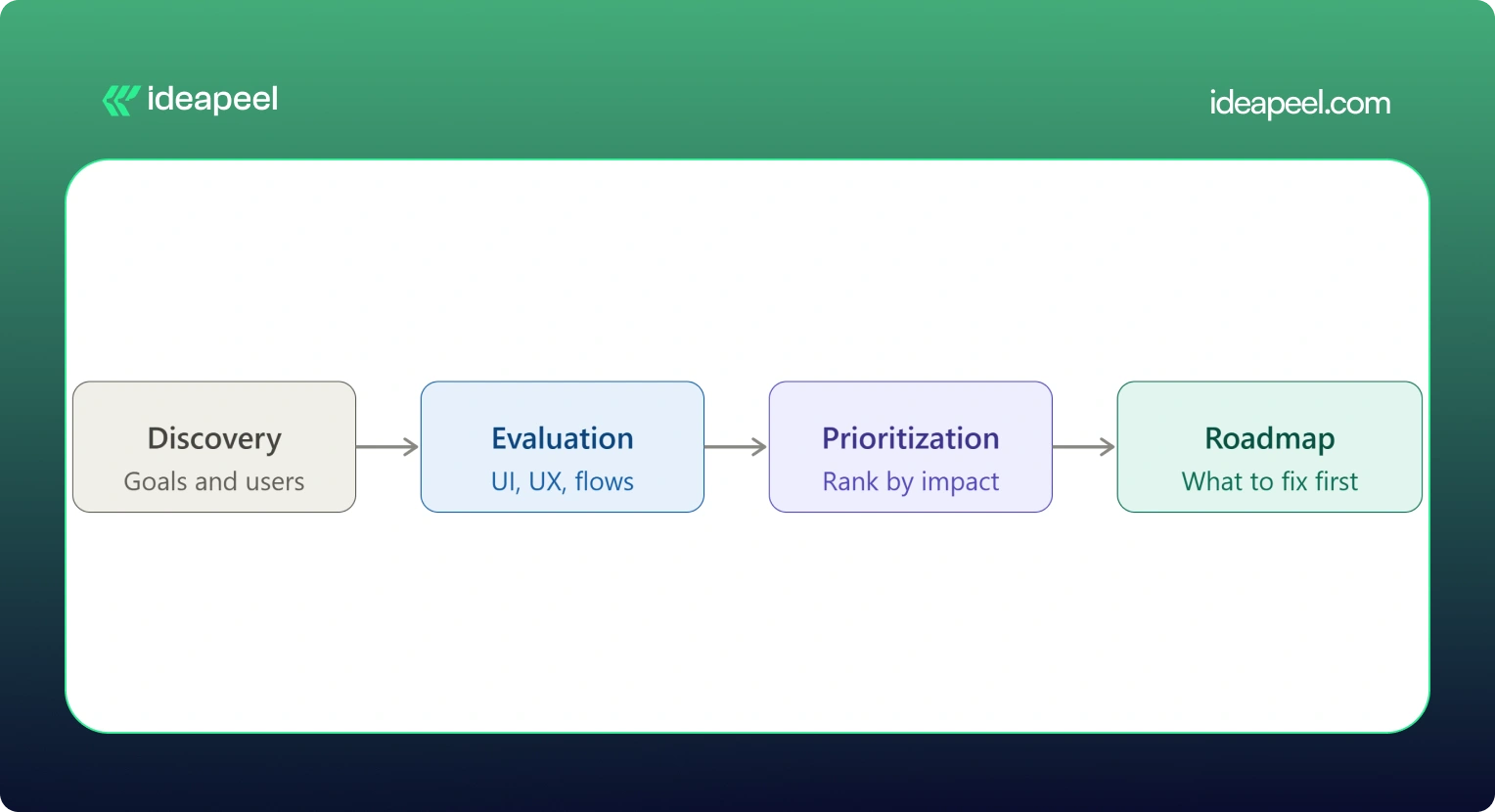
1. Discovery & Business Goals
The auditor starts by understanding your business goals, not just your interface. What counts as success: more demos booked, higher activation, lower churn, more sign-ups?
2. User & Audience Analysis
Who actually uses your product, and what are they trying to do? This shapes everything that follows.
3. UI Evaluation
A full pass through the visual design against your goals and your users' expectations.
4. UX & Usability Evaluation
A heuristic review of navigation, structure, and usability against established UX principles.
5. User Flow Analysis
Mapping the paths users actually take, and where they abandon them.
6. Conversion Analysis
Looking specifically at where and why conversion drops off.
7. Competitive Benchmarking
Comparing your experience against direct competitors and category leaders.
8. Issue Prioritization
Every issue gets ranked by severity and business impact, not just listed in the order it was found.
9. Recommendations
Specific, actionable fixes tied to each issue, not vague advice like "improve usability."
10. UX Improvement Roadmap
A sequenced plan showing what to fix first, what can wait, and what requires bigger structural changes.
[[inner-cta]]
How Much Does a UI/UX Audit Cost?
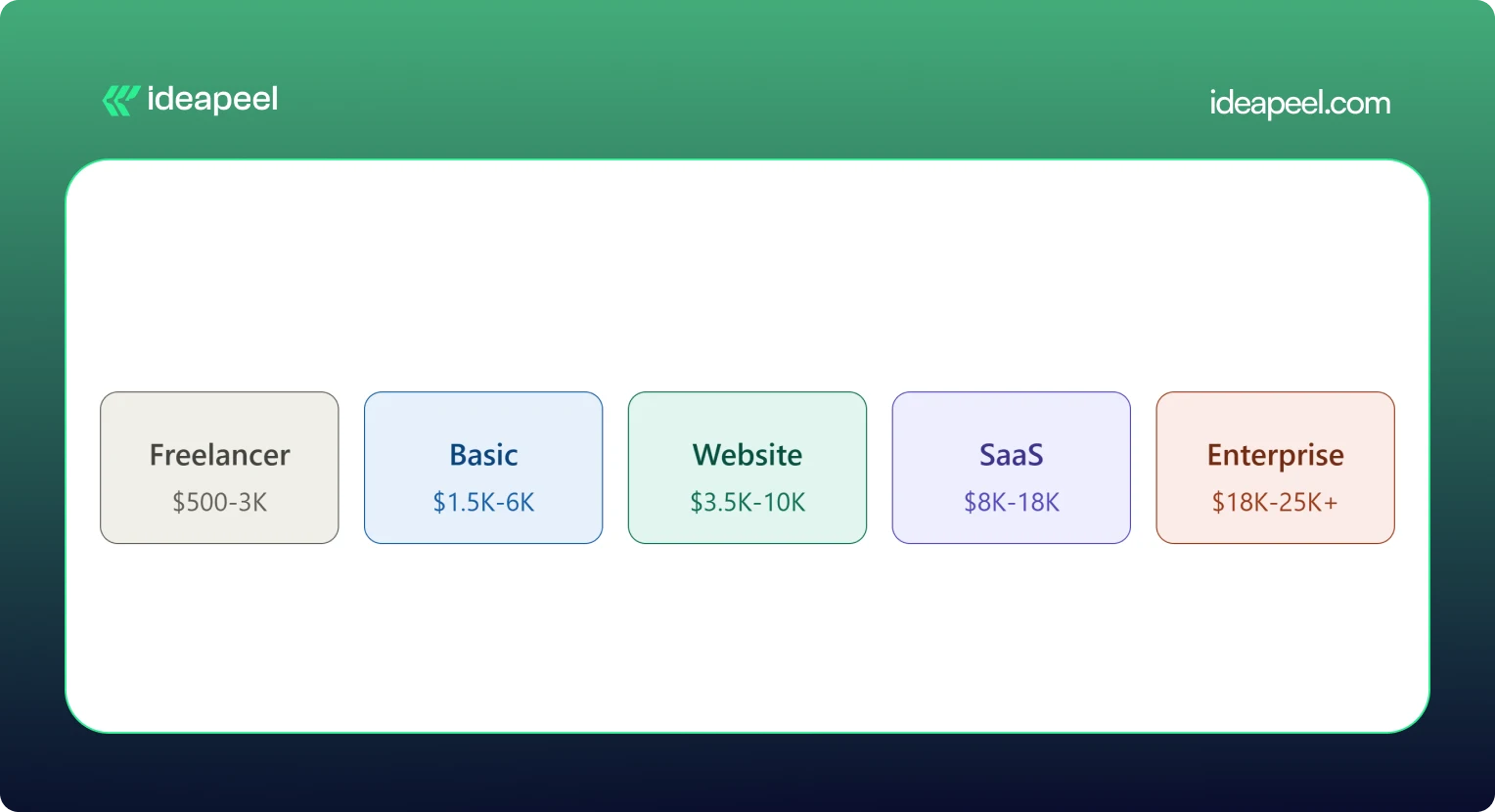
A UI/UX audit typically costs between $500 and $25,000 or more. A solo freelancer doing a single-flow review might charge as little as $500. A full enterprise audit with live user testing and multiple user roles can run $18,000 to $25,000 or higher. Most small and mid-size businesses land somewhere between $3,500 and $18,000 for a complete website or SaaS product audit.
What Factors Affect UI/UX Audit Cost?
Price moves based on:
- Website or product size
- Number of screens and pages
- Number of user flows and personas
- Product complexity (simple marketing site vs. multi-role SaaS dashboard)
- How deep the research goes
- Whether analytics review is included
- Whether live usability testing is included
- Competitive research scope
- Number of deliverables (report only vs. report plus roadmap plus redesign proposals)
Pricing data collected from agency rate cards, freelance marketplaces, and published cost guides shows a consistent pattern: cost scales with scope and testing depth, not agency size alone. A UX audit cost breakdown from Design Studio UI/UX puts full audits with heuristic review, session analysis, and real user testing at $8,000 to $18,000, with enterprise audits running $18,000 to $25,000 and up. Parallel HQ's product design cost guide lists UX audits from $3,500 to $10,000, usually delivered in two to four weeks. On the freelance side, listings on Upwork and Contra show independent UX consultants pricing single-flow or single-page audits from $500 to $3,000. On the agency side, Musemind's UX audit agency pricing starts around $10,000 with hourly rates of $50 to $99, plus subscription-style UX plans from roughly $2,600 a month, and Dribbble's UI/UX agency cost guide puts experienced US agency hourly rates at $100 to $250.
.webp)
Basic UI/UX Audit
$1,500 – $6,000. Covers a heuristic review of your core screens, a prioritized issue list, and general recommendations. Good for a quick gut check before deciding whether a bigger project is worth it.
Website UX Audit
$3,500 – $10,000. Adds user flow mapping, conversion review, and often a light round of usability testing. This is the most common package for marketing sites and lead-gen websites.
SaaS UX Audit
$8,000 – $18,000. Covers multiple user roles, onboarding, dashboard UX, and competitive benchmarking against other SaaS products in your category. Built for B2B products with more than one user type.
Comprehensive UI/UX Audit
$18,000 – $25,000+. Includes live user testing, deep analytics review, multiple personas, and a full improvement roadmap. This is the right fit for enterprise products or platforms where usability issues carry real revenue risk.
If a package price feels too broad for your situation, ask for an hourly or scoped quote instead. Most UI/UX audit companies will price a smaller, single-flow engagement if you only need to hire a UX designer for an audit of one specific part of your product.
What Do You Get From a UI/UX Audit?
This is what separates a real audit from a vague opinion document.
If a provider's audit doesn't include most of this list, ask what you're actually paying for. ideapeel's UI/UX design service builds every audit around this exact structure, so findings turn into a working plan instead of a PDF that sits unread.
When Should You Hire a UI/UX Audit Agency?
Some teams run a quick DIY checklist audit themselves first, which is a fine starting point. But a DIY review usually misses the objectivity, testing tools, and pattern recognition a professional brings from auditing dozens of other products. Here's when it's worth hiring a UI/UX audit agency or consultant:
Your Website Gets Traffic but Does Not Convert
Steady visitors, flat conversion. That gap almost always points to a UX problem, not a traffic problem.
Users Struggle With Navigation
Support tickets or feedback keep mentioning that people "can't find" something. That's a navigation and information architecture issue an audit will surface fast.
Your SaaS Onboarding Has Friction
If new users sign up and never activate, onboarding is usually the leak.
Product Adoption Is Low
Features get built but nobody uses them. Often this is a discoverability problem, not a demand problem.
You Are Planning a Website Redesign
Never redesign blind. An audit tells you what's actually broken before you rebuild it.
Paid Traffic Is Not Converting
If you're paying for clicks that don't turn into leads, the landing experience is the first place to look.
Customers Report Usability Problems
Direct feedback is a strong signal. An audit turns scattered complaints into a structured fix list.
Your Website Looks Outdated
Dated design quietly erodes trust, especially for B2B buyers comparing vendors.
You Are Launching a New SaaS Product
A pre-launch audit catches usability issues while they're still cheap to fix.
You Need an External UX Perspective
Internal teams get too close to their own product. A fresh, objective review often finds what everyone inside the company has stopped noticing. [[question-block]]
UI/UX Audit vs. Website Redesign
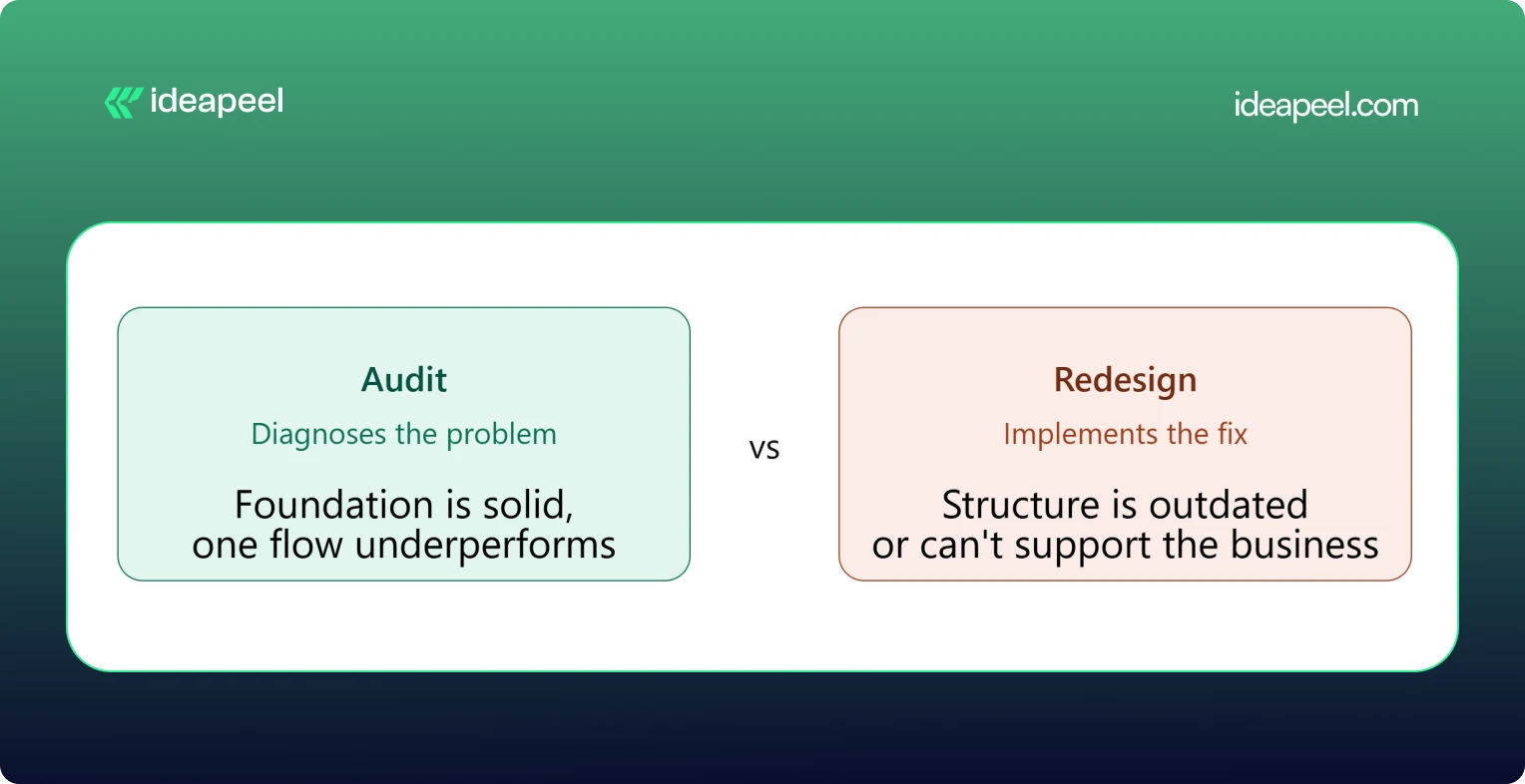
The simplest way to think about this: an audit diagnoses, a redesign implements.
When You Only Need a UI/UX Audit
Your foundation is solid but something specific is underperforming, like a checkout flow or a signup form. Fix the specific problem rather than rebuilding everything around it.
When You Need a Website Redesign
The structure itself is outdated, the brand has changed, or the site can't support what the business needs now. A patch won't fix a foundational problem.
When You Need an Audit Before a Redesign
This is the smart default for most teams. An audit tells you exactly what to change and why, so the redesign budget goes toward fixing real problems instead of guessing.
UI/UX Audit Agency vs. Freelancer
Both can do good work. The right choice depends on your product's complexity and what you need beyond the audit itself.
Neither option is universally better. A freelancer can be the right call for a single-flow review on a tight budget. An agency tends to make more sense for a multi-role SaaS product, where UI, UX, research, and implementation all need to work together.
How to Choose a UI/UX Audit Agency
This is the section that matters most once you're actually comparing providers.
Check Their UX Methodology
Ask how they structure an audit. A vague answer is a warning sign. A strong provider can walk you through their process step by step.
Review Previous Audit Work
Ask to see a sample report. This tells you more than any pitch deck about the quality and depth you'll actually get.
Look for Industry Experience
A UX audit company that's worked on B2B SaaS products understands onboarding, activation, and dashboard UX in a way a general design shop may not.
Check Their UI + UX Expertise
Some providers are strong on visuals but weak on usability, or the reverse. You want both covered.
Ask What the Deliverables Include
Compare this against the deliverables table above. Screenshots, severity ratings, and a roadmap should be standard, not an upsell.
Understand Their Pricing Model
Flat project fee, hourly rate, or retainer? Match the model to how you actually want to work and budget.
Ask How Findings Are Prioritized
A pile of 40 unranked issues isn't useful. You want to know what to fix first and why.
Check Whether They Support Implementation
Some UI/UX audit services stop at the report. Others, like ideapeel, can move straight from findings into Webflow development and design implementation, so the fixes actually ship.
UI/UX Audit for B2B SaaS
SaaS products carry extra UX complexity that a generic website audit won't catch. A dedicated SaaS UX audit should cover:
SaaS Website UX
How the marketing site sets expectations before someone ever logs in.
Product Interface
The core UI users interact with daily once they're inside the product.
Dashboard UX
Whether the dashboard surfaces the right information without overwhelming the user.
SaaS Onboarding
The first-run experience that determines whether a trial user ever becomes a paying customer.
Signup Experience
Friction in the signup form is one of the most common, and most fixable, leaks in a SaaS funnel.
Pricing UX
Whether your pricing page actually helps people choose a plan, or just confuses them.
Feature Discovery
Whether users can find the features that would make them stick around.
Navigation
How easily users move between the areas of a complex, multi-role product.
User Activation
The specific moment a new user experiences real value for the first time.
Conversion Flows
Every point where a free user is nudged toward becoming a paying one.
Teams building or scaling B2B products can see how this fits into a broader growth plan on ideapeel's SaaS design and development page.
Webflow UI/UX Audit
If your site or product runs on Webflow, a Webflow-specific UX audit adds a few extra layers on top of a standard review: CMS structure, symbol and component consistency, interaction and animation performance, responsive breakpoint behavior, and page speed inside the Webflow environment.
This matters because a Webflow UX audit doesn't just tell you what to fix, it tells you how to fix it inside the platform you're already using, without a rebuild. ideapeel runs UI/UX audits and Webflow design and development work side by side, so audit findings turn directly into shipped Webflow changes instead of a report that needs a second agency to execute.
What Makes a Good UI/UX Audit?
A strong audit should be:
- Evidence-based
- Prioritized
- Actionable
- Business-focused
- User-focused
- Specific
- Easy to implement
The real value of a UI/UX audit isn't a long list of everything that could theoretically be better. It's finding the small number of problems that are actually costing you conversions or users, and giving your team a clear, ordered path to fix them.
Ready to See What's Costing You Conversions?
A UI/UX audit is one of the fastest ways to find out why your traffic, sign-ups, or trials aren't turning into revenue. ideapeel, a Webflow development agency for B2B, SaaS & Enterprise, has delivered 170+ branding, Webflow, and UI/UX projects with a 98% client satisfaction rate and $500M+ in revenue generated and influenced for clients.
Book a free strategy call to talk through your website or product and find out what a UI/UX audit would look like for your team.
[[last-cta]]

The best B2B websites don't win because they look modern. They win because they explain a complex offer in seconds, build trust before anyone talks to sales, and give every visitor an obvious next step. That combination of clarity, credibility, and a clear path forward is what separates a good-looking B2B website from one that actually generates pipeline.
Below are 10 real B2B website design examples worth studying, each broken down the same way: what the company does, why the design works, and the one design lesson you can steal for your own site. Four are Webflow redesign projects from our own studio, ideapeel, and the rest are well-known B2B and SaaS brands chosen because their homepages are genuinely instructive, not just pretty.
What Makes a Great B2B Website?
A great B2B website clearly explains what the company does, who it's for, and why it's credible then makes the next step obvious. In practice, that usually comes down to seven things:
- A clear value proposition in the hero section, readable in under five seconds
- Simple, jargon-light messaging that doesn't assume the visitor already understands the product
- A logical information hierarchy that goes from "what is this" to "how does it work" to "why should I trust you"
- Easy navigation that doesn't force visitors to hunt for pricing, product details, or contact info
- Trust signals client logos, testimonials, case studies, certifications, or real metrics
- Product or service clarity, especially for technical or unfamiliar offerings
- Conversion-focused CTAs that match where the visitor actually is in their decision, not just "Book a Demo" on every button
B2B buying decisions usually involve multiple stakeholders and a longer sales cycle than B2C, so the website has to do more persuading before a human ever gets involved. Every example below earns its place because it handles at least one of these jobs unusually well.
10 Best B2B Website Design Examples
1. Homepark Housing: Comfortable Living
Industry: Real estate
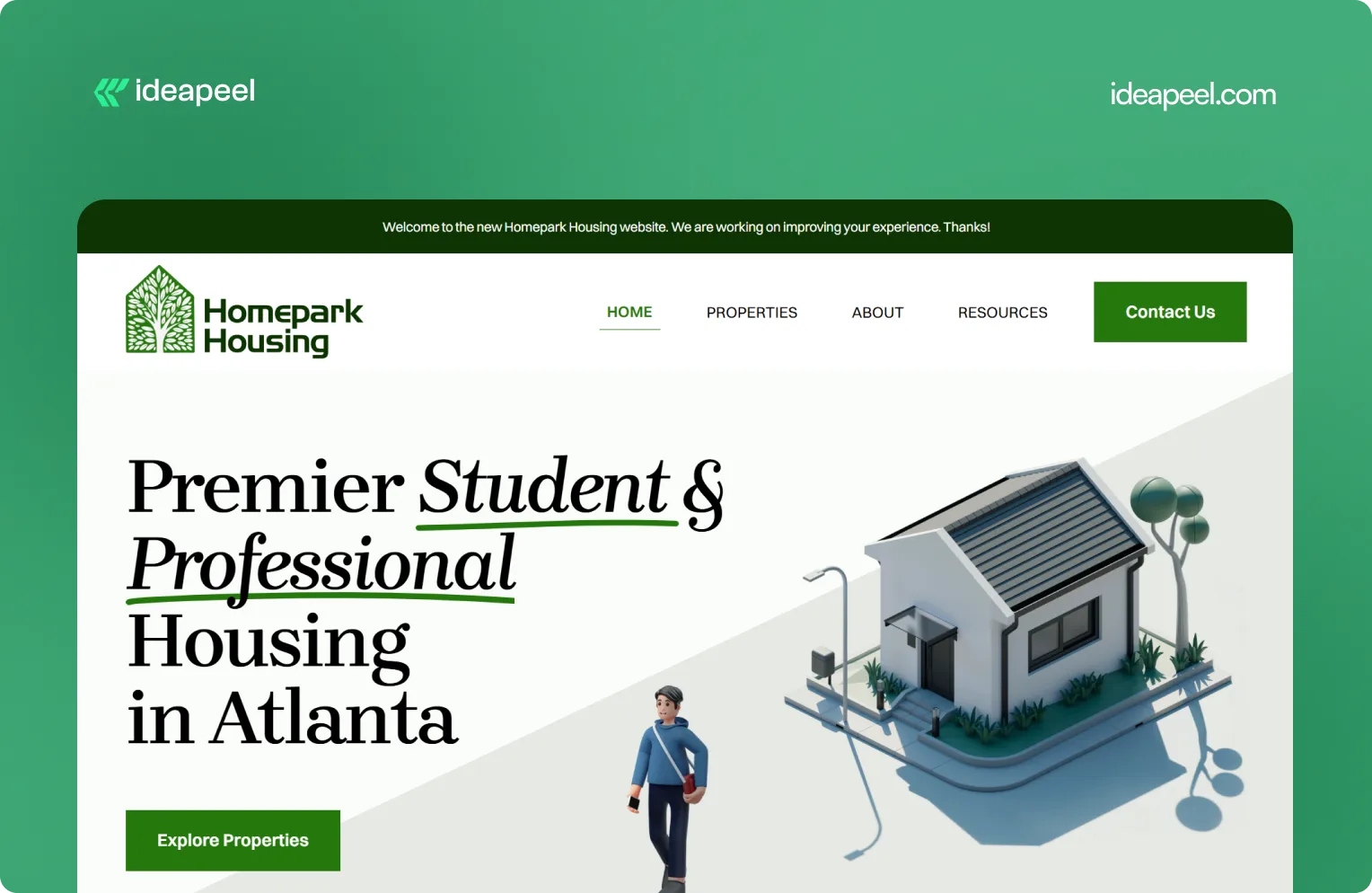
What they do: Homepark Housing provides secure, modern, and strategically located housing designed around the needs of young professionals. Its offering includes affordable housing, flexible leasing options, personalized tenant support, and 24/7 maintenance.
Why the design works: Real estate is a high-consideration purchase. Visitors need to know where the properties are, whether the pricing works for them, what support is available, and whether they can trust the company to deliver a reliable living experience. Homepark's website puts those practical needs at the center of the experience instead of relying only on property imagery.
Key design lesson: When visitors are making a decision involving money, location, and long-term commitment, answer their practical questions early. Clear information about support, pricing, location, and the overall experience can build more trust than visual design alone.
View the Homepark Housing case study
2. KeepWOL: SaaS Team Analytics Platform
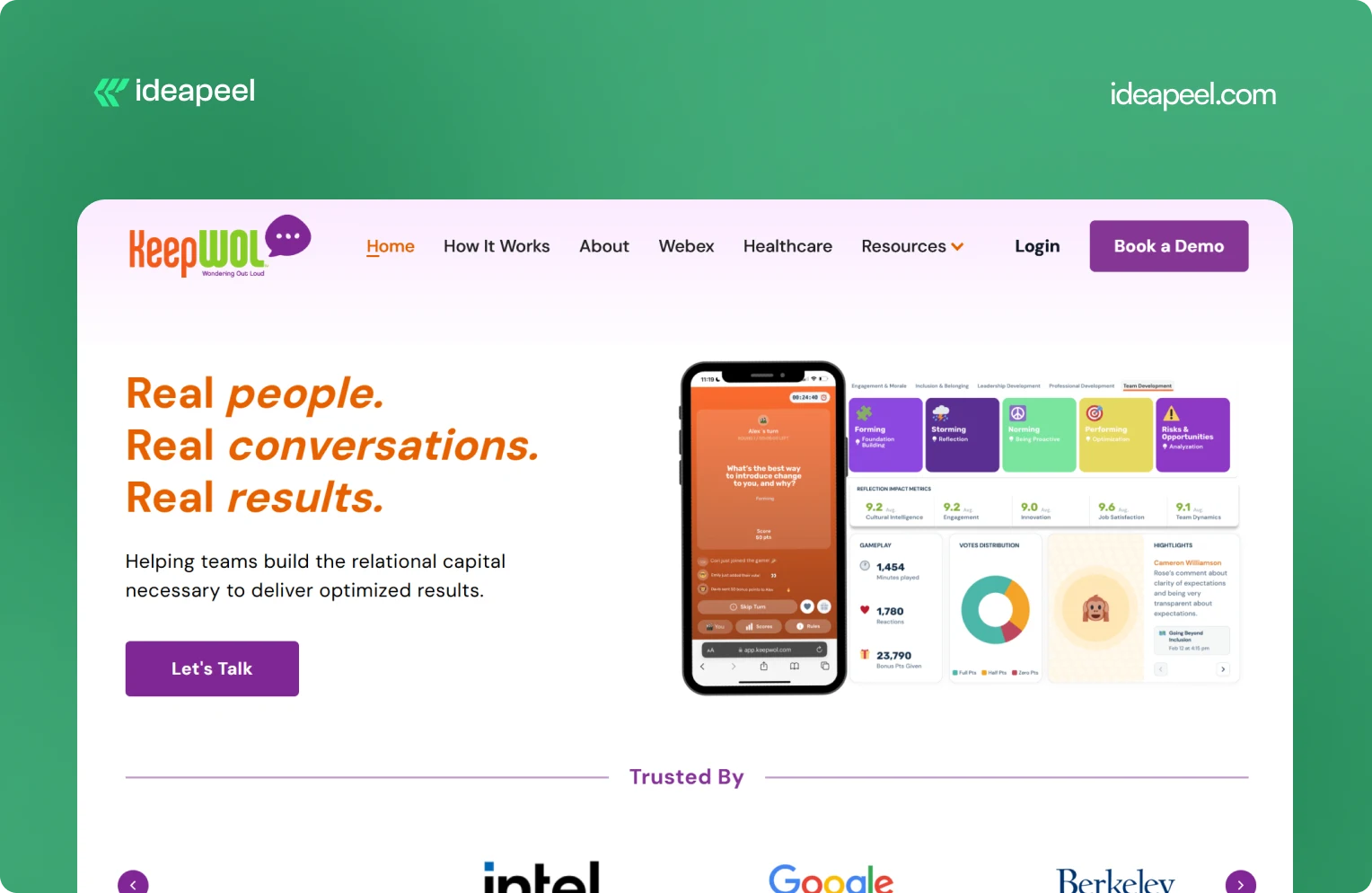
Industry: SaaS, team performance, and people analytics
What they do: KeepWOL helps organizations improve team performance, relationships, engagement, and development through interactive experiences, analytics, and action plans. Its platform combines live sessions with measurable insights across areas such as team dynamics, engagement, innovation, cultural intelligence, and job satisfaction.
Why the design works: KeepWOL has a difficult product to communicate because team relationships and workplace culture aren't as visually obvious as a CRM dashboard or payment platform. The website solves this by turning abstract benefits into a structured journey: experience, reflect, and grow.
Key design lesson: If your product solves an intangible problem, make the value measurable. Show the process, outcomes, metrics, and evidence that connect your product to a business result.
View KeepWOL
3. CarWise: AutoTech Marketplace
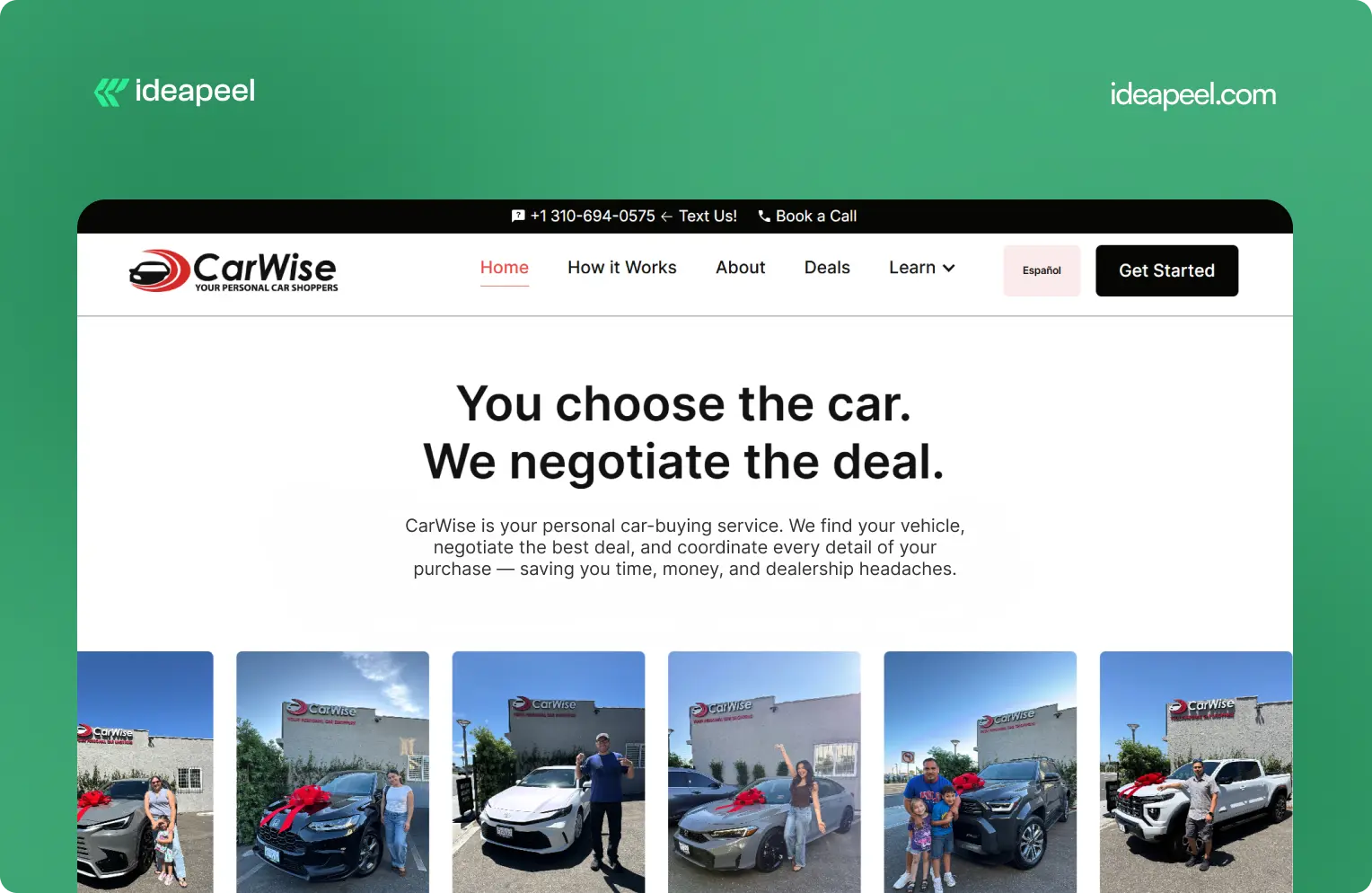
Industry: AutoTech and automotive services
What they do: CarWise helps people navigate the car-buying process through expert negotiation, pricing guidance, financing support, and personal assistance.
Why the design works: Buying a car involves money, uncertainty, and a lot of competing information. That makes trust one of the most important parts of the website experience.
CarWise approaches the problem by making the process easier to understand. Instead of overwhelming visitors with automotive terminology, the experience focuses on the practical journey from finding a vehicle to negotiating and completing the purchase.
Key design lesson: In industries where visitors naturally have trust concerns, transparency should be part of the design. Explain the process, show how the service works, and make the human value behind the product obvious.
View the CarWise case study
4. Glo Dollar: Fintech / Stablecoin Platform
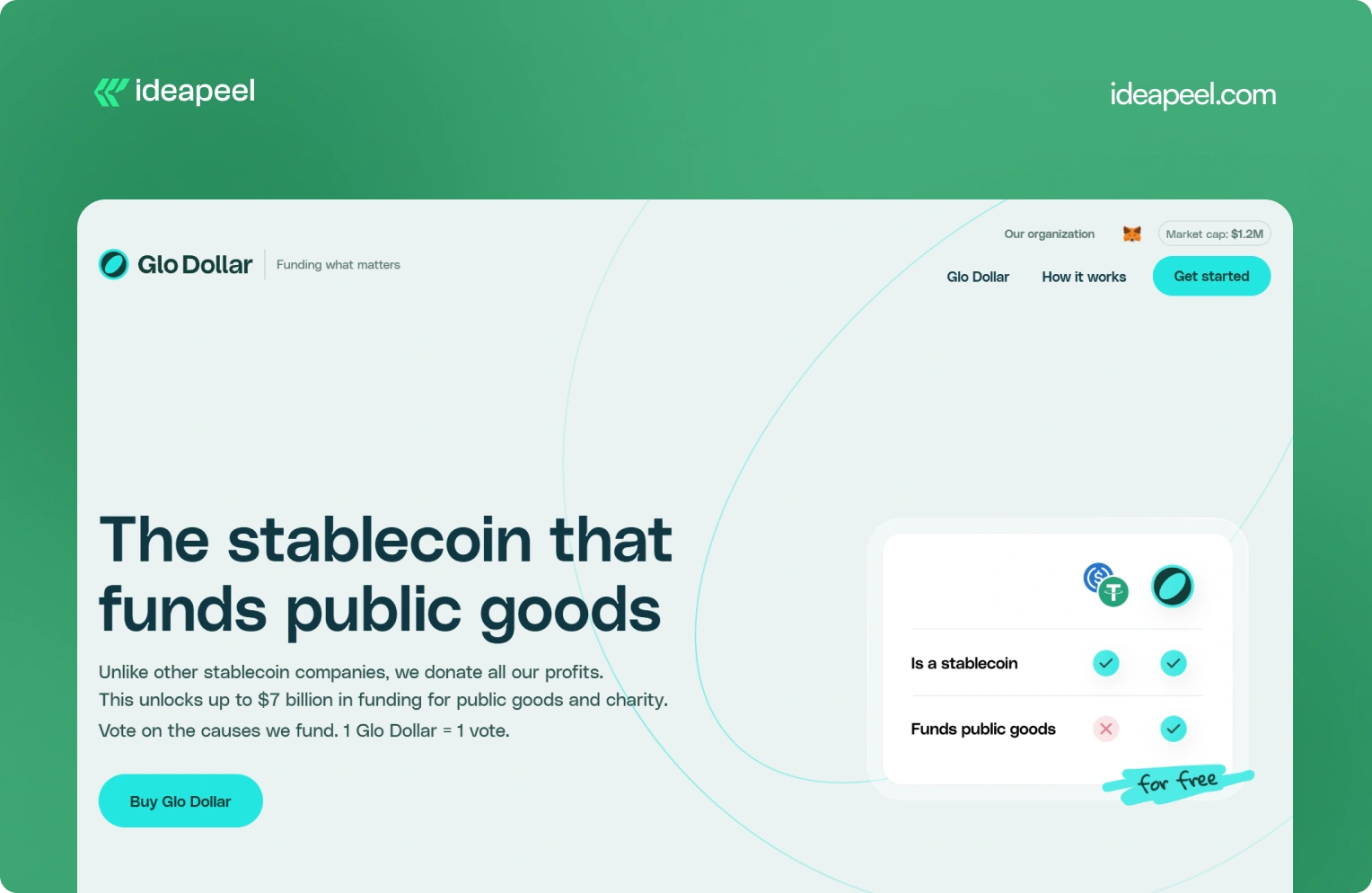
Industry: Fintech, blockchain, and stablecoins
What they do: Glo Dollar is a stablecoin designed so that profits from its reserves are donated to public goods and charitable causes. The website explains the model as a sequence: the fiat backing generates revenue, the profits are donated, and users can support causes at no additional cost.
Why the design works: Financial products are already difficult to explain. Add blockchain and philanthropy to the equation and the communication challenge becomes even bigger.
Glo Dollar handles that complexity by breaking the concept into smaller ideas. Instead of asking visitors to understand the entire financial model immediately, the website explains how the product works step by step.
Key design lesson: When your product combines several unfamiliar concepts, don't explain everything in one block of content. Sequence the information. One clear idea per section makes complicated products much easier to understand.
Visit Glo Dollar
5. BrickYard: Crafting Modern Architecture
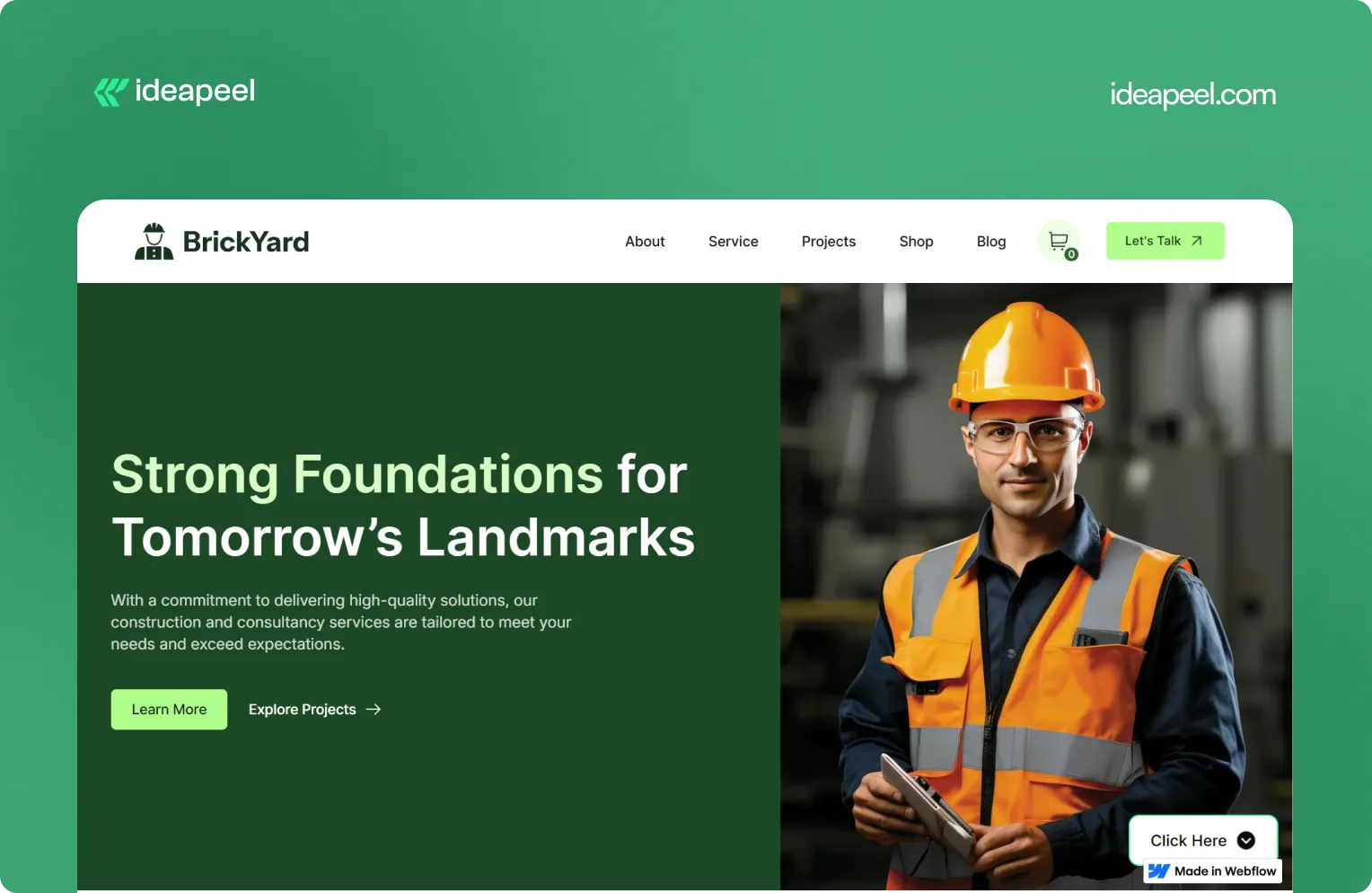
Industry: Construction, architecture, and design
What they do: BrickYard is a modern Webflow template designed for construction companies, architects, and design professionals. It focuses on showcasing services, projects, and professional work through a clean, responsive structure.
Why the design works: Construction and architecture websites need to balance two things: visual presentation and practical information. The work needs to look impressive, but potential clients also need to understand services, previous projects, capabilities, and how to get in touch.
BrickYard handles that through a minimalist visual system combined with dedicated pages for services, projects, blog content, contact information, and other business needs. The template is also designed to be customizable, responsive, SEO-focused, and CMS-ready.
That structure makes it useful beyond a single visual concept. Businesses can adapt the framework to their own services and content without rebuilding the entire site.
Key design lesson: Good website design isn't only about the homepage. Build a flexible structure that gives visitors the information they need while making it easy for the business to expand the site later.
View the live BrickYard template
6. Reliacare: Health and Wellness Website Template
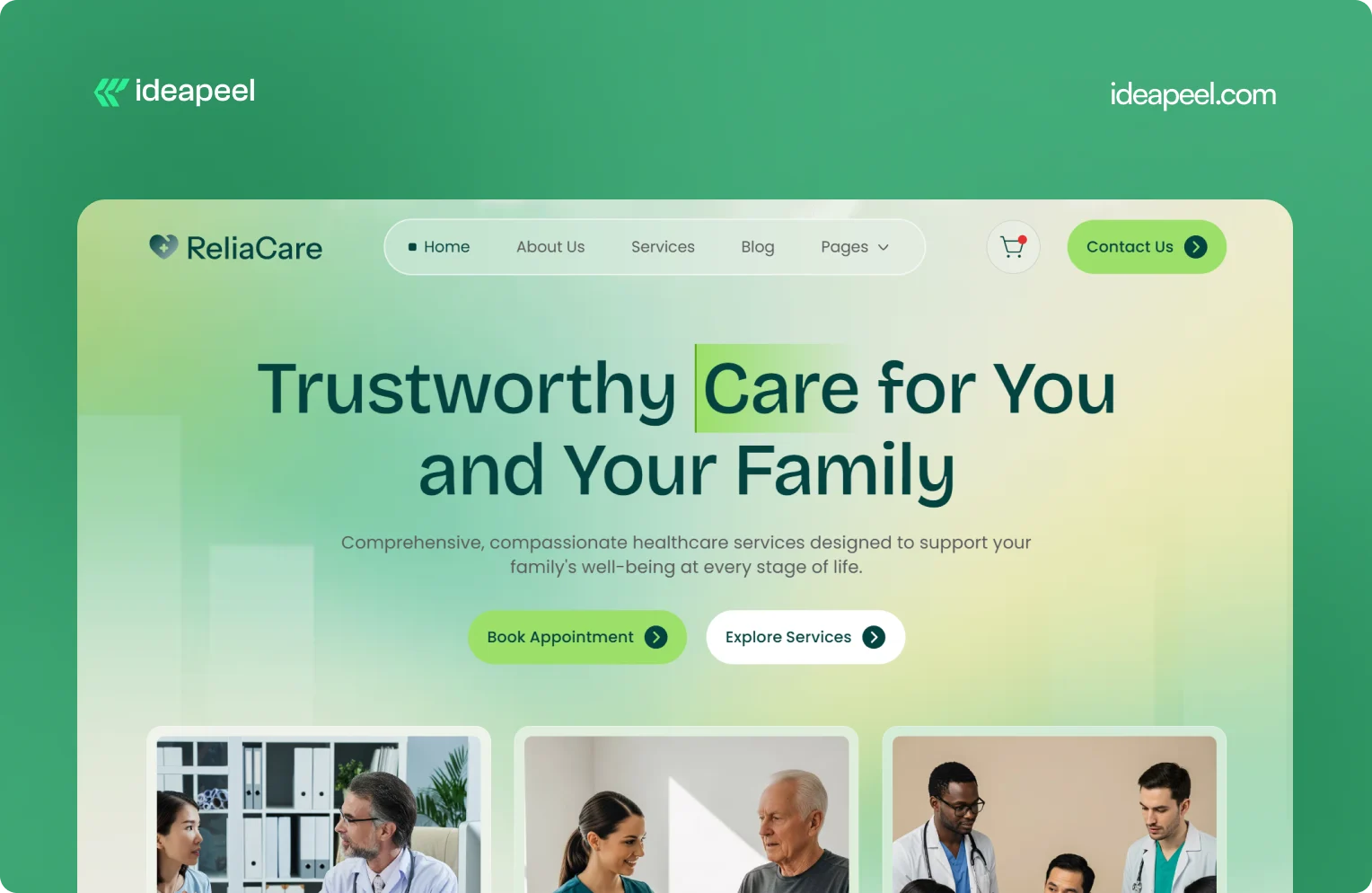
Industry: Health, wellness, and medical
What they do: Reliacare is a Webflow website template designed for health, wellness, and medical businesses that need a professional digital presence.
Why the design works: Health-related websites have a different trust challenge from many other industries. Visitors may already be uncertain, concerned, or looking for reliable information. A website that feels chaotic or overly decorative can make that uncertainty worse.
Reliacare takes a cleaner approach. The design gives services, information, and credibility room to breathe instead of filling every section with visual elements.
Key design lesson: For healthcare, wellness, and other trust-sensitive industries, restraint can be a design advantage. A clean interface with clear information often communicates confidence better than unnecessary visual complexity.
View Reliacare
7. StagePro: Events and Conference Website Template
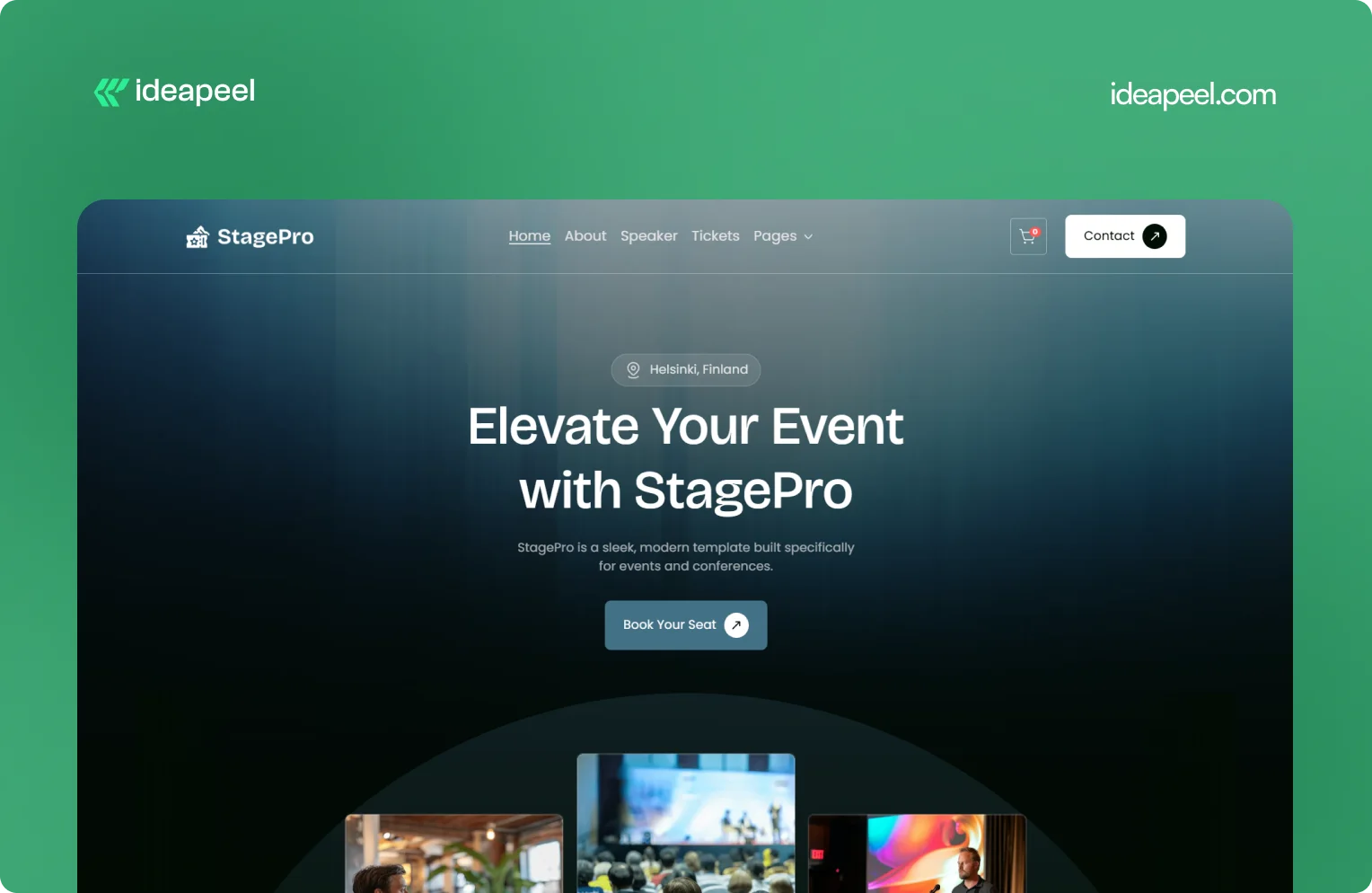
Industry: Events, conferences, summits, and workshops
What they do: StagePro is a Webflow template designed for event organizers, conference teams, summits, workshops, and other event-based businesses. It includes CMS-powered speakers, schedules, sponsors, blogs, ticket pages, and registration sections.
Why the design works: Event websites have to do several jobs at once. They need to create excitement, communicate important information, introduce speakers, explain schedules, and ultimately encourage people to register.
StagePro separates these needs into clear sections instead of trying to put everything into one message. The CMS structure also makes it easier to manage speakers, sessions, sponsors, and other event content as the website grows.
The result is a website structure that supports both the emotional side of an event and the practical information visitors need before registering.
Key design lesson: When a website has multiple conversion goals, don't mix everything together. Give each major goal a clear place in the information hierarchy.
8. Famous Tracker: Grow Fast Connection
Industry: SaaS and influencer marketing intelligence
What they do: Famous Tracker helps brands detect notable influencer purchases in real time and turn those signals into outreach opportunities. The platform provides automated detection, real-time notifications, influencer profiles, and tools for brand engagement.
Why the design works: Famous Tracker is built around a workflow that many visitors may not immediately understand. The website therefore needs to explain not just what the product is, but what happens after someone uses it.
The design makes the workflow easier to follow by connecting detection, notification, influencer information, and outreach. That helps turn an unfamiliar product category into a practical business process.
Key design lesson: If your product automates a process that visitors currently handle manually, show the workflow. Make it clear what happens before the product, what the product changes, and what the user can accomplish afterward.
View the Famous Tracker case study
[[question-block]]
9. Metrocard: Technology Website Template
Industry: Fintech and financial technology
What they do: Metrocard is a Webflow template designed for fintech, banking, investment, and financial service businesses. It uses a streamlined single-page structure with responsive design, intuitive navigation, SEO-focused structure, and customizable components.
Why the design works: Financial websites need to communicate credibility without making the experience difficult to navigate. Metrocard keeps the structure relatively focused, making it suitable for businesses that need to present a financial product or service without requiring a large multi-page website.
Its Webflow structure includes responsive navigation, CMS functionality, reusable components, forms, interactions, and responsive layouts.
Key design lesson: Not every B2B website needs dozens of pages. If the business has a focused offer, a well-structured single-page or compact website can communicate the value proposition without unnecessary complexity.
10. Moontide: Turning Dreams Into Reality
Industry: SaaS, founder funding and support
What they do: Moontide Capital connects immigrant founders with funding, legal support, and community networks to help them launch and scale startups.
Why the design works: This site has to build trust with a genuinely underserved audience while also proving credibility to investors and partners. The design keeps the process transparent from first meeting through due diligence, and leads with mission and impact before asking anything of the visitor..
[[inner-cta]]
B2B Website Design Best Practices
If you're planning a new B2B site or a redesign, these are the practices that show up consistently across the examples above:
- Lead with a specific value proposition, not a generic tagline. "We help B2B teams cut deal cycles by 40%" beats "The future of sales."
- Put your hero section to work. It's the highest-traffic real estate on the entire site. Don't waste it on abstract imagery with no message.
- Design for multiple stakeholders. B2B buying decisions often involve a technical evaluator, a budget owner, and an end user. Make sure each can find what they need.
- Use real product visuals wherever possible instead of stock photography or generic illustration; it builds more trust and helps visitors understand the actual product.
- Keep navigation goal-oriented. Organize menus around what visitors are trying to do (see pricing, understand the product, read case studies), not around internal department names.
- Add trust signals throughout the page, not just in one "logos" section testimonials and proof work best when they appear near the claim they're supporting.
- Make load speed part of the design brief. A fast, clean site reinforces credibility before a single word is read.
- Match your CTA to buyer intent. A first-time visitor and a returning, bottom-funnel visitor shouldn't see the same "Book a Demo" button in the same place.
How to Apply These Ideas to Your Own Website
You don't need to redesign everything at once. A practical way to start:
- Audit your homepage against the list above. Can a first-time visitor explain what you do after five seconds on the page?
- Identify your biggest trust gap. Is it a lack of proof, unclear pricing, or too much jargon? Fix the single biggest gap first.
- Map your navigation to buyer goals, not your internal team structure.
- Simplify one complex page at a time, following the "one idea per section" approach used by ZipID and Glo Dollar.
- Test your CTAs by funnel stage rather than repeating the same button everywhere.
Final Thoughts
The common thread across every example above isn't a specific color palette or layout trend, it's clarity. The best B2B websites make it easy to understand the offer, easy to trust the company, and easy to know what to do next. That's a strategy decision as much as a design one.
Need a B2B website that converts? If your current site isn't doing that job or you're planning a redesign and want it built around UX and conversion from the start, explore ideapeel's B2B website design work or book a strategy call to talk through your project.
Related Reading
- The UX Design Process: An Easy-to-Follow 8-Step Guide
- 10 Different Types of Websites With Examples
- Webflow Development Cost in 2026
- UI/UX Audit Checklist for B2B & SaaS
- ideapeel's UI/UX Design Services
- ideapeel's Webflow Development Services
[[last-cta]]
If you've been searching around for a straight answer on Webflow pricing, you've probably noticed something annoying: every article gives you a different number. That's because most of them mix up two totally different things: the cost of the Webflow platform itself and the cost of actually building a website on it.
Let's clear that up right away.
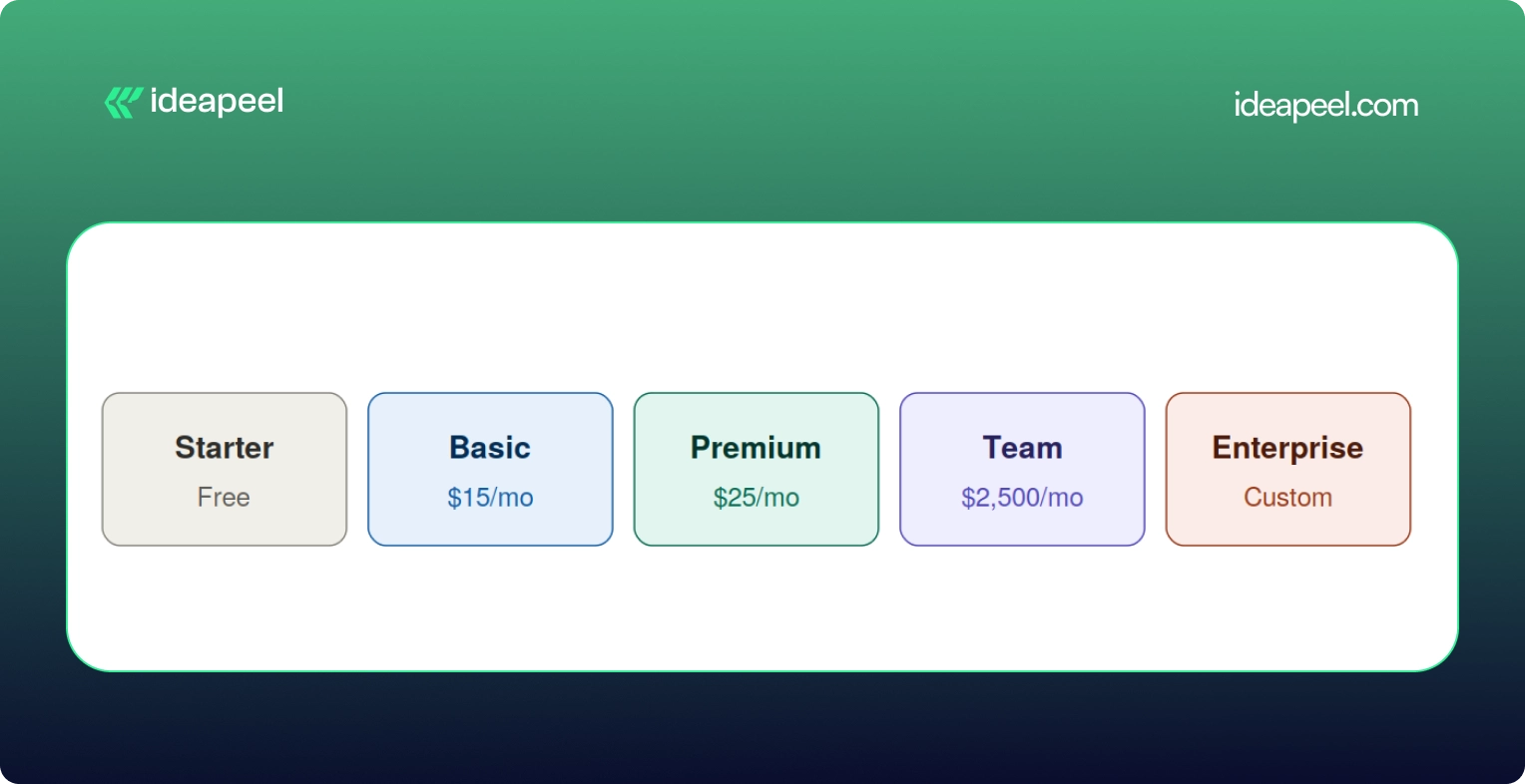
Webflow development cost in 2026 usually falls somewhere between a few hundred dollars for a small template based site, and $80,000 or more for a complex enterprise build. The Webflow subscription itself is separate from that. As of the platform's May 2026 pricing update, paid site plans start at $15 a month for Basic and $25 a month for Premium, both billed yearly.
That's the short version. Now let's break down where your money actually goes, because "it depends" isn't a budget.
Development Cost vs Platform Cost: Two Different Bills
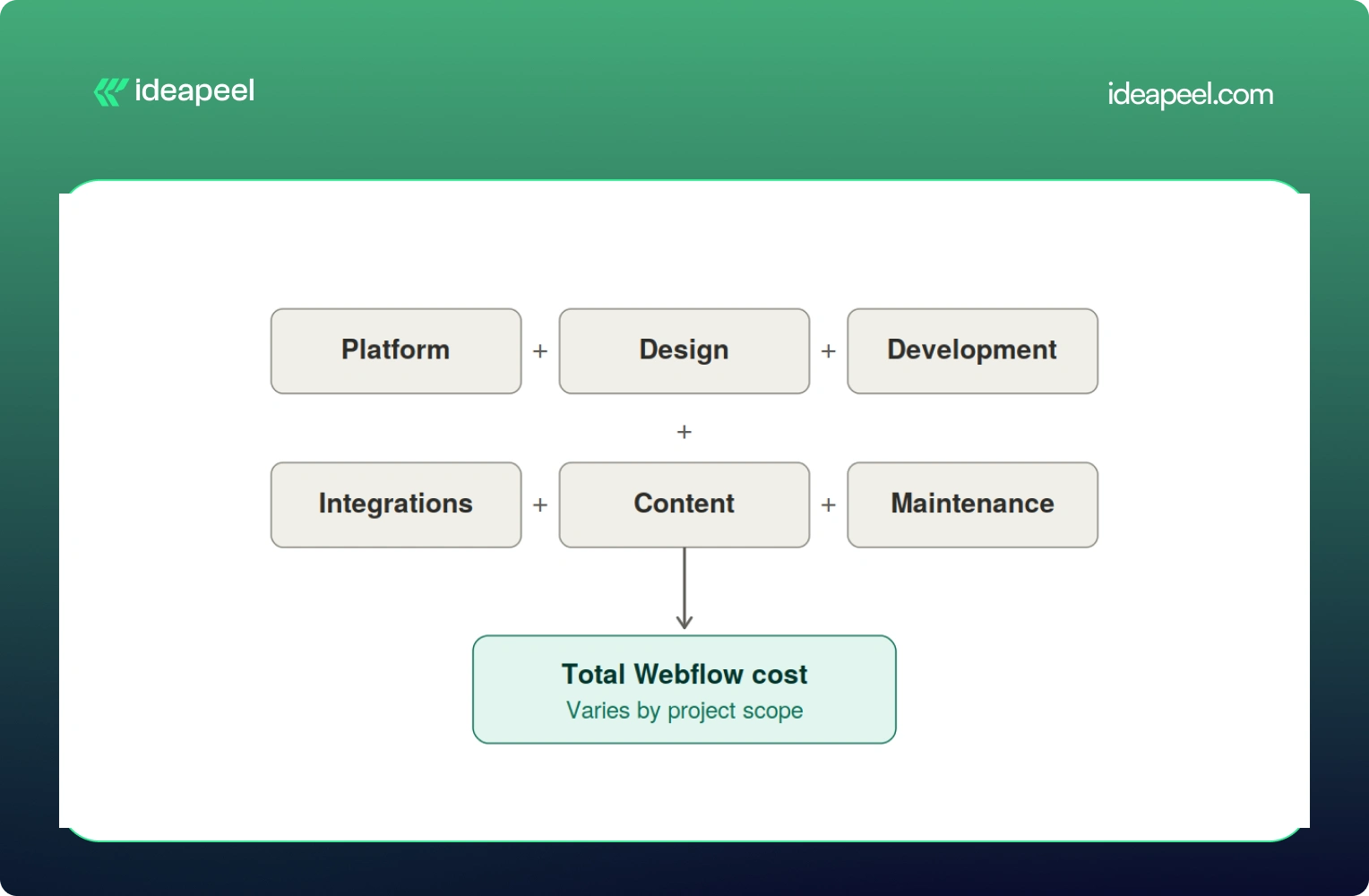
Here's the mental model worth keeping in your head the whole time you're reading this:
Total Webflow cost = Platform cost + Design + Development + Integrations + Content + Ongoing maintenance
The platform cost is what you pay Webflow every month to keep your site live. It's predictable and doesn't change much no matter who builds your site.
The development cost is what you pay a freelancer or agency to actually design, build, and launch the thing. This is the part that swings wildly, and it's the part most people are really asking about when they type "how much does Webflow cost" into Google.
Keeping these separate matters because a $5,000 website and a $20,000 website can run on the exact same $25 a month plan. The platform isn't what drives the price up. The scope of the work is.
Webflow Pricing in 2026 (Straight From Webflow)
Before anything else, let's get the official numbers on the table, because a lot of guides floating around still quote 2025 prices that no longer exist.
Webflow made its biggest pricing shake up in years back in May 2026. The old CMS plan and the old Business plan are both gone. They've been folded into one new plan called Premium.
A few things worth knowing about this change:
- The old Basic plan used to cost $18 a month. It's now $15 a month, and the page limit doubled from 150 to 300 static pages.
- The old CMS plan ($29/mo) and Business plan ($49/mo) are both retired. Premium replaces both at $25/mo and now comes with 20,000 CMS items included by default.
- If you already have an active site, none of this hits you immediately. Pricing changes apply at your next renewal or billable change on or after June 29, 2026.
On top of the Site Plan, there's a Workspace Plan, which is a separate bill many people forget about entirely.
And if more than one person needs to log in and edit the site, you'll pay per seat too, $39 a month for a full seat, $15 for a limited seat, and $0 for someone who just leaves comments.
So for a small marketing team with two editors, a realistic all in monthly number looks more like $70 to $95 a month once you add the Premium Site Plan, a Workspace plan, and an extra seat. Not $25. That's the number people get burned by when they only look at the homepage pricing.
[[inner-cta]]
Does Webflow Development Cost Include the Webflow Subscription?
No, and this trips up a lot of first time buyers. Development is a one time (or project based) cost that covers strategy, design, building the site, setting up the CMS, integrations, and getting it live. The Webflow subscription is what keeps that site running month to month, forever, whether you built it yourself or paid an agency $40,000 for it.
Think of it like buying a house versus paying your utility bill. Very different expenses, and mixing them up is how budgets go sideways.
How Much Does Webflow Development Cost by Website Type?
This is the question most people actually want answered, so let's get specific.
Keep in mind these are planning ranges pulled from what's actually happening in the market right now, not official Webflow numbers. A DIY project using a $49 to $149 premium template can bring the low end down to a few hundred dollars if you're comfortable doing the work yourself.
Landing Page
A single page or a small handful of pages, usually built to support a launch, a fundraise, or a campaign. Costs stay low here because there's less to design and fewer moving parts. Expect a template or lightly customized design, basic forms, and light SEO setup.
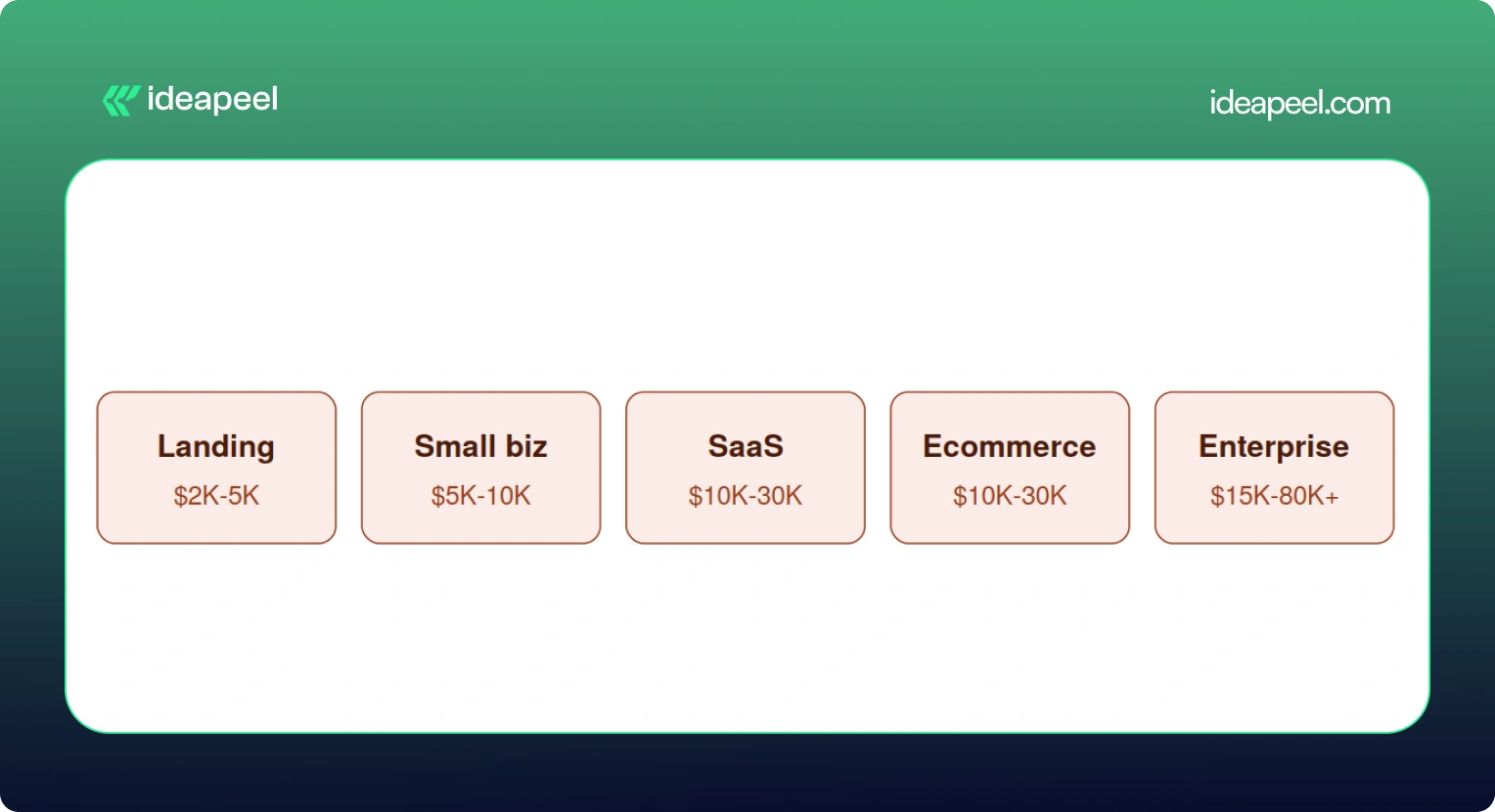
Small Business Website
Usually five to fifteen pages, with a blog or basic CMS, custom sections, and a handful of integrations like a contact form or email tool. This is the sweet spot for most local businesses and service providers.
SaaS Website
This is where things get more involved. A proper SaaS site needs a homepage that actually explains what you do, product and feature pages, a pricing page that converts, a CMS for the blog and case studies, and enough SEO and content structure to bring in organic traffic. Expect this to run $10,000 and up, and often well past $20,000 once you factor in conversion focused design.
Ecommerce Website
Product pages, collections, a working checkout, payment integration, and filtering all add real development hours. A store with 45 products and a few third party integrations (think Klaviyo or ShipStation) commonly lands in the $20,000 to $30,000 range.
Enterprise Website
Big CMS structures, multiple templates, localization for different markets, complex integrations with sales and marketing tools, accessibility requirements, and heavier governance and security needs. These projects regularly cross $30,000 and can go past $80,000 depending on scope.
[[question-block]]
What Actually Drives the Price Up
Here's a mistake a lot of people make: assuming more pages automatically means more money. That's not quite right.
Unique page designs and complexity matter far more than raw page count. A 40 page site built from five repeatable templates can be cheaper than a 10 page site where every single page has its own custom layout.
A few specific numbers worth knowing:
- Custom animations or GSAP heavy interactions typically add $1,000 to $5,000.
- Each third party integration (HubSpot, Salesforce, Zapier, a payment processor) runs $500 to $2,000, with complex ones like custom auth or dashboards going up to $10,000.
- Multi language sites using Webflow's localization tools add another $2,000 to $8,000 depending on how many locales you need.
- Migrating content from WordPress or another CMS adds $1,000 to $5,000 depending on how messy the existing data is.
What's Actually Included in a Webflow Website Development Project?
If you've never gone through this process before, here's roughly what you're paying for when you hire someone to build a Webflow site.
Strategy: discovery calls, sitemap planning, competitor research, figuring out what actually needs to be on the site
Design: wireframes, UI design (often in Figma first), responsive layouts for desktop and mobile, building out a reusable design system
Development: the actual Webflow build, CMS collections, interactions and animations, reusable components, responsive behavior
Technical work: forms, analytics setup, third party integrations, redirects, technical SEO, schema markup, accessibility, page speed
Launch: QA across browsers and devices, mobile testing, redirect mapping, checking indexing, confirming analytics are firing correctly
Skipping any of these steps is usually how projects end up needing expensive rework a few months later.
Does SEO Increase Webflow Development Cost?
Yes, a bit, and it's worth it. A properly done technical SEO setup, meta tags, schema, sitemap, clean URL structure, image optimization, internal linking, page speed, usually adds somewhere between $500 and $3,000 depending on site size. Given that a large majority of buying journeys still start with a search engine, this isn't a line item to cut to save a few hundred dollars.
Does AEO or GEO Change What You Pay?
This is newer territory, and it's genuinely one of the more useful things to understand right now if your site needs to show up in AI-ge answers, not just Google's blue links.
AEO (Answer Engine Optimization) is about nerated structuring your content so tools like ChatGPT, Perplexity, and Google's AI Overviews can pull a clear answer straight out of your page. That usually means adding question-based content, clearer CMS field structure, and schema that spells out exactly what your business does.
GEO (Generative Engine Optimization) goes a step further. It's about making your brand something AI systems actually want to cite as a source, through comparison pages, case studies, clear author information, evidence-backed claims, and content that other sites and AI tools can confidently reference.
Neither of these replaces SEO. They sit on top of it. And yes, they can add scope, usually in the form of extra content architecture and structured data work, which might add anywhere from a few hundred to a couple thousand dollars depending on how deep you go. But for businesses trying to stay visible as more searches shift toward AI tools, it's quickly becoming table stakes rather than a nice to have.
Real World Examples
Numbers on a chart only tell you so much, so here's what actual projects have looked like.
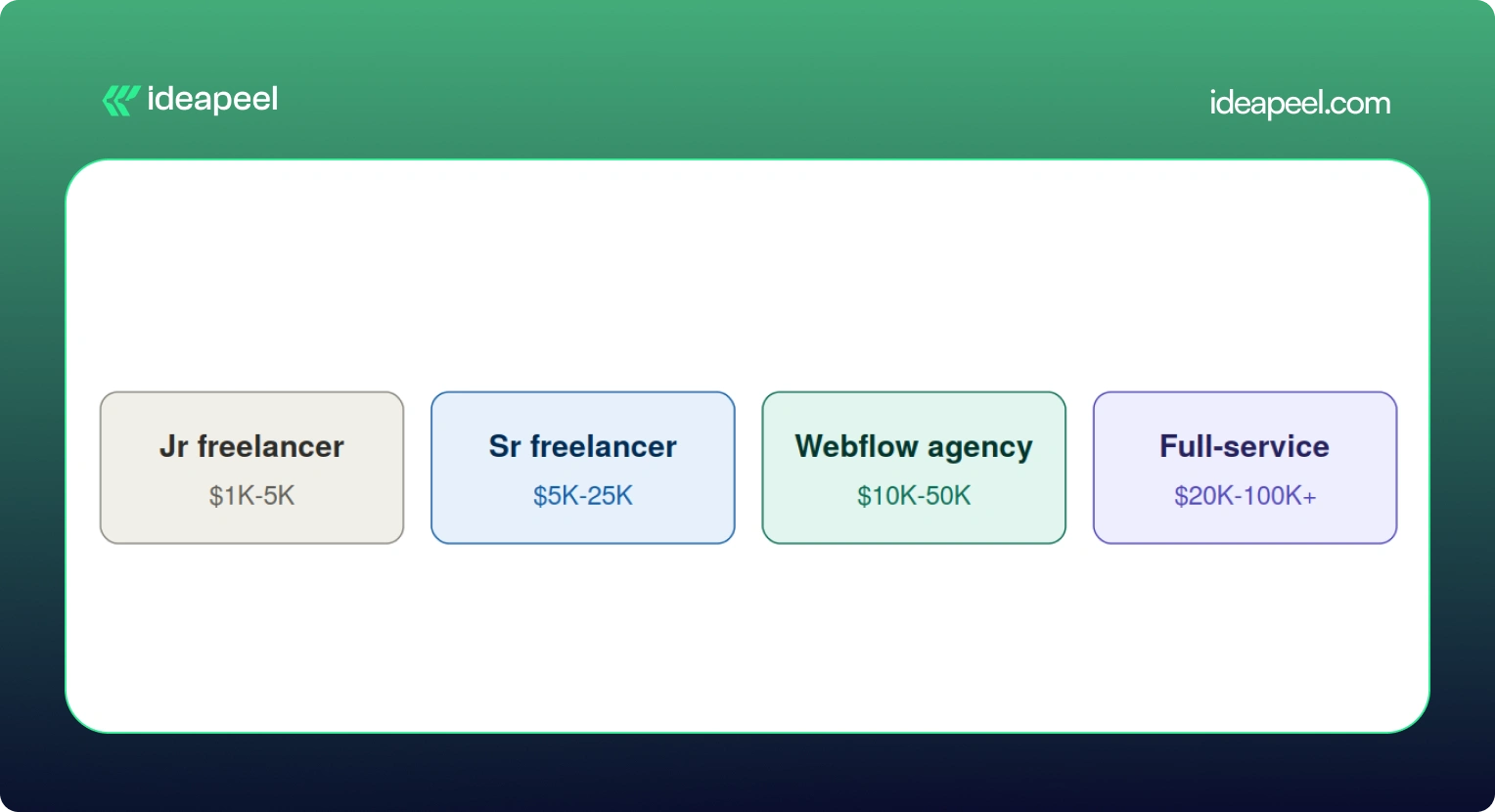
Startup landing page, $3,500. A pre-seed SaaS company needed three pages (homepage, features, pricing) to support a fundraising push. A mid-level freelancer delivered it in about 10 days, including a basic blog CMS and HubSpot form integration.
Professional services site, $12,000. A 50-person consulting firm needed a 20 page site with team bios, case studies, a blog, and a contact system. A Webflow specialized agency delivered it in six weeks, covering discovery, custom design, development, CMS setup, and SEO.
Ecommerce brand, $22,000. A direct-to-consumer skincare company needed 45 products, a content hub, and integrations with Klaviyo and their inventory system. This included brand identity work, full ecommerce build, and product photography direction.
Enterprise migration, $45,000. A Series C fintech company moved an 80-page site from WordPress to Webflow over 12 weeks with a three-person team. The budget covered a full content audit, a new design system, CMS architecture, redirect mapping, and integrations with HubSpot, Salesforce, and Segment.
Webflow vs WordPress: Which Actually Costs More?
On paper, the build costs look similar, both platforms range from roughly $2,000 to $60,000 depending on scope. The real difference shows up after launch.
WordPress can still make sense for content-heavy sites that lean hard on a specific plugin ecosystem. But for most marketing and SaaS teams who want to move fast without filing a developer ticket every time they need a small change, Webflow tends to come out ahead once you look at total cost over two or three years.
Additional Costs People Forget to Budget For
A handful of expenses regularly catch people off guard:
- Stock photography, usually $10 to $500 per image, with most sites needing 20 to 50 images
- Custom fonts, $50 to $500 for a commercial web license if Google Fonts won't cut it
- Copywriting, $100 to $300 per page, so a 20-page site can mean $2,000 to $6,000 just for the words
- Domain registration, $10 to $50 a year
- A maintenance retainer, $300 to $2,000 a month if you want someone on call for updates
- Add-ons like Optimize (A/B testing), which starts at $299 a month and isn't bundled into any standard plan
None of these are dealbreakers on their own, but stacked together they can add 15 to 20% to a project you thought you'd already priced out.
How to Get an Accurate Webflow Quote
A few things that consistently lead to a tighter, more honest quote:
- Have your content ready before you start. Delays in copy and images are one of the most common reasons projects run over budget and over timeline.
- Write down your scope clearly. A sitemap, a feature list, and a rough page count prevent the slow creep of "just one more page" that inflates every project.
- Decide your must haves versus nice to haves. Do you actually need multi language support on day one, or can that wait for phase two?
- Ask providers for a phase by phase breakdown, not just one lump number. It makes it much easier to see where your money is actually going.
- Consider launching an MVP first. Getting a smaller version live and adding features later based on real user behavior often costs less overall than trying to build everything up front.
Is Webflow Worth the Cost in 2026?
For most growing businesses, yes. A well-built website isn't really an expense; it's closer to a sales tool that works around the clock. Reports on website redesigns consistently show meaningful jumps in lead generation and conversion rate within the first year after a proper rebuild, and even a modest improvement in conversion rate can pay back a five-figure project within months.
That said, not every business needs a $30,000 site. If you're testing an idea or need something up fast, a $2,000 to $5,000 build on a solid template is a completely reasonable place to start. The bigger point is this: the cheapest option isn't automatically the smartest one. What actually matters is whether the site can bring in traffic, support your team, convert visitors, and grow with you instead of needing a full rebuild in a year.
Webflow itself, as a platform, is fairly predictable and easy to budget for. The real variable is always the scope of the work you're asking someone to do on top of it.
Final Thoughts
The Webflow website cost in 2026 depends on your project, design complexity, development time, and customization. A simple Webflow template can keep the build cost low, while custom Webflow development can increase the overall cost.
When budgeting for a Webflow website, consider the full cost of ownership, including the Webflow site plan, Webflow Workspace, development, maintenance, and SEO.
Hiring a Webflow developer is not only about comparing developer rates. An experienced Webflow expert can make better design decisions, create a responsive design system, and reduce rework. The right development partner can help with Webflow development and website design.
For SaaS and growing businesses, the goal is not simply to cost less. It is to build a professional website that balances quality, performance, budget, and long-term growth.
If you need professional design and development for a high-performing Webflow website, ideapeel can help turn your goals into a scalable Webflow build.
[[last-cta]]
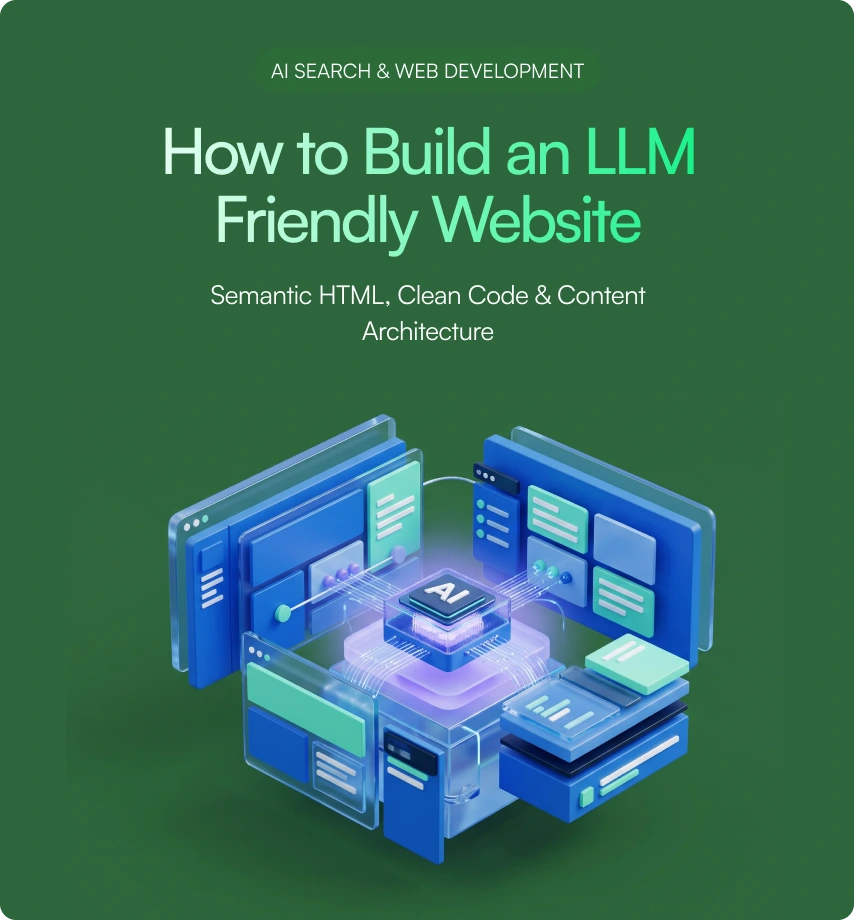
Search is changing. More people now ask ChatGPT, Perplexity, Gemini, or Google's AI Overviews a question instead of typing keywords into a search box. If your website isn't easy for these AI systems to read, you become invisible in that conversation, even if your content is great.
This guide explains, in plain words, what makes a website "LLM-friendly," and gives you a clear, honest framework to follow. We'll also flag where common advice online overstates what actually helps, based on what Google and OpenAI have publicly confirmed.
If you want a hand implementing any of this, ideapeel's web development team builds sites with this exact architecture in mind.
What Is an LLM-Friendly Website?
An LLM-friendly website is one where crawlers and AI retrieval systems can easily reach, read, and understand your important content, and where that content is written clearly enough to be pulled into an AI-generated answer.
It's not one trick. It's a chain of small things working together: a crawler must be able to reach the page, get the real content (not a blank JavaScript shell), understand what each part means, and trust it enough to quote it.
How Do AI Search Systems Actually Read a Website?
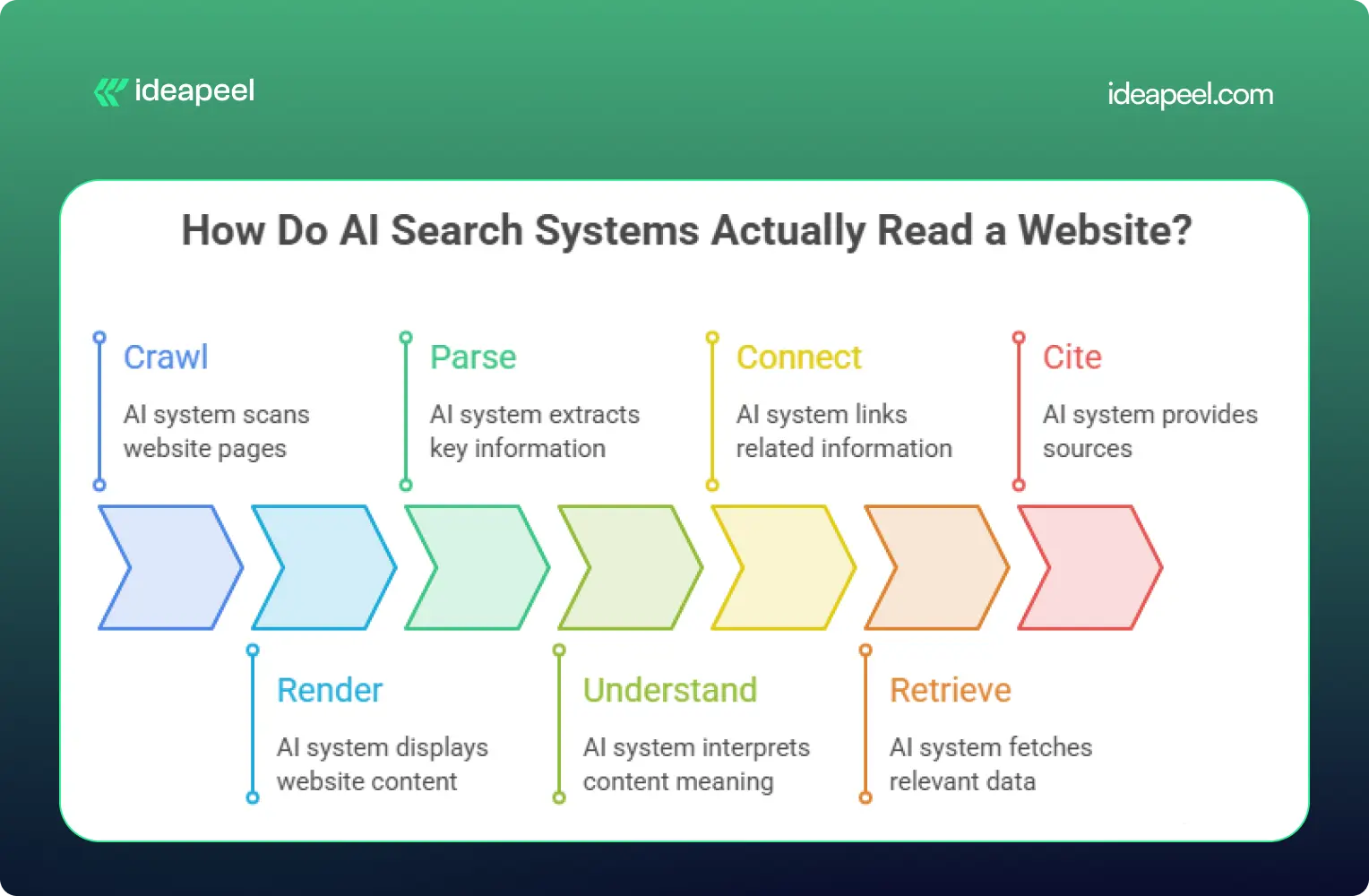
Most AI systems follow a simple path: crawl → render → parse → understand → connect → retrieve → cite.
- Crawl: the bot requests your page.
- Render: it tries to get the actual content (many AI bots skip JavaScript entirely).
- Parse: it reads the HTML structure to find headings, lists, and text.
- Understand: it works out what each section means.
- Connect: it links your content to entities and concepts it already knows.
- Retrieve: it pulls the relevant passage when someone asks a related question.
- Cite: it quotes or references your page in its answer.
Most articles online only talk about step 3 (structure). The real opportunity is making sure your site works at every step in this chain. That's the core idea behind ideapeel's GEO strategy work.
Does Semantic HTML Help AI Search?
Semantic HTML helps AI systems understand your content faster and more accurately, but it is not a confirmed ranking factor on its own.
Google has stated there are no special technical requirements beyond normal indexing and Search eligibility for a page to appear in AI Overviews or AI Mode. Semantic HTML is recommended mainly because it improves accessibility and human readability, and that clarity happens to help machines too.
So use semantic HTML because it's good practice, not because it's a magic switch.
A weak example:
<div class="title">What Is GEO?</div>
<div class="text">GEO means optimizing content for AI search...</div>
A strong example:
<article>
<header>
<h1>What Is Generative Engine Optimization?</h1>
</header>
<section>
<h2>What Is GEO?</h2>
<p>GEO is the practice of structuring content so AI search tools can find, understand, and cite it.</p>
</section>
</article>
The second version tells a crawler exactly what's a heading, what's an article, and what's a self-contained section.
Semantic HTML Elements Every Site Should Use
Keep headings in logical order (H1 → H2 → H3). Skipping levels or using headings purely for visual styling confuses both AI parsers and screen readers.
How Clean Code Improves AI Accessibility
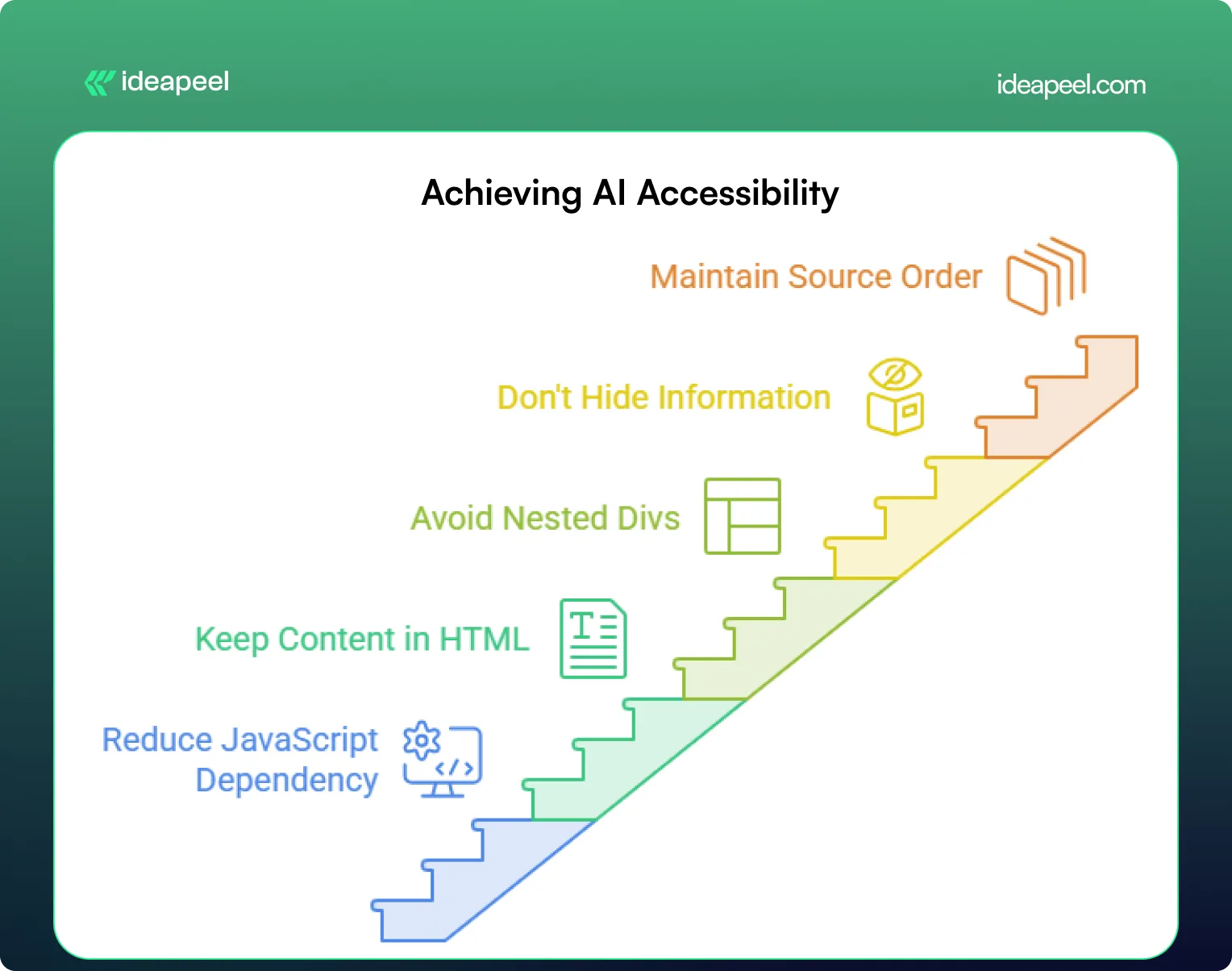
"Clean code helps AI" is vague advice. Here's what it actually means in practice:
- Reduce JavaScript dependency. Many AI crawlers don't execute JavaScript at all. If your key content only appears after a script runs, it may be invisible to them. Server-side rendering (SSR) or static generation puts real content directly in the HTML.
- Keep primary content in the HTML source. Your headline, intro, headings, and body text should be visible without any interaction.
- Avoid deeply nested <div> soup. Flat, logical markup is easier to parse and easier for your own team to maintain.
- Don't hide key information behind tabs or accordions unless there's a real usability reason; crawlers usually won't click.
- Maintain a sensible source order. The HTML should read logically top to bottom, even before CSS repositions anything visually. MDN's accessibility guidelines cover this well.
A simple test: turn off JavaScript in your browser and reload your most important page. Whatever's still visible is roughly what many AI crawlers see.
[[inner-cta]]
How to Structure Content for LLM Retrieval
AI systems tend to pull short, self-contained passages rather than reading an entire page in context. Structure your content so each section can stand on its own.
- Answer first. Put the direct answer to the heading's question in the first sentence or two, then explain further.
- One idea per paragraph. Keep paragraphs short, two to four sentences.
- Define terms as you use them. Don't assume the reader (or the AI) already knows what a term means.
- Use tables for comparisons. Tables are easy for AI systems to extract and quote cleanly.
- Add FAQs and summaries. These are naturally structured for extraction.
Build an Entity-First Content Architecture
Beyond individual pages, AI systems build an internal map of how topics and organizations relate to each other. Writing clearly about these relationships helps.
Weaker: "ideapeel builds websites. It also does Webflow work. The company works with SaaS brands."
Stronger: "ideapeel is a Webflow development agency that designs and builds websites for B2B SaaS companies."
The second sentence makes the relationships explicit:
- ideapeel → is a → Webflow agency
- ideapeel → serves → B2B SaaS companies
Apply the same idea to your whole site by grouping related content into a clear cluster, connected with internal links:
- Pillar page: What Is GEO?
- Supporting page: GEO vs SEO
- Supporting page: AI-Readable Website Checklist
- Commercial page: Webflow Development Services
Linking a pillar page to its subtopics, and back again, gives both readers and AI systems a clear map of how your content connects.
Technical SEO Requirements for AI Search
Does Google require special HTML for AI search? No. Google has confirmed there are no additional technical requirements for appearing in AI Overviews or AI Mode beyond meeting normal Search requirements and being eligible for a standard snippet.
That means the basics still matter most:
- Crawlability: nothing important is blocked in robots.txt
- Indexability: pages aren't accidentally set to noindex
- A clean XML sitemap: listing only real, indexable pages
- Canonical tags: one clear version per piece of content
- Fast load times: a slow, heavy page can fail before it's even read
Does Schema Markup Help AI Search?
Schema markup helps search engines and AI systems understand what your page is about and can make it eligible for rich results, but it doesn't guarantee an AI citation on its own.
Add schema where it genuinely matches your visible content:
- Article or BlogPosting for guides and posts
- Organization for your homepage
- FAQPage for pages with real Q&A content
- BreadcrumbList for site navigation
- Product or Service for commercial pages
Test your markup with Google's Rich Results Test before publishing.
Does llms.txt Improve AI Visibility?
This is one of the most debated points in AI search advice right now, and it deserves an honest answer instead of a confident one.
llms.txt is a proposed (not official) plain-text file placed at your site's root that summarizes your most important pages for AI systems, similar in spirit to a sitemap. Google has stated plainly that it does not require llms.txt and that Google Search ignores it for generative AI features. Independent log analysis from several agencies has also found little to no crawl activity from major AI bots on llms.txt files specifically.
The honest takeaway: llms.txt is low-effort and probably harmless to add, but it should never replace real technical SEO and content structure. Treat it as a small experiment, not a strategy.
How to Make Your Site Accessible to ChatGPT Search
OpenAI has said that sites that want their content discoverable and cited in ChatGPT Search should avoid blocking its search-related crawler in robots.txt. If you want visibility there, check that:
- OAI-SearchBot isn't blocked
- Your key pages return real HTML content on first load (not just after JavaScript runs)
- Internal links use standard <a href> tags, not JavaScript-only navigation
LLM-Friendly Website: Before and After
Before: Content loads via a JavaScript framework after the initial page request. Headings are styled <div> tags. Key answers are buried in paragraph eight. No internal links connect related topics.
After: Content is server-rendered and present in the raw HTML. Headings use proper <h1>–<h3> tags in order. Each section opens with a direct answer. Related pages link to each other with descriptive anchor text, not "click here."
The difference isn't a redesign; it's making sure the right things are already true in your source code.
[[question-block]]
Beyond the Basics: What Actually Builds Trust for AI Citation
Most guides stop at structure and code. But structure only gets you understood; it doesn't get you trusted. Two things matter more than most checklists admit:
- Third-party corroboration. AI systems tend to weigh independent sources (reviews, comparison articles, forum discussions, Wikipedia) more heavily than a company's own claims about itself. Being mentioned accurately elsewhere on the web matters as much as your own pages.
- Original data. A specific, original stat or finding is far more likely to be quoted than recycled general advice, simply because no one else has it.
If citation share matters to your business, these two levers are worth as much attention as the technical checklist.
LLM-Friendly Website Audit Checklist
- [ ] Key content is visible in raw HTML (test with JavaScript disabled)
- [ ] Headings follow a logical H1–H4 order
- [ ] Each section opens with a direct answer
- [ ] Important pages are within 3 clicks of the homepage
- [ ] Internal links use descriptive anchor text
- [ ] Robots.txt doesn't accidentally block useful AI bots
- [ ] XML sitemap is accurate and up to date
- [ ] Canonical tags are set correctly
- [ ] Relevant schema markup is added and validated
- [ ] Site loads quickly with minimal render-blocking scripts
Make Your Website Ready for AI Search With ideapeel
Building an LLM-friendly website is no longer just about making a page accessible to search engines. As AI changes how people discover businesses, your website needs a strong technical and content foundation that helps both traditional search and AI systems understand what you offer.
That starts with clean HTML, logical semantic HTML, and a clear content structure. Proper H1 and H2 headings, descriptive URLs, accurate metadata, accessible navigation, and relevant structured data markup help crawlers understand how your pages are organized. At the same time, important content should not depend entirely on JavaScript, CSS, or complex framework behavior that can make it harder for a crawler to access and parse.
But technical optimization is only one piece of the process.
Connect SEO, AEO, GEO, and LLM Optimization
An AI-ready website brings multiple disciplines together. SEO helps search engines discover and index your pages. Semantic HTML and accessibility make the information easier to interpret. Structured data gives additional context about your content. And LLM optimization focuses on making your information clear enough for AI systems to understand, retrieve, and potentially reference.
This requires a consistent workflow across your website:
Crawl → Parse → Understand → Connect → Retrieve → Answer
Your HTML structure, content architecture, internal links, metadata, APIs, and CMS should all support that workflow.
For businesses building on Webflow, this is where a technically strong development partner can make a difference.
How ideapeel Builds AI-Ready Websites
ideapeel combines web development, SEO, content architecture, and AI-search thinking to help SaaS and technology companies build websites that are designed for both people and machines.
Our approach can include:
- Semantic HTML and accessible website structures
- SEO-friendly headings, metadata, and URLs
- Clean Webflow development and CMS architecture
- LLM-friendly content and page structures
- Structured data and relevant schema markup
- Technical SEO and indexing best practices
- Internal linking and topic-cluster architecture
- Content structures designed for AI search and answer engines
- Performance-focused development with unnecessary JavaScript dependencies reduced where appropriate
If you're building a new website, redesigning an existing one, or trying to improve your AI search visibility, these elements should be considered from the beginning rather than added after development.
Explore ideapeel's Web Development Services to see how we approach modern website architecture, or learn more about GEO for AI search and Webflow development.
Your Website Should Be Easy for AI to Understand
The future of search is not only about ranking a URL. It is increasingly about whether your website can be found, understood, connected, and referenced when someone asks an AI system a question.
You do not need to rebuild everything around AI or add every new technology. Start with the fundamentals: clean HTML, semantic structure, accessible content, logical headings, strong SEO, reliable indexing, useful structured data, and a content architecture that clearly communicates what your business does.
Then build on that foundation with AEO and GEO.
If your website is difficult for a crawler to access, difficult for a search engine to index, or difficult for an LLM to parse and understand, great content may never reach the people searching for it.
ideapeel helps SaaS and technology brands turn their websites into clearer, faster, search-ready digital experiences built for the next generation of AI-powered search.
Ready to make your website AI-ready? Talk to the ideapeel team for an AI search, SEO, and website architecture assessment.
[[last-cta]]
%20for%20B2B%20SaaS_%20How%20to%20Get%20Cited%20in%20AI%20Search.webp)
More B2B buyers are starting their research in ChatGPT, Perplexity, and Google AI Overviews before they ever open a search results page. If your SaaS company isn't structured for those systems to find, understand, and cite it, you're invisible at the exact moment someone is deciding who to shortlist.
This guide breaks down what Generative Engine Optimization actually means for a B2B SaaS company, how it's different from (and connected to) SEO and AEO, and what to change on your website so AI systems can accurately represent your product - and hopefully recommend it.
Quick answer
Generative Engine Optimization (GEO) for B2B SaaS is the practice of structuring your website, content, and external presence so AI systems like ChatGPT, Perplexity, and Google AI Overviews can understand what your product does, who it's for, and why it's credible enough to cite. It builds on SEO fundamentals but adds a heavier emphasis on entity clarity, evidence, and machine-readable structure.
Key takeaways
- GEO isn't a replacement for SEO - it's what happens when SEO, entity clarity, and evidence-backed content work together for AI systems instead of just search rankings.
- AI search engines don't rank pages the way Google does. They gather evidence, compare it, and decide what's worth citing. That changes what "good content" looks like.
- Comparison pages, case studies, and author pages carry more weight in GEO than in traditional SEO, because they give AI systems something concrete to evaluate.
- No platform - not ChatGPT, not Perplexity, not Google - guarantees citations. The realistic goal is improving your eligibility and likelihood of being cited, not forcing a result.
- Webflow now ships native AEO tooling (Enterprise tier) and an MCP server (available on every plan, including the free tier) that both play into a GEO strategy in different ways.
What is Generative Engine Optimization for B2B SaaS?
.webp)
Traditional SEO helps your SaaS website compete for rankings on a results page. GEO helps make your company easier for AI systems to understand, evaluate, and potentially cite when someone asks for a recommendation.
The difference matters because the underlying task is different. A search engine matches a query to a set of pages and ranks them. A generative engine has to do more work: it interprets what the user actually needs, pulls together information from multiple sources, compares options, and produces an answer - with citations attached, if it's confident enough in what it found.
Take a query like "best Webflow development agencies for a B2B SaaS company." To answer that well, an AI system has to:
- Understand what the user actually needs (not just match keywords)
- Identify companies that plausibly fit
- Compare them against each other
- Evaluate the evidence available for each one
- Decide which sources are trustworthy enough to cite
- Generate a recommendation
- Attribute it to specific pages
Every one of those seven steps is a place where a well-structured SaaS website has an advantage over a vague one - and where GEO work actually pays off.
[[inner-cta]]
GEO vs. SEO vs. AEO vs. LLM optimization
These terms get used interchangeably a lot, which causes confusion. They're related, not identical, and none of them replaces the others.
A strong SEO foundation feeds AEO, which feeds GEO, which feeds how well LLMs represent your brand when someone asks about you in a completely different context. Treat them as layers on the same foundation, not four separate strategies competing for budget.
Why GEO matters for B2B SaaS specifically
B2B SaaS buying decisions involve research, comparison, and validation - which happens to be exactly the kind of query AI search engines are built to answer. Someone evaluating a new tool isn't typing one search and clicking the top result. They're asking follow-up questions, comparing named competitors, and asking an AI system to summarize the trade-offs.
If your product only exists as marketing copy with no comparison content, no evidence, and no clear entity definition, an AI system has very little to work with. It'll either skip you or, worse, describe you inaccurately based on scraps of information from third-party sites you don't control.
The 6E framework for GEO readiness
.webp)
Most GEO advice stops at "write good content." That's not specific enough to act on. Here's a framework built around what AI systems actually need to extract and trust information about a B2B SaaS company.
Entity - Clearly identify the company, the product, the people behind it, and the concepts it's associated with. An AI system needs to know what category you belong to before it can decide whether you're relevant to a query.
Explanation - State plainly what the company does. Not "we help companies grow," but a specific, checkable description of the product, who it serves, and the problem it solves.
Evidence - Back up claims with something concrete: numbers, named clients, measurable outcomes, third-party validation. Claims without evidence are easy for an AI system to ignore.
Experience - Show first-hand knowledge. Case studies, original research, documented projects. This is what separates a company that clearly does the work from one that's just describing a service category.
Ecosystem - Connect your company to the broader landscape: technologies, industries, partners, and related concepts. Isolated pages read as thin. Pages embedded in a network of related content read as authoritative.
Extraction - Structure content so a specific, useful answer can be pulled out cleanly. Clear headers, direct answers near the top, tables where comparison is the point.
Put together: GEO readiness = Entity + Explanation + Evidence + Experience + Ecosystem + Extraction.
How to structure a B2B SaaS website for GEO
.webp)
Generic advice to "create quality content" doesn't tell you what to build. Here's the actual architecture.
Homepage - Company description, core value proposition, primary services, target customers, industry expertise, differentiators, and proof (logos, numbers, testimonials).
Service or product pages - What it is, who it's for, the problem it solves, the process, deliverables, pricing context where it makes sense, FAQs, related case studies.
Case studies - Client, industry, the specific problem, the solution, how it was implemented, the results, the technology used, and a timeline. Vague case studies ("we improved their results") give an AI system nothing to cite.
Comparison pages - Product A vs. Product B, honest use cases, real limitations, pricing context, and who each option is actually best for.
Author pages - Name, role, expertise, experience, credentials, publications, and relevant work. This matters more than most companies realize - AI systems weigh author credibility as part of trust signals.
[[question-block]]
How to create content AI search engines can cite
.webp)
AI systems cite specific claims, not vague marketing language. Compare these three versions of the same statement:
Weak: "ideapeel builds high-converting Webflow websites."
Stronger: "ideapeel specializes in Webflow development for SaaS and technology companies, combining UI/UX design, Webflow development, CMS architecture, and SEO."
Evidence-rich: "ideapeel specializes in Webflow development for SaaS and technology companies. Its portfolio includes [named project], where the team handled [specific scope of work] and achieved [a verifiable, specific outcome]."
The third version is the only one an AI system can actually use as a citable claim, because it's specific enough to check.
Why comparison content matters more than you'd think
A large share of AI search queries are inherently comparative: "which is better," "what's the best tool for X," "alternatives to Y," "X vs. Y." That's the natural language version of how B2B buyers actually shop.
That means comparison pages, alternative pages, "best for" pages, and use-case pages carry real weight in a GEO strategy. The catch: thin competitor pages built purely to manipulate rankings don't hold up. Give readers genuine differences, real limitations, honest use cases, and pricing context. AI systems (and skeptical B2B buyers) can tell the difference between an honest comparison and a sales pitch dressed up as one.
.webp)
Optimizing for Perplexity
Perplexity describes itself as a web-first answer engine that provides cited answers, and it weighs site-level trust factors - including whether a site identifies its authors and corrects mistakes - as part of its source evaluation.
Its crawler, PerplexityBot, follows robots.txt directives. Block it, and Perplexity won't index the page's text content, though it may still index the domain, headline, and a brief factual summary pulled from elsewhere.
A practical checklist:
- Confirm robots.txt allows PerplexityBot
- Use clear, specific page titles
- Include visible author information
- Publish original information, not repackaged summaries
- Build external authority and third-party mentions
- Keep content dated and current
Optimizing for ChatGPT Search
OpenAI's current documentation states that public websites can appear in ChatGPT Search and recommends allowing OAI-SearchBot to crawl your content - but it also explicitly says placement isn't guaranteed.
That's the honest framing to use: you can't force ChatGPT to cite your site. You can improve your eligibility and likelihood by making content accessible, relevant, clear, authoritative, and easy to verify.
Optimizing for Google AI Overviews
Google's own guidance for generative AI features is consistent on one point: existing SEO best practices still matter. There's no separate playbook where schema markup alone earns you a spot in an AI Overview.
The formula holds up: a solid SEO foundation, useful content, entity clarity, original information, strong internal linking, structured data, and authority combine into AI-search readiness. Schema markup helps, but it's a supporting signal, not a shortcut.
How LLMs understand your brand
Entity clarity is the single biggest lever here. Compare:
"We help companies grow." - An LLM has almost nothing to work with. No category, no audience, no service.
"ideapeel is a Webflow development and digital design agency that helps SaaS and technology companies build, redesign, and optimize marketing websites." - Entity, category, audience, and service, all in one sentence.
Keep your core positioning language consistent across the site. If you're a "Webflow development agency," don't randomly switch to "website company," "digital agency," or "design studio" in different places. Natural variation is fine; inconsistent core positioning confuses entity recognition.
Internal linking as GEO architecture
Internal links aren't just for crawl paths anymore - they're how you signal topical relationships to AI systems parsing your site. A logical chain might look like:
Webflow Development → Webflow SaaS Websites → SaaS Website Design → SaaS Conversion Optimization → Webflow SEO → AEO for Webflow → GEO for B2B SaaS → AI Search Optimization
Each link in that chain reinforces what the next page is about, and builds a network an AI system can traverse to understand the full scope of what you do.
External authority matters as much as your own site
Your website shouldn't be the only source an AI system uses to understand your company. Build a broader evidence network: industry publications, LinkedIn, product directories, review platforms, partner sites, interviews, podcasts, guest contributions, and third-party mentions.
Your website is one part of your entity's online evidence - not the whole thing.
Schema and structured data
Structured data helps, but it's a supporting signal rather than the deciding factor. Prioritize:
- Organization and Person schema for entity clarity
- Article and FAQ schema on blog and resource content
- Product or Service schema where applicable
- BreadcrumbList schema to reinforce site structure
Technical GEO checklist
- Site is crawlable by major AI bots (verify robots.txt for GPTBot, PerplexityBot, ClaudeBot, and Google-Extended)
- Fast load times and clean mobile rendering
- Clear, unique page titles and meta descriptions
- Consistent entity naming across every page
- Author bylines with real credentials on published content
- Regularly updated dates on evergreen content
- Comparison, case study, and author pages actually exist (not just service pages)
GEO for B2B SaaS in Webflow
Webflow has become genuinely relevant to this conversation in 2026, though it's worth being precise about what's available to whom.
Webflow AEO launched in April 2026 as a closed-loop, agent-driven product: it measures AI citation activity, recommends fixes, and helps execute them from inside Webflow. It's a real, useful product - but it currently sits on the Enterprise tier as part of the Analyze add-on, so it isn't something every SaaS company on Webflow has access to out of the box.
Webflow MCP, on the other hand, is available on every Site plan, including the free Starter tier. It's an open-source (MIT-licensed) server that connects AI tools like Claude, Cursor, and ChatGPT directly to your Webflow site, letting you manage CMS collections, pages, and content through natural language instead of manual work in the Designer.
It's worth keeping these two straight: GEO is about optimizing your website so AI systems can discover and cite it. Webflow MCP is about letting AI tools help you build and maintain that website. They support the same goal from different directions, and the MCP server in particular is a practical entry point for smaller SaaS teams who won't have Enterprise-tier AEO access.
A GEO-ready CMS structure in Webflow typically includes:
- Services - name, description, target audience, benefits, process, related case studies
- Case studies - client, industry, challenge, solution, results, technology, related services
- Authors - name, role, expertise, bio, experience
- Industries - industry, problems, solutions, related services and case studies
- Blog - primary topic, search intent, a short direct answer near the top, full content, author, sources, related articles, updated date
Structured this way, the website functions less like a marketing brochure and more like a queryable information system - which is exactly what AI search engines are built to work with.
How to measure GEO performance
There's no single dashboard that tells you "GEO is working," but a few methods together give a reasonably clear picture:
- Manual prompt testing. Regularly ask ChatGPT, Perplexity, Gemini, and Google AI Overviews the questions your buyers would ask, and track whether and how you're mentioned or cited.
- AI-referral traffic. Check analytics for referral traffic from chat.openai.com, perplexity.ai, and similar sources - a signal that's grown from negligible to meaningful for most B2B sites over the past year.
- Third-party AI visibility tools. Platforms built specifically for tracking brand mentions across AI answers can automate what manual prompt testing does at a small scale.
- Webflow AEO analytics (if you're on Enterprise) - native tracking of citation frequency and the specific prompts triggering them.
- Citation source audits. When you are cited, note which page got cited and why. That tells you what kind of content is actually working, so you can build more of it.
GEO vs. traditional SEO
Common GEO mistakes
- Treating GEO as a checklist of keywords instead of a structural and evidentiary problem
- Publishing thin competitor comparison pages that read as manipulative rather than useful
- Inconsistent entity naming across the site, which confuses how AI systems categorize the brand
- No author information on published content
- Promising or implying guaranteed AI citations to clients or stakeholders
- Skipping case studies and evidence in favor of generic claims
B2B SaaS GEO checklist
- Clarify your brand entity and keep positioning language consistent
- Build out service, case study, comparison, and author pages - not just a homepage and blog
- Publish original evidence: data, named results, real case studies
- Create honest comparison content for your category
- Strengthen internal linking between related topics
- Build external authority through third-party mentions and publications
- Confirm crawlability for AI bots
- Set up a regular process for measuring AI visibility
GEO for B2B SaaS: The Final Step
In 2026, Generative Engine Optimization (GEO) is becoming essential for B2B SaaS brands that want stronger AI search visibility. Unlike traditional SEO, which focuses mainly on ranking and organic search, GEO focuses on helping AI systems, search engines, and large language models understand your brand, content, and expertise.
An effective GEO strategy helps SaaS companies get cited by AI, increase AI visibility, earn more AI citations and brand mentions, and improve their chances of appearing in AI-generated answers across platforms like Perplexity, Gemini, and ChatGPT.
The fundamentals are simple: optimize content, structure content clearly, use structured data, strengthen internal and external authority, support claims with evidence, and make your website accessible to AI crawlers. Google confirms that traditional SEO best practices still support visibility in Google AI Overviews, while platforms such as Perplexity evaluate web content when generating cited answers. Google AI Features guidance, Perplexity crawler documentation
For SaaS companies and B2B brands, GEO is not about manipulating an AI platform. It is about building trustworthy content that AI tools can understand, verify, and confidently reference. Track citation frequency, AI referral traffic, share of voice, AI mentions, and how your brand appears in AI responses across platforms.
Ideapeel can help you build an AI-ready SaaS website through Webflow development, AEO for Webflow, and Webflow SEO for B2B SaaS.
Want to get your B2B SaaS brand cited in AI search? Get an AI Search & GEO Audit →
[[last-cta]]
What Is AEO for Webflow?
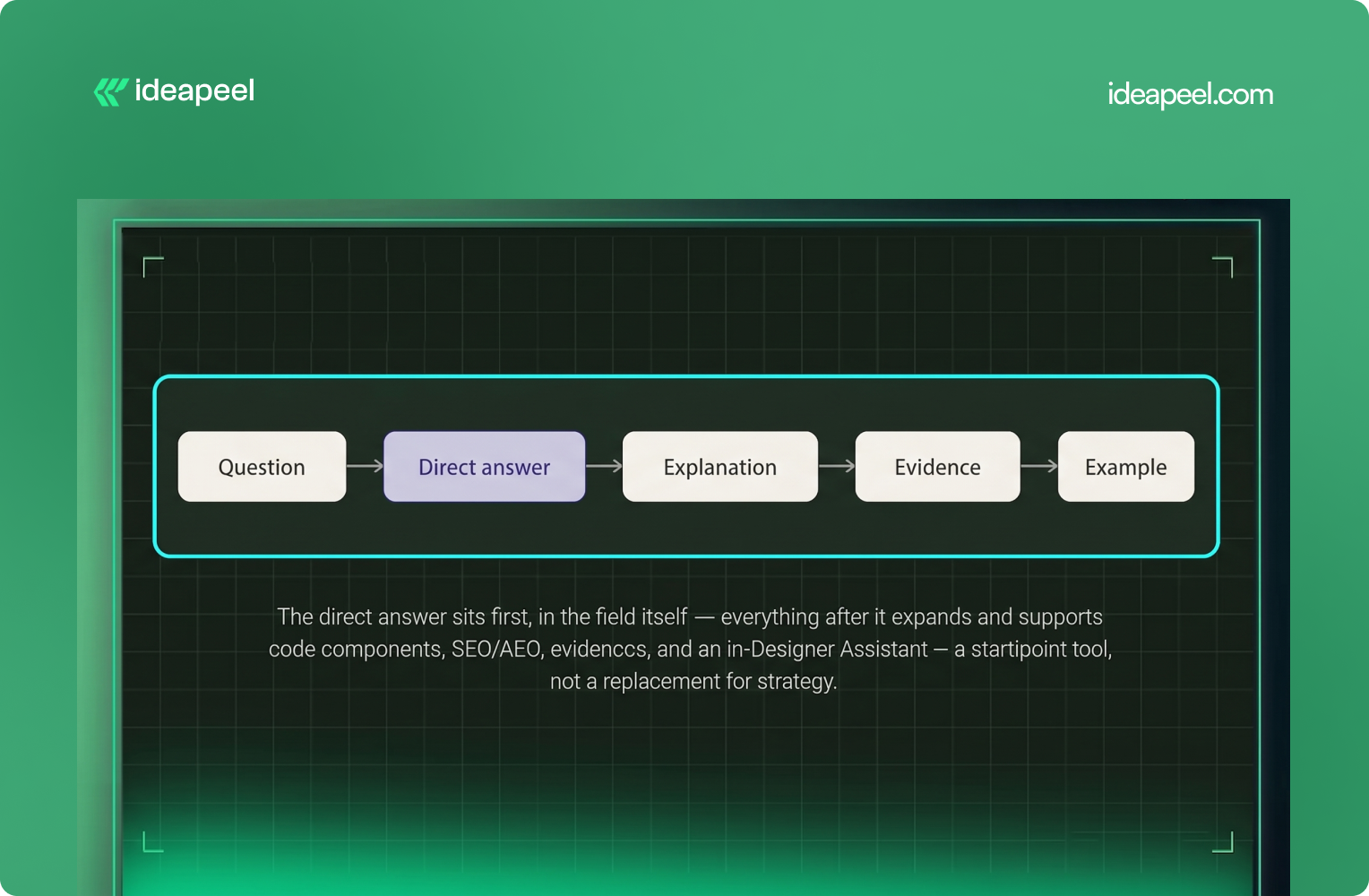
Answer Engine Optimization (AEO) for Webflow means structuring your CMS Collections, fields, and relationships so that search engines and AI systems can identify what your content is about, how it connects to everything else on your site, and which parts of it actually answer a question. Do that well, and you make it more likely to earn featured snippets, appear in AI Overviews, and get referenced by tools like ChatGPT or Perplexity, though none of that is ever guaranteed.
AEO doesn't replace SEO. It builds on the same fundamentals: useful content, crawlability, indexing, clear information architecture, internal linking, and authority. The Webflow-specific opportunity is that your CMS can do far more of this work than most sites let it.
Most "AEO for Webflow" advice stops at the page level: write a direct answer, add an FAQ block, sprinkle in some schema, call it done. That's not wrong; it's just incomplete. It treats each blog post as its own island, when the thing actually deciding whether Google or an AI system can understand your site sits one layer below the page: the CMS itself.
This guide focuses on the part most articles skip, designing the CMS so that structure, not just copy, carries the weight.
Key Takeaways
- Your Webflow CMS is more than a publishing tool; it's the foundation of your content architecture.
- Use descriptive fields (Short Answer, Primary Topic, Author Expertise, Related Questions) instead of generic ones like "Text 1."
- Connect content through Reference and Multi-reference fields wherever the relationship genuinely makes sense.
- Put direct answers near the top of important pages, then expand on them.
- Use schema markup to describe eligible content accurately, not exhaustively.
- Build internal links around topics and entities, not just for link count.
- Keep important pages crawlable, indexable, and consistent across CMS data and structured data.
- Demonstrate real expertise and original sourcing; structure alone doesn't build trust.
- Treat AEO, GEO, LLM optimization, and SEO as overlapping practices, not separate systems.
- Never assume CMS structure, schema, or an llms.txt file guarantees a snippet, AI Overview, or citation. It only improves your odds.
SEO vs. AEO vs. GEO vs. LLM SEO
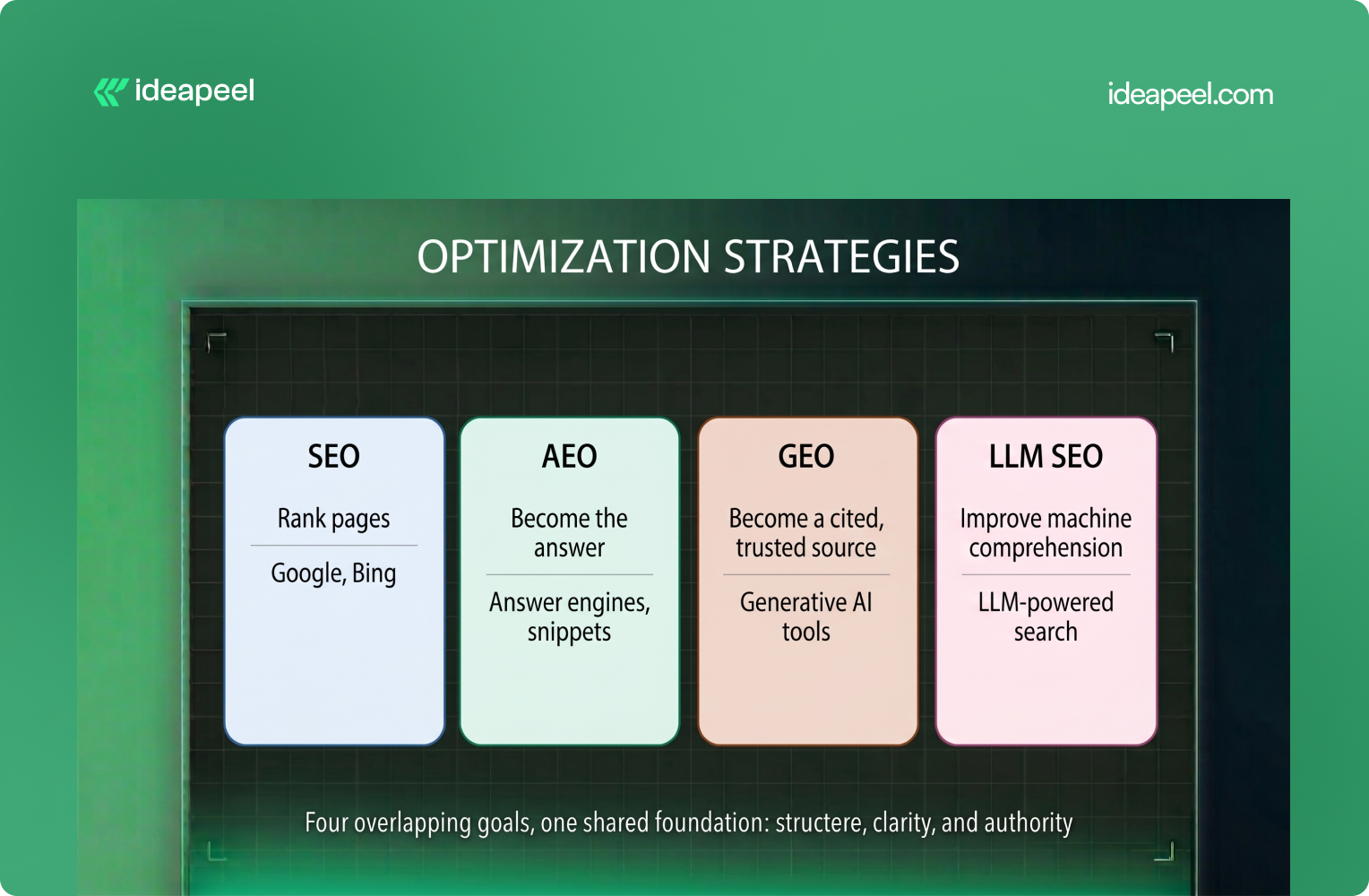
The acronyms are multiplying faster than most teams can track. Here's the short version.
These aren't four competing disciplines. They overlap heavily, and a well-structured Webflow CMS is one of the few assets that genuinely moves the needle on all four at once:
Useful content + clear structure + authority + accessibility + context
The difference is simply how that foundation gets used across different search experiences.
Why CMS Structure Matters More Than You Think
Here's the mental model worth adopting: your CMS shouldn't just store content; it should behave like a structured knowledge system, where every field has a job, and every relationship tells a search engine or AI model something about how your content fits together.
CMS fields → content structure → relationships → context → machine interpretation
Compare two blog post schemas.
Weak CMS setup:
- Title
- Body
- Image
- Author
AEO-structured setup:
- Title
- Short Answer
- Primary Topic
- Search Intent
- Key Takeaways
- Body
- Author + Author Bio
- Category / Topic
- Related Questions
- Related Articles
- Sources
- Updated Date
- SEO Title / Meta Description
- Schema Type
The second version isn't just "more SEO-friendly"; it's a different kind of object. It produces extractable answers, defined entities, and explicit relationships: the three things AI systems look for when deciding whether content is worth citing. That said, more fields don't automatically mean better interpretation; the point isn't field count, it's that your site now carries a clearer underlying information model.
How to Structure a Webflow CMS for AEO
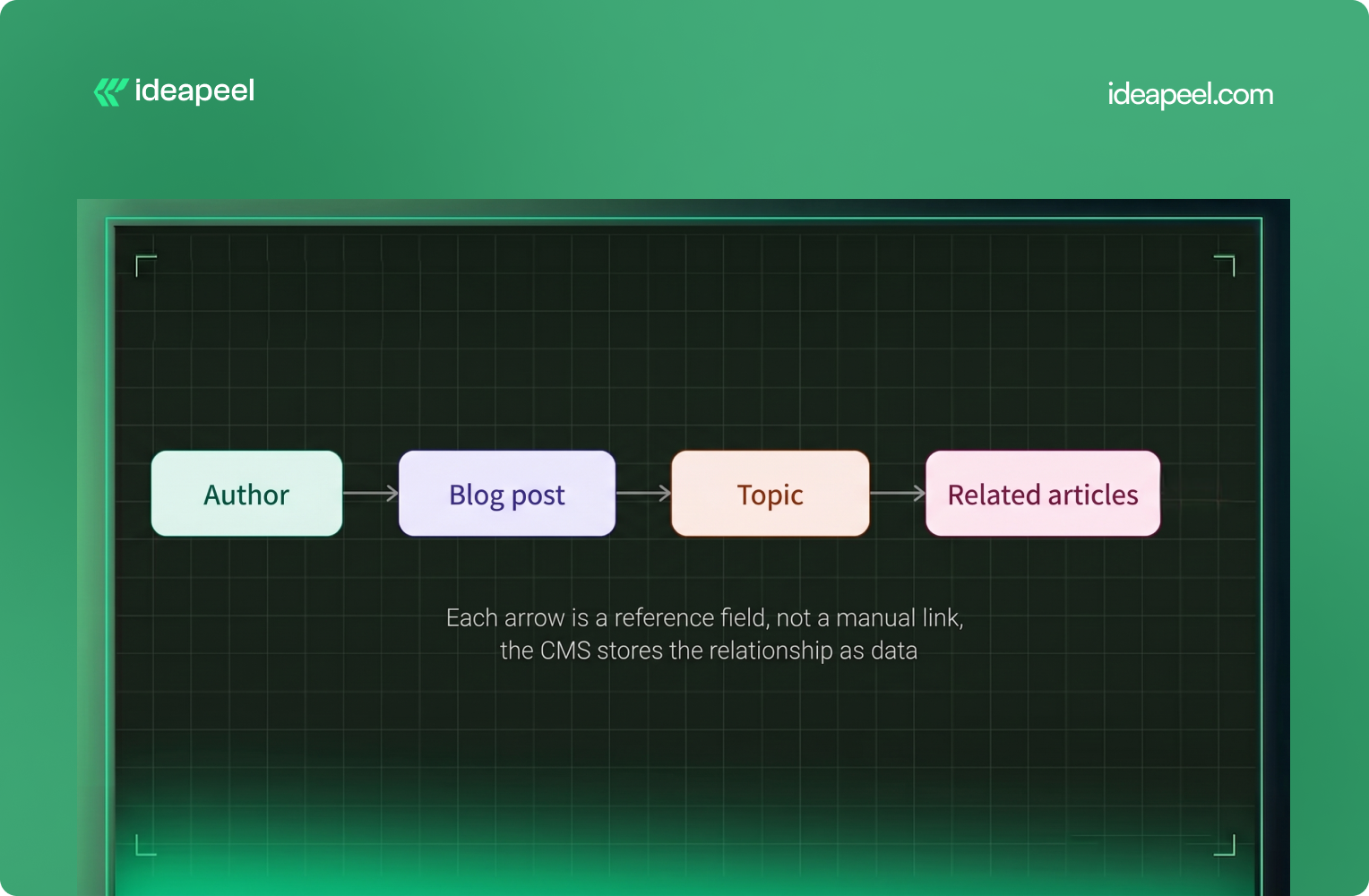
1. Start With Clear Entities, Not Just "Blog Posts"
Think in terms of the real things your content is about: Blog, Author, Category, Topic, Product, Service, Location, Case Study, FAQ. Each deserves its own Collection with its own fields, not a tag buried inside a generic post.
For an agency site, that might look like:
- Service → Webflow Development
- Topic → Webflow SEO
- Author → SEO Specialist
- Case Study → SaaS Website Redesign
Each entity has a distinct purpose, which is far more useful than storing everything in one catch-all Collection.
2. Name Fields for What They Mean, Not What They Are
"Text 1" tells nobody anything, not your team, not a crawler, not an AI model parsing the page's underlying data. Fields like Short Answer, Primary Topic, or Author Expertise do double duty: they keep the CMS easier for humans to manage, and the field name itself acts as a semantic signal for machines.
To be clear: the field name is not itself a ranking factor. What matters is the meaningful information stored inside it; descriptive naming just makes that information easier to maintain consistently.
3. Build Relationships Between Collections
This is where most Webflow sites leave value on the table. A typical setup has fifty isolated blog posts with no formal connective tissue. A structured one looks more like this:
Author → Blog Post → Topic → Related Articles → Product / Service
That's not internal linking for its own sake; it's a content graph. Reference and multi-reference fields let Webflow express "this post belongs to this topic, was written by this author, and relates to these three other posts" as actual data, not just a manually inserted link. Those relationships can also power dynamic related-content sections automatically.
4. Add a Dedicated "Short Answer" Field
This might be the single highest-leverage change you can make. Create a field, literally called Short Answer, that holds a 40–60 word direct response to the implicit question the post is answering. For example:
What is Webflow AEO? Webflow AEO is the practice of structuring and optimizing Webflow content so search engines and AI answer engines can understand, retrieve, and potentially cite it in search results and AI-generated answers.
Let the rest of the article expand on it from there. Traditional blog structure buries the answer 500 words in; AEO structure puts it first and explains afterward, creating a simple, repeatable pattern:
Question → Direct answer → Explanation → Evidence → Example
5. Add Supporting Fields Where They Genuinely Help
Different content types need different fields; you don't need every field on every Collection.
Using Question-Based Headings the Right Way
Question-based headings help only when they match genuine search intent.
Compare:
- "Webflow CMS Structure" (generic)
- "How Should You Structure Webflow CMS Data for AI Search?" (specific, conversational)
The second version tells readers immediately what the section answers. But don't turn every heading into a question; content should read naturally first, and question framing should follow real search intent rather than force it.
Structuring Content for Google Featured Snippets
Structured CMS fields make it far easier to consistently produce the formats Google tends to pull into snippets: direct-answer paragraphs, numbered and bulleted lists, comparison tables, and clear definitions under question-based headings.
For example:
How do you optimize a Webflow site for AEO?
- Structure your CMS around meaningful content entities.
- Add direct-answer fields.
- Use clear, specific headings.
- Connect related content through relationships.
- Add relevant structured data.
- Confirm crawlability and indexing.
- Demonstrate expertise and supporting evidence.
That's easy for a reader to scan and gives search systems cleanly structured information to extract. But one caveat is worth stating plainly: none of this guarantees a snippet. Google decides what gets featured; CMS structure only improves your odds; it doesn't buy a placement. Any AEO advice that promises otherwise is overselling it.
Schema Markup With Webflow CMS
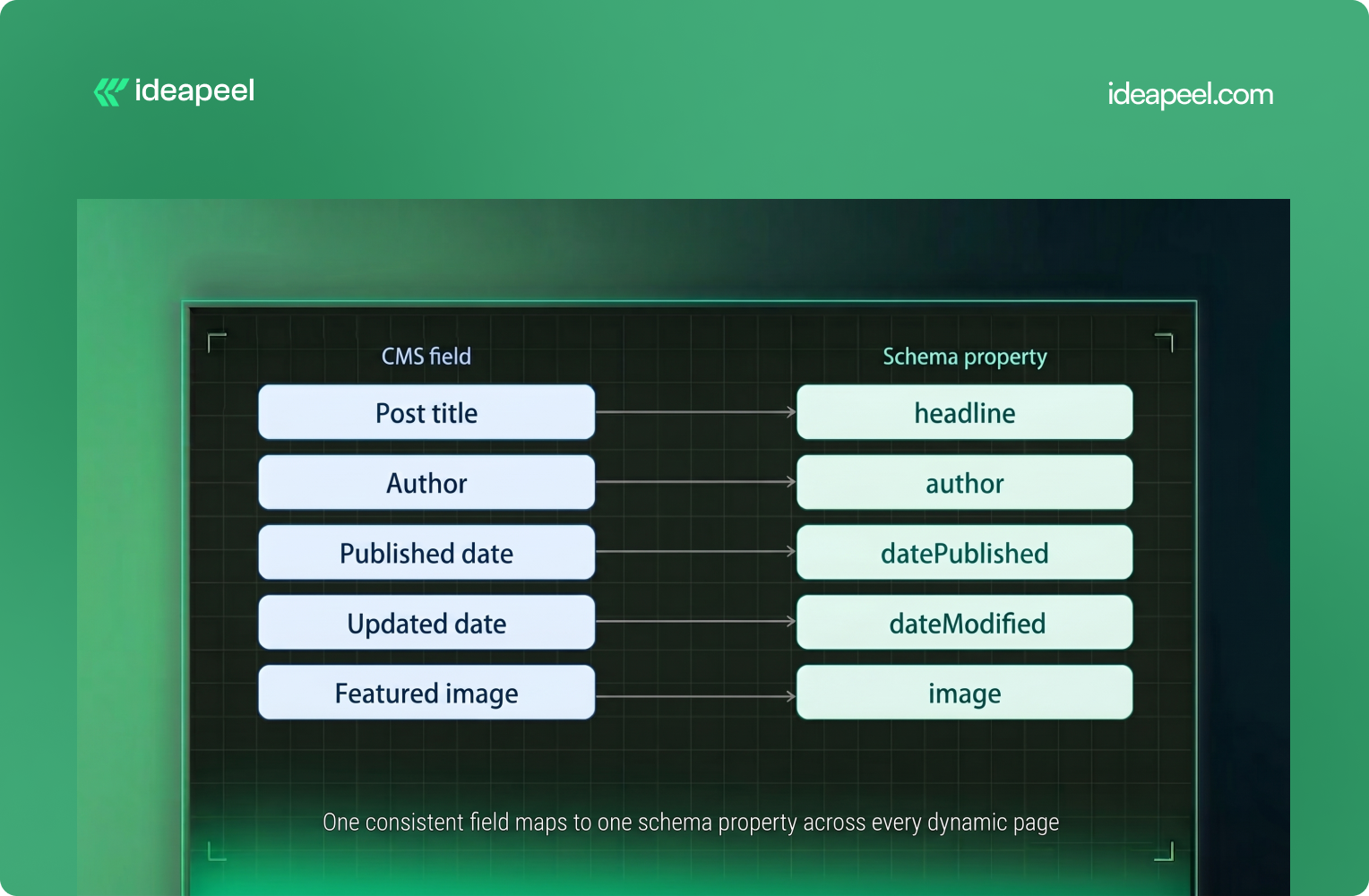
Schema is where CMS structure and machine-readability meet directly. The idea: map CMS fields to schema properties so dynamic pages generate valid structured data automatically, instead of someone hand-coding JSON-LD for every post.
The architecture flows like this:
Webflow CMS → CMS Fields → Collection Template → Dynamic Content → JSON-LD → Search Systems
This scales far better than manually building structured data for every article. One rule matters more than any other here: consistency. If your CMS shows one publish date and your structured data shows another, you've created conflicting signals; your visible content and your schema should describe the same page the same way.
Which Schema Types Should You Use?
- Article, the baseline for editorial blog content.
- Product, for genuine product pages.
- Organization / Person, for company and author information.
- BreadcrumbList, for page hierarchy and navigation.
- LocalBusiness, for eligible local business pages.
- FAQPage, only when a page genuinely contains qualifying question-and-answer content that's visible on the page, not as a blanket tactic.
Relevant schema beats maximum schema. Tagging every page with every schema type you can think of doesn't help; it just adds noise, and structured data never guarantees a rich result or an AI citation on its own.
[[inner-cta]]
Internal Linking as an AEO and GEO Signal
Internal links do more than pass authority around your site. They tell search engines and AI systems how your topics relate to each other, which pages support which claims, where the depth is, and how confidently a page can be trusted as part of a larger body of expertise.
A simple topic cluster might look like:
Webflow SEO → Webflow CMS SEO → Webflow Schema → Webflow AEO → Webflow GEO → Webflow AI Search
A fuller cluster structure:
- Pillar Page: The Complete Webflow SEO & AEO Guide
- Supporting Articles: Webflow SEO Checklist, Webflow CMS SEO, Webflow Schema Markup, Webflow AEO, Webflow GEO, Webflow AI Overviews, Webflow Technical SEO, Webflow Structured Data
Built out with CMS relationship fields rather than one-off manual links, this becomes a genuine content graph, the kind of thing that's much harder to fake with isolated posts, no matter how well each one is individually optimized. The key is relevance: link when another page genuinely helps the reader, not to inflate link counts.
Making Content Easier for LLMs to Understand
AI systems need context to interpret information correctly. A few habits help:
Use clear entity names. Instead of "It lets you build websites faster," write "Webflow allows teams to visually design, manage, and publish websites." Naming the subject explicitly removes ambiguity.
Keep terminology consistent. If you call something "Webflow CMS," don't randomly switch to "Webflow database" or "Webflow content engine" across different posts; inconsistent terms can read as different entities.
State relationships explicitly. Instead of assuming a connection is obvious, spell it out: "Webflow CMS is the content management system used to create and manage dynamic content in Webflow." Clear language helps people and machines interpret the same page the same way.
Optimizing for ChatGPT Search and Google AI Overviews
There's no reliable trick that guarantees a ChatGPT citation. A more realistic goal is making your content accessible, useful, clear, and trustworthy. OpenAI's publisher guidance notes that public websites can appear in ChatGPT Search and that site owners can allow its crawler to access content for search discovery, but allowing crawling doesn't guarantee a specific ranking, placement, or citation.
For Google AI Overviews, don't treat it as a separate game with separate rules. Strong fundamentals still carry the weight:
Technical SEO + useful content + structured information + entity clarity + topical authority + strong internal linking = better AI-search readiness
Schema doesn't get you into AI Overviews on its own; it helps machines parse structured information, while inclusion is still governed by relevance and quality signals the platform controls. For both Google and ChatGPT, the realistic framing is "increase the likelihood your content can be discovered and cited," not "get ranked."
AEO vs. GEO, One More Time
Worth separating clearly, because they call for different work:
- AEO asks: Can an AI system extract a clean, usable answer from this page?
- GEO asks: Does that AI system recognize this brand as a credible source worth citing at all?
CMS structure, short answers, clear fields, and defined relationships mostly serve AEO. Author credibility, original research, consistent brand information, and external citations mostly serve GEO. Both share a lot of the same underlying signals (clear content, entity clarity, crawlability). Still, you need both, and neither substitutes for the other.
Authority Still Matters More Than Field Names
Worth saying directly: CMS structure helps machines understand your content. It does very little for whether they trust it. That's a separate job, and it's the one most AEO checklists gloss over.
Where relevant, your content should reflect:
- Experienced authors with real bios
- Relevant, disclosed expertise
- Original research or first-party data
- Case studies and expert commentary
- Credible external references
- Transparent update history
- Mentions or backlinks from credible sites
This is E-E-A-T by another name, and no amount of clever field architecture replaces it. A simple way to frame the whole system:
CMS structure = context. Content quality = usefulness. Authority = trust. You need all three.
[[question-block]]
Crawlability: Robots.txt, Sitemaps, and llms.txt
None of this architecture matters if important pages aren't accessible to crawlers. Review your:
- robots.txt
- XML sitemap
- Canonical URLs and indexing directives
- Internal linking and URL structure
- Page load performance
You may also come across llms.txt, a proposed way of providing AI-oriented information about a site. It's worth having, but it shouldn't be the center of your AEO strategy; a file can't replace useful content, strong information architecture, crawlability, internal linking, or authority. Treat machine accessibility as one part of a broader technical strategy, not a shortcut around it.
A Practical Webflow AEO Checklist
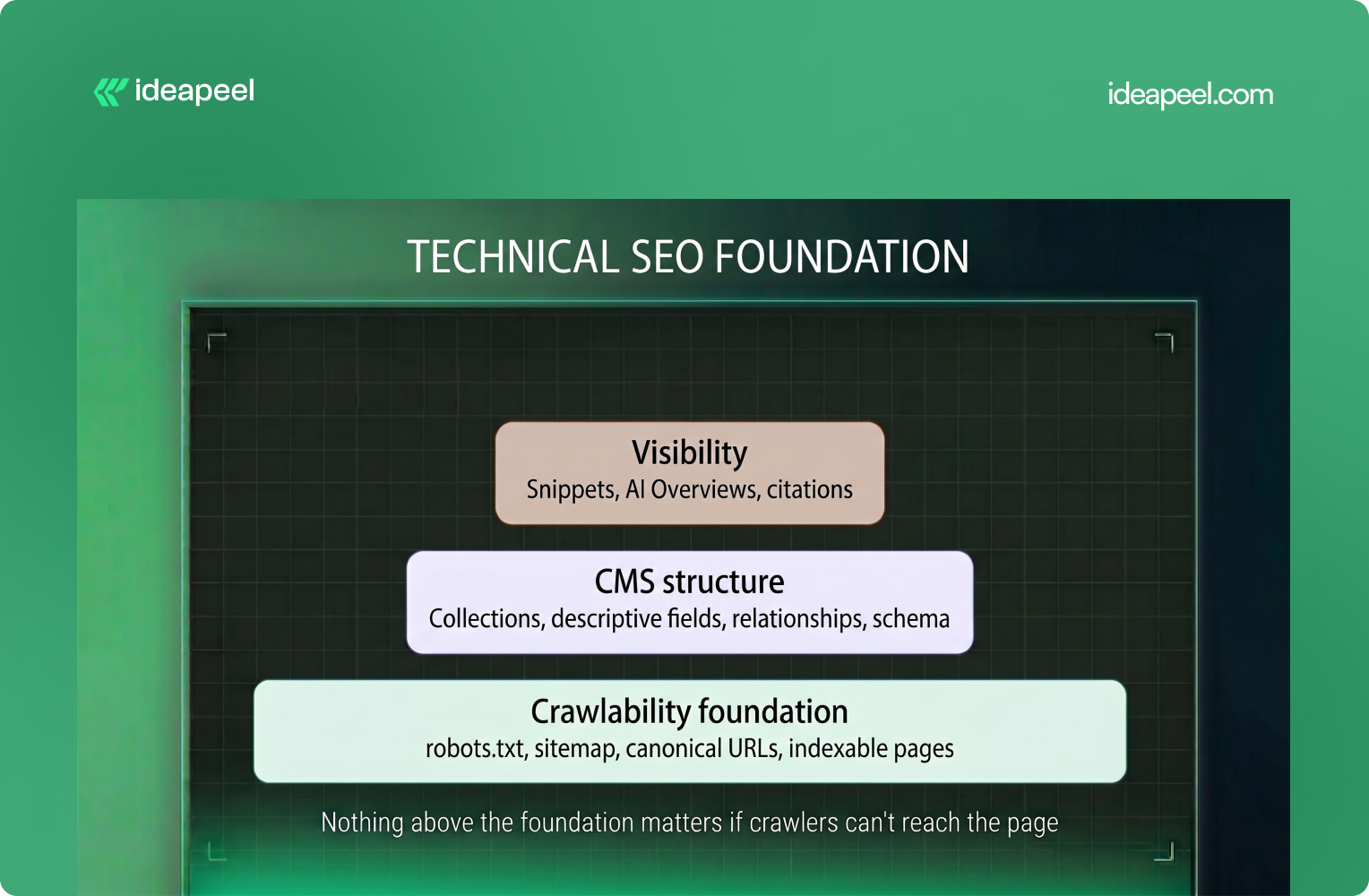
CMS
- Clear, purpose-built Collections
- Descriptive field names (not "Text 1")
- Logical relationships between Collections
- Author, topic, and category fields on every content type
- Direct-answer fields for important content types
On-Page Content
- One clear H1, question-based H2s where intent supports it
- Direct answers near the top
- Short paragraphs, lists, and tables where they genuinely help
- Relevant internal links supported by real evidence
Technical SEO
- Unique titles and meta descriptions
- Canonical URLs, sitemap, robots.txt in order
- Valid, accurate JSON-LD schema
- Fast, crawlable pages
AI Readiness
- AI crawlers allowed where visibility is wanted
- Consistent terminology for key entities
- Strong topical clusters instead of isolated posts
- AI visibility monitored where reliable tooling exists
Common Mistakes Worth Avoiding
A few claims show up constantly in AEO content that don't hold up:
- "Schema guarantees a snippet or a ChatGPT citation." It improves eligibility and machine understanding, nothing more.
- "llms.txt alone will get you ranked." It's a small accessibility signal, not a ranking mechanism.
- "AEO replaces SEO." It builds on SEO fundamentals; it doesn't substitute for them.
- "Stuffing keywords into every CMS field helps." It doesn't , it just adds noise for both readers and machines.
- "A bigger CMS is a better CMS." Only create fields that represent genuinely useful information.
- "More schema is always better." Structured data should accurately describe the page, not maximize markup.
The more defensible version: AEO builds on solid SEO fundamentals while improving how clearly your content can be understood, extracted, and represented by AI systems. That's a less exciting sentence than "guaranteed AI visibility" , but it's the true one.
Measuring Whether Any of This Is Working
Track it the same way you'd track any SEO initiative, plus a few AI-specific signals.
Organic search: impressions, clicks, rankings, featured snippet appearances, organic traffic.
AI search (where reliable data is available): referral traffic from AI tools, whether your brand appears when you query ChatGPT or Perplexity directly about topics you cover, and AI visibility tooling that platforms, including Webflow itself, have started building natively.
One AI answer citing your page isn't proof of a working strategy. Look for trends over time, not single data points.
The Real Takeaway
Don't just optimize the page. Optimize the CMS behind it.
The strongest AEO-ready websites are built with clear Webflow Collections, structured fields, and connected content from the start. This makes information easier for both people and AI systems to understand.
At ideapeel, we build Webflow websites with SEO, AEO, CMS architecture, and conversion in mind, not as separate tasks.
Explore our Webflow SEO Guide, Webflow SEO Checklist, or Webflow SEO Agency Guide for B2B SaaS to go deeper.
Need a Webflow site built for search and AI? Explore ideapeel's services or contact us.
[[last-cta]]
Webflow AI is Webflow's collection of AI-powered features for building, managing, and optimizing websites. In 2026, it covers seven areas: the AI Site Builder, AI-generated design sections, AI copy, CMS Collection generation, AI code components, SEO/AEO optimization, and an in-Designer AI Assistant. It speeds up the first draft of a site significantly, but it does not replace human strategy, brand judgment, or final quality control.
Key takeaways
- Webflow AI now goes far beyond generating a homepage - it also writes CMS content, builds code components, and runs SEO/AEO audits.
- The output is a fully editable, real Webflow project, not a locked template.
- Webflow AI is best used as a starting-point assistant rather than a replacement for a web designer or developer.
- AEO (Answer Engine Optimization) is becoming as important as traditional SEO, because AI systems like ChatGPT, Claude, Gemini, and Perplexity now send real traffic.
- Humans still own strategy, UX decisions, brand voice, conversion design, and final QA - AI handles the repetitive first pass.
What Is Webflow AI?
.webp)
Webflow AI is the set of AI features built into the Webflow platform that help you generate, populate, and optimize a website. Instead of starting from a blank canvas, you describe your business in a prompt, and Webflow AI produces a structured, multi-page site with a real design system - colors, type scale, spacing, and layout - that you can edit in the standard Webflow Designer.
The important distinction: Webflow AI doesn't hand you a locked template. Every generated page is a normal Webflow project underneath, which means nothing about the output is off-limits to a developer or designer who wants to change it.
Entity relationships worth knowing:
- Webflow → a visual website development platform
- Webflow AI → Webflow's AI feature set for generation and optimization
- Webflow CMS → the content management layer Webflow AI can populate
- AEO → optimizing content so AI answer engines can find, understand, and cite it
What Can Webflow AI Do in 2026?
.webp)
By 2026, Webflow AI's scope has expanded well past "generate a homepage." Here's the full feature set.
AI Site Builder
You provide a text prompt describing your business, and Webflow AI scaffolds a complete multi-page site - sitemap, homepage sections (hero, features, testimonials, CTA), and internal pages - built on a real design system rather than a static template.
AI Design and Sections
For any section the AI generates, you can cycle through multiple layout variants without rebuilding anything by hand. This gives you creative control over structure without starting from zero.
AI Copy Generation
Webflow AI drafts headlines, body copy, and calls-to-action based on your prompt, plus image alt text for every image it places. This clears the "blank page" problem, but the copy is a first draft - it still needs a brand-voice pass before it ships.
CMS Collection Generation
This is one of the biggest 2026 additions. Webflow AI can populate entire CMS collections at once - product descriptions, blog post drafts, job listings, or seasonal campaign content - instead of generating a single static page.
AI Code Components
Describe an interactive element - a pricing calculator, a multi-step form - and Webflow AI can generate a working code component that plugs into the Designer canvas, extending what's possible without a full custom build.
SEO and AEO Optimization
Webflow AI can audit a site and fill gaps in meta titles, meta descriptions, alt text, heading structure, and schema markup. On the AEO side, it helps structure content so AI answer engines can parse and cite it - a newer priority as more discovery happens inside ChatGPT, Gemini, and Perplexity rather than a traditional search results page.
AI Assistant
A conversational agent inside the Designer that reads your site's existing classes and CMS structure, then generates new sections, refactors layouts, drafts CMS content, or suggests SEO fixes - all without leaving the canvas.
[[inner-cta]]
How Webflow AI Changes the Web Design Workflow
The traditional path to a first draft - wireframe, mockup, build, then customize - usually takes days before there's anything to react to. Webflow AI compresses that into a first pass that takes minutes: prompt in, structured responsive site out. That shifts where time actually gets spent. Instead of burning the first few days on setup, a designer or agency can spend that time on strategy, content accuracy, and the details that make a site feel like it belongs to one specific business instead of a category of businesses.
This matters most for two groups:
- Agencies and freelancers get a working draft to put in front of a client on day one, instead of a flat wireframe. Client sign-off tends to move faster when there's something clickable to react to.
- Non-designers and small businesses get a professional, mobile-ready starting point without hiring an agency or wrestling with a rigid template builder.
How We Use Webflow AI in Real Projects
.webp)
Here's the honest breakdown of where Webflow AI earns its place in a real project, and where it doesn't.
What We Automate
- Initial sitemap and page structure
- First-draft section layouts and copy
- Bulk CMS population (product descriptions, listings, seasonal updates)
- Image alt text generation
- Baseline meta titles and descriptions
What We Still Do Manually
- UX research and information architecture decisions
- Brand voice editing on every piece of AI-drafted copy
- Keyword strategy and search-intent mapping
- Conversion rate optimization and CTA strategy
- Final QA before anything goes live
The pattern holds across every task: AI handles the repetitive first pass, a person makes the judgment call.
How to Use Webflow AI Step by Step
- Describe your website. Write a clear prompt covering what your business does, who it serves, and any brand direction you already have.
- Generate the initial site. Webflow AI produces a multi-page draft with a design system and placeholder content.
- Review the AI output. Check layout choices, copy accuracy, and image placement before touching anything.
- Customize the design. Open the Designer and adjust colors, typography, spacing, and section layouts to match your actual brand.
- Optimize content and SEO. Rewrite copy for brand voice and target keywords, then check the AI-generated meta titles, descriptions, and schema markup.
[[question-block]]
Webflow AI for CMS Automation
Can Webflow AI generate CMS content? Yes. Webflow AI can populate entire CMS collections at once - writing draft product descriptions, job listings, or blog content across dozens or hundreds of items rather than one page at a time.
Beyond raw generation, Webflow AI (often paired with no-code tools like Make or Zapier and an AI API) can:
- Pull data from an external source (a spreadsheet, a form submission) and auto-populate CMS items
- Draft unique product descriptions across a large inventory
- Generate structured summaries for social snippets or newsletters from long-form content
- Auto-tag and categorize CMS items for easier navigation
- Provide first-pass translations for multilingual sites
Common CMS automation mistakes to avoid:
- Generic prompts that produce near-duplicate content across items (bad for SEO)
- Skipping a review stage, which lets AI-generated text overflow or break a layout
- Publishing AI output without a brand-voice pass, resulting in bland, generic copy
- Over-relying on AI for keyword targeting, which can drift into keyword stuffing
Webflow AI for SEO and AEO
Can Webflow AI help with SEO? Yes. It can auto-generate meta titles and descriptions, suggest internal links between CMS items, and generate schema markup - but keyword strategy and search-intent alignment still need a person reviewing the output.
Can Webflow AI help with AEO? Yes. Webflow's AEO tools focus on structuring content so AI answer engines - ChatGPT, Gemini, Perplexity - can find, understand, and cite it: clear question-answer formatting, strong schema, and content that gives a direct answer instead of burying it in a paragraph.
Traditional SEO targets a search results page. AEO targets the answer an AI system gives someone who never clicks through to a website at all. As more discovery moves into that format, treating SEO and AEO as separate checklist items - rather than one combined content strategy - is becoming the outdated approach.
Webflow AI vs Wix AI vs Framer AI
.webp)
The differentiator for Webflow AI is that the output is a real project with full Designer access - nothing is locked behind the AI's original structure.
What Webflow AI Does Well
- Turns a blank page into a structured, responsive draft in minutes instead of days
- Produces clean, editable output that follows Webflow's own best practices
- Handles tedious, repetitive tasks (alt text, meta descriptions, bulk CMS entries) accurately enough for a first pass
- Gives non-designers a genuinely professional starting point
- Keeps every generated element fully editable - nothing is a locked black box
Where Webflow AI Still Falls Short
- Generic design risk. Because the AI draws from a component library, sites can start to look similar without a designer adding a distinct point of view.
- No real strategy. It doesn't know your target audience, your competitive position, or what makes someone convert - that's UX research, brand strategy, and CRO, and it's still a human job.
- Existing sites aren't fully supported. The AI Site Builder is built for new sites (or sites that started as AI-generated) - it isn't designed to retrofit a site that wasn't originally built with it.
- SEO/AEO depth is still manual. The AI can fill in the basics; keyword strategy and competitive content depth still require a person.
Can Webflow AI Replace Web Designers or Developers?
Short answer: No. Webflow AI generates a strong starting point - layouts, copy, and basic styling - but it doesn't replace UX research, brand strategy, conversion planning, or creative direction. A designer or developer still needs to review, customize, and optimize what it produces before it's ready for real users.
Best Webflow AI Workflow for Agencies
.webp)
For agencies and freelancers, the highest-leverage way to use Webflow AI follows a clear lifecycle rather than a single generation step:
Research → Strategy → Prompt → AI Site Structure → AI Design/Sections → AI Content → CMS Population → SEO Optimization → AEO Optimization → Human UX Review → Conversion Optimization → Publish → Measure & Improve
Used this way, Webflow AI compresses the setup phase of a project so the team's time goes toward the parts that actually differentiate the site: strategy, brand voice, and conversion design.
Final Verdict
Webflow AI in 2026 is more than an AI site builder. It can help generate site structures, content, CMS items, AI code components, and SEO/AEO improvements. It makes the workflow faster while keeping the Webflow project fully editable.
The best approach is to use Webflow AI for the first draft and repetitive tasks, then refine the design, content, SEO, and UX manually. AI builds faster, but humans make the final decisions.
Ready to build a faster, conversion-focused Webflow website? Explore ideapeel’s Webflow development services and turn your next idea into a growth-ready website. (ideapeel)
- Learn more about Webflow SEO in 2026 and improve your website’s organic visibility. (ideaeel)
- Follow our Webflow SEO Checklist for 2026 to optimize technical SEO, content, and AEO. (ideapeel)
- See why growing SaaS brands choose Webflow in our guide to Webflow for SaaS in 2026. (ideapeel)
[[last-cta]]

Quick answer: Claude helps UX writers and designers draft, audit, and rewrite microcopy - button labels, error messages, empty states, and onboarding flows - faster than doing it manually. Claude Web Chat works well for one-off drafting and brainstorming; Claude Code (the terminal tool) works better for auditing hundreds of strings across a whole product for tone and consistency. Neither replaces a human UX writer's judgment on voice, context, and what a real user needs to hear in the moment.
Most "Claude for design" content stops at a list of prompts. This guide goes further: real before/after copy, a working prompt library, and an honest answer to where Claude actually helps a UX writer versus where it just produces plausible-sounding filler.
What Is Claude for UX Writing?
.webp)
Claude for UX writing means using Claude - through the web chat or the Claude Code terminal tool - to draft, audit, and refine the small pieces of interface text that guide a user through a product: button labels, form field help text, error messages, empty states, confirmation copy, and onboarding flows. It's not a plugin or a separate product - it's the same Claude model, applied specifically to content design tasks instead of general writing or code.
Two ways teams typically use it:
- Claude Web Chat - paste a screen description or a batch of copy, get drafts or a critique back. Good for brainstorming and one-off rewrites.
- Claude Code - a terminal-based agent with direct access to your project files. Good for auditing an entire docs folder or help center for tone violations, broken patterns, or inconsistent terminology, all in one pass.
Why UX Teams Are Using Claude
The appeal isn't that Claude writes better microcopy than an experienced UX writer - it's that it removes the scanning work. Reading through 500 help center articles to find every instance of vague link text, or manually checking 40 error messages against a style guide, is exactly the kind of repetitive task that used to eat a UX writer's week. Claude compresses that to minutes, and hands back a list a human can act on.
Claude Web Chat vs. Claude Code: Which One for UX Writing?
.webp)
If you're rewriting a single onboarding screen, the web chat is enough. If you're auditing tone across a hundred-file docs folder, Claude Code does in one command what would otherwise take days.
A style guide file changes the output quality. Claude Code looks for a file (commonly named something like CLAUDE.md) in your project folder before it responds - think of it as the master style guide you'd hand a freelance writer. Without it, output defaults to generic, safe phrasing. With it, Claude consistently matches your specific voice, terminology, and formatting rules.
Writing Better Microcopy With Claude
Microcopy is where Claude earns its keep fastest, because the task is narrow: take a functional-but-flat piece of UI text and tighten it.
Before: "Submit" After (Claude draft, human-edited): "Create my account"
Before: "Error: invalid input" After: "That doesn't look like a valid email - try name@example.com"
Before: "Click here to learn more" After: "See how pricing works"
None of these rewrites required deep product knowledge - they required pattern recognition and a nudge toward specificity, which is exactly what an LLM is good at. The judgment call on tone (playful vs. formal, terse vs. warm) still needs a person who knows the brand.
Improving Error Messages With Claude
.webp)
Generic error copy ("An error occurred") is one of the fastest wins for AI-assisted rewriting, because there's a repeatable formula: what happened + why it happened + what to do next.
Before: "Something went wrong." After: "We couldn't save your changes - check your connection and try again."
Before: "Invalid input." After: "Passwords need at least 8 characters and one number."
Feed Claude a batch of raw error strings with that formula as the instruction, and it will draft consistent, specific replacements for review - far faster than a writer rewriting each one from a blank page.
Designing Empty States With Claude
Empty states are easy to overlook because they only appear before a user has data - which is exactly when they need the most guidance. Claude is useful for drafting the two things every empty state needs: an explanation of why the screen is empty, and a clear next action.
Before: "No items found." After: "You haven't added any projects yet. Create your first one to get started."
Onboarding Flow Copy With Claude
Onboarding copy has to do a lot in a few words - orient a new user, explain a step, and motivate them to continue. Claude works well as a first-draft generator here: describe the setup step and the goal, and it will draft label text, helper text, and progress-indicator copy to edit from.
Before: "Step 2 of 4" After: "Almost there - just your team size left"
The second version does the same job but gives the user a reason to keep going, which is the kind of small upgrade that's easy to draft in bulk with AI and easy to miss when writing solo screen by screen.
Real Before/After UX Copy Examples
Claude Prompts We Actually Use
.webp)
Microcopy
- "Rewrite these 10 button labels to be specific about the action, not generic verbs like 'Submit' or 'Click here': [list]."
- "Turn this placeholder text into helper text that tells the user exactly what format we expect: [field]."
- "Suggest 5 CTA variations for [action], ranging from low to high commitment."
- "Rewrite this confirmation message to feel human, not robotic: [text]."
- "List every instance of vague link text ('click here', 'read more') in this content and suggest accessible alternatives."
[[question-block]]
Error messages 6. "Rewrite this error message using the formula: what happened, why it happened, what to do next: [error text]." 7. "Here are 10 generic error messages from our product. Rewrite each to be specific and actionable: [list]." 8. "Suggest error copy for a failed payment that doesn't blame the user." 9. "Review this list of error messages for tone consistency with our style guide." 10. "What's missing from this error state - copy, recovery action, or both?"
Empty states 11. "Write empty-state copy for a dashboard with no data yet, including a clear next action." 12. "Suggest 3 versions of empty-state copy for a search results page with zero matches." 13. "Rewrite this empty state to explain why it's empty, not just that it is."
Onboarding 14. "Draft step-by-step onboarding copy for a 4-step setup wizard for [product type]." 15. "Suggest progress-indicator copy that motivates users to finish setup." 16. "Write a welcome message for a first-time user landing on an empty dashboard." 17. "Draft re-engagement copy for a user who abandoned onboarding halfway through."
Audits and consistency 18. "Scan this list of UI strings and flag any that don't match our tone of voice: [paste]." 19. "Check this content for passive voice and rewrite in active voice." 20. "Find every heading in this list that isn't in sentence case and fix it." 21. "Generate a report of tone violations against our style guide - don't edit, just list issues." 22. "Compare these two versions of onboarding copy and tell me which reduces cognitive load more."
Accessibility and clarity 23. "Review this microcopy for accessibility - flag anything unclear for screen readers." 24. "Simplify this help text to a 6th-grade reading level without losing meaning." 25. "Rewrite this multi-sentence tooltip as a single clear sentence."
[[inner-cta]]
What Claude Does Well
- Drafting first-pass microcopy fast, across many strings at once
- Applying a consistent error-message formula at scale
- Catching vague or repetitive phrasing a writer might miss on a tenth read-through
- Bulk auditing large content sets against a defined style guide
- Simplifying dense copy to a clearer reading level
Where Human UX Writers Still Win
- Brand voice judgment. Claude can follow a style guide; it can't originate one or sense when a rule needs breaking for a specific moment.
- Context only the team has. Why a particular error keeps happening, what past user complaints sounded like, what the product roadmap changes next quarter.
- Emotional tone in high-stakes moments. Error copy for a failed medical appointment booking needs a different hand than a failed newsletter signup.
- Final review. Every AI draft still needs a person deciding if it's actually right for this product, this user, this moment.
Common Mistakes
- Treating first drafts as final copy - every string still needs a human pass.
- Skipping a style guide file - without one, output defaults to generic phrasing.
- Running Claude Code in full-autonomy mode on a live folder - start with a read-only audit before letting it edit files directly.
- Auditing without a defined style guide to check against - Claude can't flag tone violations against rules that don't exist yet.
- Using AI-only copy in high-stakes error states - payment failures, account deletion, medical or financial context needs direct human review, not just a pass-through.
Claude vs. ChatGPT for UX Writing
.webp)
Both handle microcopy drafting reasonably well. The practical difference shows up in workflow, not writing quality:
- Claude Code's project-wide file access makes it stronger for bulk audits across an entire docs folder or design system - ChatGPT's web interface requires manual copy-paste per file.
- A style-guide file gives Claude's terminal tool a persistent memory of your voice across a whole session, rather than re-explaining tone in every prompt.
- For a single quick rewrite, either tool works about the same - the difference matters most at scale.
Final Thoughts
Claude doesn't make anyone a better writer on its own - it removes the repetitive scanning and first-draft work that used to eat the most time in content design. The formula holds across every use case here: let Claude draft or audit at scale, then have a human writer make the calls that actually require judgment. That's the difference between a microcopy that reads like it was generated and a microcopy that reads as someone thought about the person on the other end of the screen.
Related reading: How We Use ChatGPT in Our Web Design Process · How We Use Figma AI in Real UI/UX Projects · Claude vs ChatGPT for Designers · UX Design Process
Explore Related Topics
- How AI Is Changing UI/UX Design in 2026
- How We Use ChatGPT in Our Web Design Process
- UX vs. UI Design: What Makes Them Different?
- UI Design Trends to Watch in 2026
Ready to improve your product experience? Start a project with ideapeel and turn AI-assisted design work into a clear, accessible, and user-centered experience.
[[last-cta]]
.webp)
Quick answer: Figma AI speeds up early-stage UX/UI work, generating first-draft layouts, cleaning up layers, writing placeholder copy, and building FigJam boards for research and workshops. It does not replace human judgment on visual hierarchy, brand feel, accessibility, or final design decisions. Our team uses it every week, and it never ships a design on its own.
Most articles about Figma AI are written by people testing it for the first time on a demo file. We use it on paid client projects with real deadlines, so this guide is built from that, not a feature tour.
What Is Figma AI?
.webp)
Figma AI is a set of AI-powered features built into Figma and FigJam, plus a large ecosystem of community plugins, that help designers move faster through research, layout generation, content drafting, and file cleanup. Figma's own AI tools live across FigJam (board generation, sticky-note sorting) and Figma Design (layout generation, content suggestions, layer renaming, Model Context Protocol support for design-to-code handoff). Community plugins extend this further with wireframe generators, persona builders, and text-to-UI tools.
It's easy to lump all of this under one label, but in practice it splits into two categories:
- Native Figma AI features, built by Figma's team, available directly inside Figma Design and FigJam
- Community AI plugins, built on Figma's open API by third-party developers, installed separately
Knowing the difference matters because native features are covered by Figma's own data and security policies, while plugins are third-party tools with their own terms.
Which Figma AI Features Actually Save Time?
Not every AI feature earns a permanent spot in a real workflow. Based on regular use across client projects, these are the ones that consistently save time:
The pattern across all of these: they remove setup time, not decision time. A generated FigJam board still needs a facilitator. A generated screen still needs a designer to fix spacing, hierarchy, and brand fit.
How We Use Figma AI in Real Client Projects
.webp)
Here's where Figma AI actually shows up in our week-to-week workflow, stage by stage.
Discovery and workshops. Before a kickoff call, we'll prompt FigJam AI to generate a rough workshop board, an icebreaker, a "how might we" prompt, and space for notes. It saves 15–20 minutes of manual board setup. After the workshop, we run the sticky-note sort and summary functions on raw notes so nobody spends an hour manually grouping post-its.
Early wireframes. When a client gives us a rough brief, say, "a booking flow for a physical therapy clinic", we'll generate a first-pass layout to react to in the kickoff conversation, rather than starting from a blank canvas. It's a conversation starter, not a deliverable.
Content placeholders. Instead of shipping wireframes full of "Lorem ipsum," we use content suggestions to fill screens with plausible, on-topic copy. Clients respond better to mockups that look close to real, and it makes internal reviews faster.
File hygiene before handoff. Auto layer naming and structure cleanup happen right before a file goes to development. This alone has cut down back-and-forth with developers who used to get files full of "Rectangle 47" and "Group 12."
Design-to-dev handoff. On projects where the client's engineering team also works inside Figma, MCP support means their coding agents can read the actual design structure, components, tokens, and spacing rules instead of interpreting a flat screenshot. That has measurably reduced misreads during the build phase.
What doesn't change: every one of these outputs gets reviewed by a designer before a client ever sees it.
[[inner-cta]]
Tasks Figma AI Does Better Than Manual Work
- Speed of a first draft. Getting from a blank canvas to something to react to, in minutes instead of an hour.
- Repetitive cleanup. Renaming layers, restructuring messy files, and organizing sticky notes- tedious, low-judgment tasks.
- Summarizing unstructured input. Turning a pile of workshop notes or research transcripts into themes a team can actually use.
- Placeholder content. Realistic copy that reads better than generic filler text during reviews.
Where Human Designers Still Make the Difference
- Visual hierarchy. AI can describe what hierarchy should look like, but it can't judge how a real layout reads to a real user.
- Brand feel. Tone, personality, and the small stylistic choices that make a design feel like this specific client, not a template.
- Accessibility judgment. AI-generated screens don't reliably account for contrast, focus states, or screen-reader logic without a human check.
- Edge cases. Empty states, error messages, and loading states are exactly the details AI-generated drafts tend to skip.
- Client context. No AI tool knows a client's history, past objections, or long-term roadmap the way the team working with them does.
If a task needs taste, context, or judgment about a real user, a designer handles it, every time.
Common Mistakes When Using Figma AI
- Treating first drafts as final designs: Generated layouts are a starting point, not a deliverable.
- Skipping the accessibility pass: AI output needs a manual contrast, alt-text, and keyboard-navigation check every time.
- Vague prompts: "Make a checkout page" produces something generic. "Mobile checkout flow with an upsell banner and three payment options" produces something usable.
- Ignoring the existing design system: Output that ignores your components and tokens creates more cleanup work than it saves.
- Skipping human review before client delivery: AI output should never reach a client without a designer's eyes on it first.
Figma AI vs Other AI Design Tools
Figma AI isn't the only option, and it isn't built to do everything. Here's how it stacks up against other tools commonly used in the same workflow:
Where Figma AI wins: teams that already have a mature Figma component library get output that respects their design system instead of fighting it, and native MCP support gives a cleaner design-to-code bridge than most competitors.
Where it falls short: it leans on your existing library to look good; a messy or thin design system means messier AI output. Free-tier credits also run out faster than Google Stitch's free plan.
Is Figma AI Worth Using in 2026?
Yes, if you treat it as a speed tool, not a decision-maker. For teams already working inside Figma with an established design system, the native AI features remove real setup time, first drafts, layer cleanup, and content placeholders without asking you to adopt a new tool. It's not worth it if you're expecting production-ready final designs straight out of a prompt; nothing on the market delivers that reliably yet, Figma AI included.
Related reading: How We Use ChatGPT in Our Web Design Process · Best AI Web Design Tools in 2026 · AI Website Builders vs. a Real Webflow Build · Figma to Webflow Guide
[[question-block]]
Keep Learning About AI-Powered Design
Figma AI is only one part of a modern design workflow. To build better digital products, it's important to understand how AI fits into research, wireframing, design systems, and development. If you want to explore more, read our guides on How We Use ChatGPT in Our Web Design Process, Best AI Web Design Tools in 2026, AI Website Builders vs. a Real Webflow Build, and our Figma to Webflow Guide. You can also learn more about our UI/UX Design Services and Webflow Development Services to see how we combine AI with human expertise to create websites that perform better for users and search engines.
Related guides from ideapeel
- How We Use ChatGPT in Our Web Design Process: https://www.ideapeel.com/blog/how-we-use-chatgpt-in-our-web-design-process
- Best AI Web Design Tools in 2026: https://www.ideapeel.com/blog/best-ai-web-design-tools-in-2026
- AI Website Builders vs. a Real Webflow Build: https://www.ideapeel.com/blog/ai-website-builders-vs-webflow
- Figma to Webflow Guide: https://www.ideapeel.com/blog/figma-to-webflow-guide
- UI/UX Design Services: https://www.ideapeel.com/services/ui-ux-design
- Webflow Development Services: https://www.ideapeel.com/services/webflow-development
Helpful Resources
To learn more about Figma AI and modern UI/UX design, you can also explore these trusted resources:
- Figma AI documentation: https://help.figma.com/
- Figma Learn: https://www.figma.com/resource-library/
- Web Content Accessibility Guidelines (WCAG): https://www.w3.org/WAI/standards-guidelines/wcag/
- Nielsen Norman Group UX Articles: https://www.nngroup.com/articles/
- Google Material Design: https://m3.material.io/
Final Thoughts
Figma AI is changing how design teams work by automating repetitive tasks and speeding up early-stage design. However, the best products still come from experienced designers who understand user behavior, accessibility, business goals, and brand identity. AI helps you work faster, but human creativity and decision-making are what create meaningful user experiences.
Whether you're building a startup MVP, redesigning a SaaS platform, or launching a new website, combining AI with expert design practices leads to better results. At ideapeel, we use AI to improve efficiency while ensuring every project is reviewed, refined, and optimized by experienced designers. If you're ready to create a modern, high-performing website or product, contact ideapeel to see how our AI-powered UI/UX design and Webflow development services can help your business grow.
[[last-cta]]
.webp)
Introduction
Most articles about ChatGPT and design are written by people who have never designed a website for a paying client.
We have. Ideapeel is a web design and development agency. We build websites for real businesses, on real deadlines, with real client feedback. So when we talk about ChatGPT, we're not guessing. We're telling you exactly how our team uses it, every single day.
ChatGPT does not design our websites. Our designers do. But ChatGPT removes a lot of the slow, repetitive work that used to eat up our time: research, first drafts, structure, and SEO groundwork. That means our designers spend more time on the part that actually matters: solving problems for the client.
This guide walks through our real workflow, step by step, from the first client call to the final Webflow build. Along the way, we share the exact prompts we use. Copy them. Change them. Make them yours.
Why We Use ChatGPT in the Design Process
.webp)
Quick answer: We use ChatGPT to speed up research, organize client information, draft UX copy, plan site structure, and support SEO. It does not make design decisions. The final design, brand direction, and user experience always come from our human designers.
Before ChatGPT, a lot of hours went into things that had nothing to do with creativity. Reading through a client's old website. Searching for competitor examples. Writing a first draft of a sitemap. Formatting meta descriptions.
Now, ChatGPT handles the first pass of that work. Our team reviews it, fixes it, and builds on it. Nothing goes live without a human checking it first.
This is the difference between using AI to think for you, and using AI to think faster with you. We do the second one.
[[inner-cta]]
Before We Open Figma
.webp)
Every project starts with research, not design. Rushing into wireframes without understanding the client leads to rework later. ChatGPT helps us move through this stage faster.
1. Understanding the Client
We start by asking ChatGPT to summarize the client's business, audience, and goals based on the information we've collected from the discovery call and their existing materials.
Prompt: "Act as a UX strategist. Based on this business summary [paste notes], identify the target audience, their biggest problems, and three website goals this business should prioritize."
2. Competitor Analysis
Instead of manually opening ten competitor websites, we ask ChatGPT to organize what it finds into patterns we can actually use.
Prompt: "Compare these three competitor websites [paste URLs or notes]. List common page sections, tone of voice, and any gaps we could fill better."
3. Building Personas
Prompt: "Create two user personas for a [industry] business. Include goals, frustrations, and what would make them trust a new website."
4. Finding User Pain Points
Prompt: "List the top 8 questions or concerns a first-time visitor to a [industry] website would have before contacting the business."
During UX Design
Once research is done, we move into structure: how the site is organized and how a visitor moves through it.
5. Sitemap Planning
Prompt: "Suggest a sitemap for a [industry] website with these goals: [list goals]. Include primary navigation and any secondary pages."
6. Mapping User Flows
Prompt: "Outline the ideal user flow from homepage to contact form for a visitor who is comparing three service providers."
7. Drafting UX Copy
Prompt: "Write three homepage hero headline options for a [industry] business. Keep each under 10 words and focused on the customer's main problem."
8. Writing CTAs
Prompt: "Suggest 10 call-to-action phrases for a [industry] website, ranging from low-commitment to high-commitment."
Every line ChatGPT produces here is a starting point. Our copywriters and designers rewrite it to match the client's actual voice.
During UI Design
This is where human judgment matters most. ChatGPT cannot see color, hierarchy, or visual balance. But it can still support the thinking behind the design.
9. Color Direction
Prompt: "Suggest a color palette direction for a [industry] brand that wants to feel [trustworthy/bold/modern]. Explain the reasoning, not just hex codes."
10. Component Naming
Prompt: "Suggest clear, consistent naming conventions for these UI components: [list components] for a Figma design system."
11. Accessibility Checks
Prompt: "Review this list of UI text for accessibility issues, including unclear link text and missing context for screen readers: [paste content]."
12. Design System Structure
Prompt: "Outline a basic design system structure for a small business website, including typography, spacing, and component categories."
Every visual decision, the final palette, layout, and hierarchy, is made by our designers in Figma. ChatGPT only shortens the thinking time before we get there.
During Development
.webp)
Once the design is approved, ChatGPT supports the Webflow build, mostly around content, SEO, and structure.
13. CMS Planning
Prompt: "Suggest a Webflow CMS collection structure for a blog with categories, authors, and related posts."
14. Meta Descriptions
Prompt: "Write three meta description options (under 155 characters) for a page about [topic], including the keyword [keyword]."
15. Schema Suggestions
Prompt: "What schema markup would help this page rank for [keyword]? List the schema types and key fields."
16. SEO Content Structure
Prompt: "Suggest an SEO-friendly heading structure (H1–H3) for a page targeting the keyword [keyword], based on this outline: [paste outline]."
Developers still review every line before it goes live. AI-suggested schema and metadata are checked against the client's actual content, not just what looks correct. [[question-block]]
50 ChatGPT Prompts We Actually Use
.webp)
The right prompt can make research, UX planning, website copy, SEO, Webflow development, and client communication much faster.
But a useful prompt should do more than ask for an answer. It should give enough context to produce something practical, specific, and ready to improve.
Below are 50 ChatGPT prompts we actually use, organized by task. You can copy, customize, and use them for website projects, marketing campaigns, SEO workflows, and content planning.
Research Prompts
Good website decisions start with good research. These prompts help you understand a business, its audience, competitors, and customer expectations.
1. Understand a Business
Summarize this business, including what it offers, who it serves, its main value proposition, positioning, and primary competitors.
2. Research Industry Trends
What are the top 5 trends in [industry] website design in 2026? Explain what is changing, why it matters, and how businesses can apply each trend.
3. Understand Customer Expectations
What do customers in [industry] expect to see on a homepage before they decide to learn more, request a quote, book a call, or make a purchase?
4. Compare Competitor Websites
Compare these two competitor websites. Identify what each website does better across messaging, UX, visual design, content, SEO, trust, and conversion.
5. Find Customer Objections
What questions, concerns, or objections might a potential customer have before booking a call with this company? Group them by trust, price, process, results, and risk.
UX Prompts
UX research and planning help determine how visitors move through a website and find the information they need.
6. Create a Website Sitemap
Suggest a sitemap for a [industry] website with these main goals: [goal 1], [goal 2], and [goal 3]. Explain the purpose of each page and how the pages should connect.
7. Map the User Journey
Map the ideal user journey from the first landing page visit to [signup/demo/purchase/contact]. Identify the information and actions users need at each stage.
8. Find Common UX Problems
List the most common UX mistakes on [industry] websites. For each mistake, explain why it hurts the user experience and how to fix it.
9. Improve Website Navigation
Suggest clear navigation labels for this website. Use language that visitors immediately understand and avoid clever, vague, or unnecessary labels.
10. Plan Above-the-Fold Content
What information should appear above the fold on a [service/product] page? Prioritize the value proposition, audience, proof, primary CTA, and information needed to encourage users to continue.
UI Design Prompts
Use these prompts to develop a consistent visual direction and stronger interface design.
11. Choose a Color Direction
Suggest a color direction for a brand that wants to feel [modern/trustworthy/premium/creative/professional]. Explain the role of the primary, secondary, accent, background, and text colors.
12. Choose a Font Pairing
Recommend 3 font pairings for a [industry] website. Explain how each combination affects readability, personality, hierarchy, and brand perception.
13. Create Design System Rules
Suggest practical spacing, typography, sizing, grid, container, and component rules for a consistent website design system.
14. Check Accessibility
Review this button and link copy for accessibility. Identify unclear wording, poor context, or potential usability issues and suggest better alternatives.
15. Name Figma Components
Suggest a scalable naming convention for these Figma components. Keep the names clear, consistent, reusable, and easy for designers and developers to understand.
Copywriting Prompts
Strong website copy makes the value proposition clear before asking visitors to take action.
16. Write Hero Headlines
Write 3 homepage hero headlines for a [industry] business. Keep each under 10 words. Make the value proposition specific and easy to understand.
17. Write an About Section
Write a short About section for this company. Explain who they are, what they do, who they help, and why customers should trust them. Use a warm and professional tone.
18. Create FAQ Questions and Answers
Write 5 useful FAQ questions and concise answers for a [industry] service page. Focus on real customer concerns and use natural questions people might search for.
19. Create CTA Options
Write 10 CTA button options for this page, starting with low-commitment actions and progressing toward higher-commitment actions. Match each CTA to the user's likely intent.
20. Simplify Website Copy
Rewrite this paragraph using shorter sentences, clearer language, and fewer unnecessary words. Keep the original meaning and make it easy to scan.
SEO Prompts
These prompts can help with keyword targeting, content structure, internal linking, metadata, and structured data.
21. Create an SEO Heading Structure
Suggest an SEO-friendly heading structure for a page targeting [primary keyword]. Create one clear H1, relevant H2s, and supporting H3s based on search intent.
22. Write Meta Descriptions
Write 3 meta description options for this page. Keep each concise, naturally include the primary keyword, communicate the page's value, and encourage qualified clicks.
23. Find Related Keywords
Suggest 10 closely related keywords and search terms for [topic]. Group them by informational, commercial, navigational, and transactional intent where relevant.
24. Find Internal Linking Opportunities
Identify internal linking opportunities that would strengthen this page's topical relevance. Suggest the source page, destination page, suggested anchor text, and reason for the link.
25. Recommend Schema Markup
What structured data and schema markup types are appropriate for a [page type] page? Explain what information should be included and when each type should be used.
Webflow Prompts
These prompts are useful when planning Webflow CMS structures, responsive layouts, filtering systems, and website launches.
26. Plan a Webflow CMS Structure
Suggest a Webflow CMS Collection structure for [content type]. Include the recommended fields, field types, relationships, and purpose of each field.
27. Define CMS Fields
What custom fields should this Webflow CMS Collection include to make the content easy to manage, filter, display, and scale?
28. Plan a Filtering System
Suggest a simple filtering and categorization system for a Webflow portfolio or blog. Explain which CMS fields should power the filters and how users should interact with them.
29. Check Responsive Design
Create a responsive Webflow launch checklist covering navigation, typography, spacing, images, CMS layouts, buttons, forms, interactions, and mobile usability.
30. Write Contextual Alt Text
Write descriptive and accessible alt text for these images based on their purpose and surrounding content: [image list and context]. Avoid keyword stuffing.
Client Communication Prompts
Clear communication keeps projects moving and makes technical information easier for clients to understand.
31. Write a Project Update
Turn these rough project notes into a clear and professional client update. Summarize completed work, current progress, pending items, and next steps.
32. Turn Feedback Into Action Items
Summarize this client feedback into 3 clear action items. Separate required changes from optional suggestions and prioritize the most important work.
33. Follow Up on a Proposal
Draft a polite follow-up message for a client who has not responded to our proposal. Keep it professional, concise, and helpful without sounding pushy.
34. Explain a Technical Term
Explain [technical term] in simple language for a non-technical client. Use one practical website example and explain why the concept matters.
35. Prepare for a Kickoff Call
Based on this project brief, create talking points and important questions for the kickoff call. Cover goals, audience, content, design, functionality, SEO, timeline, and success criteria.
Content Planning Prompts
Content planning becomes easier when topics are connected to audience needs and search intent.
36. Generate Blog Topics
Suggest 10 blog topics for a [industry] audience. Prioritize topics based on real customer problems, search intent, business relevance, and opportunities to demonstrate expertise.
37. Create a Blog Outline
Create a detailed outline for an article about [topic]. Use a clear H1, logical H2s and H3s, concise sections, useful examples, and questions readers are likely to ask.
38. Find Useful FAQ Questions
Suggest specific questions people are likely to search for about [topic]. Prioritize questions that can be answered clearly and directly.
39. Turn an Article Into a LinkedIn Post
Turn this article or outline into a concise LinkedIn post. Start with the main insight, explain the key takeaway, and end with a natural reason for readers to explore the full article.
40. Create a Content Calendar
Create a one-month content calendar for [industry/topic]. Include weekly themes, article topics, search intent, target audience, primary keyword, and the business goal of each piece.
Final Review Prompts
Before publishing a website or article, use these prompts to find unclear sections and improve the final experience.
41. Review Page Copy
Review this page copy for clarity, readability, grammar, structure, and flow. Identify anything confusing, repetitive, vague, or unnecessary and suggest specific improvements.
42. Check Brand Voice
Review this content against our brand voice: [describe brand voice]. Identify sentences that feel inconsistent and rewrite them to match the intended tone.
43. Find Confusing Sections
Review this page from a first-time visitor's perspective. List anything unclear, missing, repetitive, distracting, or difficult to understand.
44. Improve Conversion Potential
Suggest 3 practical ways to improve this page's conversion potential. Consider messaging, trust signals, CTA placement, page structure, friction, and user intent.
45. Improve FAQ Content
Review this FAQ section for clarity, natural language, completeness, and usefulness for search users and AI answer systems. Suggest questions or answers that should be added or improved.
Design Thinking Prompts
These prompts help explore better visual solutions without adding unnecessary complexity.
46. Communicate Trust Visually
What are 3 effective ways to communicate trust on a homepage? Consider testimonials, case studies, client logos, statistics, credentials, design hierarchy, and visual proof.
47. Design a Pricing Table
Suggest a clear pricing table layout with 3 tiers. Explain how to communicate the differences between plans, highlight the recommended option, and make comparison easy.
48. Create an Alternative Hero Section
Suggest 5 creative alternatives to a standard hero banner for a modern website. For each concept, explain the layout, content hierarchy, visual element, and user action.
49. Simplify a Multi-Step Form
Review this multi-step form and suggest ways to reduce friction while collecting the necessary information. Recommend which fields should be removed, combined, reordered, or made optional.
50. Make a Page Feel More Premium
Suggest ways to make this page feel more premium without adding clutter. Consider typography, whitespace, layout, imagery, content hierarchy, micro-interactions, consistency, and visual restraint.
Mistakes We Avoid
ChatGPT is useful, but only inside its limits. We never let it make these calls:
- Final UI decisions: Layout, spacing, and visual hierarchy come from trained designers who understand how people actually scan a page.
- Brand strategy: ChatGPT doesn't know a client's history, reputation, or long-term vision. That comes from real conversations with the client.
- Creative direction: AI tends to suggest safe, average ideas. Standout design comes from human taste and experience.
- Visual hierarchy: ChatGPT can describe hierarchy in words, but it can't see or judge a real layout the way a designer can.
- User testing: No AI tool can replace watching a real person struggle with a real interface.
If a task needs judgment, taste, or real client context, a human handles it. Every time.
Our Final Workflow
Here's the process in its simplest form:
- Research: Understand the client, audience, and competitors.
- ChatGPT: Draft sitemap, UX copy, and content structure.
- Figma: Design the real layout, visuals, and interactions.
- Webflow: Build the site with CMS and responsive structure.
- SEO: Add metadata, schema, and internal linking.
- Publish: Final human review, then launch.
AI supports every stage except the one that matters most: the actual design decisions.
Final Thoughts
ChatGPT helps us work faster, but it doesn't replace great design. We use it to speed up research, organize ideas, write first drafts, and improve SEO. Every important design decision still comes from our team.
The best websites combine AI with real experience, creative thinking, and a deep understanding of users. That's how we build websites that not only look great but also perform well.
Want to Learn More?
If you enjoyed this guide, check out these related articles:
- Best AI Web Design Tools in 2026: What We Use, What We Dropped & Why
https://ideapeel.com/blog/best-ai-web-design-tools-in-2026 - Figma AI in Practice: Where It Speeds Us Up, Where It Still Needs a Human
https://ideapeel.com/blog/figma-ai-in-practice - AI Website Builders vs. Webflow: What You Actually Get
https://ideapeel.com/blog/ai-website-builders-vs-webflow
You can also browse more web design tips on our blog:
https://ideapeel.com/blog
Ready to Build Your Next Website?
Whether you need a custom Webflow website, a Figma to Webflow conversion, or a complete website redesign, we're here to help.
👉 Explore our services: https://ideapeel.com/services
👉 Let's talk about your project: https://ideapeel.com/contact
This version is easier to read, naturally supports SEO, and encourages both users and AI search engines to discover more content through relevant internal links.
[[last-cta]]