— ideapeel Blog




You know, SaaS founders now update their website design frequently to improve conversion, build authority, and deliver a clean UI.
You may feel the same.
But when it comes to B2B SaaS, redesigning a website raises real concerns: data security, migration risks, and conversion drops during the redesign process.
In this guide, you’ll get clear answers to help you decide on a SaaS website redesign with SEO-safe migration, enterprise-grade security, and maximum conversion growth.
Signs Your SaaS Website Needs a Redesign
A SaaS website needs a redesign when conversions drop, demo requests decline, or users bounce due to unclear messaging and poor UX. Here’s when you should consider a redesign:
Your Website Conversions Dropped
No signup, zero conversion rate, and fewer form fill-ups are clear signs that your SaaS website needs a redesign.
Bounce rate increases, and users can't convince or satisfy when landing on your homepage. The reason?
- Hero section doesn't clearly say about your product.
- Multiple CTA confuse users
- Poor social proof display
- SaaS landing page feels trap for the user.
Day by day, your SaaS conversion kills with such small yet costly mistakes.
Your Demo Form Doesn’t Convert Anymore
‘Request a demo page’ can't convert visitors, and you are still hopeful for high ROI?
Fixing the demo form isn't a solution. You need to redesign the overall website ICP, messaging and branding elements to keep it direct, simple and easy for users.
Your Website UX looks Outdated
Just copying other competitors' websites' UI and look-alikes can't drive B2B SaaS growth.
At the beginning of a SaaS product launch, you may be busy with a fast launch. And, just created a basic SaaS landing page.
What have you got?
- An online presence without conversion
- A digital brochure without targeted visitors
- Displaying SaaS product features without generating subscriptions
SaaS UI/UX design is crucial to improving onboarding user flow and encouraging user experience on sites.
Clear navigation, messaging clarity, mobile-responsive layout, and easy user flow journey are ways to improve SaaS website conversion.
Your Current CMS Isn’t Built for Modern SaaS Growth
Want to scale your SaaS website but with plugin frustration, poor integration or slower site speed? It can't give you the expected SaaS growth.
If your marketing team can't manage content easily or iterate and update anything on the existing CMS, you should migrate platforms and redesign your saas website.
Poor SEO and Speed Performance
Your website loads slowly and thus frustrates users. It not only increases bounce rate, but also affects SEO performance on search engines.
The ultimate goal is to drive traffic to your website and get subscribers. And, here's what you need to boost SEO and add AI schema markup to grow visibility.
Either optimize your site for SEO. Or move to the best SaaS web builder platform for better hosting and SEO built-in features.
Why Webflow is Popular for B2B SaaS Website Redesigns
Most SaaS businesses and founders migrate to Webflow for better enterprise-grade security for B2B SaaS, scalability, SEO features, and better CMS features.
Webflow is the best choice for SaaS product marketing sites. Here's a quick explanation:
- CMS flexibility: Non–technical marketing teams and founders can manage CMS without having a developer.
- Faster iteration and prototyping: Visual drag and drop interfaces without writing a single code.
- Enterprise-grade security for B2B SaaS: Built-in hosting on AWS, automatic updates, SSL, advanced security protocols, and a no-plugin architecture.
- Scalable Infrastructure: Webflow automatically scales server resources without broken plugins, bandwidth limits, or unexpected downtime
SaaS Website Redesign Process: Step-by-Step
Fear of losing traffic or SEO during a redesign? Here’s how a Webflow agency like ideapeel ensures a successful SaaS website redesign while preserving rankings and conversions.
Step 1: Discovery and Research
The first crucial step is to find out about your SaaS product, audience behavior and market fit alignment. And, overall, discussion sessions can bring a successful SaaS website redesign.
- ICP research: Identify your ideal customer profile, pain points, demographics, and user behavior.
- Competitor teardown: Find gaps in UX, UI components, branding, and copy.
- UX heatmaps: Review scroll depth, dead clicks and mapping what’s hurting your SaaS conversion.
- Message-market-fit alignment: Refine the Unique value proposition that clearly communicates with the audience.
Finally, we conduct a SaaS UX audit to clarify which website pages or sections to change. And, schedule a discussion for your open feedback.
Step 2: UX and Wireframe Stage
After an approval, ideapeel starts refining the site or the existing page structure.
- Page-level conversion mapping: User flow journey mapping with conversion in mind
- Content structure for SEO & AEO: Apply Semantic SEO, AEO question blocks and keyword-based content hierarchy.
Step 3: UI and Design System in Figma
At this stage, ideapeel creates the component-based design system in Figma. And it ensures a scalable, consistent visual component across all websites.
- Brand development: brand design, color, typography, and tone across all web pages.
- Component-based design: Reusable components to form molecules, atoms, templates and pages for future updates without the need for a developer.
- Conversion-focused UX: Combine social proof, CTA, demo flows and trial offers to engage visitors.
Step 4: Webflow Development (Enterprise Standards)
ideapeel rebuild SaaS marketing site on Webflow. Basically, Figma to Webflow migration helps maintain enterprise-level standards for performance, scalability and accessibility.
- CMS structure: Dynamic content management for blogs, product pages, and use cases.
- Modular design system: Reusable sections for consistent design and fast iteration.
- Accessibility compliance: WCAG standards for inclusive user experiences.
- Page speed optimization: Lightweight builds and optimized assets to ensure fast-loading, high-performance pages.
Step 5: Webflow SEO Migration
During migration, we ensure B2B SaaS Webflow SEO is preserved. In enterprise-grade SaaS website design, team ideapeel seamlessly migrates your content, sets up redirects, and protects SEO.
Redirect mapping: Implement 301 redirects to preserve link equity and avoid traffic loss.
Indexing and crawl checks: Ensure all critical pages are crawlable and indexed correctly.
On-page SEO validation: Review metadata, headings, internal links, and structured content post-launch.
Step 6:Launch and Performance Setup
Clearly test and iterate any changes with valuable feedback. We set up and integrate GA4,Hotjar and tracking tools to monitor and improve the functionality of SaaS websites.
- Analytics setup: GA4, Google Search Console, and conversion tracking configuration.
- Performance setup: Final speed, responsiveness, and cross-device testing before and after launch.
[[inner-cta]]
SEO and Conversion Preservation Strategies
Webflow SEO migration for SaaS includes backup of full content, metadata, URL, images and transferring it to Webflow.
It’s crucial for enterprise-grade SaaS as well as fast-growing startups. Because migration risk can ultimately drop demo conversion or organic traffic.
Here's a quick checklist for SEO safe SaaS website migration:
- Pre-migration content planning and SEO backup
- Mapping 301 redirect to preserve ranking
- Using AWS migration hub to automate migrating data and content safely.
- Maintain or improve existing SaaS information architecture to avoid SEO and UX disruption.
- Protect demo, trial, and signup flows during redesign to avoid conversion loss.
- Ensure heading structure, content layout, and CMS logic match SEO best practices.
[[question-block]]
How Much Does a SaaS Website Redesign Cost?
SaaS website redesign cost may range between 2k–20k for a marketing site. Again, a fully functional and complex SaaS site with backend development may cost $20k–$40k even more.
Depending on pages, features, integration, SEO, migration and goals, the cost varies.
- Cost for basic update: If you need to customize the template, or a quick conversion fixed site without integration, it may cost $3k – $8k.
- Cost for Growth-focused SaaS site: You need to invest $7k– $15k for full UX, Webflow development, integration and CRO setup
- Cost for enterprise SaaS: Advanced SaaS automation infrastructure, Full SaaS Webflow migration, and custom integration can cost $20k–$40K.
Check our affordable packages for SaaS website design.
B2B SaaS Website Redesign Examples
ZipID: LegalTech SaaS Website Redesign
.webp)
ZipID is an enterprise-grade SaaS Legal Tech App, focusing on compliance-ready security and privacy for the audience.
Redesign Overview:
- Clean and modern UI aligned with legal industry tone
- Clear content hierarchy
- CTA-focused layouts
- Responsive design optimized
- CMS-powered blog, press, and legal policy pages
See the full ZipID website redesign case studies.
Gymstory: Healthcare SaaS App and Web Redesign
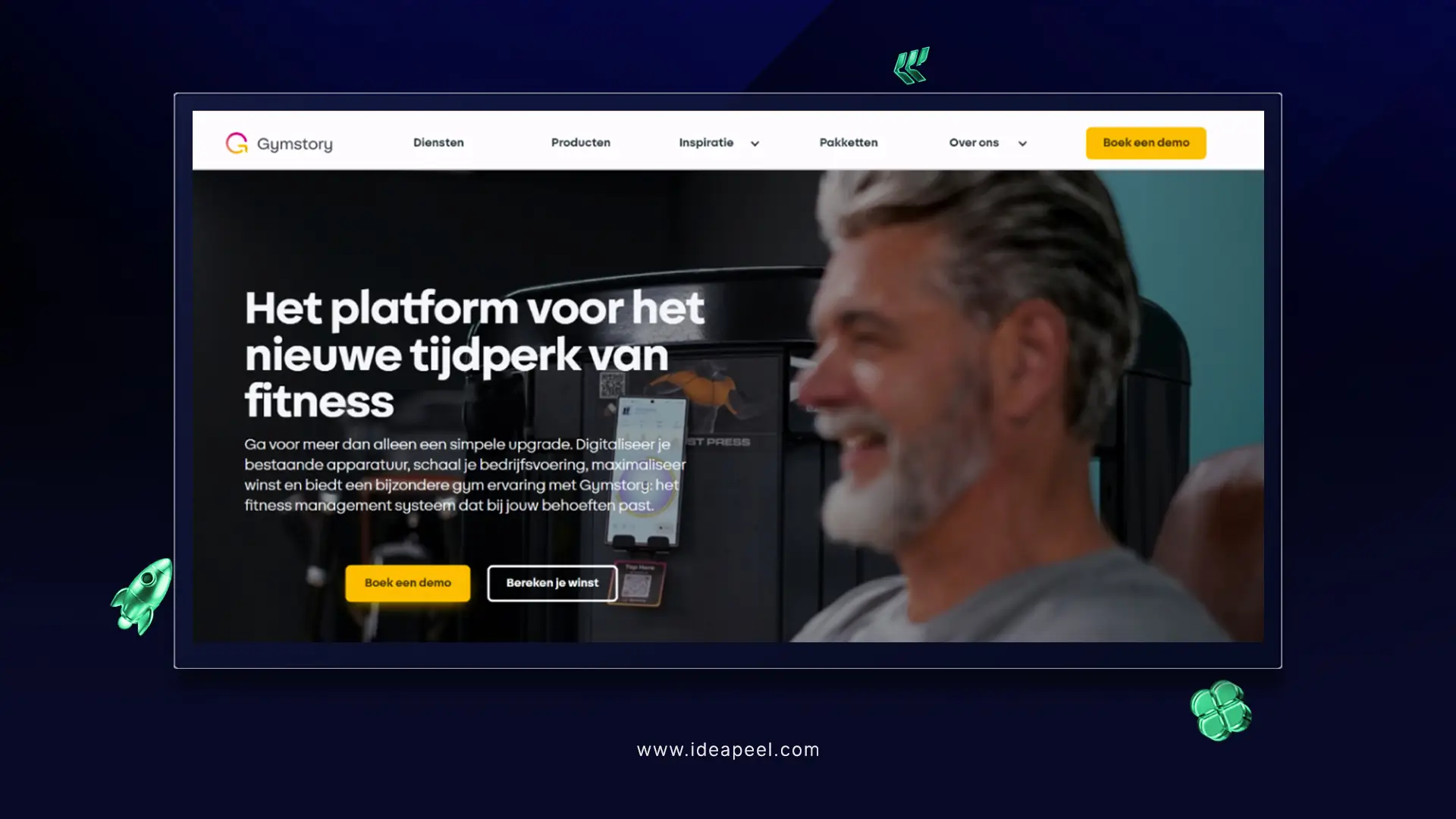
Gymstory is a healthcare app, came to us to design an intuitive app dashboard, real-time tracking integration, and members' subscriptions.
Redesign overview:
- Modern app dashboard UI with data-first layouts
- Seamless integration with time-tracking systems
- Membership subscription flow redesign for higher conversions
- Smart fitness offering and pricing page optimization
Explore the Gymstory web redesign case studies.
Famous Tracker: Influencer Time Tracking App
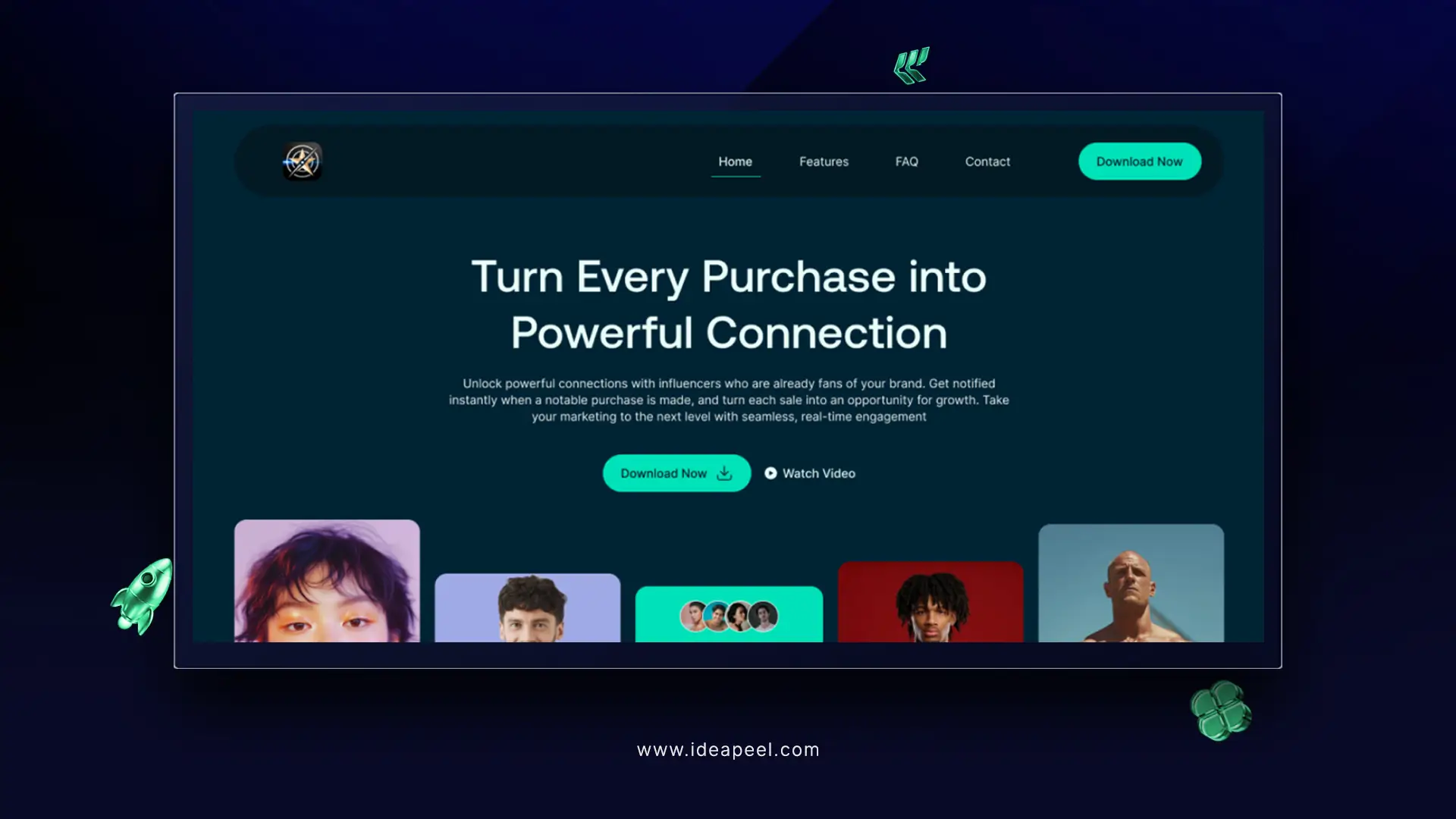
Famous Tracker is a real-time detection app for influencers to track sales and grow their business.
Redesign overview:
- Real-time tracking system integration
- End-to-end SaaS UI/UX design implementation
- Refined brand experience with a modern visual system
- Improved data visualization for faster insights
Explore the Famous Tracker web redesign case studies.
How Often Should a SaaS Company Redesign Their Website?
SaaS companies mainly redesign their website at least between 2-3 years.
Rapidly changing SaaS web design trends, integration capability, SEO opportunity, and SaaS site scalability influence to redesign SaaS website.
Well, minor changes like layout, navigation pattern, site updates, interface color, CMS blog structure are common things SaaS founders take immediately to refresh and improve conversion.
Note: SaaS websites should be monitored at least once every 2-3 months for updates. Or. Sooner or later, if conversions drop, messaging becomes outdated, or the product undergoes significant evolution.
Get Webflow Experts' help for SaaS Website Redesign
You've already got to know why and how your SaaS website redesign should take place to ensure SEO and data security.
Another reminder: Most SaaS founders experience low conversions, slow site speed even loss of ranking.
The reason? Doing redesign with a generic design agency who have less knowledge about SaaS infrastructure, conversion flow, and SaaS UX.
That's why choosing the right Webflow Agency for SaaS website redesign is crucial.
ideapeel is a dedicated Webflow development agency specialized in SaaS software development, SaaS consultation, SaaS website design and migration.
So, there’s no chance of feeling unsafe during SaaS site redesign or migration!
Reach out to ideapeel team and have a successful SaaS website redesign.
[[last-cta]]
This helpful guide gives the best experience and idea for if you are launching a startup and a SaaS project. Some of the common questions are?
What to do?
How to do?
Where to go?
We will break down the core problem and the different types of UI/UX design services. The pricing breakdown, some case studies, and help you better understand where you go.
What challenges do startups and SaaS companies face when building a website?
- The design trends and design elements of ui/ux
- The mistakes that should not be made in the design
- The prizing breakdown or prizing idea for design
- Where can one take service, and how to do it
All solutions are in the previous link, but the best one is highlighted below. Read the next section to understand everything clearly.
Why UI/UX Is Critical for SaaS and Startups in 2026
For startups and SaaS businesses, your product’s success isn’t just about the interface; it’s about how users experience it. In 2026, UI/UX design is no longer optional; it has a direct impact on activation, retention, and growth.
Here’s why investing in good UI/UX matters:
Faster Onboarding = Better Activation
A smooth onboarding experience enables users to derive value quickly and efficiently. Clear flows, useful steps, and intuitive interfaces reduce friction, ensuring more users reach the “aha” moment faster.
Fewer Users Leaving
Confusing interfaces and tricky navigation can make users give up. Thoughtful UI/UX design keeps people engaged, helping them stay longer and remain active on your platform.
Higher Investor Trust
Investors notice polished, professional design. A startup with clear UI, consistent design systems, and a seamless user experience signals reliability and scalability.
AI-Driven UX Personalization
Many SaaS platforms now use AI to make the experience feel personal. Dashboards, suggestions, and content adapt to each user, making the product easier and more enjoyable to use.
[[inner-cta]]
Best UI/UX Design Services for Startups and SaaS in 2026
.webp)
How to design a SaaS product website: Step-by-step guide
.webp)
Step 1: Starting with the research
Understand the saas products that the clients wanted to make. Also, take knowledge about the features and the target audience. Make a research & analysis report on competitors' products.
Step-2 Set The Goal
Make a plan and fix the goal, how the site will be structured & the essential pages like(Home, Features, Pricing, Privacy, etc). That helps to make the conclusion
Step-3 Map the use journey
Map the user journey to see how the user moves from the landing page to make a perfect conversion. And the important thing is be make a site map that also helps for seo of a site.
Step-4 Wireframing
Wireframing & UI Design Draft layouts and create human-centered design interfaces using consistent design systems. There are 3 types of wireframes you can do by reading the full guide.
Link is here. Explore Now
Step-5 UI Design
Create the visual look of your product, including colors, fonts, buttons, spacing, and interactive elements. Apply consistent design systems to maintain a polished, professional, and human-centered interface.
Step-6 Testing & Optimization
Conduct UX audits and CRO UX testing to identify friction points, refine user flows, and boost conversions in the design process.
Case Study: How ZipID Improved Trust & User Experience With Design Agencies
.webp)
Client: ZipID, a SaaS platform that helps U.S. employers digitally complete Form I‑9 and verify new hire identities.
Industry: SaaS / HRTech / LegalTech
Website: zipidapp.com
Built by: ideapeel
1. The Challenge
Employers in the U.S. are required to verify every new hire’s identity and work authorization via Form I‑9. Traditional methods are:
- Time-consuming
- Error-prone
- Hard to manage remotely
- Risky in terms of compliance and audit readiness
So, ZipID needed a clean, trustworthy, and frictionless interface that could guide employees and HR teams, many with minimal technical experience, through the Form I‑9 onboarding process.
2. Our UI/UX Solution (By ideapeel)
We applied our full UI/UX methodology, leveraging the same scalable foundation used in our Webflow SaaS templates.
✓ UX Research & User Flow Planning
We studied how HR teams and employees interact with digital I‑9 tools and mapped the complete journey:
Invite → Employee Info → ID Upload → Biometric Verification → Employer Review → Completed I‑9
The biggest friction points were: errors in form entry, confusion during document upload, and trust gaps regarding data privacy.
✓ Clean, Guided UI Design
We built a simple, step-by-step workflow that uses:
- Clear labels
- Progress indicators
- Easy-to-follow instructions
- Helpful microcopy for legal and compliance terms
- Zero visual clutter
The experience feels guided and supportive rather than technical or intimidating.
✓ Privacy-Focused UX
Because ZipID handles sensitive identity documents, we highlighted:
- Encrypted storage and secure data handling
- Limited, legally required data collection
- Clear privacy messaging at each step
This builds confidence in both employees and HR teams from the first interaction.
✓ Built Using ideapeel’s Webflow SaaS System
The entire design and build were executed using ideapeel’s SaaS UI system; the same foundation behind templates like Payfix and Velto.
This allowed:
- Faster development
- Consistent design patterns
- Scalable UI blocks
- High responsiveness on all devices
[[question-block]]
How much do UI/UX design services cost for startups in 2026?
There are three core 3 sections of your pricing and costing for ui/ux design service, also included with the development service, that help you much.
You can take it as a suggestion; it is not a constant value. It depends on factors and changes.
1. Landing Page Design $1,499+
Perfect for startups that need a simple, high-impact page.
Includes:
- Custom UI/UX + Webflow build
- Mobile-first, responsive design
- Optimized for speed, SEO, and conversions
- Delivered in Webflow or Figma
2. Essentials Site $2,500+
Build Trust, Grow Fast
A complete site that makes your brand look professional and credible.
Includes:
- Custom UI/UX + full Webflow development
- Mobile-ready, SEO-friendly, smooth scrolling
- CMS for blogs, FAQs, testimonials
- Designed to boost authority and long-term growth
3. Growth Engine $4,999+
For startups ready to grow, your website works harder for you.
Includes:
- Advanced UI/UX + Webflow development
- High-fidelity, custom designs
- Lightning-fast, SEO + AI optimized
- CMS for dynamic content (up to 15 items)
- Built for automation and long-term ROI
Final Thought:
By this full content, we can see the full core system of the ui ux design service process and some case studies that will help you to enrich your knowledge. But it is easy to make your site by your own if you don't have proper knowledge of the user experience in ui /ux design.
So, if you miss one crucial point, then the opponent can take your one point. Don't be upset, we are here(ideapeel) to help you with our top-level services.
Let’s Plan Your Startup & SaaS Website – Schedule a Call
[[last-cta]]
.webp)
You've already built your MVP or micro SaaS. Now it’s time to market your product with a website or landing page.
Many founders make the mistake of choosing the wrong website builder. This often leads to integration headaches, scalability issues, and poor SEO performance.
So, which SaaS website builder should you choose?
Webflow is the overall best option for custom code flexibility, backend integration, and high SEO performance. Bubble is great for fully functional web apps. Again, framer is a budget-friendly option for fast launch SaaS websites.
This guide will explain the head-to-head comparison of 5 SaaS web builders. So, you can launch your SaaS website with confidence.
Which Website Builder to Use for a SaaS Website?
There are many SaaS website builders on the market — but most SaaS founders and industry experts consistently recommend a few trusted options.
Here's the top 5 SaaS website builders, including no-code/low-code and AI platforms:
- Webflow: Marketing sites, landing pages, and scalable SaaS websites
- Framer: Fast and modern websites.
- Bubble: Building full no-code SaaS web applications
- Softr: Simple SaaS MVPs and internal tools
- Unicorn: SaaS landing pages only.
Explore SaaS Vs Custom Software to build a profitable product.
Best SaaS Website Builders: Quick Comparison Table
Best SaaS Website Builders: Detailed Comparison
1. Webflow
Webflow is the best SaaS website builder for its advanced web features, design control, and robust CMS features.
It also allows marketing teams to test and iterate on designs independently.
SaaS Webflow website combined with strong SEO performance, powerful integrations, and high-quality front-end capabilities,
So, it helps increase conversions and reduce churn by improving overall user experience.
Pros
- Structured Data & CMS Collections: Create and manage dynamic content, user-linked data, and dashboard pages without backend coding.
- Powerful Integration: Webflow integrates seamlessly with payment processors, CRM, API and various third-party services.
- Rapid Prototyping and Iteration: Real-time preview features allow quick testing and reduce time for deployment.
- Design Flexibility: Unlike other no-code saas builders, Webflow provides custom code flexibility to create bespoke and functional SaaS websites.
- Strong Front-End Capabilities: Webflow excels in front-end interfaces to create simplified dashboards and client portals.
- Higher SEO Performance: Webflow's clean code, built-in SEO tools, and features reduced loading time and overall SEO performance.
Cons
- Lacks backend capabilities: Webflow needs integration like Wized, Xano for backend development.
- Steeper learning curve than Framer: Non-technical users who prefer no code may have difficulties with its custom code dependencies
- Scaling difficulties: Technical limitations to scaling or building complex SaaS.
2. Framer
Framer is the top choice for building interactive user interfaces and dynamic pages.
Whether you want to build SaaS landing pages faster with premium animation and visual layout, Framer is a great option.
But you may have difficulties integrating backend tools or a fully functional Webflow.
- Visual Editor: A Visual editor that excels in easy-to-edit visual layout without coding.
- Premium Animations: Built-in motion tools create highly polished SaaS web design.
- Fast Publishing: Ideal for A/B tests, rapid experiments, and frequent design changes.
- Lightweight CMS and Integrations: Supports basic dynamic content and marketing tools.
Cons
- Limited for SaaS logic: Not suitable for dashboards, user roles, or multi-step apps.
- Weak backend support: Requires external services to handle data or auth.
- Less SEO control than Webflow: Basic optimization options and less structured flexibility.
Read more: Webflow vs Framer
3. Bubble
Bubble is one of the most popular SaaS builders for creating fully functional web apps.
With strong front-end and back-end capabilities, Bubble excels at handling complex logic, authentication, workflows, and automation systems.
However, users often experience slower performance on heavier apps.
Pros
- Robust Database and Workflows: Build complex user logic, billing, automations, and multi-user systems.
- Plugins Marketplace: Activate features like Stripe, API connectors, chat, maps, and more.
- Backend + Frontend Capabilities: No need for external backend tools.
- Scalable Logic: Suitable for fully-featured SaaS web apps.
Cons
- Design limitations: Less precise control than Webflow or Framer.
- Slower performance: Apps may feel heavy without optimisation.
- Learning curve is high: Logic building can overwhelm beginners.
Explore: Webflow Vs Bubble
4. Softr
Softr is a no-code website builder that allows founders to quickly create SaaS marketing sites, customer portals, resource hubs, and lightweight dashboard-style pages
Typically, it depends on Airtable and Google Sheets. The new Softr database definitely offers greater scalability than Airtable.
Well, it’s not a full backend-heavy SaaS builder like Bubble, but it’s excellent for lightweight SaaS MVP use cases
Pros
- Extremely Fast Website Setup: Pre-built templates for SaaS homepages, pricing pages, and product pages.
- Built-In Auth & User Access: Easily add login, signup, and gated content without integrations.
- Simple Client/Partner Portals: Ideal for customer dashboards or knowledge hub pages connected to Airtable/Sheets.
- Low Learning Curve: Much easier than Webflow or Bubble — no design or technical expertise needed.
- SEO-Ready Templates: Basic SEO controls + clean layouts suitable for SaaS marketing websites.
Cons
- Limited Design Customization: Not suitable for highly branded or pixel-perfect SaaS websites.
- Not Ideal for Complex SaaS Dashboards: Best for basic portals; lacks advanced front-end capabilities.
- Template Dependence: Hard to create fully unique layouts — design options are restricted.
- Scaling Constraints: Works well for small SaaS websites, but customization becomes limiting as you grow.
5. Unicorn Platform
Unicorn is a SaaS landing page builder that makes marketing SaaS ideas more affordable and easier.
Unicorn is basically AI SaaS website builder that focuses heavily on conversion-oriented templates and simple customization.
Compared to Webflow, Bubble, and Framer, their pricing plan is cheap for SaaS startups. But you don't get a fully functional SaaS website like Webflow and Bubble.
Pros
- Conversion-Focused Templates: Built-in layouts for SaaS hero sections, pricing, testimonials, feature blocks, and CTAs.
- Extremely Fast Setup: Launch a polished SaaS landing page in minutes with minimal edits.
- Startup-Specific Components: Includes churn notices, waitlist forms, feature highlights, product mockups, and beta signup sections.
- Simple Editing Experience: Very lightweight drag-and-drop editor without technical complexity.
- Affordable vs. Other Builders: Lower cost compared to Webflow, Framer, or Bubble.
Cons
- Only for Landing Pages: Not suitable for full SaaS websites, dashboards, or multi-page applications.
- Limited Design Flexibility: Customization is restricted to templates; not ideal for unique branding.
- Basic SEO Controls: Good enough for landing pages, but lacks advanced SEO tools.
- No Built-In CMS or Dynamic Content: Not usable for blogs, product updates, or resource sections without workarounds.
Best SaaS Builder for Each Use Case
1. Webflow Vs Framer: Best SaaS Landing Pages
If you want to launch a conversion-focused SaaS MVP landing page quickly, Framer is the fastest and easiest option.
Use a ready-to-build Webflow's custom-made template with a professional dashboard, auth, CMS and SEO.
It'll cost more than framer but give you extra SEO performance, conversion rate and integration opportunities.
2. Bubble Vs Softr: Best No-Code SaaS Web Apps
If your SaaS platform needs to integrate with a fully functional website, then choose bubble for frontend+backend excellence.
Softr is another option for lightweight SaaS websites and dashboards.
3. Webflow Vs Framer: Best Low-Code SaaS Web Development
For low-code SaaS development, Webflow + Wized allows you to combine visual design with backend logic and API integrations. It’s a perfect solution for MVPs with advanced features.
On the other hand, Framer+Xano is a perfect combination for marketing first SaaS website for animation-based design, fast launch and basic backend.
4. Softr Vs Framer: Best Budget-Friendly SaaS Website Builder
If you want a low-cost solution for a lightweight SaaS website or landing page, Softr is an excellent choice with easy integrations and fast deployment.
Framer is another option, ideal for creating visually polished, modern landing pages with sleek animations and professional design.
5. Webflow Vs Bubble: Best Enterprise-Ready SaaS Builder
Webflow Enterprise delivers high traffic support, complex workflows, API integrations, and enterprise-grade hosting and security.
Bubble is designed for large SaaS applications, offering full backend logic and workflow management.
[[inner-cta]]
How to Choose the Right SaaS Website Builder
1. Pricing
Compare monthly vs. annual plans and what each tier includes (hosting, bandwidth, CMS limits). Choose a builder that lets you upgrade easily as you grow.
2. Scalability
Check how pricing changes as you add users, features, or server resources. Predictable, transparent scaling is key for SaaS budgeting.
3. Authentication
Ensure the builder supports secure logins, user accounts, and role-based permissions, either built-in or via integrations.
4. Database
Your SaaS needs reliable data storage. Review storage limits, performance, and whether you can connect to external databases.
5. Integrations
Choose a builder that connects easily with tools like email services, payments, CRMs, and APIs for future flexibility.
6. Server-side logic
SaaS web apps require backend logic. Look for support for custom code or serverless functions.
7. SEO tools
The platform should allow full control of meta tags, URLs, sitemaps, and performance to support strong search engine visibility.
8. SaaS Website templates
Pick a SaaS builder with modern, conversion-ready SaaS templates you can customize to match your brand.
9. Analytics integrations
Ensure compatibility with analytics and marketing tools to track conversions, user behaviour, and marketing performance.
Having difficulty building your SaaS product? Expert SaaS consulting services can help you out!
Which SaaS Website Builder Is Best For You?
We've clearly reviewed and explained the 5 best website builders for SaaS.
Now, it's your turn to choose the right website builder. Don't know what to select yet?
Here's a quick solution!
Overall, Webflow is a great option for your landing pages, functional SaaS website or no code web apps.
Its powerful integration, scalability, custom code and ready to go SaaS template helps you to get a conversion-friendly website.
Note: Webflow or any builder alone can’t give you a complete, professional website—you’ll need a developer or Saas website design agency.
At ideapeel, we build scalable, integration-ready Webflow SaaS websites built for speed, clarity, and conversions.
Contact us today and launch your SaaS website faster.
[[last-cta]]
A powerful website doesn’t start with colors or code; it starts with structure. In 2026, wireframes and sitemaps remain two of the most essential elements in UI/UX design.
This guide breaks down the difference between a sitemap and a wireframe, provides real-world examples, and explores modern AI tools that make the process faster and smarter.
Why Modern Websites Fail Without Solid UI/UX Planning
Most websites that fail to convert users don’t suffer from poor visuals; they suffer from poor planning.
When a website lacks a clear sitemap or proper wireframe, users struggle to navigate, and designers end up revising endlessly.
In 2026, successful brands, from startups to SaaS leaders, rely on data-driven UX planning using AI-powered sitemaps and dynamic wireframes.
You’ll learn here:
- What sitemaps and wireframes really are
- How they differ and complement each other
- The best tools to use in 2026
- Real examples from top-performing websites
What Is a Wireframe?
A wireframe is the visual skeleton of a website, a simple outline that defines how each page will look and function.
Purpose
It helps designers decide where to place buttons, text, forms, and images before the design phase begins.
Types of Wireframes
- Low-Fidelity: Rough sketches for basic structure
- Mid-Fidelity: Add more detail and layout accuracy
- High-Fidelity: Nearly finished, including UI elements and interactions
Best Tools for Wireframing
.webp)
- Figma – Real-time collaboration
- Balsamiq – Great for fast sketching
- Adobe XD – Polished design-to-prototype workflow
- If you are a beginner, you can take the Udemy Course on UIUX with Figma and Adobe XD
Why It Matters:
Wireframes shape user flow, guide content hierarchy, and reduce visual confusion during the design phase.
What Is a Sitemap?
A sitemap is like a map of your website’s pages, showing how every page connects and the order in which users navigate through them.
Types of Sitemaps
- Visual Sitemap: Used by designers to plan the structure
- XML Sitemap: Used by Google for SEO indexing
Tools to Build a Sitemap
- FlowMapp – Intuitive drag-and-drop visual maps
- Miro – Collaboration-focused
- Octopus.do – Great for fast visual sitemaps
SEO Value:
A well-structured sitemap helps Google understand site hierarchy, improving crawl efficiency and visibility.
Why Sitemaps & Website Wireframes Are Crucial in UI/UX Design
In UI/UX design, structure comes before style. Without a sitemap or wireframe, even the best visuals can fail to deliver user satisfaction.
Top Benefits
- Clear communication between designers & developers
- Faster revisions and project delivery
- Stronger UX flow and conversion rates
- Easier SEO optimization
2026 Trend: AI-driven sitemap and wireframe tools like Uizard, Relume, and FlowMapp AI make early planning 2× faster.
Example:
ideapeel & LegalPeel use sitemap-first workflows to define structure before design, reducing UX friction and improving user retention.
[[question-block]]
The 3 Main Types of Website Wireframe in UI/UX Design (2026 Update)
In modern UI/UX design, wireframes act as the blueprint of a digital product, showing layout, structure, and user flow before any color or code comes into play.
There are three main types of wireframes every designer should know: low-fidelity, mid-fidelity, and high-fidelity.
Each serves a unique purpose in shaping a user-friendly, high-performing website or app.
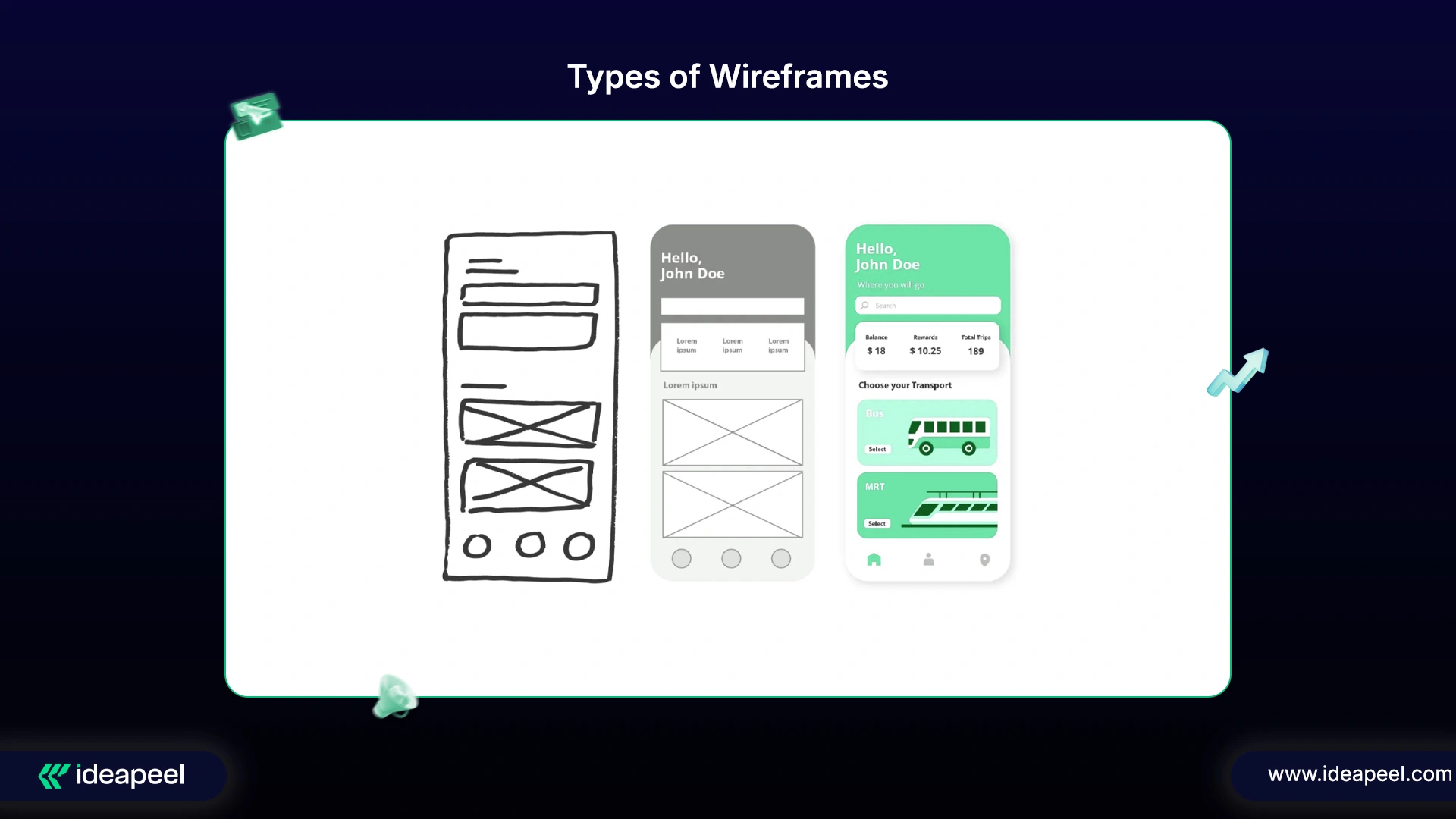
1. Low-Fidelity Wireframes
Description:
Low-fidelity wireframes are the rough drafts of design ideas, quick sketches that capture layout and structure without fine details. Designers often use pen and paper or simple digital tools like Balsamiq to outline the user journey.
Characteristics:
- Use of simple shapes and grayscale tones
- Placeholder text such as “Lorem Ipsum”
- No attention to fonts, colors, or imagery
- Focus on layout and navigation only
Tip: Use low-fidelity wireframes during team workshops or early client discussions.
Purpose:
To brainstorm design concepts, visualize structure early, and collect initial stakeholder feedback before investing time in detailed visuals.
2. Mid-Fidelity Wireframes
Description:
Mid-fidelity wireframes refine the layout and start bringing structure and functionality together. They bridge the gap between rough sketches and detailed prototypes, providing a clearer representation of how the interface will work.
Characteristics:
- Created with digital design tools (like Figma or Sketch)
- Include clearer hierarchy, accurate spacing, and simple icons
- Use basic text instead of placeholder copy
- Avoid full-color or brand-specific typography
Tip: Best for usability discussions and mid-stage client reviews.
Purpose:
To ensure design consistency, refine navigation, and align designers, developers, and stakeholders on functionality and content placement.
3. High-Fidelity Wireframes
Description:
High-fidelity wireframes are detailed, near-final versions of the design. They closely resemble the finished website or app and are often interactive, helping simulate the real user experience.
Characteristics:
- Include real content, images, colors, and typography
- Accurately represent layout, spacing, and interactions
- Can be turned into clickable prototypes
- Ideal for final testing and developer handoff
Pro Tip: Use high-fidelity wireframes to identify user friction points before coding begins.
Purpose:
To conduct usability testing, gain final client approval, and serve as the blueprint for development.
[[inner-cta]]
How to Structure a Website Sitemap: Real Examples You Can Copy
1. E-commerce Website Sitemap
.webp)
A clean sitemap guides users and search engines through your store smoothly.
- Home: Menu, reviews, features, FAQs.
- Products: Lists items with pages like AI Product 1 and AI Product 2 (features, pricing, testimonials).
- Solutions: Shows how products solve problems.
- Services: Covers extra support or setup help.
- About Us: Company story + Careers link.
- Blog: SEO articles with dedicated Blog Pages.
- Support: FAQs, knowledge base, contact options.
- Contact Us: Direct communication page.
Why it works: Boosts navigation, SEO, and user experience.
2. SaaS Web design Sitemap
%20(1).jpg)
A simple sitemap guides users and search engines smoothly.
- Home: Hero, features, testimonials, call-to-action.
- Features: Product benefits and highlights.
- Pricing: Plans with details and FAQs.
- Solutions: How the software helps teams and businesses.
- Resources: Blog, guides, case studies, tutorials.
- About Us: Company story, team, careers.
- Support: FAQs, knowledge base, live chat.
- Contact Us: Form and sales inquiries.
Why it works: Improves navigation, SEO, and user experience.
3. Portfolio Website Sitemap
.webp)
A clean sitemap guides users and visitors through your work smoothly.
- Homepage: Overview, featured work, skills, writing samples, credits.
- About: Background, experience, goals, contact info, resume.
- Featured Work: Projects, segments, sketches, coursework, and field pieces.
- Skills: Photoshop, video editing, audio, and other expertise.
- Writing Samples: Profile pieces, articles, publications.
- Credits: Courses taken, website content, original work.
Bonus: From sitemaps to wireframes, we’ve shared the essentials. Explore this link for more guidance on our full range of UI/UX services.
What Are the Key Differences Between a Sitemap and a Wireframe?
Let's dive into it in depth....Here it is
Final Insight
By understanding these three wireframe levels, UI/UX designers and teams can plan, validate, and perfect user journeys step by step, from concept to launch. In 2026, design teams that master this structured approach will deliver smoother user experiences, faster iterations, and more intuitive digital products.
Ready to Bring Your UI/UX Vision to Life?
You’ve seen how sitemaps and wireframes shape successful websites. Now it’s time to put those insights into action.
At ideapeel, we help startups, SaaS companies, B2b, and creative brands turn ideas into beautifully structured, high-performing digital experiences.
[[last-cta]]
Good ui and ux design isn’t just about how something looks. It’s about how it works.
That’s where User Experience (UX) design comes in.
A great UX feels effortless. You tap a button, scroll through a page, or fill out a form; everything just makes sense. A bad UX, on the other hand, feels like work; it confuses you, makes you think too hard, or stops you from completing what you came to do.
In this post, we’ll explore 11 real-world bad UX design examples and how to fix them. You’ll see what went wrong, what a better version looks like, and what lessons you can apply to your projects.
Because the truth is simple:
Good UX = Happy users, more sales, and stronger brand loyalty.
Bad UX = Frustrated users, abandoned carts, and negative reviews.
Why UX Design Matters More Than Ever
We live in a fast, digital-first world. People expect websites and apps to just work.
User research shows that 88% of users are less likely to return after a bad user experience. That’s nearly 9 out of 10 people leaving, possibly for good, after a single poor interaction.
For businesses, that’s a costly mistake.
A few extra clicks in checkout, a confusing form, or a broken mobile layout can make users give up entirely. In contrast, a clean and intuitive experience can build trust, boost conversions, and even turn casual visitors into loyal customers.
In short:
- Good UX builds confidence and drives action.
- Bad UX creates frustration and drives people away.
What Makes UX “Bad”?
Bad UX isn’t just about ugly visuals. It’s about how something feels to use.
If users can’t easily figure out what to do next, the experience fails, no matter how beautiful it looks.
Here are the most common traits of bad UX design:
- Too many steps: The process feels long and tiring.
- Confusing navigation: Users can’t find what they’re looking for.
- No clear feedback: Buttons don’t confirm actions.
- Accessibility issues: The design excludes certain users.
- Overloaded interfaces: Too much information at once.
In short, bad UX forces people to think too hard, or worse, gives up entirely.
What Makes UX “Good”?
Good UX is almost invisible. It’s so smooth and natural that people don’t even notice it; they just get things done.
Here’s what good UX usually looks like:
- Intuitive: Users instantly know what to do next.
- Efficient: Tasks take minimal time and effort.
- Consistent: Familiar patterns across pages or screens.
- Accessible: Works for everyone, including those with disabilities.
- Delightful: Small touches like animations or helpful microcopy that make it enjoyable.
The best UX often comes from simplicity, clear communication, and empathy for the user’s needs.
Still confused between UX and UI? Here’s the difference explained clearly.
Common ui ux Design Mistakes (and How to Fix Them)
A good website does more than look nice. It should help people find what they need easily and enjoy the process. But many websites fail because of small design mistakes that confuse or frustrate users.
Let’s look at the most common web design mistakes, and how you can fix them.
1. Confusing Navigation
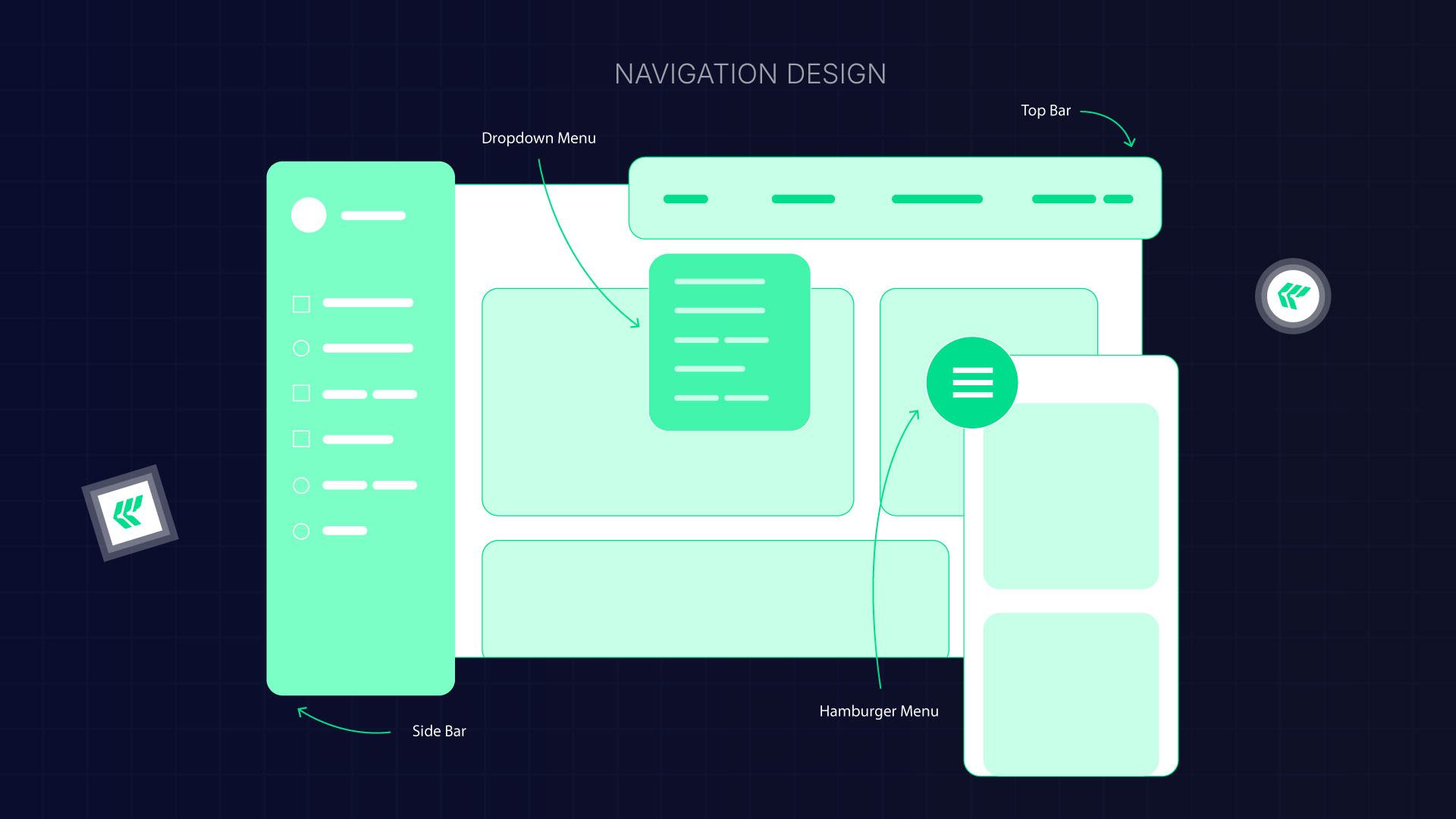
When your menu is hard to understand, users feel lost. Complicated menus, unclear labels, or missing breadcrumbs make people unsure of where they are on your site.
Why it’s a problem:
If visitors can’t find what they need quickly, they’ll leave.
How to fix it:
- Keep your menu simple.
- Use clear, familiar words for menu labels.
- Show breadcrumbs so users can see their path.
- Make sure important pages are just one or two clicks away.
Good navigation helps people explore your site with confidence.
2. Poor Mobile UI Design

More than half of internet users browse on their phones. If your site isn’t mobile-friendly, you’re losing visitors.
Common mistake:
Shrinking a desktop site to fit a phone screen. This makes the text too small and the buttons hard to tap.
How to fix it:
- Design with mobile-first in mind.
- Test your layout on different devices.
- Use larger tap areas for buttons.
- Make sure text is readable without zooming.
- Adjust the layout so it fits any screen.
A responsive design makes your website easier to use and helps it rank better in Google.
3. Cluttered Design
Too many colors, fonts, or animations can overwhelm visitors. When everything stands out, nothing really does.
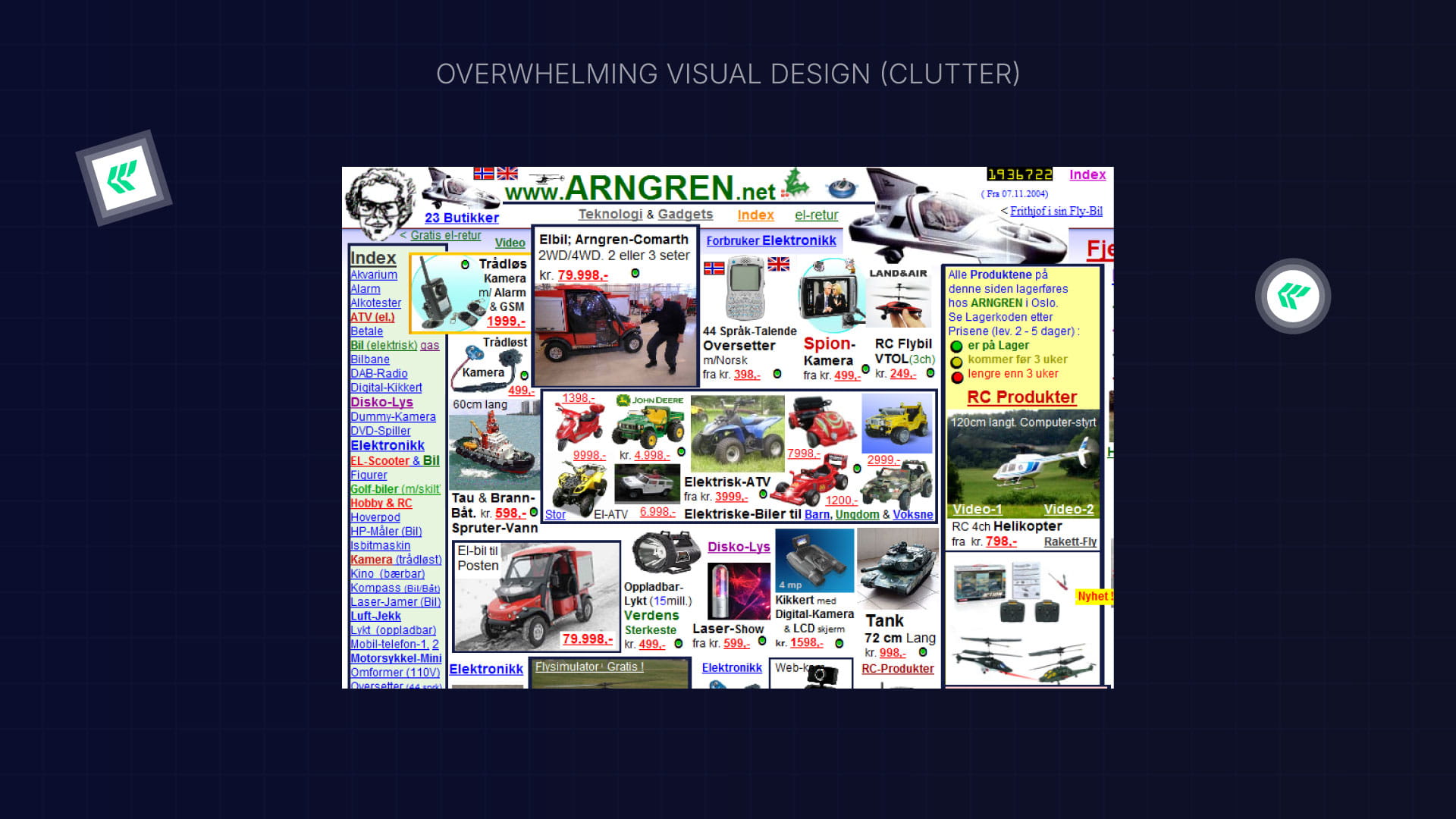
How to fix it:
- Keep your layout clean and simple.
- Use space between sections so content can breathe.
- Focus attention with clear headings and good contrast.
- Remove anything that doesn’t add real value.
Less clutter means more clarity and better focus for users.
4. Inconsistent Look and Feel
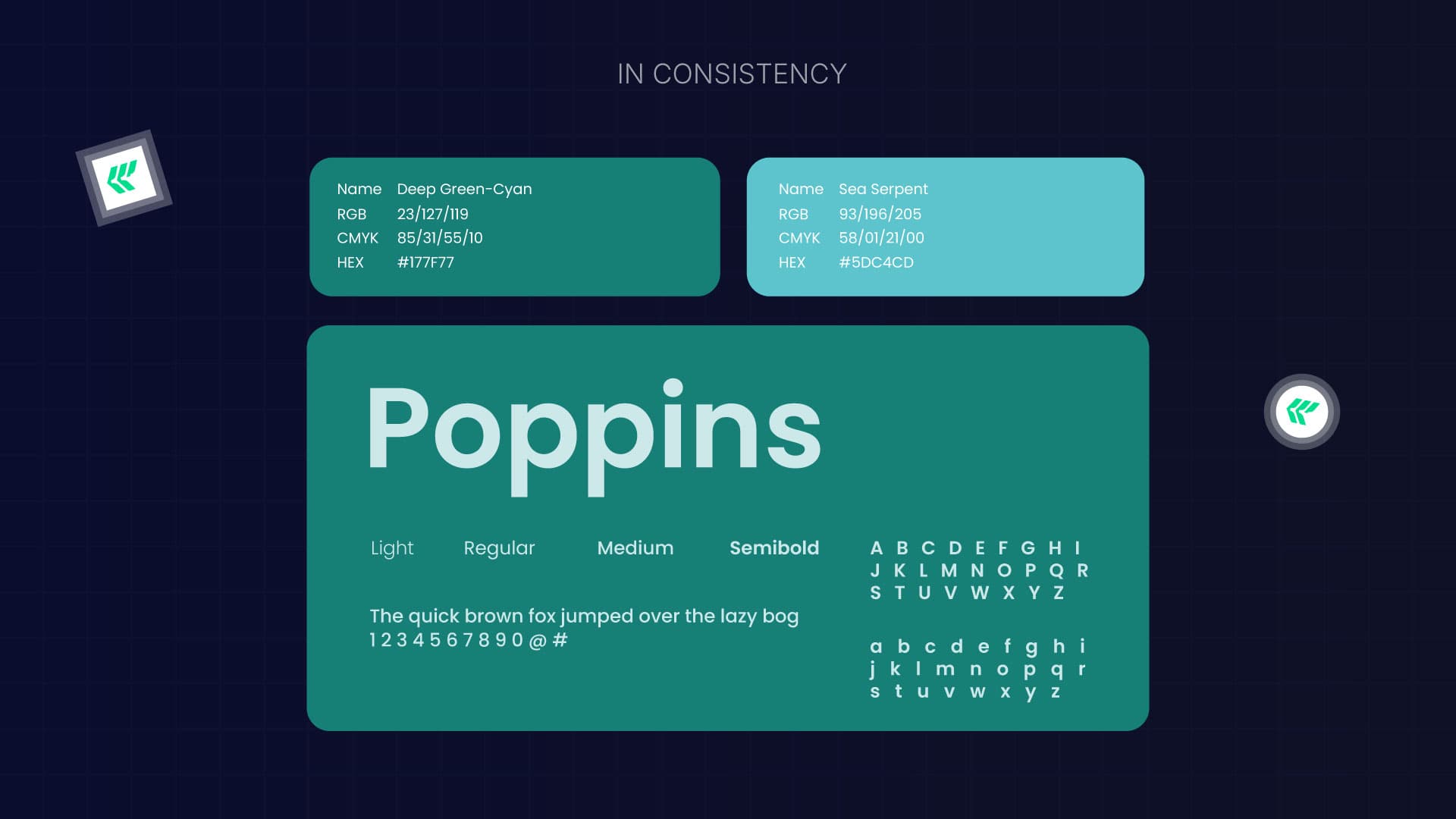
If every page looks different, visitors get confused. Buttons, fonts, and colors should stay consistent throughout the site.
Why it matters:
Consistency helps people learn how your site works. When each page feels new, they have to think harder, and that slows them down.
How to fix it:
- Create a style guide with your fonts, colors, and button styles.
- Use the same design elements on all pages.
- Check your site regularly for inconsistencies.
A consistent design feels professional and trustworthy.
5. Weak Error Messages or No Feedback
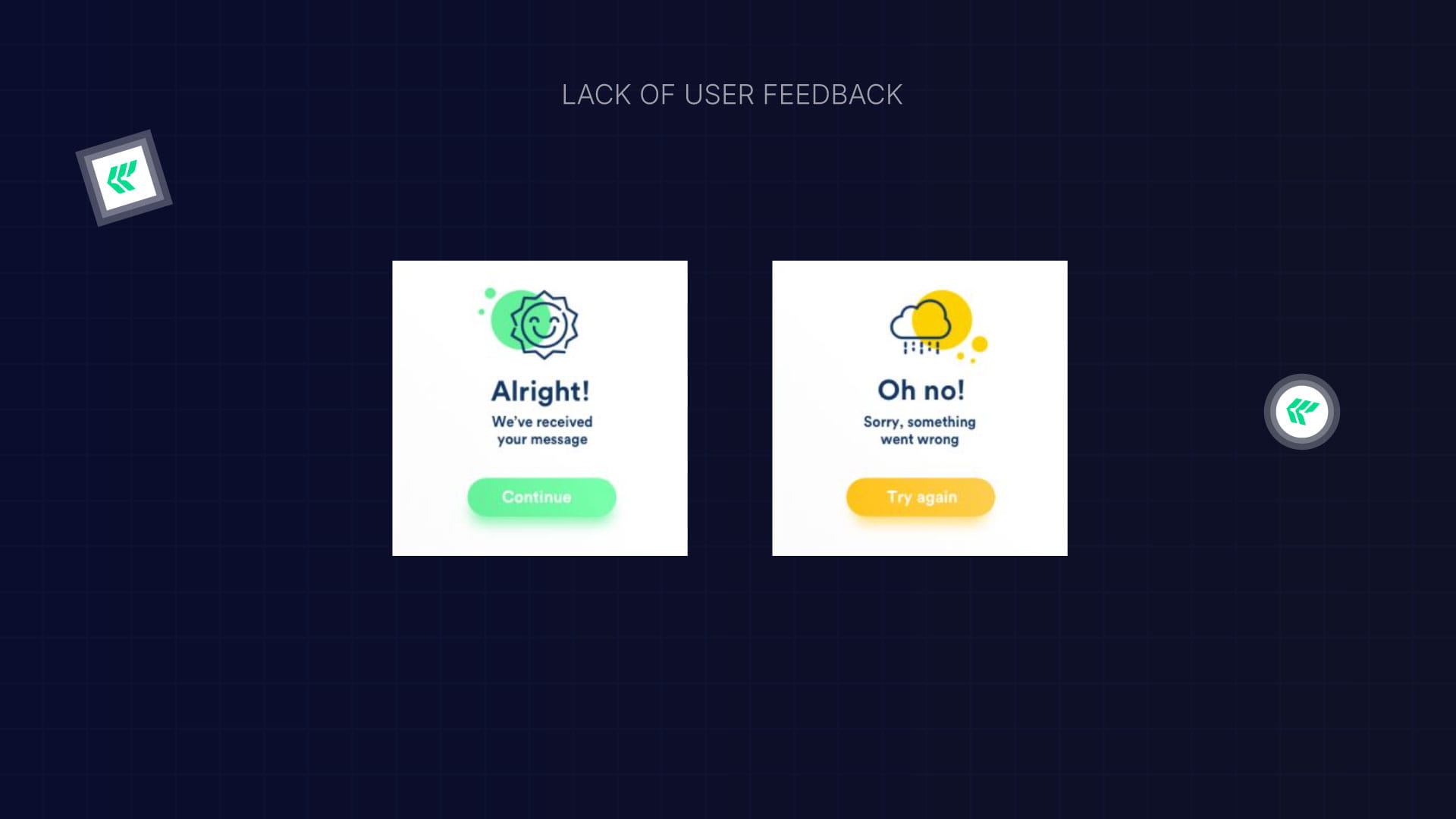
When something goes wrong, users want to know what happened and how to fix it. A plain “Error” message doesn’t help anyone.
How to fix it:
- Write friendly, clear messages that explain what went wrong.
- Add inline messages for form errors.
- Show loading or success messages when actions are completed.
Good feedback keeps users calm and helps them fix problems faster.
6. Endless Scrolling Without Purpose
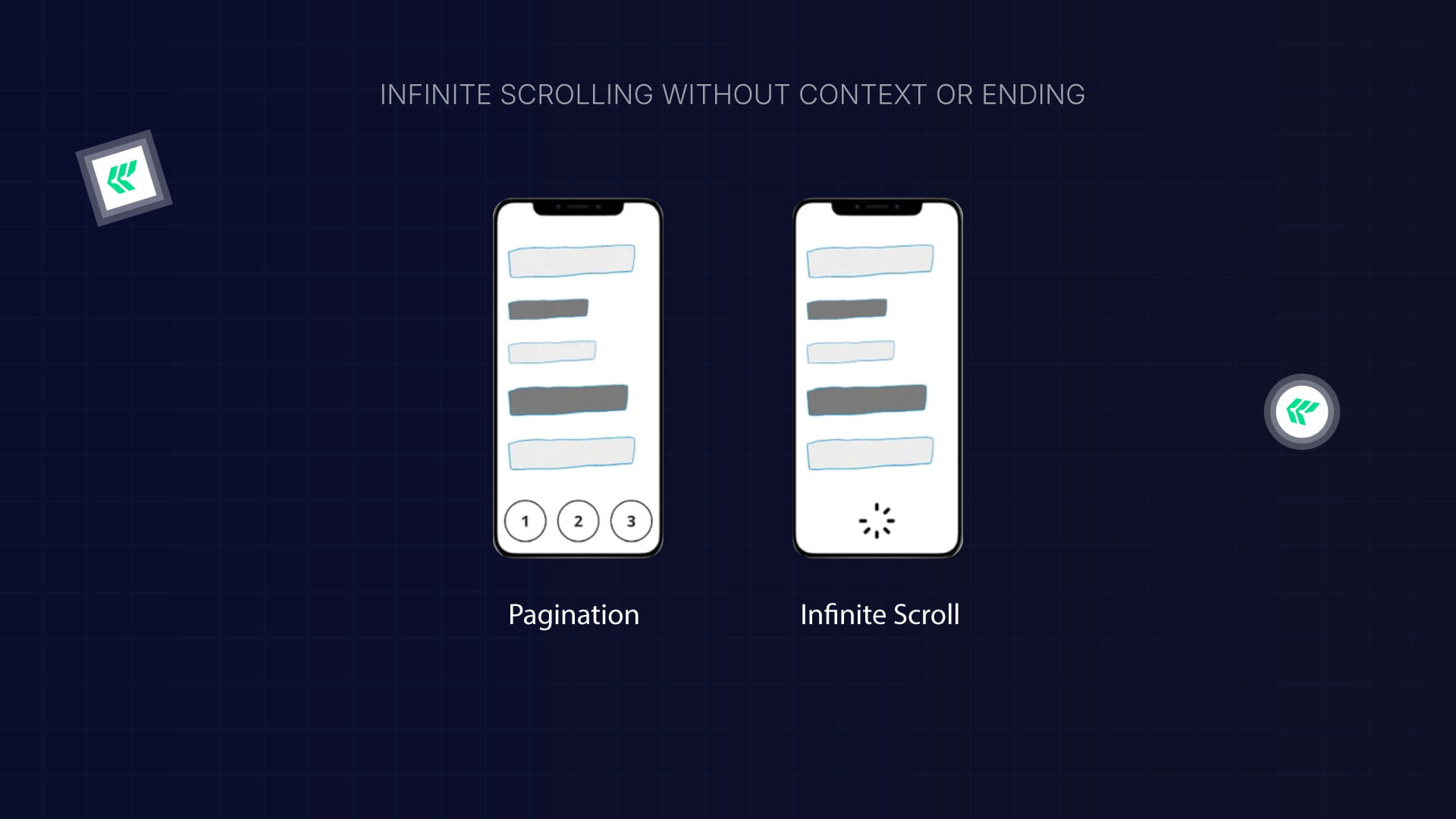
Infinite scrolling can make users feel stuck with no clear end or structure.
How to fix it:
Give users context, add page numbers, progress indicators, or clear sections. Help them know where they are on the page.
7. Misleading Buttons or Text (Dark Patterns)
.jpg)
Tricky language like “Check this box to opt out” confuses users and damages trust.
How to fix it:
- Use simple, honest wording for all buttons and forms.
- Avoid double negatives or hidden options.
- Be clear about what will happen when users click something.
Transparency builds credibility and keeps users coming back.
8. Hard-to-Read Text
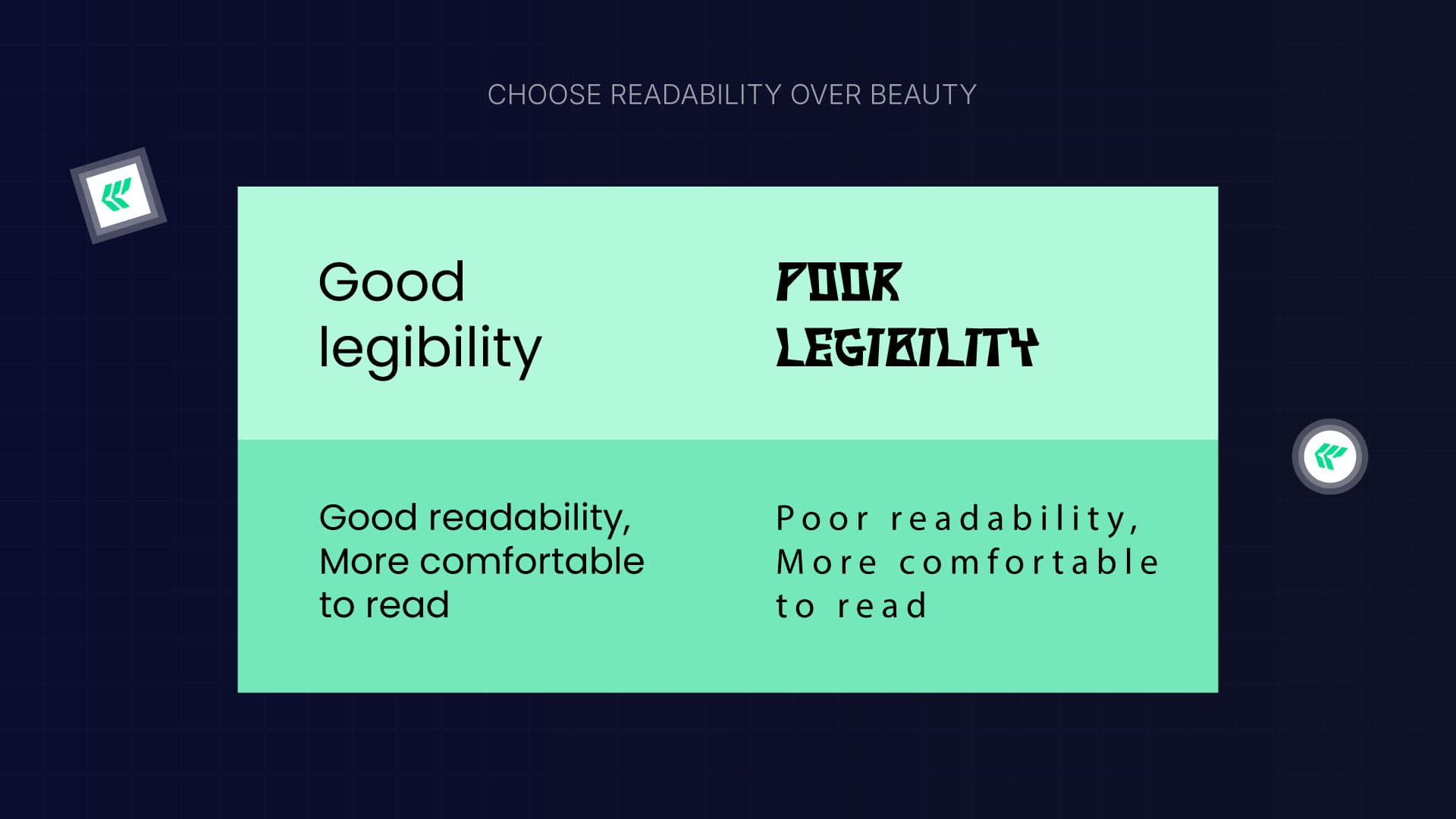
Good typography makes your site easier to read and understand. Poor font choices or long lines of text tire the eyes.
How to fix it:
- Use 16–18px for body text.
- Keep lines around 40–80 characters long.
- Choose clean, easy-to-read fonts like Inter, Open Sans, or Roboto.
- Make sure the text has enough contrast with the background.
- Don’t use too many different fonts.
Readable text helps people stay focused and engaged.
9. Poor Color Choices

Color can guide attention or create confusion. Low contrast makes text hard to read, while too much contrast can feel harsh.
How to fix the design process:
- Use colors that stand out from the background.
- Highlight important information with color, but don’t overdo it.
- Add headings, images, and visuals to break up long text.
Good color use creates balance and helps users scan your content easily.
10. Weak Visual Hierarchy
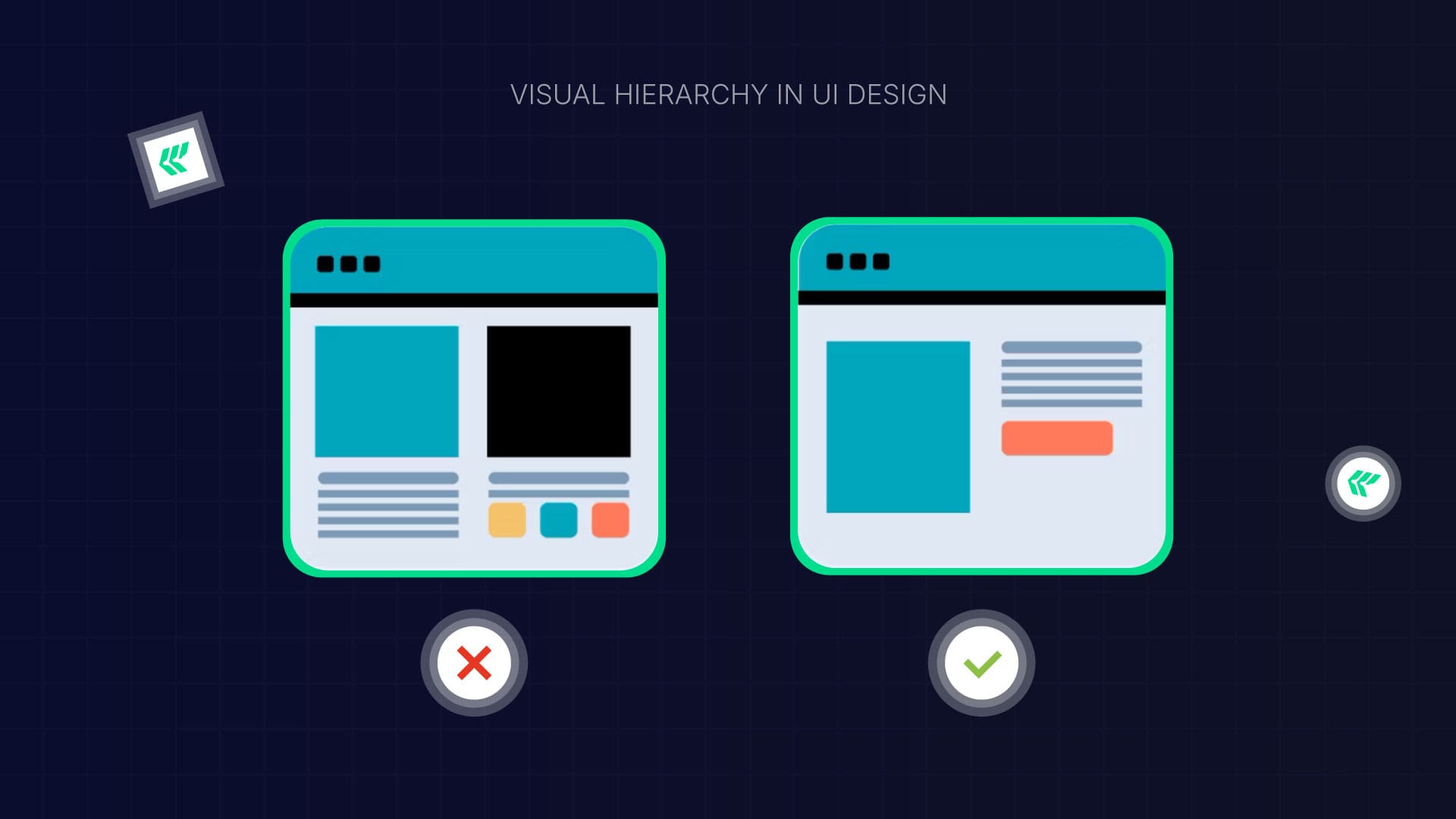
Visual hierarchy is about showing what’s important first. Without it, users don’t know where to look.
How to fix it:
- Make important elements larger.
- Use contrast to draw attention to headlines or buttons.
- Keep alignment and spacing consistent.
- Group related items together.
- Use white space to keep things clear and easy to read.
Users can navigate naturally when everything on your page has a clear purpose and order.
11. Bad Search Bar Design
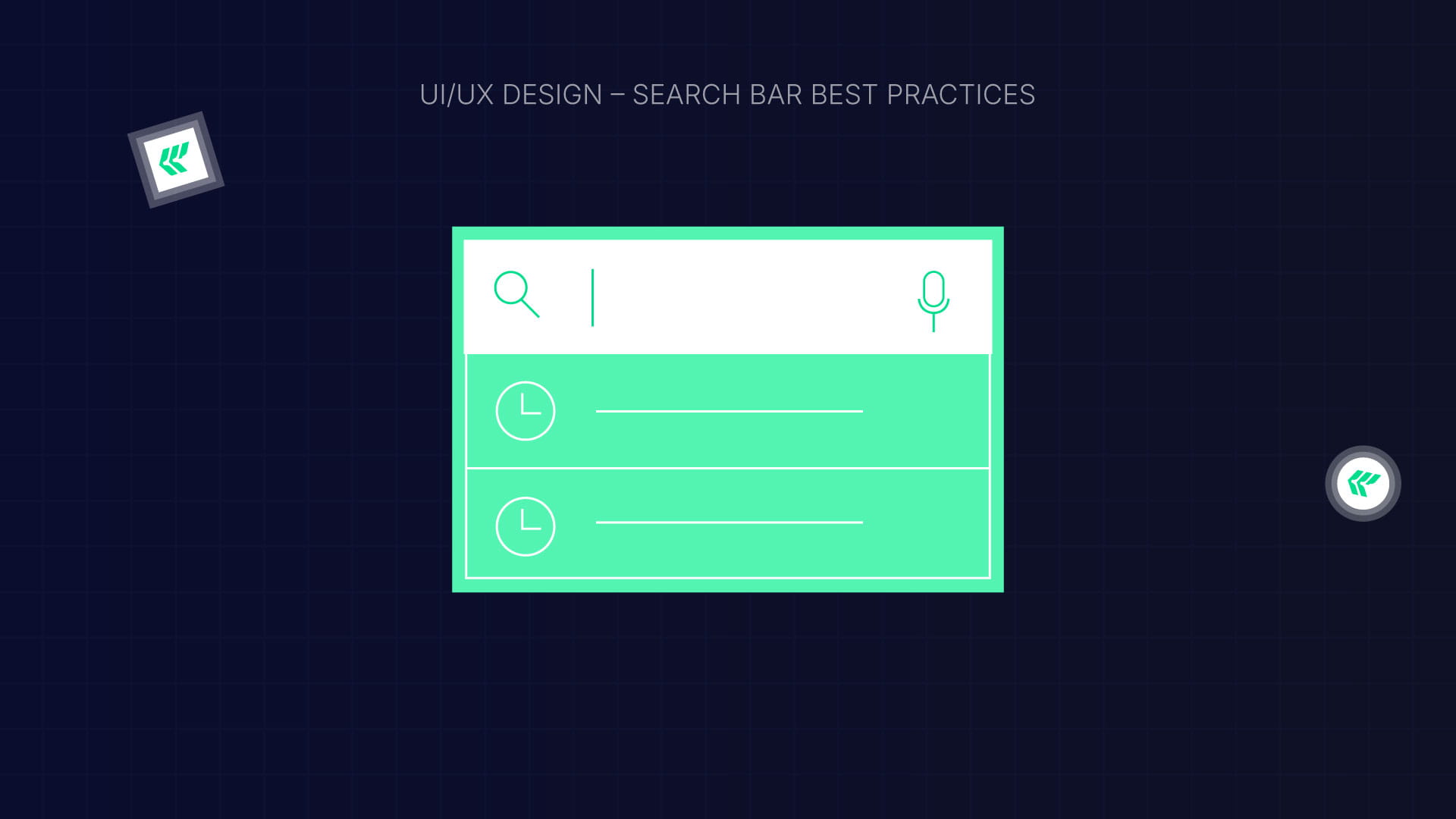
A search bar is essential, especially for websites with lots of content. Users get frustrated if it’s hard to find or doesn’t work well.
Best practices:
- Always include a text box and a search button.
- Put it where users expect it, usually the top right or center.
- Use a magnifying glass icon so it’s easy to spot.
- Add placeholder text and autocomplete suggestions.
- Make sure it works smoothly on mobile.
A simple, visible search bar helps users find what they need faster.
Quick UX Audit Checklist
Want to know what’s next in digital design? — Explore the Current UI Design Trends to Watch in 2026
Ready to Turn Frustration into Conversions?
Bad UX silently kills engagement, trust, and sales, but it doesn’t have to.
👉 Need a UX audit for your SaaS or website?
Or, if you’re ready to redesign with purpose
✨ Explore our UI/UX Design Services
to craft experiences that delight users and drive measurable growth.
FAQ: UI/UX Design Mistakes & How to Fix Them — A Practical Guide for Better User Experience
1. What makes a good user interface and product design?
A good design combines clear information architecture with thoughtful design choices to meet real user needs. It guides user behavior smoothly, reduces user frustration, and works seamlessly across every mobile device.
2. How does a UX designer improve user satisfaction?
UX designers observe real users, run user testing, and adjust the interface based on user behavior. By focusing on user experience design and aligning it with actual needs, they create intuitive products that keep users happy and engaged.
3. Why is understanding user needs important in user experience design?
Understanding user needs ensures your product design solves real problems. When UX designers tailor the user interface to what users expect and reduce friction, it boosts satisfaction and prevents frustration on both desktop and mobile devices.
.webp)
Migrating your website to Webflow can feel risky, especially when your site already has strong SEO rankings, valuable content, and domain authority.
Your fear of losing visibility or breaking your site’s structure is valid.
That’s why choosing the right Webflow migration expert matters. It ensures you can safely transfer your site to Webflow without losing SEO rankings, valuable data, or breaking important links.
In this guide, we’ll help you identify the best agency for Webflow migrations, what to expect from the process, and how to choose the right partner who can make your move seamless, secure, and SEO-safe.
Common Migration Routes Webflow Services Offer
Best Webflow migration experts in web design handle all platform migrations with SEO preservation, data control, and design flexibility.
The most demanded migration routes they usually provide:
- WordPress to Webflow
- Wix to Webflow
- Figma to Webflow
- Squarespace to Webflow
- Shopify to Webflow
- Framer to Webflow
Why Choosing the Right Webflow Migration Expert Matters
Migration to Webflow is usually a matter of fear about losing SEO ranking, drastically impacting UX performance, or the client losing or having a lower speed.
So, let's see how selecting a Webflow migration expert makes everything smooth and risk-free.
Your Website’s Search Ranking Matters
Without a responsible Webflow migration service, you can lose SEO data, URLS, and alt text search engine rankings.
Even if it can totally risk an enterprise-grade business wanting to move to another site with huge content and high SEO rankings.
Webflow content migration services ensure all the dynamic content, pages, URLs, and metadata remain the same as in the Webflow CMS.
Bonus: Download our Webflow Migration Checklist to handle redirects and SEO safely.
Rebuilding UX Design Without Hurting Conversions
Redesigning a Website can impact client conversion, engagement, or regular flow.
Like, your Healthcare WordPress website's UX design is familiar to your regular audiences, clients, or prospects.
Once you migrate your site to Webflow, poor UX or a different user interface can confuse clients and damage your website's reputation.
In that case, choosing a leading web design company for Webflow migrations is the best overall way to keep your UX/UI design similar and stronger. It'll cut costs but will increase revenue 10x better.
Optimize Website Speed and Performance After Migration
Migrating to Webflow is somehow connected to better speed and performance.
WordPress or other Website CMS has plugin vulnerabilities, security issues, and slower speed.
But what if you're experiencing poor performance even worse than before?
Selecting the wrong migration agency, your new Webflow website will have technical issues, a broken layout, unresponsiveness, and slower speed.
So, choosing the right webflow migration service ensures all things are optimized and work as expected.
Criteria for Selecting a Migration Agency
1. Experience with Webflow Migration
Choose an expert agency that handles a complete Webflow site transfer. Look at whether they have completed the Webflow migration project.
From migrating content from the new Webflow website design, identify if they really ensure every step when switching websites.
2. Platform-specific Expertise
Migrating from WordPress to Webflow has different approaches from Squarespace or Wix.
Like domain transfer limitations, content management, the blog migration process, and tools.
Depending on your current website CMS, evaluate the agency's process, tools, or previous experience with similar projects.
3. Webflow Certification
Go for certified Webflow migration specialists to avoid any potential risk, losing SEO data, or facing issues.
When searching, the best agency for Webflow migrations typically has Webflow certification, such as being a Webflow Enterprise Partner.
They are an expert and trusted agency to provide services like Webflow development, Webflow SEO, and Webflow Migration
4. SEO and Content Migration Capabilities
Preserving SEO ranking is a common challenge to address quickly. Hire a Webflow migration expert if they are mapping out URLs, metadata, headers, structured data, and content accurately.
Well, they should also set up 301 redirects, sitemap updates, and other SEO best practices to avoid losing traffic post-migration.
5. Project Timeline and Process Transparency
Webflow migration specialists typically give you a transparent timeline including defined milestones and deliverables.
Identify agile processes, methodologies, and communication tools like Slack and Notion to track migration progress and timeline.
6. Cost and Pricing Models
Always forward with Webflow agencies that provide a clear cost estimation.
Check out Webflow migration pricing packages and structure—hourly, fixed, or subscription.
7. Support After Migration
Post-launch support is crucial for fixing any technical issues, missing content, or broken links during migration.
Partner with an expert Webflow migration agency that provides an expert that provides continuous support for further errors. But don't get trapped in hidden fees or long-term contracts.
Questions to Ask Potential Migration Agencies
Before choosing the right webflow migration service, ask questions to evaluate their experience, professionalism, and clarity.
What is Your Webflow Migration Process?
Ask what the specific process or steps they follow to provide a successful migration are.
- Do you provide current site audits?
- Are you going to redesign my existing website structure?
- What technical integration will you do?
- Does it include domain and hosting transfer costs?
- Do you offer post-launch support?
How Do You Handle SEO During Migration?
Ask for a clear mapping of an existing website's SEO.
- Do you back up all of my alt text, URLs, and metadata?
- How do you fix broken links after migration?
- Do you provide SEO issue fixes after launch?
Can You Migrate Complex Content Types?
If your website includes dynamic content like blogs, case studies, products, or portfolios, you’ll need a team skilled in Webflow CMS architecture.
- Can you migrate custom post types, categories, and tags?
- Will you preserve media assets and internal linking?
- How do you handle integrations (HubSpot, Zapier, or analytics tools)?
- Do you offer custom CMS setups for scalability?
What Do You Charge for Website Migration Services?
Always request a clear cost breakdown before signing a contract.
Ask whether the quote includes:
- Content and CMS migration
- Website design and development
- E-commerce Integration (if relevant)
- SEO preservation and redirects
- QA and testing
- Launch and after-support
Why Choose ideapeel as the Best Webflow Migration Agency
ideapeel is a Webflow agency specializing in SEO-safe website migrations for growing and established businesses.
We help:
- SaaS companies
- B2b and startup
- Legal and professional service firms
- Content-heavy websites with complex CMS structures
Our team is understands both technical migration and search performance preservation.
Clients choose ideapeel because we combine:
- Proven experience in Webflow website migration services
- Strong SEO knowledge to protect rankings, URLs, and metadata
- Performance-focused Webflow builds for speed and scalability
With 100+ successful Webflow migrations, we follow a structured and transparent process that ensures:
- No loss of organic search visibility
- Improved site speed and Core Web Vitals
- A smooth transition without disrupting user experience or conversions
Our goal is simple: move your site to Webflow safely and with measurable improvements after launch.
[[inner-cta]]
Ready to Migrate Your Website?
Migrating to Webflow seems complex, but you can enjoy a seamless migration journey by choosing the right partner.
Understanding what services Webflow migration provides, the actual migration challenges, and the questions to ask, you can hire the right one.
So, searching for the best Webflow migration experts in web design?
Consider ideapeel, the best agency for Webflow migrations in the US.
We’ve migrated more than 100+, who already experienced the fastest speed, better SEO ranking, and maximum ROI.
Don't feel safe migrating your site yet?
Get a free consultation and see the clear roadmap we work on!
[[last-cta]]
Looking to refresh your logo, color palette, and Webflow site together? Or maybe you’re a seed-stage startup needing full Webflow development plus brand guidelines?
You’re in the right place!
In today’s crowded market, standing out is hard unless your brand identity and website work together seamlessly. That’s why choosing a branding and website design package—bundling strategy, design, and development is the smartest move.
It saves time, reduces costs, and positions your business for growth without the headaches of juggling multiple agencies.
Before exploring packages, let’s dive into what to look for and how to choose the right brand development agency for your needs.
What Are Branding and Website Design Packages?
Branding and website design packages provide a comprehensive solution for establishing an authoritative online presence.
Counting a single branding or website service is consistently a matter of headaches and the most expensive and broad timelines.
Whether you’re a solo entrepreneur, an SMB, or an enterprise, a combined branding and Webflow development package ensures your website reflects your brand identity while being SEO-ready and performance-optimized.
Why Bundling Branding and Web Design Makes Sense
Looking for multiple services, juggling between agencies, reviewing portfolios, managing different teams, and negotiating separate budgets—you’re turning yourself into a pressure cooker!
In contrast, opting for a professional branding and web design bundle is your secret weapon to launching a successful business quickly, efficiently, and without the headaches.
When done by the right agency, a full-service branding and website package becomes a powerful business asset.
Here's why it works:
1. Unified visual identity and message
Your business website is often the first thing clients see. But have you considered how well it reflects your brand identity?
A cohesive brand identity and web development package ensures your website speaks in a consistent tone, look, and message—reinforcing what your brand truly stands for.
2. Cost-efficiency and cohesive strategy
Creating a strong brand identity with a professional custom website will save you dollars! Even after years!
It's a thousand times better than paid advertising to create trust and credibility for long-term growth.
3. Faster project delivery
Selecting a single agency for branding and website helps to get smooth communication, shorter timelines, and less complexity.
In a single word, a business website and branding package turns dozens of stresses into relaxed deliverables in a short time.
4. Fewer vendor touchpoints = better results
No more relaying messages between different designers, developers, or marketers.
A single creative team means aligned vision, clear goals, and better outcomes.
What Should Be Included in a Full Branding and Web Design Package?
When navigating different packages, you may be confused about what should really be included.
Let's clear up your confusion! Here's a list of a comprehensive, full-service branding and website bundle that includes:
Branding Essentials:
Brand strategy & discovery sessions: Discuss business goals and vision to create a custom brand strategy.
Logo design + variations: A professional logo design with at least 2 or 3 concepts.
Color palette and typography: Brand colors and font system aligned with your brand and specific industry.
Brand guidelines document: PDF brand guide on consistently using the brand’s tone and voice across all platforms.
Tone of voice and messaging guide: Establish branding strategy and communicate unique story clearly.
Website Design and Development Essentials:
Custom UI/UX Design: Plan and design user-friendly layouts for an enhanced user experience.
Mobile-first responsive design: Ensure optimized website design across all devices—mobile, tablets, and desktops.
Webflow (or preferred CMS) development: Built on Webflow or other popular CMS like WordPress with clean code, intuitive structure, and easy-to-manage content.
SEO-ready structure: Use fast-loading structure, data, semantic markup, and On-page SEO practices
CMS training or documentation: Easy-to-follow training videos to confidently manage your website post-launch.
Optional add-ons: Conversion-optimized copywriting, animation, lead forms, eCommerce features, or advanced CRO strategies.
Different Types of Branding and Website Packages
1.Starter Package
Best for: Solopreneurs, creators, or startups
Includes: Logo, brand colors, 1-page site
2. Growth Package
Best for: Scaling small businesses
Includes: Brand guide, 5-page website, blog CMS
3. Premium Package
Best for: Enterprises, B2B companies
Includes: Full strategy, advanced CMS, animations
4. E-commerce Packages
Best for: Online stores
Includes: E-com design, product pages, checkout integration
Explore our branding and website design packages and save over 30%.
ideapeel’s Full-Service Brand and Website Package (With Real Value Propositions)
LaunchPad (Startup branding and website services package)
Best for: Solo Entrepreneurs or fast-growing startups that need a powerful online presence
What’s Included:
Branding essential:
- Custom logo design (concept + final version)
- Typography and color palettes
- Basic brand guidelines (logo and color usage)
Website essential
- Custom UI/UX design
- Landing page design
Deliverables:
- Logo Files (PNG, JPEG, SVG)
- Figma and Webflow hosted files
What to expect:
- Launch with confidence in 3 weeks
- 30–50% faster go-to-market timeline
- Save 20–30% on early-stage branding and development costs.
Elevate (Small business branding and web design package)
Best For: SMBs and Enterprise businesses looking for affordable branding and website packages that are built to convert
What's included:
Branding essential:
- Custom logo design (3 concepts + final version)
- Expanded Brand Guidelines (logo, colors, typography, tone)
- Social media templates (5 designs)
Website essential
- 4–6 page custom Webflow website
- Tailored UX/UI design
- Mobile-first, SEO-ready structure
- CMS setup (Blog, FAQs, Testimonials)
Deliverable:
- Brand guide PDF + all logo files
- Social media template files
- Webflow-hosted website + CMS access
- Figma design files
What to expect:
- 25–40% higher lead conversion rates.
- Improves user engagement by 30–50%
- Reduces bounce rates by 20–35%
- Saves up to $2,000–$3,000 in future redesign and marketing fixes.
Growth Engine (Custom branding and website development packages)
Best For:
Enterprises and established businesses are looking for custom branding and website packages for growth, automation, and scalability.
What's included:
Branding essential:
- Complete identity package
- Custom illustration (up to 10)
- Packaging or marketing collateral design
- Brand story and strategy workshop
Website essential:
- Fully custom Webflow (or preferred CMS) build
- High-fidelity responsive design
- Advanced CMS (directories, blog, FAQs—up to 15 items preloaded)
- Performance-optimized and SEO-focused structure
- Analytics integration and lead capture features
Deliverables:
- Full brand book (guidelines, assets, and messaging)
- Packaged assets (logos, illustrations, marketing materials)
- CMS documentation + Figma design files
- Fully hosted website or export-ready code
You can also request eCommerce-specific bundles or custom solutions based on your tech stack or marketing goals.
Request a Custom Quote Now!
What to expect:
- 2x–4x ROI in lead quality, SEO traffic, and conversion rates within 6–12 months.
- Improves organic visibility by 40–70% due to SEO-ready structure.
- Increases credibility and brand recall by 50–80%, especially for B2B and eCommerce.
Add-On Services
- Ongoing maintenance: $260/month
- Performance optimization: $1500/month
- Animation: $900/month
- E-commerce integration: $1200/month
[[inner-cta]]
Grow Your Business Today with Affordable Brand and Website Solutions
You’re just one step away from a powerful online presence. You can either get lost in endless options or partner with the right team and stay ahead of your competitors.
The choice is yours.
Over 170+ happy clients have already experienced real ROI with our custom branding and website design packages! Ready to join them?
Contact us today and start your project with confidence!
[[last-cta]]
.jpg)
Brands like Apple, Meta, and Amazon continue to shape the future of UI design, and designers quickly follow their lead.
Still unsure which tools or design principles to focus on next?
Explore 10 key UI design trends in 2026 with real-world examples and actionable insights to stay ahead.
From 2025 to 2026: The Shifting Priorities Redefining UI Design
Looking back at 2025, AI shifted the design principles, and UX/UI designers desperately searched for new automation tools and updates. Then, experiment with AI in layouts, UX copywriting, and color contrast suggestions.
In 2026, it goes beyond all experiment and guesswork. AI, 3D elements, AR/VR integration, inclusive design, and personalized visual experiences are strongly dominant in the current UI design trends of 2026.
What truly remains exactly the same is more user-centered design, prioritized data security, emotionally expressive visuals, and minimalist design.
[[question-block]]
UI Design Trend 2026 and Beyond: Quick Overview
1. AI-first Design

A web page displaying "2020 after design" with a focus on AI as a design partner in user interface development.
AI will no longer be experimental as of 2024 or 2025. It's enhancing the power of UI design in 2026 with prototyping, user research, ux copywriting, auto color selection, suitable text, and even layout design.
How will AI change UI/UX design processes in 2026? With the right prompt and guidelines, AI will work as a UI assistant to generate a basic UI workflow, and the designer will re-strategize and refine the design system.
Real-World Examples: Figma’s AI Features
Figma now integrates AI to suggest layouts, generate design elements, and auto-create responsive components. Designers can quickly iterate on prototypes
Design Tips:
Don't be afraid, as AI will replace UI designers. Learn AI tools in design workflows like Galileo AI, Uizard, and Figma Micro Server to dominate in this AI era.
2. Zero UI
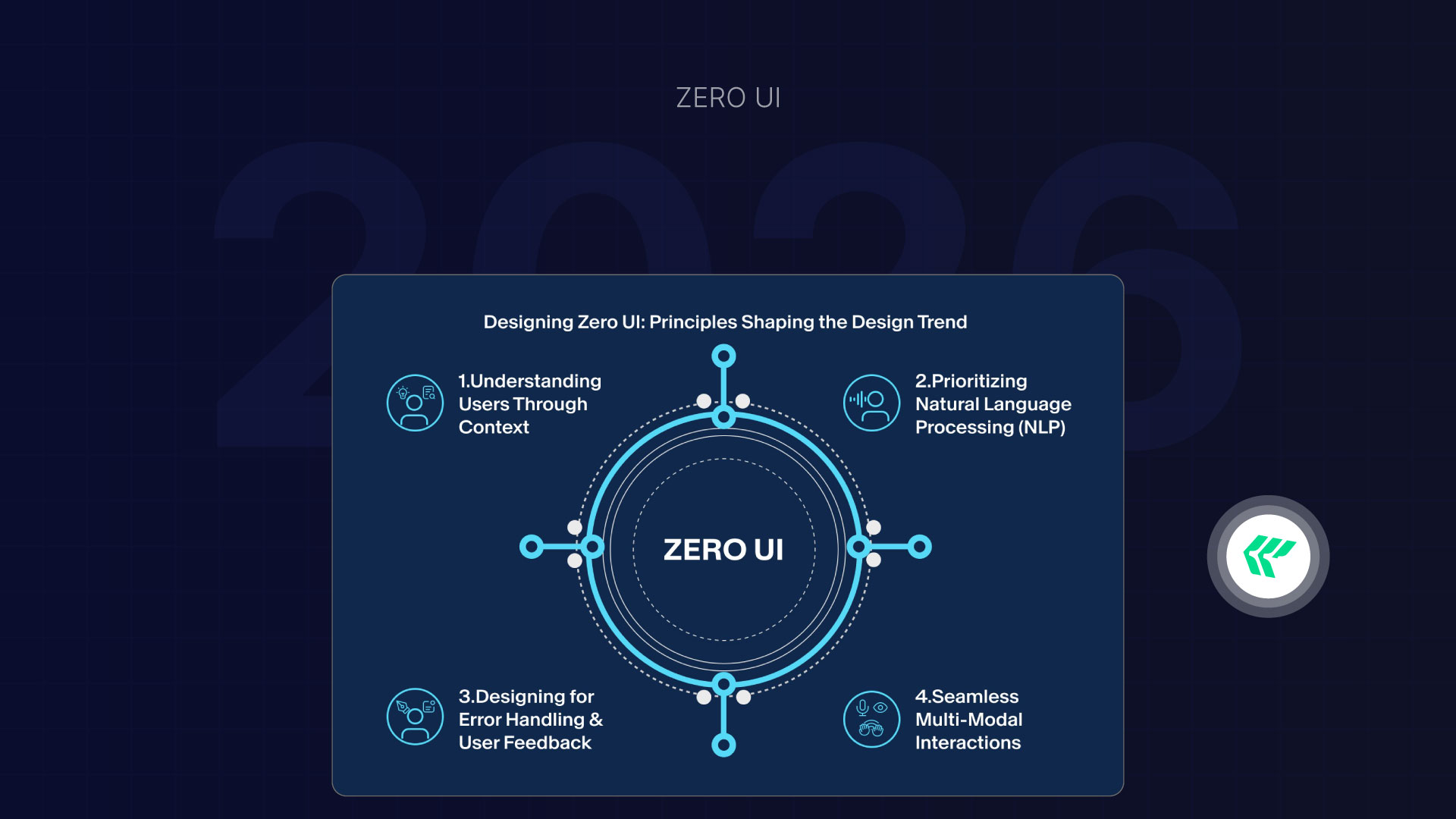
Smartest and most efficient invisible user interfaces work with interactions like voice recognition, gesture, haptic feedback, and movement.
Instead of navigating numerous menus and buttons, invisible screens will enhance the user experience.
Real-World Examples: Apple Watch Interface
Apple Watch uses gestures to scroll through notifications and haptic feedback for alerts.
Design Tips:
Start prototyping with blending user interaction rather than focusing on screens.
3. Responsible Glassmorphism
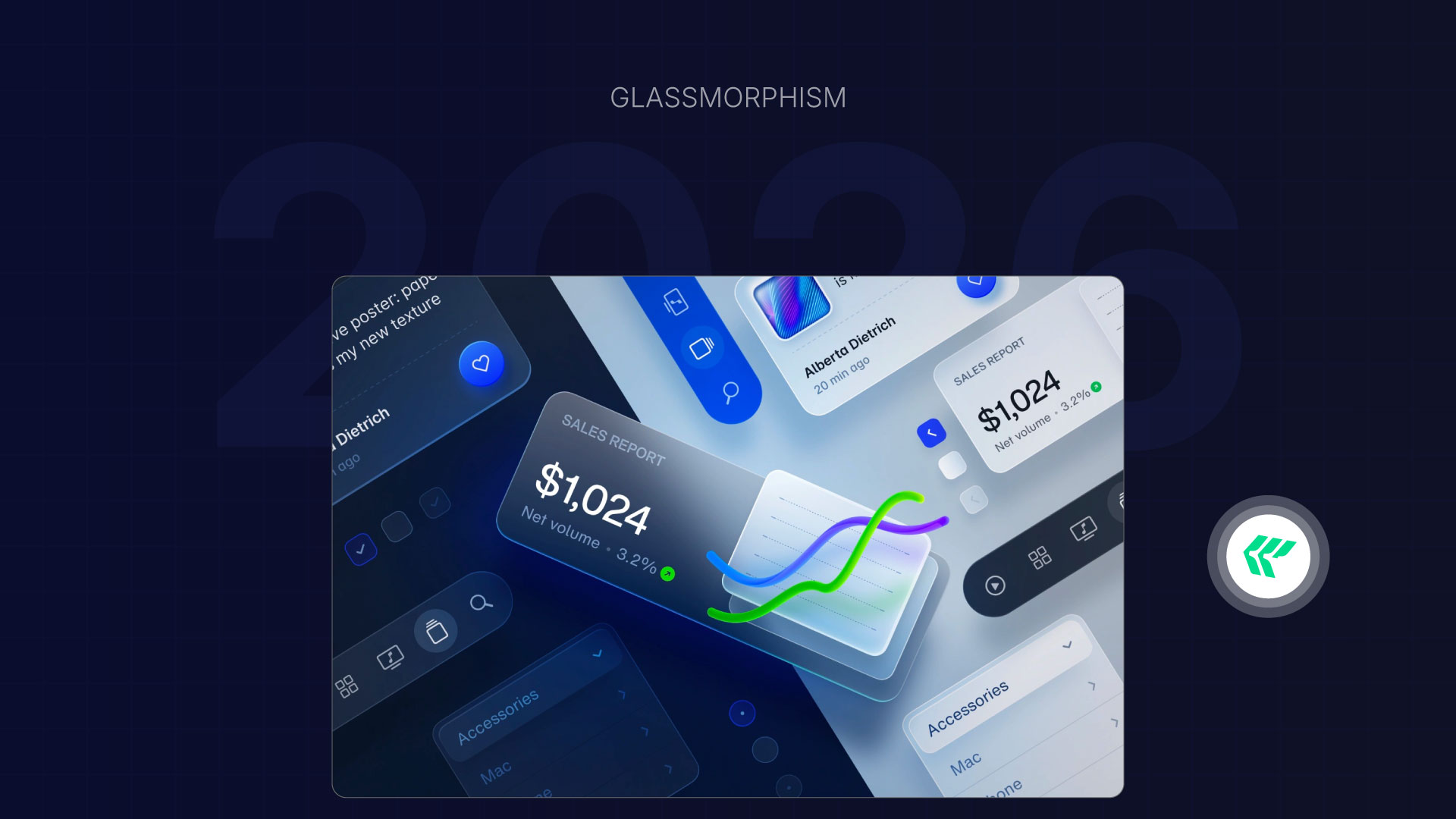
Tech and SaaS UI/UX design are adopting Apple's liquid glass effect. And it's going to be the 2026 latest design trends in UI.
This soft transparency, fluid layers, and depth for intuitive interfaces work fantastically without cluttering interfaces.
Real-World Example: Apple's iOS Design Trends UI
Can glassmorphism cause eye strain or poor readability? No way!
See Apple iOS and learn how they beautifully maintain high contrast to design clean and readable text for screen readers.
Design Tips:
If you want to slash through the tech world, you should implement glassmorphism. Subtle color, blurred background, and 3D space are the key features of glassmorphism UI trends.
4. Hyper-personalization
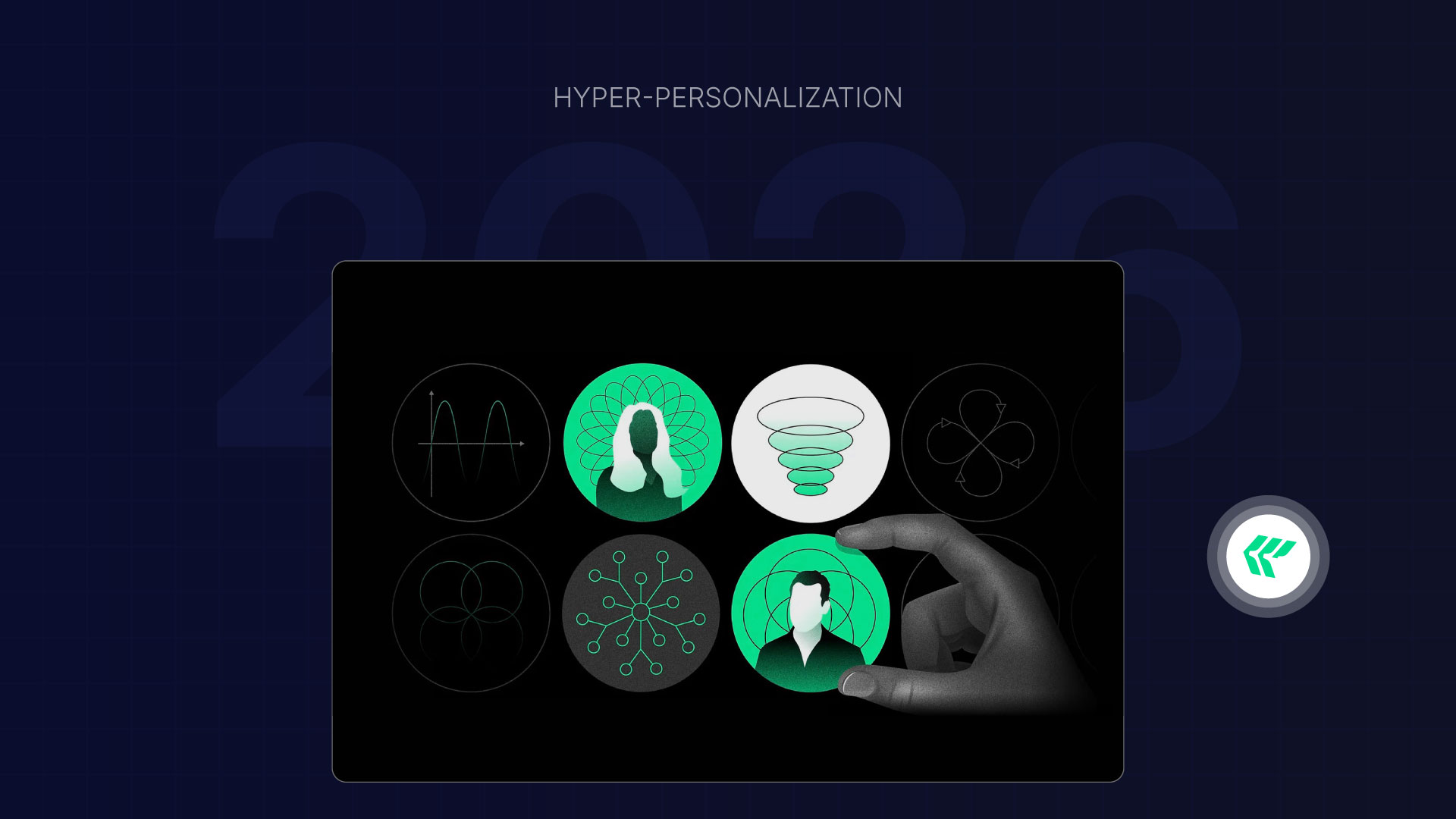
Personalization isn't a trend anymore; from 2023 to 2025, these trends are evolving into a most demanded necessity in the upcoming years.
According to McKinley, 71% of customers expect personalized interaction, while 76% get frustrated when they don't find it.
Hyper-personalization lets people enjoy scrolling, navigating, or using apps that feel like they are made only for them.
So, avoid locking features in visual interfaces for all visitors! Let them control and access the way they want with strong data security promises.
Real-World Examples: Amazon's Hyper-Personalization in UI
Amazon applies machine learning (ML) models to enable personalized user experiences and product recommendations.
Again, you can see Amazon’s homepage uses modular product cards that can be arranged or swapped based on user preferences.
Design Tips:
Design hyper-focused onboarding flows with minimalist interfaces. Use independent UI components and context-aware UI elements to provide seamless user experiences.
[[inner-cta]]
5. Anti-Design 2.0
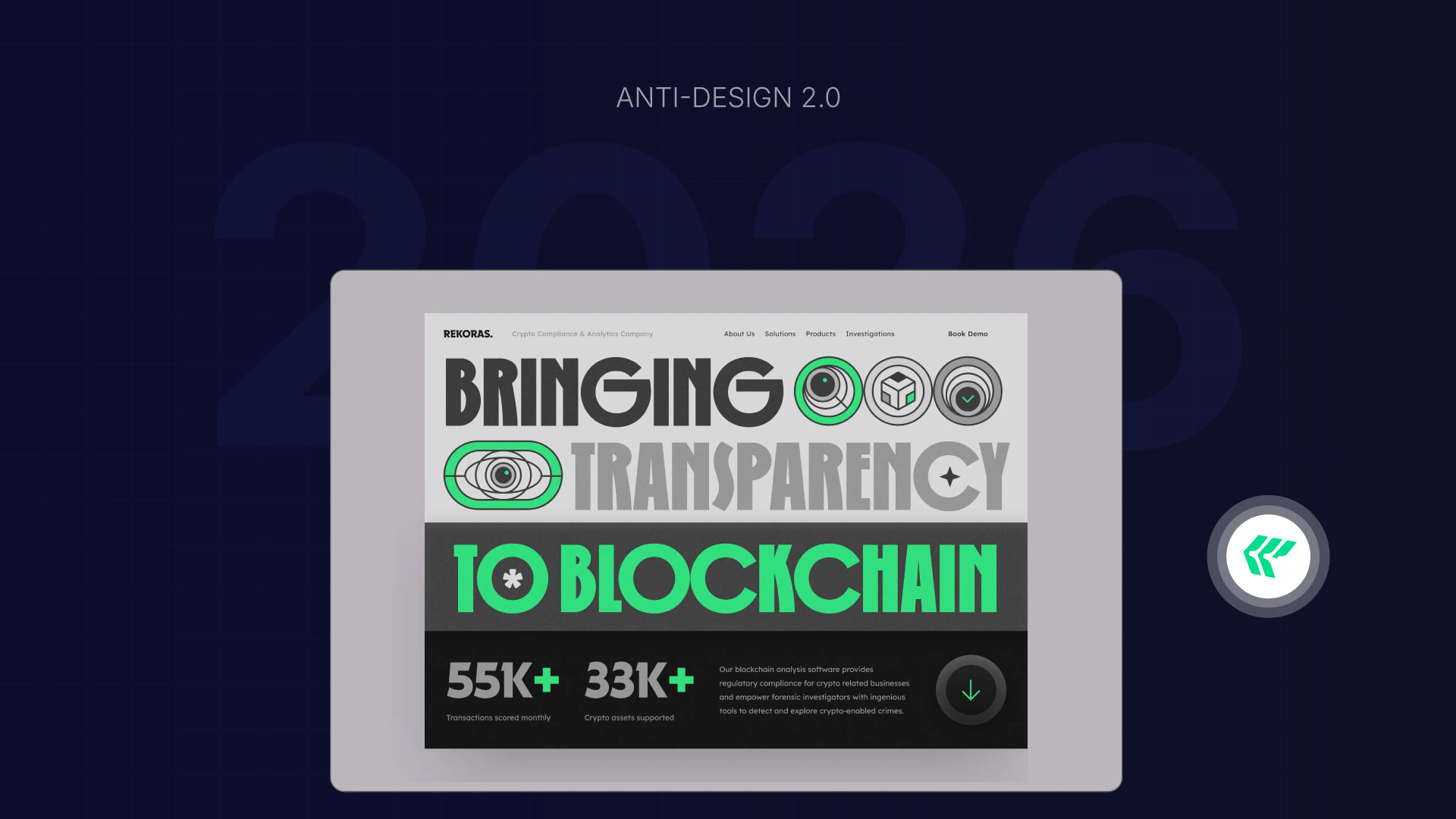
Breaking rules of regular design and aesthetics, playful interface design will remain the popular UX design trend for 2026.
Messy, bold typography, oversized fonts, and unmatched colors and animations transform a boring user interface into a long, live scrolling screen.
Real-World Example: MouseParallax—Award-winning Site
So, Mouse parallax on weird-looking websites is recognized by awwwards.com. How? Their 3D imagery and dreamlike animation give an adventurous journey.
Design Tips:
Give a portfolio site or branding website a life experience with these latest web UI design trends. Use components that make your website unique, authentic, and fresh, even without judgment or rules.
Explore how UI and UX differ to design more intuitive interfaces.
6. 3D and Spatial Design
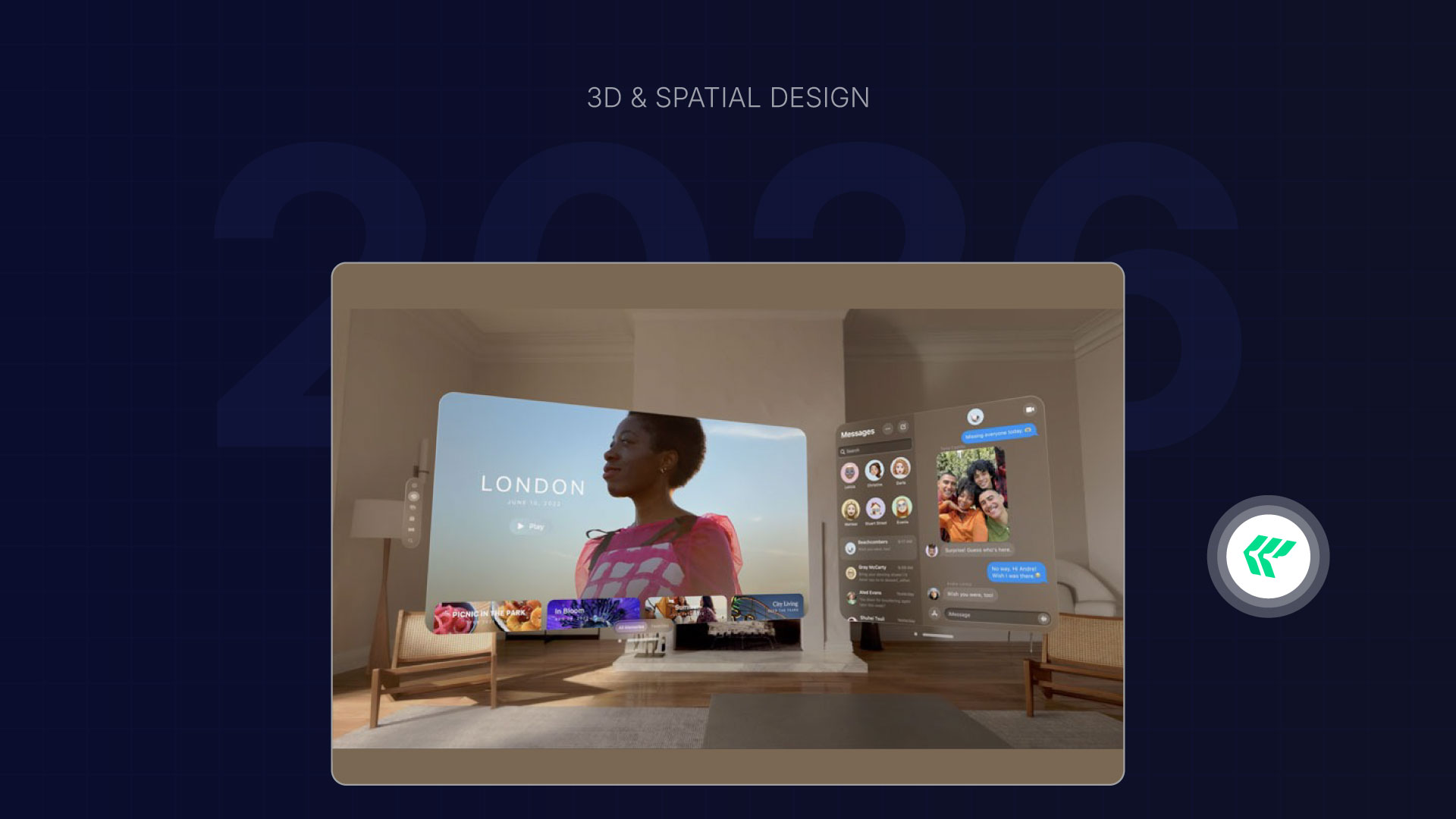
In 2026, UI/UX design relies on dimensional interfaces over flat UI design.
Slow 3D isn't the ultimate UI/UX trend. Rather than incorporating 3D elements with 2D dynamics, more product design services are adopted to give live user experiences.
This trend also ties closely with spatial UI and augmented reality integration, where users can visualize and interact with digital elements in a semi-real environment—without needing heavy AR hardware.
Real-World Examples: Meta Quest 3D Design
Meta Quest is introducing 3D and spatial design with a new navigator UI and a 3D effect for Instagram photos.
Design Tips:
Don't need to design full VR screens. Just use UI elements or blend media pieces with more depth to give extra spatial design.
7. Voice User Interfaces
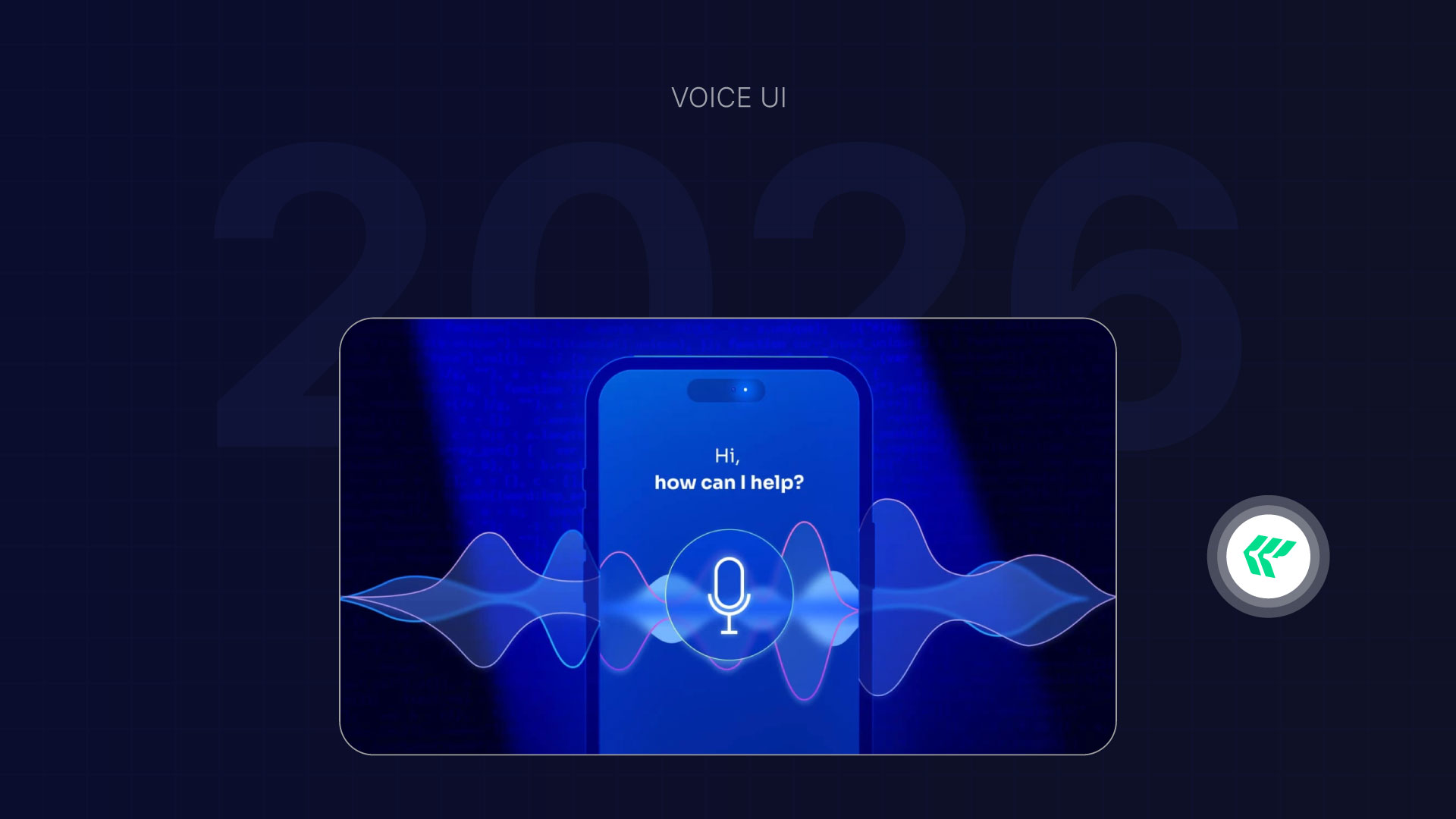
Voice assistants in Google and GPT indicate that convenient and effortless voice interaction will rule in upcoming UI design trends.
And the surprising reason? Advanced NLP models (Natural Language Processing)
People are too busy holding devices and typing longer texts, mostly while multitasking, like driving, cooking, or travelling. Voice interaction eliminates the need to hold devices or type long messages, making daily digital engagement effortless.
Real-World Example: Amazon Alexa’s VUI
Alexa, A Smart home voice assistant, enables homeowners to manage all smart devices with a single mobile app through voice commands.
Design Tips:
Keep the UI intuitive for both touch and voice interactions. Never replace buttons entirely, but integrate them seamlessly for a hybrid experience.
8. Neurodiversity, Inclusivity, and Accessibility

Accessibility, an essential UX /UI feature, will overlap with inclusive design based on neurodiversity. And it's the must-have design trends of 2026 and beyond that you need to follow.
UI/UX design services now follow WGAC 2.2 standards, clear color contrast, and keyboard-friendly navigation to ensure accessibility.
Real-World Examples: Microsoft and Apple’s Design System
Microsoft and Apple have set benchmarks by embedding accessibility features directly into their design systems, from dynamic text resizing to high-contrast modes and voice interaction options.
Design Tip:
Use inclusive color palettes that maintain readability across light and dark modes, and build a semantic hierarchy with proper heading tags and landmarks.
9. AI-Powered Adaptive Interfaces
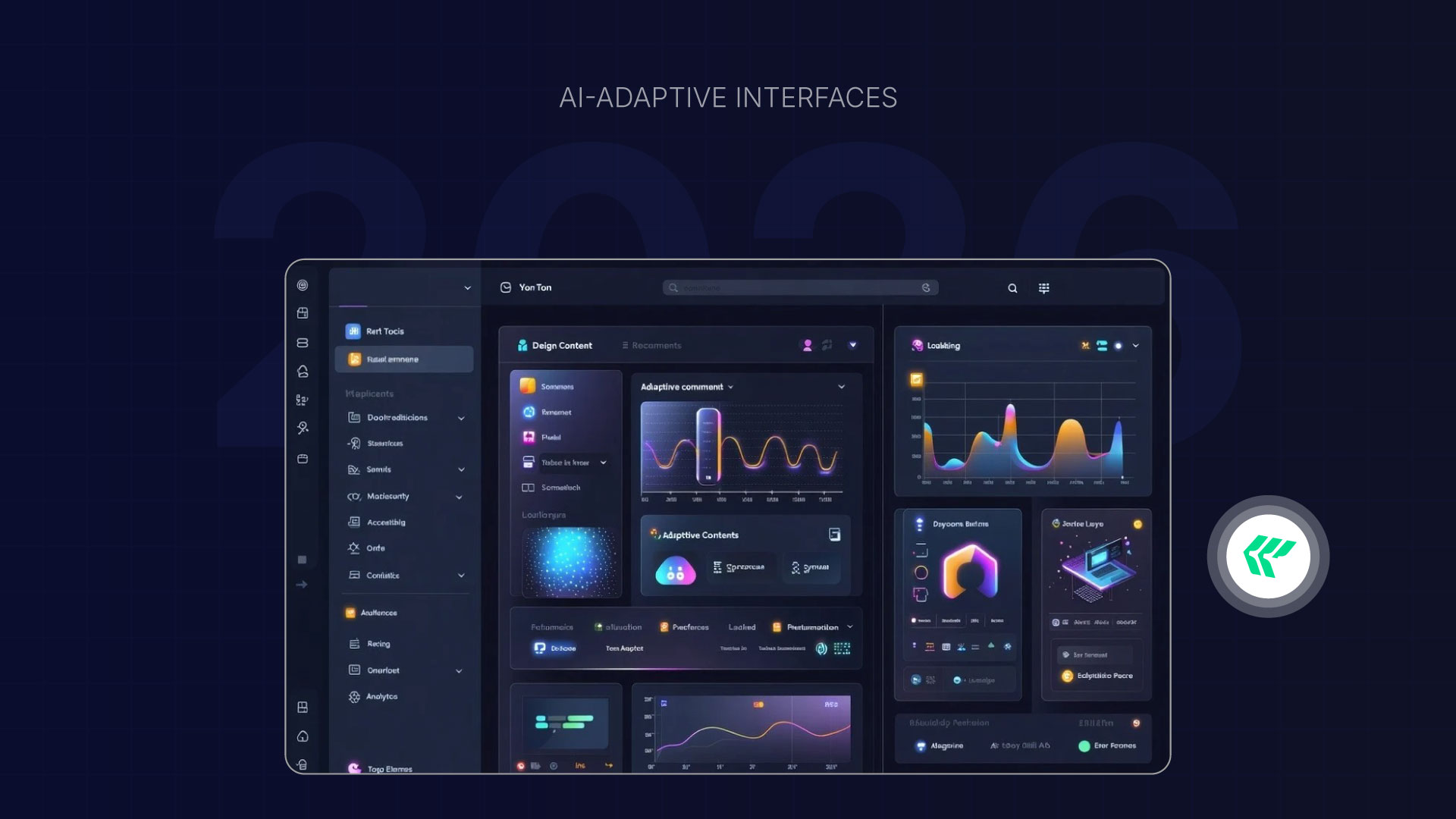
Improving dashboards and applications with AI adaptive interface layouts is finally executed, and design trends for 2026.
Focusing on user behavior, preference, and interaction, AI will adjust widgets, layouts, menu prioritization, and data visibility.
Real-World Examples: Notion AI Dashboard
Notion AI uses adaptive intelligence to reorganize dashboards or design components automatically.
Design Tips:
Start with user-centered design principles that do not sound like robots. Use modular layouts, clear hierarchy, and data-driven dashboards with micro interactions.
10. Sustainable Design

In 2026 and next year, people will put their emotions into sustainable design.
Mostly, mobile app design that consumes less energy, has a longer battery life, and loads faster will win the game.
Design with optimized resources, the lowest specifications, energy, easy updates, and a maintenance interface design is a matter of priority in global design trends.
Real-World Examples: Adobe's Energy-Efficient Software
Adobe has introduced optimized energy efficiency of its software application, which is committed to running its data centers with 100% renewable energy by 2035.
Design Tips:
Use energy mode settings, Light UI, and lower battery consumption features in app development to load faster and save energy in slower data.
Final Words: What's the Smart Move?
Spending hours on user flows, micro-elements, and navigation tweaks is becoming a thing of the past!
Work smarter: focus on AI/ML learning and human interaction data analytics, and keep an eye on leading tech brands for UI design inspiration.
Don’t get overwhelmed by every UI design trend in 2026—focus on what users truly need and what brings them refreshment, relaxation, and delight.
Need expert help to design your website, SaaS platform, or digital product in line with emerging trends?
Contact us now.
[[last-cta]]
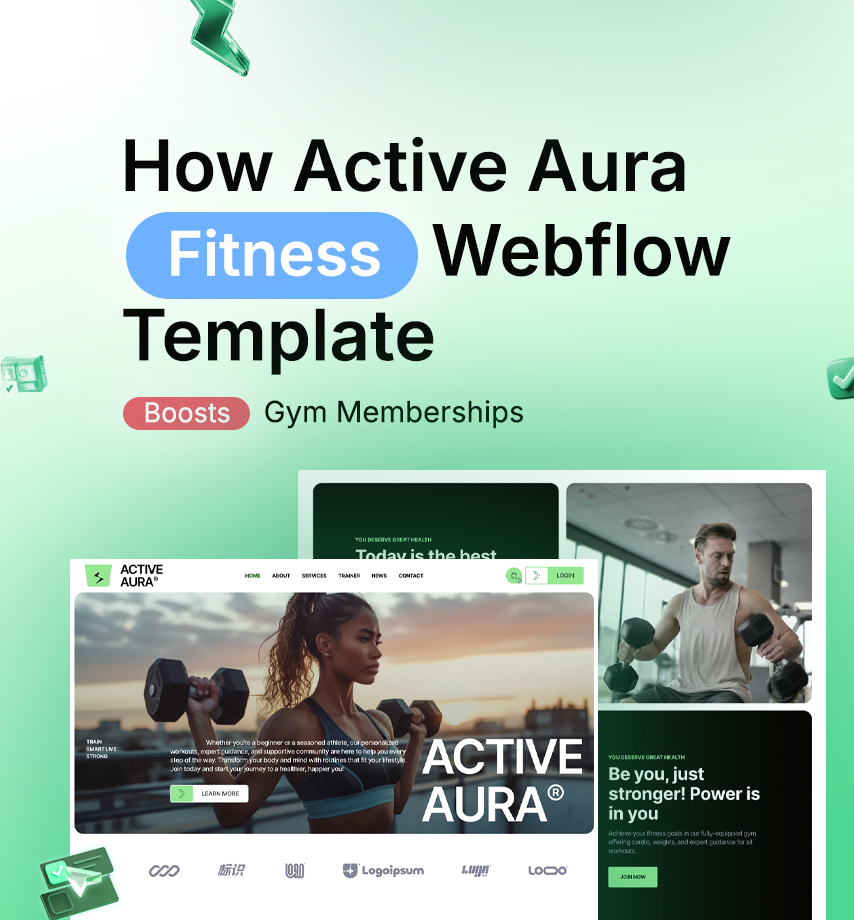
Let’s Start with a Quick Reality Check
Dear Audience, Starting with the news
According to Statista, over 72 million people in the U.S. had a gym or fitness membership in 2024, nearly 1 in 4 Americans.
If you're a fitness professional or gym owner, this isn’t just a fun statistic. It’s your potential audience. And here’s the key insight:
The first place people look for a gym or trainer today is Google. If you're not online, you're invisible.
Having a professional website is essential for:
- Building credibility
- Reaching new clients
- Selling your services around the clock
Why You Need a Website for Your Gym or Fitness Brand
A website can do more than just display your logo and contact info. It helps you:
- Look professional and build trust
- Make it easier for clients to book classes or sign up
- Show up in search results (SEO)
- Promote your trainers, services, and unique story
- Offer products, programs, or memberships online
It’s your digital storefront, and it’s open 24/7.
Why Webflow is the Right Choice
Webflow is a no-code website builder that gives you the flexibility to create a custom, high-performance website without needing to hire a developer.
What makes Webflow ideal for fitness websites:
- Fast loading speeds for a smooth user experience
- Mobile-friendly design for on-the-go users
- Drag-and-drop editor with no coding required
- Built-in SEO tools
- Secure and scalable hosting
- Easily add features like bookings, memberships, or e-commerce
Introducing: Active Aura – A Fitness Template Built for Growth
Active Aura is a professionally designed Webflow template built for fitness studios, gyms, fitness programs, and personal trainers. It’s made to help you launch quickly while still looking polished and modern.
Key Features:
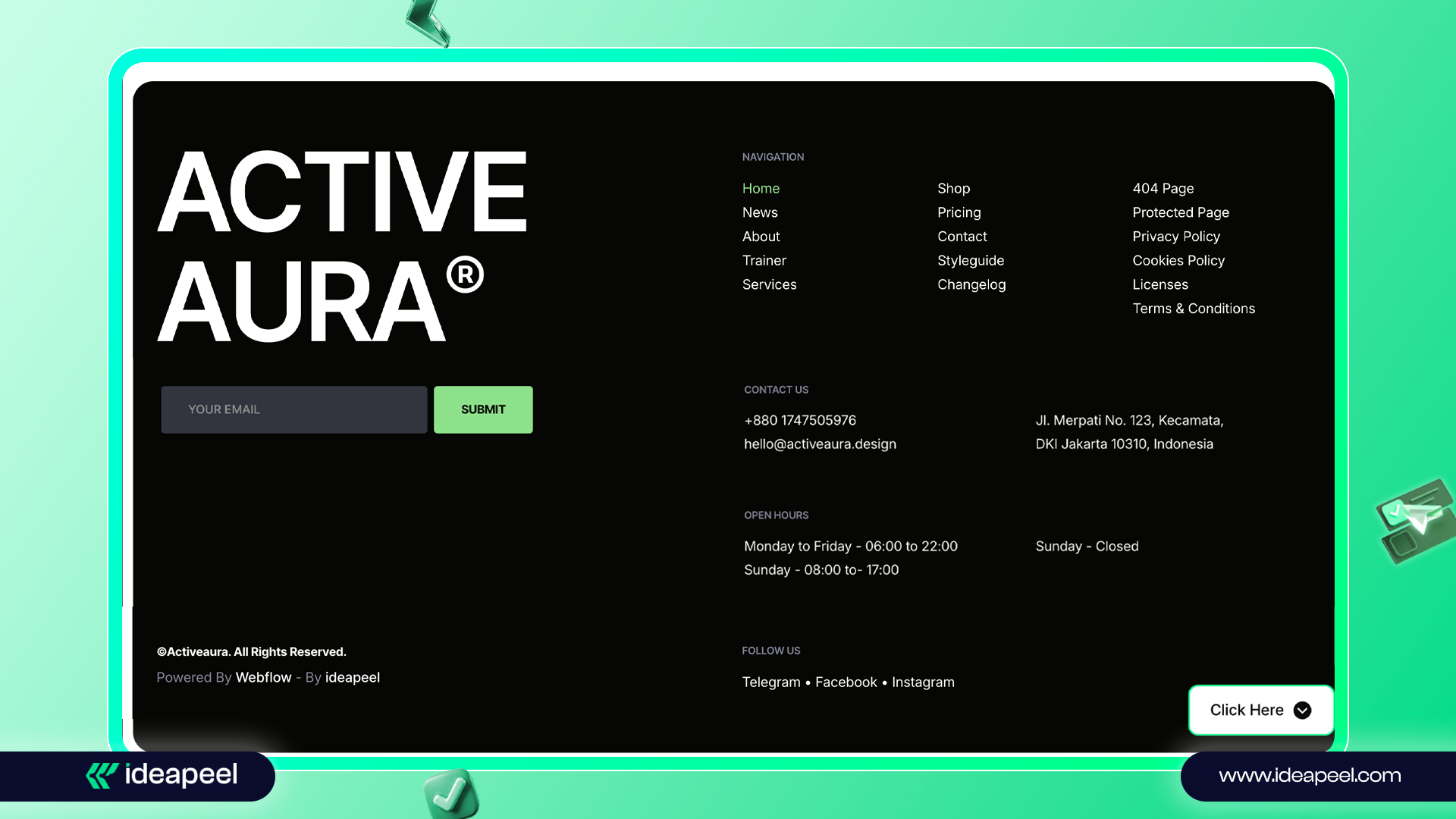
- Clean, eco-conscious, and professional design
- Fully customizable layouts (Home, About, Services, etc.)
- Mobile-first design that looks great on any device
- Structured and optimized for SEO
- Integrated e-commerce features
- No coding required: just plug in your content and go
What’s Included in the Active Aura Template
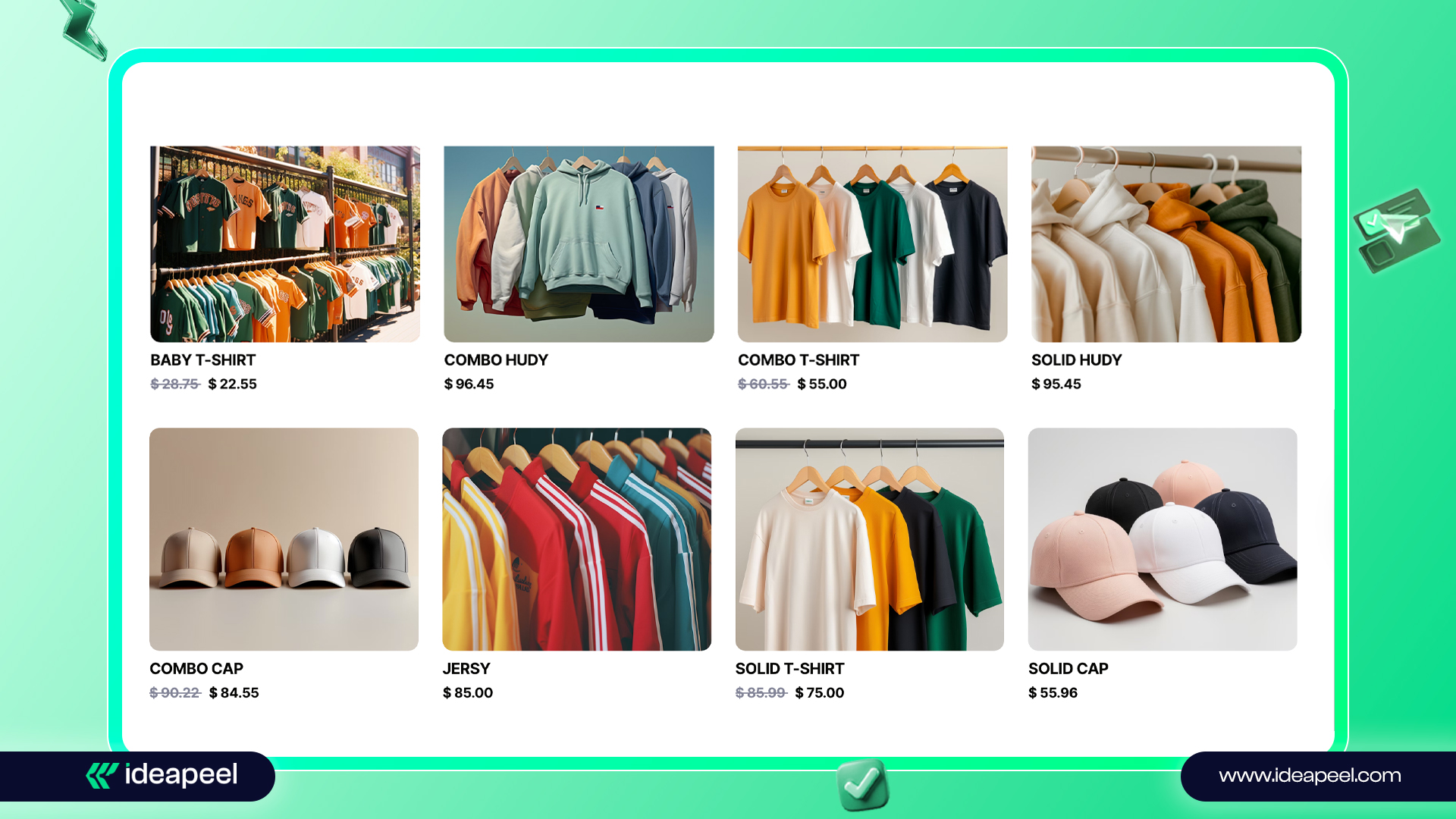
- Home – A strong first impression
- About Us – Your story and mission
- Services – List your classes and offerings
- Trainer Profiles – Highlight your team’s expertise
- Blog – Share tips, updates, and client stories
- Shop – Sell memberships, fitness gear, or digital programs
- Checkout – Seamless purchase experience
- User Accounts – Sign up, sign in, and reset passwords
- Legal Pages – Privacy policy and terms of service
- 404 Page – A branded message for broken links
- Style Guide – Maintain brand consistency
- Instructions & Licenses – Easy setup and use
- Changelog – Track improvements and updates
Why You’ll Love the Active Aura Fitness Webflow Template
- Launch your fitness site fast, no coding needed.
- Modern design that attracts members.
- It looks great on all devices(Responsive).
- Helps your gym get found on Google(SEO).
- Easy to customize to fit your brand.
- Manage everything yourself, no extra costs.
- Grow your site as your gym grows.
- Fast loading keeps visitors happy.
- Built-in forms make signing up easy.
- Works for gyms, yoga studios, and trainers.
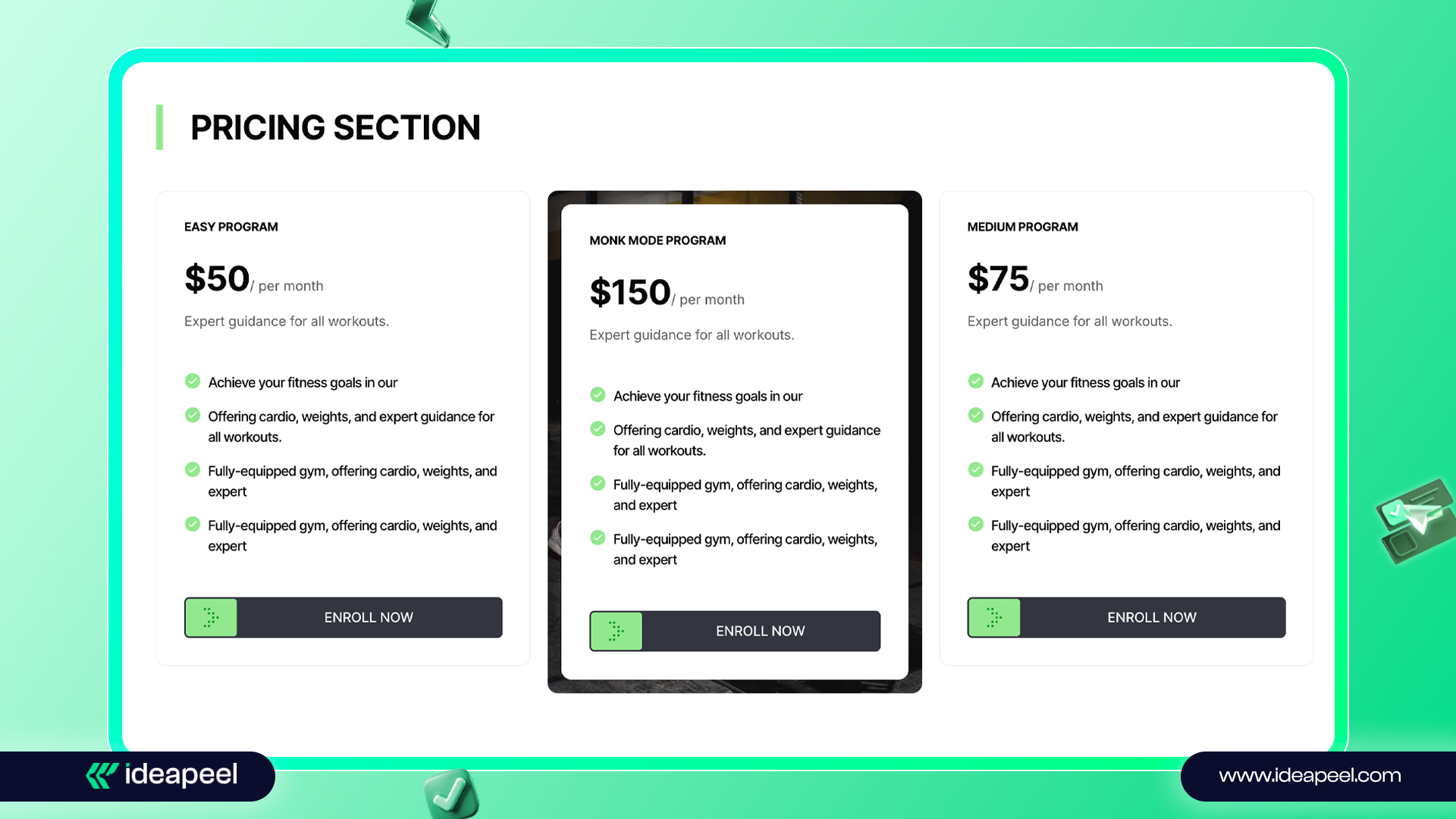
[[question-block]]
How to Launch Your Fitness Website Template Using Webflow
Here’s a simple workflow:
- Choose Your Template
Start with a template that fits your goals, like Active Aura. - Customize It
Use Webflow’s visual editor to update text, images, and branding. - Add Booking and Membership Tools
Integrate platforms like Memberstack for client logins and bookings. - Optimize for SEO
Add meta titles, alt text, and strategic keywords. - Launch and Promote
Publish your site, then share it on social media, email, and Google Business.
Migrating Fitness site from WordPress to Webflow
Switching from WordPress to Webflow is easier than you might expect.
Here’s a high-level overview:
- Export your content from WordPress (posts, pages, images)
- Audit your current site: What works? What doesn’t?
- Recreate your site in Webflow using a template like Active Aura
- Set up redirects to preserve SEO and keep traffic flowing
- Review, test, and launch your new site
Using a ready-made template like Active Aura helps you maintain SEO, improve mobile performance, and simplify the entire process.
Comparison: Active Aura vs Other Fitness Templates
Tips: Get the full design experience! Free Figma file with every Webflow template. ideapeel@gmail.com
Bonus: Guide to Migrating Fitness Template from WordPress
We’ve also created a complete walkthrough to help you move from WordPress to Webflow without losing SEO, performance, or content.
Tip: Using a Webflow fitness template like Active Aura can save time, preserve SEO, and give your gym website a modern, mobile-friendly design.
Extra For You: The Best Guide that will help You To Move WordPress to Webflow
Final Recommendation:
So, if you are an owner of a gym, or you are a trainer, or you sell gym products, then you must be visible online. If you are not in Google or online, then no trust in you. Whatever, to remove the full stop, you need to own your own site.
Don't be late, make your online presence today.
If you are a startup or struggling with many years or want to migrate your site, then we have the best suggestion for you…ideapeel(Click here now)
.jpg)
A common misconception is that getting affordable UI/UX design services automatically equals low quality or comes with hidden costs. In reality, businesses on a tight budget can still access value-driven design solutions without overspending.
The key is having the right platforms, pricing guides, and clear service distinctions. With these in hand, you can identify the best UI/UX design services for your project needs and budget.
What are the Options for Affordable UI/UX Design Services?
Freelancer platforms, boutique agencies, offshore teams, and UI/UX consulting packages are the best options for affordable UI/UX design services.
Here's a quick overview of the cost, strength, and limitation of each option.
1.Freelancer
Freelance UI/UX designers are the most budget-friendly option to hire. But it's quite difficult to quality service while navigating thousands of freelancer.
When to hire
- Have budget constraints
- Need a medium-skilled designer.
- Option for hourly, milestone, or short projects
- Will redesign the website or product later.
Limitation:
- Limited Scalability
- Inconsistency risk
2. Boutique UI/UX Design Agency
A boutique UI/UX agency is a small, specialized firm that strikes a balance between affordability and structured, high-quality design processes.
When to hire:
- SMBs, SaaS, or startups looking for scalable design systems.
- Need a professional portfolio and a structured process.
- Want direct communication with senior designers.
- Budget is moderate
Limitations:
- Higher cost than freelancers
- Limited compared to global enterprise agencies
3. Offshore Teams
You don't want to ruin the project by choosing a cheap UI/UX service. Choosing an offshore team, you'll get what you expect.
Offshore UI/UX teams provide access to global design talent at lower hourly rates.
When to hire
- MVP development or cost-sensitive projects
- Need round-the-clock design teams.
- Looking for skilled designers at competitive rates
- Prefer flexible engagement models.
Limitation
- Different time zone
- Communication gaps
4. Specialized Consulting Packages
Targeted, expert-level packages to solve specific UX challenges.
When to hire:
- You need UX audits for an existing product.
- Focused MVP design with minimal waste
- Want insights before committing to a full redesign.
Limitations:
- Narrow in scope (not full design and development)
- Often short-term engagements
Where to Find a UI/UX Designer on a Budget?
The best ways to find a UI/UX designer are freelance marketplaces, design communities, search engines, family and relatives' recommendations, forums, and social media.
Freelance Marketplaces
Platforms: Upwork, Fiverr, PeoplePerHour
Cost: $20–$100/hour
Best For: Startups, solopreneurs, landing pages, quick redesigns
Design Communities
Platforms: Behance, Dribbble
Cost: $3,000–$8,000 per project
Best For: Professional portfolios, niche expertise (SaaS, fintech, real estate)
Search Engines & Directories
Platforms: Google search, Clutch, DesignRush
Cost: $3,000–$8,000 for the boutique projects. $20,000+ large agency projects cost
Best For: Vetting agencies with reviews and case studies
Recommendations and Communities
Sources: Family, friends, startup forums, social media (Reddit, LinkedIn, Slack groups)
Cost: Varies by referral
Best For: Trust-based hiring, early-stage projects
Affordable UI/UX Design Services for Agile Teams
Startup agencies can balance affordability and quality with the best ui ux design services for agile software development. Agile-focused designers deliver wireframes, prototypes, and usability tests in short cycles, reducing waste and adapting quickly to feedback.
But where to search for it?
You can search for SaaS UI/UX Design Service. You'll get thousands of websites near your location that provide budgeted services with top-rated quality.
How to Choose the Right UI/UX Design Service Provider
Finding the right UI/UX design service provider can be overwhelming. At first, you need to navigate options based on project goals and budget. Then, shortlist them and review pricing and packages before hiring the right provider.
1. Define Your Project Requirements
Start by clarifying your goals, budget, and project scope. Ask yourself:
- What problem do I want to solve with design?
- Do I need end-to-end UI/UX services or specific tasks like usability testing or prototyping?
- What timeline am I working with?
2. Review Case Studies and Portfolios
Request case studies or portfolios to see experience in your industry, design style, and user-centered solutions they’ve delivered.
3. Check Reviews and Testimonials
Look for client feedback on communication, delivery, and satisfaction.
Tips: Reliable places to research include Clutch, DesignRush, or Behance.
4. Explore Pricing and Packages
Pricing should be transparent and aligned with your budget. Therefore, compare service packages. Then, request a custom quote if your project has unique requirements.
Pro tip: Create a shortlist of 3–5 UI UX design services and consulting, then schedule discovery calls to assess their communication style and problem-solving approach before finalizing.
5. Identify Their Design Process and Methodology
Ask the UI UX designing service about their process. Like, how do they conduct user research? What tools and frameworks do they use?
6. Evaluate Communication and Collaboration Style
During initial conversations, evaluate Responsiveness and clarity in communication.
ideapeel's Affordable UI/UX Design Service Packages
At ideapeel, we provide end-to-end UI UX design services along with. Even having 3-tier pricing packages makes it easier to choose a package based on essentials and the best budget constraints of all business sizes.
So, why search anywhere if our UI and UX design service pricing meets your budget? Here's the popular choice you can explore.
1.Landing Page UI/UX
Price: $1499+
Deliverables:
- Custom UI/UX Design
- Webflow Development
- Branding essentials
- Webflow-Hosted and Figma Files
Best for: Perfect for fast-growing startups and solopreneurs that need a high-converting online presence.
2. Essentials Website UI/UX Design
Price: $2,500+
Deliverables:
- 4-6 page mobile-responsive UI/UX design
- Wireframing and Visual Identity
- Full Webflow Website Development
- CMS setup
Best for: Small businesses and SaaS startups that want to look premium and trustworthy. Most of our high-performing clients start here.
3. Growth Package
Price: $3,999+
Deliverables:
- High-Fidelity Prototyping
- Custom UI/UX Design + Advanced Webflow Development
- Fully Responsive, SEO + AI Optimized
- CMS Powered (blogs, directories, up to 15 dynamic items)
- Built for Automation & Scalability
Best for: Growth-focused companies ready to invest in ROI
[[inner-cta]]
What to Expect from Budget-Friendly UI/UX Services
Budgeted UI/UX doesn't always mean cheap quality. Or, you also shouldn't expect premium services, unlimited revisions, or extra features.
Typical deliverables you can expect:
Wireframes: Simple layouts that outline page structures and navigation flow
Basic UI Mockups: visual representations of core screens (often limited to key pages)
Limited Revisions: Usually 1–2 rounds to fine-tune the design
Responsive Layouts: Ensuring designs work on both desktop and mobile
Developer Handoff Files: Exportable assets in tools like Figma or Sketch
Some providers may also include:
- Basic usability testing with small groups or quick feedback loops
- Light branding alignment matching your existing colors, fonts, and logo
[[question-block]]
Get Cost-Effective UI/UX Design That Drives Conversions
Budgeted design services somehow focus on essentials to give you a functional and user experience design without extra cost.
What you shouldn’t expect at budget levels: full design systems, deep user research, unlimited revisions, or extensive testing.
Well, about 60+ businesses, including SaaS, Fintech companies with complex projects, rely on our affordable UI/UX design service packages.
And the result? Faster launches, long-term ROI and post-launch support.
Stop worrying about delays, cut-off features, poor quality, or SaaS-level complexity.
Request a custom quote and you'll not regret it.
[[last-cta]]
Imagine this: your business website is supposed to bring clients, but instead, your WordPress site keeps breaking. Plugins crash, pages load slowly, and every “fix” costs more money.
This is the reality many business owners in Atlanta, USA, face every day. The good news? There’s a way out. More and more companies are switching from WordPress to Webflow because it feels like a breath of fresh air.
We’ll share why businesses see Webflow as better than WordPress, how the migration process works, and why choosing modern web design can finally give your business the online presence it deserves.
Introduction
Picture this: you log into your WordPress site to update something simple, maybe a headline or an image. Suddenly, a plugin update crashes the whole page. Now you’re stuck waiting on developers, losing valuable time, and worrying about how many clients clicked away.
If this sounds familiar, you’re not alone. Businesses across Atlanta, USA, are facing the same frustrations with WordPress.
That’s why so many are making the move from WordPress to Webflow. The difference feels like night and day. A Webflow website is fast, secure, and built for today’s digital world. No more endless updates.
No more security patches. Just sleek, mobile-first web design that performs. And the best part? The migration process doesn’t mean losing your SEO or starting over.
This is the best guide to choose Webflow over WordPress for you.
WordPress to Webflow Migration in Atlanta: Everything You Need to Know(Atlanta & Beyond)
If you’re running a business or law firm in Atlanta, Georgia (or anywhere in the U.S.), you’ve probably heard about the growing shift from WordPress to Webflow. Many companies are migrating to Webflow for its speed, flexibility, and design freedom.
But here’s the catch: a poorly managed migration can hurt your SEO, slow down your operations, and frustrate your team. That’s why we’ve put together this step-by-step WordPress to Webflow migration guide tailored for businesses, law firms, and service providers who want a smooth transition without losing search visibility.
Why Businesses in Atlanta (and Beyond) Are Switching from WordPress to Webflow
- Faster site performance → Webflow sites load quicker, helping with conversions and SEO.
- No plugin headaches → Say goodbye to constant updates and plugin conflicts.
- Better design control → Webflow’s visual editor gives designers freedom without heavy coding.
- Built-in SEO tools → From clean code to customizable meta fields, Webflow is SEO-friendly out of the box.
- Mobile-first approach → Essential for local clients searching on their phones.
For law firms, real estate agents, SaaS companies, and professional services in Atlanta and nearby markets, this translates to more leads, higher trust, and stronger visibility online.
[[question-block]]
Key Factors in a WordPress to Webflow Migration
1. Website & Content Factors
- Site size and complexity → Larger sites with multiple post types take longer.
- Content volume and structure → Clean, organized content speeds up migration.
- Content readiness → A pre-migration content audit is critical.
- Custom functionality → WordPress plugins may need to be rebuilt in Webflow.
2. Design & Development Factors
- Design requirements → A like-for-like migration is faster; a redesign adds time but improves results.
- Webflow flexibility → Powerful, but requires training for WordPress users.
- Function mapping → Ensure forms, analytics, and SEO tools are set up correctly.
3. Project Management Factors
- Stakeholder alignment → Marketing, design, and IT must collaborate.
- Scope changes → Avoid mid-project changes to stay on track.
- Budget & time → Factor in design, testing, training, and SEO setup.
4. SEO & Technical Factors
- 301 redirects → Non-negotiable to protect rankings.
- SEO setup → Titles, meta tags, alt text, and schema must be reconfigured.
- User-generated content → Forums or memberships may need special handling.
- E-commerce → Webflow works well for small/medium stores, but complex WooCommerce sites may need workarounds.
Local SEO Considerations for Atlanta Law Firms & Businesses
If your clients are local, SEO becomes even more important during migration:
- Ensure NAP (Name, Address, Phone) details remain consistent across your site and Google Business Profile.
- Use Atlanta-specific keywords (e.g., “Atlanta law firm website design,” “Webflow migration experts in Georgia”).
- Keep geo-targeted landing pages intact with redirects.
- Test site speed on mobile networks common in your area (since most local searches happen on phones).
Step-by-Step Checklist for Migrating from wordpress to webflow
- Audit your WordPress site (content, plugins, SEO setup).
- Decide on scope → redesign or like-for-like migration.
- Prepare your content → clean, organized, and SEO-ready.
- Rebuild design & features in Webflow.
- Set up redirects for every old URL.
- Test SEO settings (meta tags, schema, sitemaps).
- Check mobile responsiveness across devices.
- Launch & monitor traffic with Google Analytics and Search Console.
Tips: Check Out the Checklist for Better Results
Webflow vs WordPress Costs: Which Is Better for Your Website in 2025?
Cost is usually the first question if you’re deciding between Webflow and WordPress. While both platforms can power a professional website, they take very different approaches to pricing.
- Webflow offers predictable monthly plans that bundle hosting, security, and design tools into one subscription. Although you’ll pay more upfront, everything is included in a single fee.
- WordPress is free to download and use, but you’ll need to pay separately for hosting, themes, plugins, and security. This makes it more flexible and sometimes cheaper for small projects, but costs can climb quickly as your site grows.
Webflow Pricing Breakdown
Webflow’s pricing model is all-in-one, meaning you won’t have to worry about juggling multiple providers.
Site Plans (per website, billed annually):
- Basic: ~$14/month – Good for simple, brochure-style sites.
- CMS: ~$23–$29/month – Perfect for blogs, news sites, or content-driven businesses.
- Business: ~$39–$49/month – Designed for high-traffic websites and scaling brands.
Workspace Plans (for teams/agencies):
- Pricing is per user, ideal for companies managing multiple projects or collaborating with teams.
Why it works well: Predictable pricing that covers hosting, CMS, and top-tier security in one place.
WordPress Pricing Breakdown
WordPress is free at the core, but building a site requires piecing together different services.
- Hosting: $3–$25+ per month, depending on your provider (popular choices include Bluehost, SiteGround, or WP Engine).
- Domain: $10–$30 per year.
- Themes: Free options available; premium themes usually $30–$100+.
- Plugins: Many are free, but advanced features like SEO, backups, or e-commerce can cost $40–$200+ per plugin.
- Security & Maintenance: You’ll often need extra services or plugins to handle security, backups, and regular updates.
Why it works well: Extremely flexible, you can start cheaply and scale your site as your business grows.
Key Takeaways
- Webflow is best if you want a modern, design-friendly platform with hosting, security, and CMS bundled into one predictable cost. It’s especially great for agencies, startups, and businesses that value speed and simplicity.
- WordPress is ideal if you prefer maximum control and flexibility. It can be cheaper initially, but ongoing hosting, plugins, and maintenance costs add up—especially for growing businesses.
WEBFLOW VS WORDPRESS: COST COMPARISON
Bonus: Calculate Your Website Cost and Plan Your Project
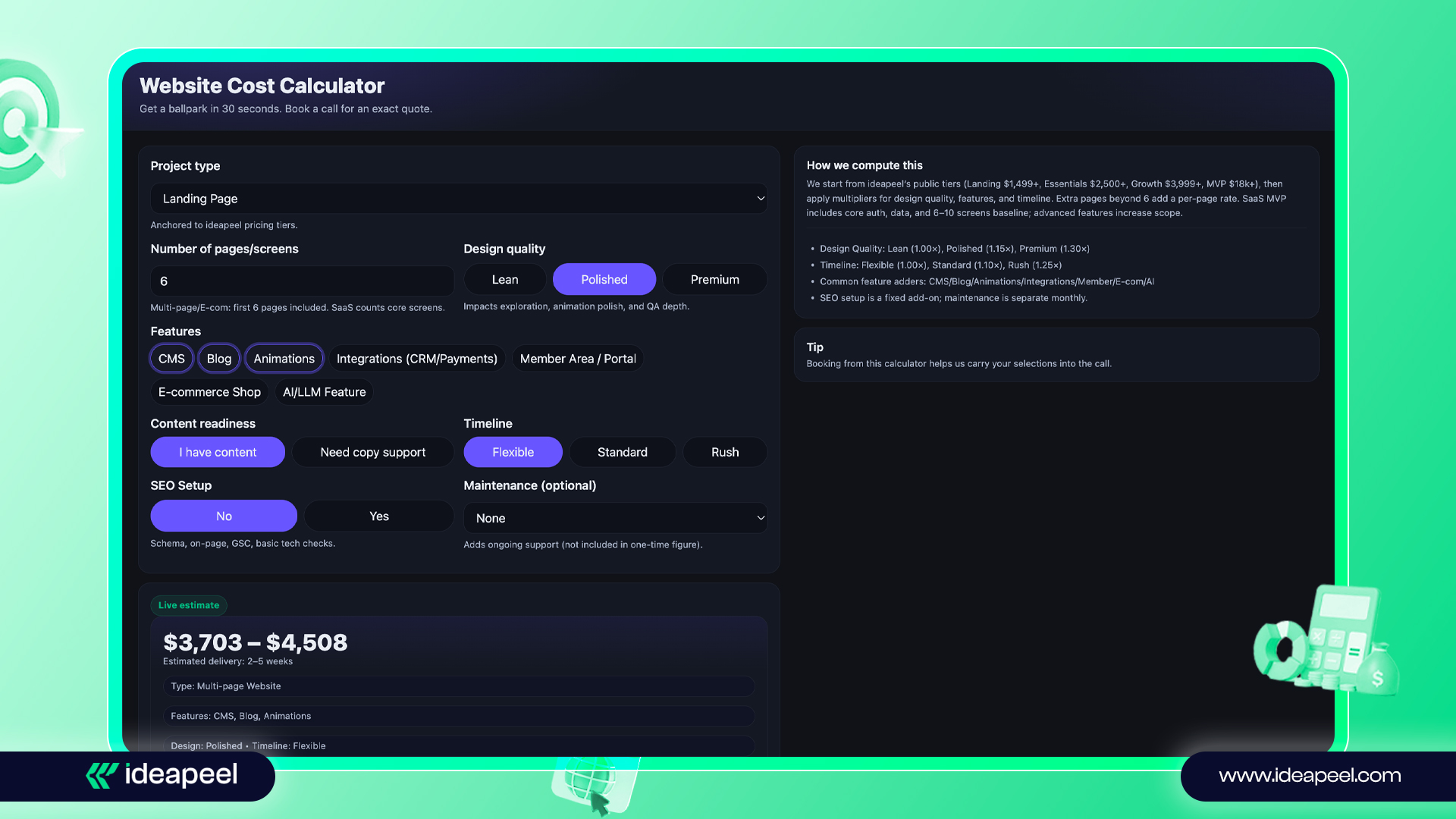
Curious about how much your dream website could cost? Use our interactive Website Cost Calculator for a detailed estimate tailored to your project. See exactly what features, design, and functionality will cost in minutes, no guesswork required. Ready to turn your vision into reality?
Book a free discovery call with our team today!
Top 6 Advantages of Migrating from WordPress to Use Webflow (Data-Backed Insights)
Migrating from WordPress to Webflow is a strategic move for modern businesses seeking speed, flexibility, and better performance. Here’s why companies are making the switch:
1. Faster Development and Launch
Webflow’s no-code visual editor lets teams design and deploy websites 2–3x faster than WordPress, which often requires coding, plugins, and complex theme setups.
Benefits:
- Launch campaigns and landing pages quickly
- Reduce development time by 30–50%
- Minimize dependency on developers
2. Full Design Flexibility with Pixel-Perfect Control
Webflow provides complete visual control over layout, interactions, and responsiveness without coding.
Advantages over WordPress:
- True pixel-perfect layouts
- Smooth animations and interactions
- Fully responsive designs without plugin conflicts
3. Built-In, Easy-to-Use CMS
Webflow’s CMS allows teams to manage dynamic content efficiently for blogs, portfolios, and product listings without plugins.
Why it matters:
- Consistent design across pages
- Easy content updates for non-technical staff
- No plugin conflicts, reducing maintenance overhead
4. Superior Website Performance
Webflow automatically generates clean, optimized code, improving load times and performance.
Compared to WordPress:
- 50–70% faster page speeds
- Reduced plugin bloat and slowdowns
- Better user experience and higher SEO rankings
5. Built-In SEO and Marketing Tools
- Webflow includes native SEO features:
- Custom meta titles and descriptions
- Alt text for images
- Automatic XML sitemaps
- Schema markup for rich results
Impact: Faster SEO implementation and better search engine visibility without relying on multiple WordPress plugins.
6. Lower Maintenance and Enhanced Security
Webflow handles hosting, SSL, backups, and updates automatically.
Benefits:
- Reduced security risks vs. WordPress, which depends on plugins
- No manual updates or compatibility issues
- Businesses focus on growth, not maintenance
Pro Tip:
Migrating from WordPress to Webflow gives faster development, modern design, reliable performance, built-in SEO, and low-maintenance security. For businesses looking to future-proof their websites, Webflow is the smarter, scalable choice.
You can further contact us for the WordPress to Webflow key help & service.
Case Study: [Petal] From WordPress Bottlenecks to Webflow Growth Powerhouse
Background / Before
Petal is a FinTech company that began with a small founding team and seed funding in 2017. Initially, their website updates, design changes, and marketing requirements all depended heavily on engineers. This created delays, limited experimentation, and made it hard for content and design teams to move fast.
After Migration to Webflow
- Petal’s design & marketing team gained full ownership of their site, enabling them to execute many redesigns in 3 years without engineering help.
- The team scaled from a small startup to over 100 employees, while increasing flexibility in site updates and launching landing pages and blog posts more autonomously.
- Webflow helped Petal by removing the bottleneck around engineering time, so design and marketing could run tests, update visuals, and publish content rapidly, speeding up time-to-market and supporting their growth trajectory. Webflow
FAQs
What does a Webflow development agency do?
A Webflow agency designs, develops, and optimizes websites using Webflow. They handle custom design, responsive layouts, CMS setup, SEO optimization, and integrations to help businesses launch fast, scalable, and high-performing sites.
How much does it cost to hire a Webflow agency?
The cost of hiring a Webflow agency depends on project size and complexity. Small business websites may start around $3,000–$5,000, while custom, advanced projects with integrations or eCommerce can range from $10,000+.
Is Webflow good for SEO?
Yes, Webflow is SEO-friendly. It offers clean code, customizable meta tags, fast page speed, mobile responsiveness, and schema markup options, making it easy for websites to rank well on Google.
Can Webflow handle e-commerce websites?
Yes, Webflow has a built-in eCommerce platform that supports product pages, shopping carts, checkout, and payment gateways. It’s great for small to mid-sized stores looking for flexibility and design freedom.
Is WordPress still a good option for websites?
Yes, WordPress is still a strong choice. It powers over 40% of websites and is ideal for blogs, small businesses, and enterprises. With thousands of plugins and themes, it’s flexible but may require ongoing maintenance and security updates.
Webflow vs. WordPress: Which is better?
It depends on your needs. Webflow offers a no-code, design-focused platform with fast performance and built-in hosting. WordPress is highly customizable with plugins, but it often needs developers for complex sites. For speed and design freedom, choose Webflow; for large content sites, WordPress works well.
.jpg)
If your product visuals can’t stop customers from random scrolling, it’s time to think twice.
Even a value-driven product can result in major losses without better visual design.
Before starting your ecommerce brand in a saturated market, what you really need is e-commerce product branding design.
In this guide, you’ll walk through how to deal with product innovation, brand design, and marketing with 6 key strategies and insights into common mistakes to avoid. So, you can make a million-dollar ecommerce brand even with budget constraints.
What Is Ecommerce Product Branding Design?
Ecommerce product branding design is the process of enhancing a product's value through visual consistency and customer psychology.
While scrolling, customers are stuck in the visuals of the product, not the features you’ve listed. With an ecommerce brand strategy, you can connect with your customers at first glance.
It can include ecommerce logo design, product packaging, product page visuals, unboxing experience, and brand voice.

Do Ecommerce Stores Need Branding?
Ecommerce stores need branding to compete with established stores. Brand differentiation in online stores is crucial in a saturated marketplace.
Even a strong ideology behind ecommerce products can be lost without building a strong brand online.
Therefore, you must excel in custom-branded products that provide clear signals about the value of the product. It better solves the problem, serves the purpose more effectively, and offers better value for the price.
Is improving an existing product and creating a brand effective?
Yes, you can start an ecommerce brand by improving existing products. Most popular brands do that!
Product Innovation doesn't always work. Innovate the unique brand story and ideal customer profile (ICP), and innovate the color of packaging—and it's worth millions, which is what makes successful ecommerce brands nowadays.
How do I compete with established ecommerce brands?
Identify where the competitors outrank and where they are underrated. Such as, if your competitors are crushing the sale with ads. Use another marketing angle.
If they are more focused on product engineering, you should focus more on product branding design.
How long does brand identity take to translate into conversions?
Brand identity can take 3 months to 6 months or even 12 months to get a significant conversion.
Early signals of trust, repeat purchases, and higher CTR on ads would come at least under 6 months of successful ecommerce branding design.
Does having a structured brand impact buying decisions psychologically?
Yes, branding impacts buying decisions. Structured branding through clear purpose, values, mission, and tone significantly works for psychological triggers in ecommerce and purchase decisions.
Visual consistency builds emotional connection, and so, online stores earn trust and credibility, and people are ready to pay for the values.
Why Product Branding Matters in Ecommerce
Your product is relevant to your customer's needs. But what if your customers can't sense it?
Your ecommerce product should reflect the benefits, look premium, and create value among customers.
Because customers don't read, they feel! Here are the benefits of product branding in eCommerce:
Encourage purchase decisions
Studies show that 86% of buying decisions are made emotionally.
A product that is visually more appealing, colors that build trust, and a message that makes them feel what value they'll get upon purchasing. It accelerates the chance of buying instantly if the brand design is done right.
Branding builds recognition and loyalty.
Consistent brand design across all touchpoints, like your website, social media, and your offline store, can increase brand recognition 3x better than before.
Using professional product photos, good packaging, and consistent brand messaging is the key to earning trust and recognition.
Differentiation in saturated product markets
You have obviously huge competitors and need to overtake this established retailer.
Only a professional brand design that holds your product's uniqueness, values, and quality can trigger a customer’s emotional appeal.
And hence, you get prioritized over established ones without paid ads and higher investment.
Online-only brands rely heavily on visuals and storytelling.
Visuals and storytelling are the magnet to snatch customers' minds without even letting them think!
People are likely to convert more with a personal attachment, which can bring within a storytelling approach. Create a story about how your product creates value, solves problems in daily life, and brings satisfaction. It can increase sales 5x faster.
6 Key Strategies to Follow for Effective Ecommerce Product Branding
Starting an ecommerce product brand is more effective when you do it in the right way. Here are the essential elements your complete product branding needs:
1. Define Your Brand Positioning
Before starting your business, position your brand to clearly communicate with your audience.
- Who are you?
- Who is your audience?
- What exactly do you sell?
- What makes your product different?
- What's your unique selling proposition?
All these clear answers create a strong foundation that brings clarity to your target audience.
2. Align with Your Target Audience
Your product design elements, like color, visuals, packaging, icon style, and messaging tone, should be matched with the values of your audience.
3. Memorable Logo and Typography
The logo should be minimalist and memorable to build recognition easily. A clear logo and typography should be visible in product packaging, labels, and product branding kits to enhance true value and encourage customers to purchase again.
4. Use a Consistent Color Palette
Color psychology is crucial for creating value perception in the customer's mind. So, carefully select a color that resonates with your product's value and audience psychology.
5. Craft Compelling Messaging and Tone
Before listing your product in an online store or an ecommerce platform, make sure to keep messages more convenient.
Depending on the target audience's behaviours, purchasing mood, and geographical culture, place the message with confidence.
6. Leverage Product Storytelling
Ecommerce brand storytelling is an actual selling weapon that every brand focuses on nowadays.
People want to see something relatable, not any fluff!
Tell about the behind-the-scenes of your product! Or, make the people relate to crafting stories, like how your product solves issues and improves daily life.
It'll help to demonstrate benefits without even talking like a robot, and customers can feel it.
UI/UX Touchpoints in Ecommerce Branding
Your ecommerce website is the place where customers learn about your product, place an order, or add to cart!
eCommerce website branding should include seamless UI/UX design so that your brand gets recognition easily.
Homepage, product pages, and checkout flow branding
From the landing on your homepage to the final purchase, your website pages should reflect your brand identity.
Your homepage, product pages, and contact page should convey trust and brand purpose. The checkout flow should be seamless, secure, and consistent with your tone.
Consistent tone in microcopy
In landing page copy, button labels, contact forms, and tooltips—you should align your brand’s perception, even if it's in too small details.
Using Webflow or Shopify for brand coherence
No matter how visually appealing your product is. It should be listed on a powerful website.
So, what are the best platforms for online stores.?
Either build Webflow websites for design flexibility, and you'll get ecommerce benefits as well.
Or, you can go with Shopify to streamline selling with customizable themes for brand coherence.
[[inner-cta]]
Branding in popups, product modals, and email templates
Design popups and product modals with a brand color, tone, and message. Always make email templates align with the ecommerce website branding.
Bonus : Mistakes to Avoid in Product Branding Design
Overwhelmed with many cheap marketing strategies, often businesses lose their product value and fail to earn the profit they desire. That’s why choosing a professional brand design service matters.
Here's a common mistake you should consider and stay sharp in the ecommerce industry.
1. Inconsistent visuals across platforms
Consistency in product brand design, color and tone in every touchpoint builds recognizable brand.
In contrast, using different color palettes and tones on different platforms can confuse your audience, misinterpret communication, and finally lose their trust.
2. Not designing for mobile-first eCommerce
80% of e-commerce website visitors use mobile devices and are willing to order!
Mobile-responsive website design is crucial to secure clients. Otherwise, they will be frustrated with slow loading or unclear pages and then left out in a second.
3. Weak product storytelling
Without a compelling product story, you will fail to connect emotionally with your audience. So, don't be overwhelmed with a product features or benefits showdown.
Explain the story using the AIDA and PAS formulas to keep them related to you.
4. Ignoring target customer psychology
In general, marketers are just relying on the paid ads formula to get orders, which is wrong. But it can boost 5x better with understanding the buyers' persona—no doubt.
Create compelling content, encourage the audience with their tone, and provide offers they'll reach for—all about gaming with audience psychology. In which many ecommerce businesses failed the most.
Grow Sales with Strategic Product Branding
Ecommerce product branding design can't give you thousands of sales overnight.
But starting with a strong brand identity creates an online reputation, builds trust, and steadily increases revenue.
[[last-cta]]